Capabilities in detail: money, terms and administration
What this part is for
This part explains, one by one, the capabilities about money, terms and administration:
- daily prices;
- agreements and default terms;
- additional charges;
- settlement and the settlement statement;
- users and their roles;
- the Audit;
- Today;
- the onboarding of a new olive mill.
Each section can be read on its own. For each capability we say what it is, who does it, the steps with the on-screen labels, what the system checks, how a mistake is corrected, a numeric example and the common mistakes.
The examples continue the story of chapter 1: the producer Nikos brings 1,000 kg of olives, which give 180 kg of oil (his gross). The mill fee is 10% and the daily price is €6.00/kg.
Note: Tax matters (VAT, myDATA, invoices, receipts) are not covered by TROPEION or by this guide. The application's statements are not fiscal documents. For any tax question, ask your accountant.
How the system counts
- Kilograms: up to 3 decimals. When a calculation gives more, the extra decimals are cut off (truncation). Kilograms are never rounded.
- Euros: 2 decimals, also truncated.
- From € to kg: amount in € ÷ daily price, truncated to the gram. Example: €20.00 ÷ €6.00 = 3.3333… → 3.333 kg.
- The server does every calculation. You never need to calculate by hand. The examples here show where the figures come from.
Daily prices
What it is and why it is needed
The daily price is the price of oil in €/kg for:
- one site;
- one quality class;
- one certification class;
- from an effective date.
A settlement needs a price on every line, whatever the fee type. With the price it:
- shows every figure in kg of oil and in €;
- turns every additional charge from € into kg of oil;
- when the agreement has a Monetary fee in oil, turns the fee into oil too.
With a Percentage in oil the price does not change the fee kilograms. Without a price, though, the settlement has a blocker and cannot be finalized.
How the settlement picks a price
- It looks for a price with exactly the same site, quality and certification as the production batch, for the day the batch was completed (site time).
- If there is no price that day, it takes the latest prior price with the same key. It says so clearly: "Latest prior price …" and "Requested date: …".
- If there is no price at all with that key, the settlement has the "No price" blocker.
The system never takes the price of another site, another quality or another certification.
Who does it
- Site manager and Central manager: enter and correct prices. No new sign-in is asked.
- Quality officer, Cashier and settlement officer, Accountant and back office, Auditor (read-only): see the prices and the history, read only. The page says "Read only: the site manager and the central manager enter and correct prices."
- Other roles do not have the screen. If they open it, they see "You have no access to the prices of this site."
Steps: a new price
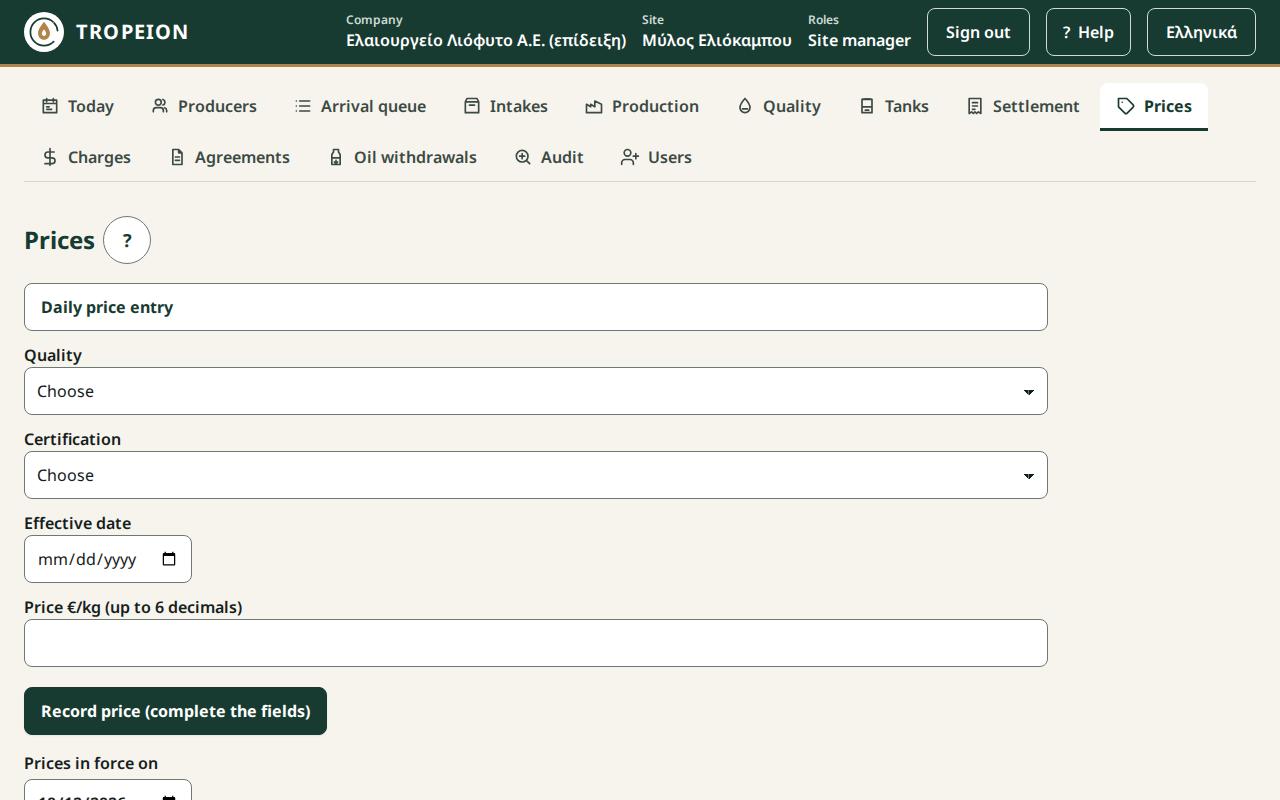
- Press Prices in the screen bar.
- In the Daily price entry form choose Quality and Certification.
- Enter the Effective date.
- Write the Price €/kg (up to 6 decimals), e.g.
6.00. - Read the button. It says what will happen: "Record price €…/kg for quality / certification from date". Press it.
- You see "Price €…/kg from … is recorded." The list and the history load again.
A price can also be entered from inside a settlement draft. When there is a "No price" blocker, the Site manager or Central manager presses Enter a price: quality / certification. The form opens there, with the quality and certification already chosen.
On the Prices page you also see:
- Prices in force on: the date. It starts with today. Change it to see which price applied on another day.
- Current price per quality and certification, on …: one row per combination. If a price is missing, it says "▲ No price: every settlement with a batch of this class is blocked, whatever the fee type".
- History (X): every price, newest first, with Status ("Active" or "Superseded · by €…/kg"), Reason and when it was Recorded.
Checks and refusals
- "Choose a quality.", "Choose a certification.", "Enter an effective date.": a field is missing.
- "Enter a price greater than 0, with up to 6 decimals.": the price cannot be 0 or have more than 6 decimals.
- "A first price for this key takes no reason.": the first price of a key takes no reason.
- "A price exists for this key and date…": someone entered a price meanwhile. The form loads again and shows the correction box.
Correcting a price
A price is never deleted or changed. A correction records a new price that supersedes the old one, with a reason. The old one stays in the history as "Superseded".
- In the form choose the same Quality, Certification and Effective date as the price you want to correct.
- An orange box appears: "Correction: the current price is €…/kg." and "Open drafts using this price will be recalculated and need a new confirmation."
- Write the right price and the Correction reason (required). Without a reason you see "A correction needs a reason."
- Press Correct price …: €old → €new/kg.
What happens next:
- Open drafts that used the old price are recalculated. Their lines are marked Changed with the reason "the price was corrected". Whoever goes to finalize them sees "The calculation changed since you saw it…" and must confirm again.
- Finalized settlements do not change. If a finalized settlement used a wrong price, it is corrected only by reversal and replacement (see "Reverse and replace" below).
Example
The price for "extra virgin / conventional" on 12 November was entered as €6.00 by mistake instead of €6.20. Nikos's draft is open, with a 10% fee and the mandatory charge «Δακοκτονία» (pest control) of €2.00.
| At €6.00 | After the correction to €6.20 | |
|---|---|---|
| Gross | 180.000 kg · €1,080.00 | 180.000 kg · €1,116.00 |
| Fee 10% | 18.000 kg · €108.00 | 18.000 kg · €111.60 |
| Pest control €2.00 | 0.333 kg | 0.322 kg (2.00 ÷ 6.20 = 0.3225… → 0.322) |
The kilograms of a percentage fee do not change. The euros and the charge kilograms do.
Common mistakes
- Wrong certification. The price for organic does not apply to conventional, and vice versa. Enter a price for every combination that shows "No price".
- Wrong date. A price for tomorrow does not cover today's settlement. A price for yesterday covers it only as the "latest prior price".
- A correction you did not intend. If the "Correction" box appears, a price already exists for that day. Check the date.
- "A percentage fee needs no price." Wrong. Without a price the settlement has a blocker, whatever the fee type.
Links
Agreements and default terms
What an agreement is
An agreement sets the mill's fee for one producer at one site:
- Fee type:
- "Percentage in oil": e.g. 10% of the gross oil.
- "Monetary fee in oil": an amount in € per kg of gross oil, turned into oil at the daily price.
- Rate or amount, with up to 4 decimals.
- Settlement: "Settlement per batch" (one production batch per settlement) or "Consolidated settlement" (several batches together).
Rules that hold in every section below:
- Terms are never changed in place. Every change is a new version from a date. The old versions stay in the history.
- The intake keeps its version. A settlement uses the version that was in force at the intake, not the one in force on the settlement day.
- After settlement, a change of terms does not touch the finalized settlement. It needs reversal and replacement.
Who sees and changes them
- Site manager and Central manager: see and change everything on the Agreements screen.
- Nobody else has the screen. The Accountant and back office and the Auditor see the terms only as they appear on each Settlement line. Anyone who opens the screen without the right sees "You have no access to the agreements of this site…".
- The Intake operator never sees fee terms.
Actions with a new sign-in: new default terms, applying them, activating a version with own terms, every copy to all sites.
The site default terms
What they are
Every site has default terms: the terms any producer gets who has no own terms. They have versions, like agreements.
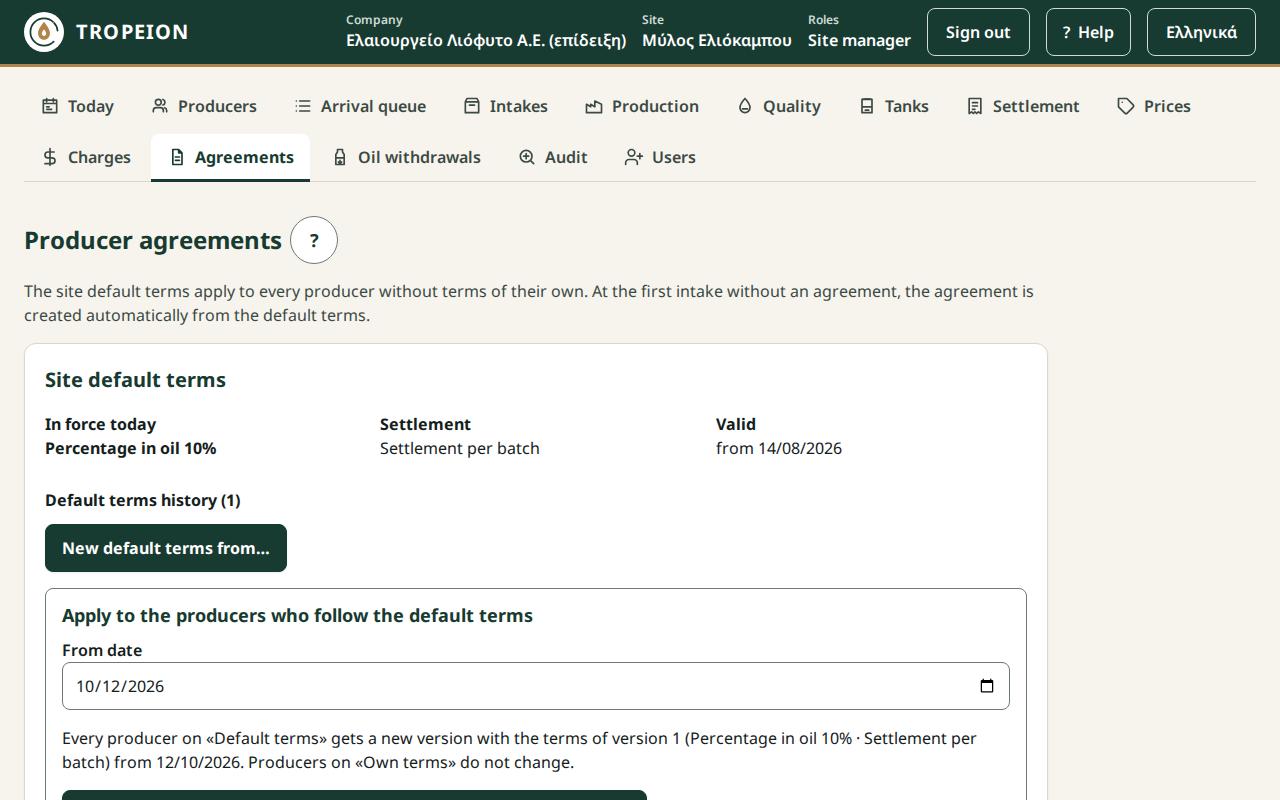
The Site default terms card shows:
- In force today: e.g. "Percentage in oil 10%".
- Settlement: "Settlement per batch" or "Consolidated settlement".
- Valid: since when.
- Default terms history (N): every version. The current one shows "In force", a future one "Future".
If the site has no default terms, the card says "The site has no default terms. An intake of a producer without an agreement will not start until they are set."
Steps: new default terms
- Press Agreements.
- On the Site default terms card press New default terms from…. The form opens with the terms in force today.
- Under Fee type choose "Percentage in oil" or "Monetary fee in oil".
- Write the Rate % (at most 4 decimals), e.g.
10, or the Fee €/kg of gross oil (at most 4 decimals), e.g.0.60. - Under Settlement choose the grouping.
- Enter Valid from. It must be after the latest version.
- Press Review the change. The What will change box states the new terms, what applies until then, and that "Existing agreements do not change now".
- Press Save the new default terms from … and sign in again if asked.
- You see "The new default terms from … were saved."
Checks and refusals
- "The date must be after … (the latest version).": default terms are never corrected backwards.
- "Give a rate above 0 and up to 100, at most 4 decimals, e.g. 8 or 8.5." or "Give an amount in € above 0, at most 4 decimals, e.g. 0.12."
- "Someone else changed the terms meanwhile…": your input was kept. Check and press again.
Correction
If you entered wrong terms, give a new version from a later date. The wrong version stays in the history.
The automatic agreement at intake
What happens
When a producer brings olives to a site and has no agreement there:
- the system creates an agreement from the default terms in force that day;
- the agreement is created together with the start of the intake;
- its history shows it as "Default terms".
The Intake operator does nothing for this and does not see the terms. It is a system rule, not a permission of their role.
Refusal
If the site has no default terms in force today, the intake does not start. The operator sees "The producer has no agreement and the site has no default terms in force today, so the intake did not start. Ask the site manager to set default terms."
Example
The default terms are "Percentage in oil 10%", "Settlement per batch", from 1 October. Nikos comes for the first time on 12 November. When the intake starts he gets an agreement at 10%. Of his 180 kg gross, the fee will be 18.000 kg.
Own terms for one producer
What they are
An exception for one producer, e.g. 8% instead of 10%. Once activated, applying new default terms no longer changes this producer.
Steps
- Press Agreements.
- Find the producer in Search (producer name or number) and press the name. The producer must already have an agreement; it is created at their first intake.
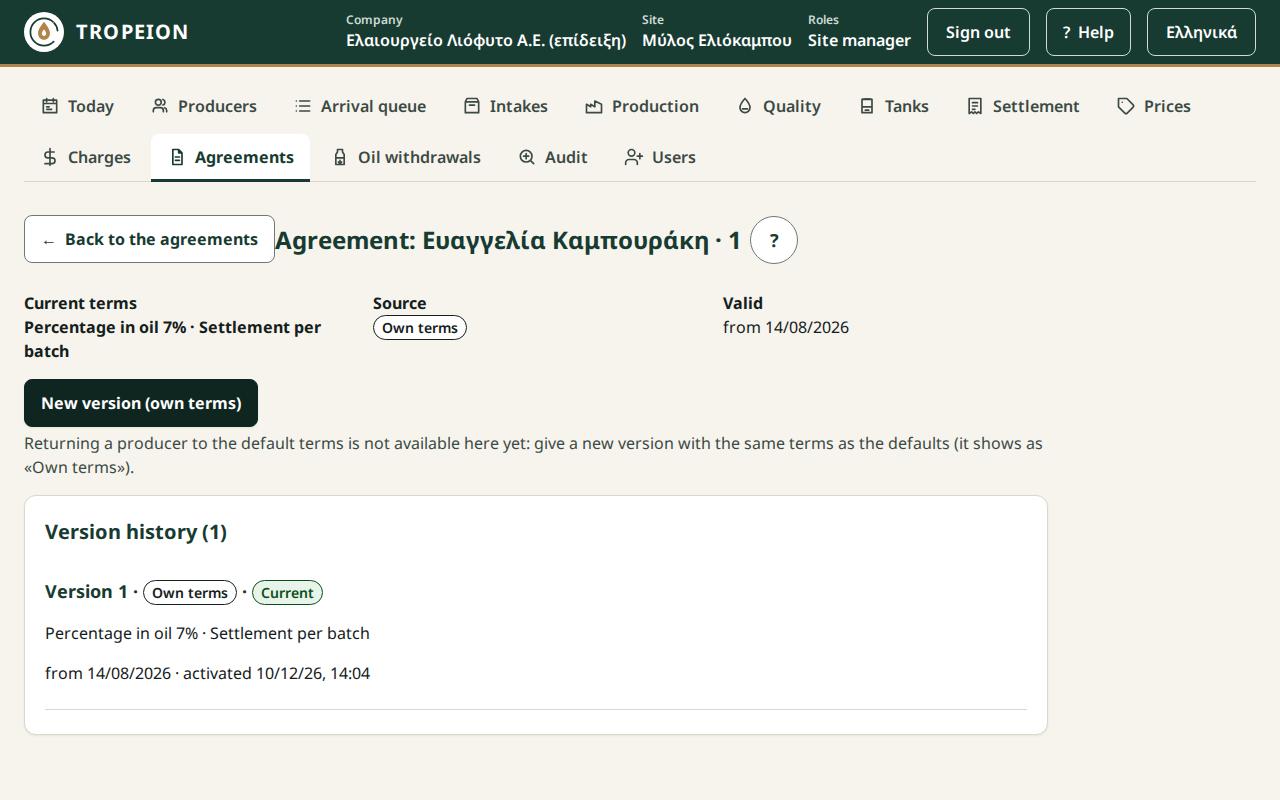
- Press New version (own terms).
- Choose the Fee type, write the rate or amount, choose Settlement and enter Valid from.
- Press Review the change. What will change says that the current version ends the day before, that intakes already made keep their version, and that "From now on, applying new default terms does not change this producer".
- Press Create and activate version … from …. The activation asks for a new sign-in.
- You see "Version … was activated from …". In the Version history the new version shows "Own terms" and "Current".
Checks and refusals
- "An intake on or after this date uses the previous version. Choose a date after the last intake.": new terms do not go back before an intake already made.
- "Version … was created as a draft but not activated.": the version shows "Draft, not in force". Fix the cause, e.g. the date, or press Activate version … from ….
Example
Nikos gets "Percentage in oil 8%" from 20 November. The intake of 12 November keeps 10%: a fee of 18.000 kg out of 180. A new intake on 25 November, with 150 kg gross, will have an 8% fee: 12.000 kg.
Returning to the default terms
Returning a producer to the default terms is not available on the screen yet. The screen says so: "Returning a producer to the default terms is not available here yet…".
What you can do today: give a new version with the same terms as the defaults. The fee will be the same, but the producer shows as "Own terms". So they will not move when you apply new default terms. You will have to give them a new version by hand.
Applying new default terms
What it does
New default terms do not change existing agreements on their own. They apply at once only to producers without an agreement. The apply moves the producers on "Default terms" to the new terms. Producers on "Own terms" do not change.
Steps
- Press Agreements.
- Below the Site default terms card, find Apply to the producers who follow the default terms.
- Enter From date, today or later. Below it you read which version and which terms will be applied.
- Press Apply to the producers who follow the default terms from … and sign in again if asked.
- You see "Version … of the default terms was applied from …" and four figures:
- Moved: how many got a new version;
- Exceptions (own terms), unchanged;
- Already on these terms;
- Not moved: those with an intake on or after the date, or a later version.
Checks and refusals
- "Give a date from today on.": the apply never goes backwards.
- "No default terms are in force on this date.": set default terms first.
- Pressing again changes nothing: everyone is counted under "Already on these terms".
Example
The site has 40 producers: 35 on "Default terms" and 5 on "Own terms". The manager sets new default terms of 9% from 1 December. At noon on 1 December, they apply them from that same day. Two of the 35 already delivered that morning. Result: Moved 33, Exceptions 5, Not moved 2. For the 2, open their agreement and give a new version from a later date.
Copy to all sites (terms)
What it does
It copies to every other site of the company:
- the site's latest default terms, as a new version at the other sites; or
- a producer's current terms, as a new version for the same producer at the other sites.
It is "all or nothing": every site or none.
Who
The Copy to all sites… button shows only when the company has more than one site, and only for:
- the Central manager; or
- a Site manager who holds that role at every site of the company.
The server checks this again. A new sign-in is always asked.
Steps
- Open the Site default terms card or the producer's agreement.
- Press Copy to all sites….
- Enter Effective from, today or later.
- Press Copy the default terms to … sites from … or Copy the producer's terms to … sites from ….
- Sign in again. The Result per site table shows for each site "Created", "New version" or "Unchanged (same terms)".
Refusals
- "The copy is not allowed: it needs the central manager or a site manager at every site. Nothing changed."
- "The date is not accepted…": a site already has a version from that date or later.
- "The company has a single site; there is nowhere to copy to."
Common mistakes with agreements
- New default terms without an apply. Existing producers stay on the old terms until you press the apply.
- Own terms "the same as the defaults". They show as "Own terms" and do not follow later changes.
- A site without default terms at the start of the season. The first intake of a new producer does not start. Set them before the counter opens.
- Changing terms after settlement. The finalized settlement does not change. It needs reversal and replacement.
Links
- Producer agreements
- How to set the default terms
- How to apply new default terms
- How to give a producer their own terms
- How to copy to all sites
Additional charges
What they are and why
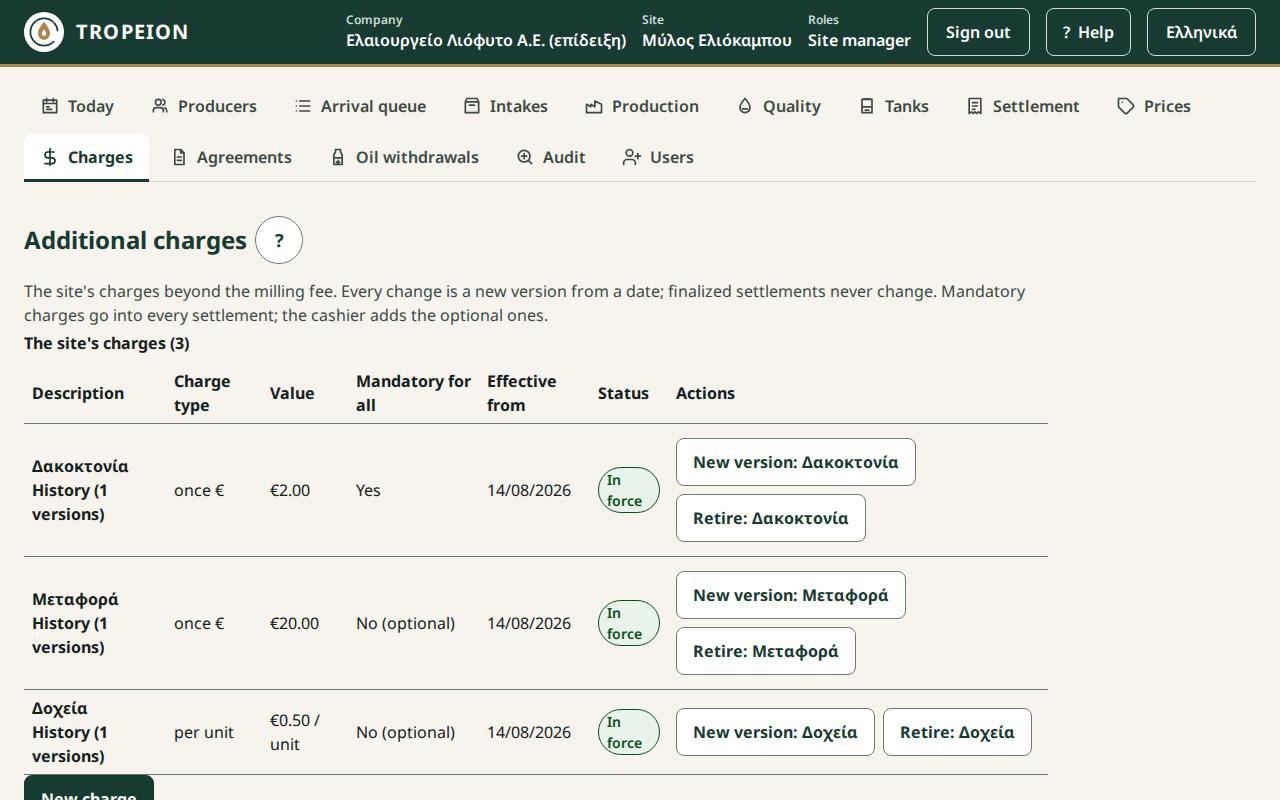
Additional charges are the site's charges beyond the milling fee, for example «Δακοκτονία» (pest control), «Μεταφορά» (transport) or «Δοχεία» (containers). Every charge is deducted in oil at settlement: its € amount becomes kg of oil at the line's daily price, like the monetary fee.
Each charge has:
- Description: free text, up to 120 characters.
- Charge type: one of the five below.
- Value: up to 2 decimals, in € or %.
- Mandatory for all: "Yes" or "No (optional)".
- Effective from and Status: "In force", "From …" (starts later) or "Retired".
Charges carry no VAT or other taxes. For tax matters, ask your accountant.
The five charge types
One example for all: Nikos, 1,000 kg of olives, 180 kg gross oil, price €6.00/kg.
| Charge type | How it is calculated | Example | In oil |
|---|---|---|---|
| once € | a fixed amount, once per settlement | €2.00 | 2.00 ÷ 6.00 = 0.333 kg |
| once % | a percentage of the gross oil, before the fee (up to 100%) | 1% of 180 | 1.800 kg · €10.80 |
| € per kg of olives | amount × the olive kg the producer delivered | €0.02 × 1,000 = €20.00 | 3.333 kg |
| € per kg of oil | amount × the gross oil kg | €0.10 × 180 = €18.00 | 3.000 kg |
| per unit | amount × the units the cashier enters at settlement | €0.50 × 7 containers = €3.50 | 0.583 kg |
For once % the charge is calculated first in kg and then in € (1.800 × €6.00 = €10.80). The other types are calculated first in € and then in kg, truncated.
When a settlement has several batches, the once € and per unit charges are applied once, on the line with the largest gross, and are turned into oil at that line's price. The other types are calculated on every line.
Mandatory or optional
- Mandatory for all: goes into every settlement on its own. In the draft it is ticked and locked: "Mandatory (locked)".
- Optional: the cashier adds it inside the settlement, when it applies to the producer.
- Mandatory per unit: the settlement cannot be finalized until units are entered. 0 is allowed.
Who does it
- Site manager and Central manager: new charge, new version, retire. No new sign-in is asked. Copying to all sites asks for a new sign-in.
- Cashier and settlement officer, Accountant and back office, Auditor (read-only): see the charges, read only. The Cashier chooses the optional charges and enters the units inside the Settlement.
- Other roles see "You have no access to this site's charges…".
Steps: a new charge
- Press Charges in the screen bar.
- Press New charge.
- Write the Description, e.g.
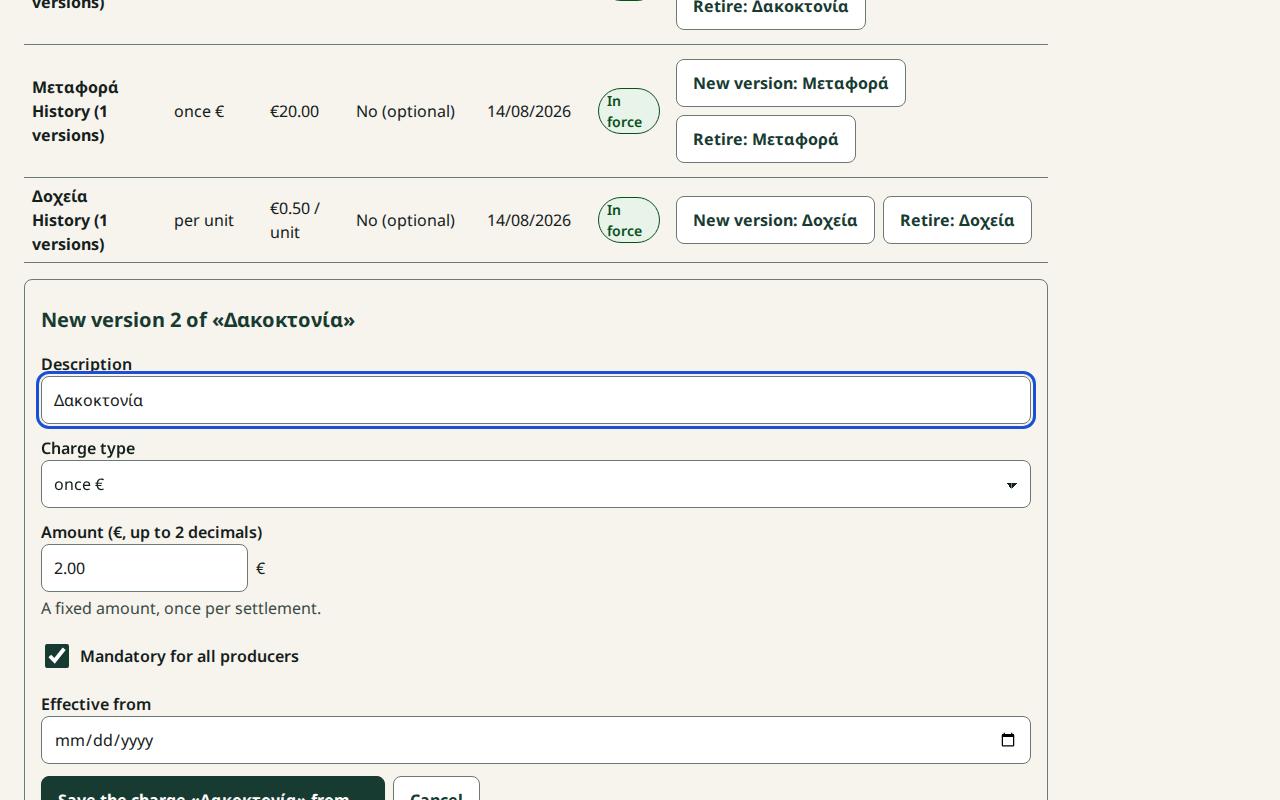
Δακοκτονία. - Under Charge type choose one of the five. The hint below the field says how it is calculated.
- Write the Amount (€, up to 2 decimals) or the Percentage (%, up to 2 decimals), e.g.
2or0.50. - Tick Mandatory for all producers if it must go into every settlement.
- Enter Effective from.
- Press Save the charge «…» from ….
- You see "Saved the charge «…» from …".
Change, retire, history
A charge is never corrected backwards.
- Change: press New version: … on its row. The form opens with the current terms. Enter a date after the latest version.
- Retire: press Retire: …, enter a date and press Retire «…» from …. From that day the charge is not in new settlements. A new version brings it back.
- History: under the description, History (… versions) shows every version.
- Finalized settlements keep the charge they had. No change affects them.
Checks and refusals
- "Enter a description (up to 120 characters)."
- "Enter an amount above 0 with up to 2 decimals (e.g. 0.50)." or "Enter a percentage from 0.01 to 100 with up to 2 decimals."
- "The date must be after … (the latest version)."
- "Someone else changed the charge meanwhile…": your input was kept. Check and press again.
- In the settlement: if the fee plus the charges exceed the gross oil of a line, the settlement has a blocker. Nothing is capped automatically.
Copy to all sites (charges)
- What it does: every charge of this site, as it is today, becomes a new version at the other sites from a date. All or nothing.
- Who: the Central manager, or a Site manager holding that role at every site. The button shows only when the company has more than one site. A new sign-in is asked.
- Steps: Charges → Copy to all sites… → Effective from → Copy the charges to … sites from … → new sign-in.
- Result: the Result per site table shows for each site how many charges were created, how many got a new version, how many were unchanged and how many were "skipped (retired)".
- Refusals: as for copying terms: "The copy is not allowed…", "The date is not accepted…", "The company has a single site…". On every refusal nothing changes.
Common mistakes
- A mandatory per-unit charge the cashier does not expect. Every settlement will ask for units. If they are not always needed, make the charge optional.
- A new version instead of a new charge. "New version" changes the same charge from a date. For a different charge press New charge.
- Expecting a finalized settlement to change. It does not. It needs reversal and replacement.
- A charge without an oil price. Without a daily price the charge cannot be turned into oil and the settlement has a blocker.
Links
Settlement
What it is and why
A settlement shows how a producer's gross oil becomes:
- the Mill fee;
- the additional charges;
- the Net to the producer.
On finalization, the net oil is credited to the producer. Only then can they take it with a withdrawal. The fee and the charges become mill-owned oil.
A settlement does not move oil in the tanks. It concerns only the oil the producer owns.
Statuses: Draft, Finalized, Reversed, Discarded.
Who does it
| Action | Cashier and settlement officer | Site manager, Central manager | Accountant and back office, Auditor (read-only) |
|---|---|---|---|
| New draft, charges, units | yes | yes | no |
| Discard a draft | yes | yes | no |
| Finalize (no new sign-in) | yes | yes | no |
| Print the statement | yes | yes | yes |
| Enter a price from the blocker | no | yes | no |
| Reverse (new sign-in) | no | yes | no |
| Replacement draft and its finalization | no | yes | no |
The Accountant and the Auditor see "Read only: your role does not create or finalize settlements." Other roles see "You have no access to settlements at this site."
The draft
Steps
- Press Settlement and then New producer settlement.
- Choose the producer with the producer search.
- The Gross allocation lines appear: one per completed production batch where the producer has oil not yet settled. Each line shows "Gross …" and whether it is Classified or Not classified yet.
- Tick the lines. Press Create draft: N lines, gross X.
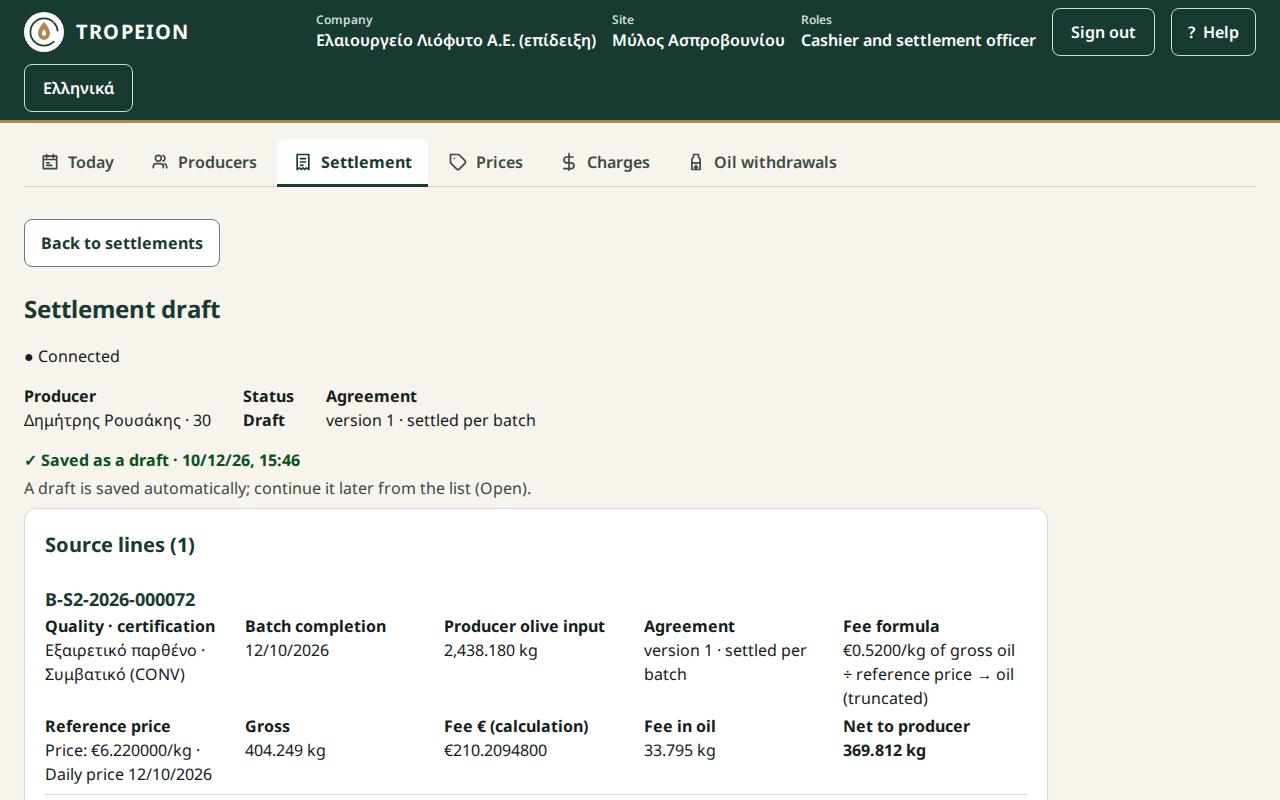
A draft is saved automatically from the moment it is created. There is no save button. It says "✓ Saved as a draft · date time". You can close the screen and continue later from the list, with Status: Open (drafts).
If the producer has nothing to settle, you see "This producer has no production to settle at this site."
What each line shows
- Quality · certification, or "Not classified yet";
- Batch completion and Producer olive input;
- Agreement: the version and the settlement grouping;
- Fee formula: "N% of gross oil (truncated)" or "€N/kg of gross oil ÷ reference price → oil (truncated)";
- Reference price: "Price: €…/kg · Daily price …", or "Latest prior price …", or "No price";
- Gross, Fee € (calculation), Fee in oil, Net to producer.
A recalculated line is marked Changed with the reason, e.g. "the price was corrected" or "a new quality decision".
Discarding a draft
- In Final review press Discard draft (the lines stay available).
- At "Discard the draft?" press Yes, discard the draft. No, keep the draft or Esc keeps it.
- The draft becomes Discarded. Its lines can go into a new draft. Discarded settlements appear only under Status: All.
Mandatory and optional charges in the draft
- In the draft find the Additional charges section.
- The mandatory ones are already ticked: "Mandatory (locked)".
- Tick an optional charge to add it, or untick it to remove it.
- For a per unit charge write the Units: a whole number from 0 to 1,000,000.
- Press Save the charges and recalculate the draft. The server recalculates.
Refusals and messages:
- "Enter the units for this charge or remove it.": you ticked an optional per-unit charge without units.
- "Save the charge changes first.": you changed something without saving. Until then finalize waits.
- "BLOCKER — A mandatory per-unit charge has no units.": enter the units (0 allowed) and save.
Blockers
While there is even one blocker, the red section "Blockers (N): finalizing is not allowed" lists them one by one, with the action that resolves each. In the list such a draft shows "■ Blockers: X", and the With blockers (X) filter finds them.
| Blocker | What you do |
|---|---|
| "BLOCKER — Batch … has no final quality classification." | Only the Quality officer classifies. The Cashier sees "Ask the quality officer to classify batch …". Managers see the link Classify batch …, which opens Quality, but they do not classify themselves unless they also hold the Quality officer role. After the decision, open the settlement again. |
| "BLOCKER — No price for batch …" | A price is missing for exactly this site, quality and certification. A manager presses Enter a price: …. The Cashier sees "Ask a manager to enter a price for …". |
| "BLOCKER — A mandatory per-unit charge has no units." | Enter the units (0 allowed) and save. |
| "BLOCKER — The fee of batch … exceeds its gross oil…" | The fee plus the charges are above the gross. Nothing is capped. A manager corrects the agreement, or press New draft without batch …. |
| "BLOCKER — The allocation of batch … was superseded." or "… is already settled elsewhere." | Press New draft without batch …. |
| "BLOCKER — The agreement of batch … settles per batch." | Press New draft without batch … and make a separate settlement for it. |
New draft without batch … discards the current draft and opens a new one with the remaining lines.
An unclassified batch can go into a draft. It just cannot be finalized until it is classified.
Finalize
Steps
- Open the draft.
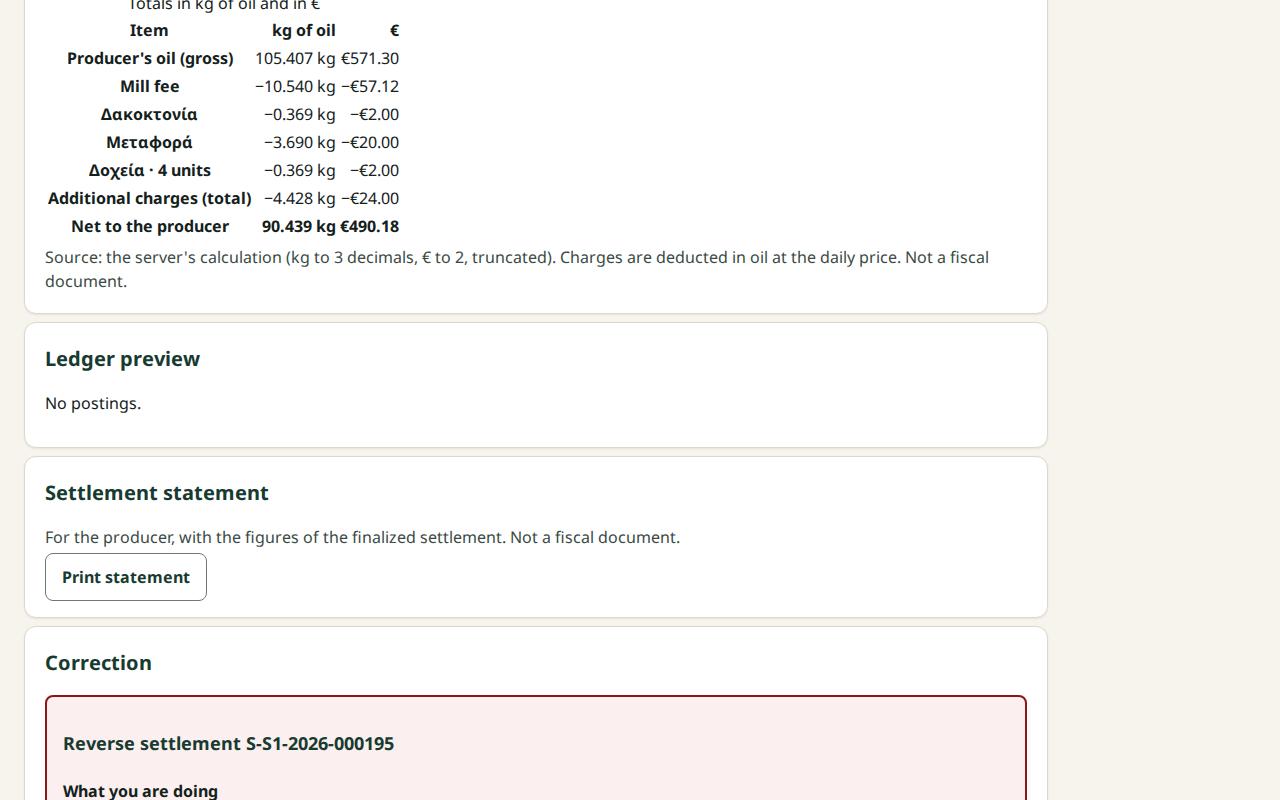
- Check every line and the Totals in kg of oil and in € table.
- Resolve every blocker.
- Check the Ledger preview: which postings will be made (Gross allocation clearing, Producer entitlement, Mill-owned oil), each as a Debit or Credit with its kilograms.
- In Final review press Finalize and credit X to producer. No new sign-in is asked.
- You see "Settlement … is finalized" and "X was credited to the producer. The ledger postings are recorded."
Final review also shows the Calculation hash you confirm: a long code that identifies exactly the calculation you saw. If the calculation changed meanwhile, finalization does not happen.
Finalizing locks the quality decisions of these batches.
Refusals
- "The calculation changed since you saw it…": meanwhile a price was corrected, a new quality decision came out or the source changed. Nothing was posted. Check the lines marked Changed and press again.
- "Someone else changed the settlement…": the current state was loaded. Check and try again.
- "A line was already settled in another settlement…": nothing was posted. Make a draft without that line.
- "A request awaits confirmation…": press Resend (same request). It will not post twice.
- "Offline: finalizing, reversing and price entry are disabled…": wait for the connection.
Totals in kg and €: a worked example
The Totals in kg of oil and in € table shows, whatever the agreement:
- Producer's oil (gross);
- Mill fee;
- one row per charge, with the units where they apply;
- Net to the producer.
The calculation rules:
- Gross in € = gross kg × price, truncated to the cent.
- Percentage fee: kg = rate × gross, truncated to the gram. € = fee kg × price.
- A € charge: kg = € ÷ price, truncated to the gram.
- Net in kg = gross − fee − charges, in kg.
- Net in € = gross in € − fee in € − charges in €.
Nikos: one batch, gross 180.000 kg, 1,000 kg of olives, "Percentage in oil 10%", price €6.00/kg. Charges:
- «Δακοκτονία» (pest control): once €2.00, mandatory;
- «Μεταφορά» (transport): once €20.00, optional. The cashier adds it;
- «Δοχεία» (containers): per unit €0.50, optional. The cashier adds it and enters 7 units.
| Item | kg of oil | € | Calculation |
|---|---|---|---|
| Producer's oil (gross) | 180.000 | 1,080.00 | 180 × 6.00 |
| Mill fee | 18.000 | 108.00 | 10% of 180 · 18 × 6.00 |
| Pest control | 0.333 | 2.00 | 2.00 ÷ 6.00 = 0.3333… |
| Transport | 3.333 | 20.00 | 20.00 ÷ 6.00 = 3.3333… |
| Containers (7 units) | 0.583 | 3.50 | 7 × 0.50 = 3.50 · 3.50 ÷ 6.00 = 0.5833… |
| Net to the producer | 157.751 | 946.50 | 180.000 − 18.000 − 0.333 − 3.333 − 0.583 · 1,080.00 − 108.00 − 25.50 |
On finalization Nikos is credited 157.751 kg. The 18.000 kg of the fee and the 4.249 kg of the charges become mill-owned oil.
With a monetary fee. If the agreement were "Monetary fee in oil €0.60/kg", the fee would be 180 × €0.60 = €108.00, which at €6.00/kg is again 18.000 kg. Here the price changes the fee kilograms: at €6.35/kg the €108.00 would be 17.007 kg.
Why the net € is not always kg × price. At €6.35/kg with a 10% fee:
- gross €1,143.00; fee 18.000 kg · €114.30;
- charges: 0.314 + 3.149 + 0.551 kg, €25.50 in total;
- net 157.986 kg and €1,003.20 (1,143.00 − 114.30 − 25.50).
157.986 × 6.35 would give 1,003.21. The one-cent difference comes from truncation. The table always shows the € as the server calculates them, by subtraction.
Without a reference price the € column shows "—" and the settlement has a price blocker.
The settlement statement
What it is
The paper you give the producer with the figures of a finalized settlement. It says "Not a fiscal document", at the top and the bottom. It has no fiscal numbering and does not replace an invoice or a receipt. Fiscal documents are issued outside TROPEION: ask your accountant.
Who
Every role that sees the settlement: Cashier and settlement officer, Site manager, Central manager, Accountant and back office, Auditor (read-only).
Steps
- In Settlement choose Status: Finalized and open the settlement.
- In the Settlement statement section press Print statement.
- The Settlement statement … opens with: company and site; the producer, their number and tax id (AFM); the settlement number and finalization date; the lines; the totals in kg and €; the signatures "The producer" and "For the olive mill".
- Press Print. Only the statement is printed, without buttons. In the browser's dialog you can also save it as a PDF.
- Press Back to the settlement.
Refusals
- You do not see Print statement: the settlement is not finalized. A draft or a reversed settlement is not printed.
- "The producer could not be loaded; the statement did not open. Try again.": check the connection and press again.
- A mistake on the statement: it is not corrected. Reverse and replace, and print the new settlement's statement.
Reverse and replace
What it is
A finalized settlement never changes. If it is wrong:
- the reversal makes an inverse posting: it removes the net from the producer and the fee from the mill's oil, and makes the lines available again;
- the replacement is a new settlement with the right data.
The old settlement stays visible as Reversed. The new one says which settlement it Replaces. There is no undo and no "edit".
Who
Only the Site manager and the Central manager. The reversal asks for a new sign-in. The replacement draft and its finalization do not ask for a second one.
Steps
- First fix the cause of the mistake, e.g. the price or the classification, so the replacement comes out right.
- In Settlement choose Status: Finalized and open the settlement.
- In the Correction section press Reverse and replace.
- Read What you are doing, What will change, Who is affected and What cannot be undone.
- Write a Reason (required), up to 500 characters.
- Under Replacement intent choose "to be replaced by a new settlement" or "no replacement".
- Press Reverse: remove X from the producer and replace (or Reverse: remove X from the producer). Sign in again. The same request is sent once.
- The status becomes Reversed.
- Press Open the replacement draft. The old lines are already ticked. Press Create replacement draft: ….
- Check and finalize the new draft.
Refusals
- "The reversal needs a fresh sign-in…": sign in. The same request is sent after it.
- "Replacement is not allowed…": the settlement was reversed with "no replacement", or is already replaced. Its lines are still available for a new ordinary settlement.
- If you close the dialog with Close without reversing, nothing changes.
Example
Nikos's settlement was finalized at €6.00 instead of €6.35. The Site manager:
- corrects the price in Prices to €6.35, with a reason;
- reverses with the reason "wrong price 12/11" and "to be replaced by a new settlement". 157.751 kg are removed from Nikos;
- opens and finalizes the replacement. 157.986 kg are credited.
The Audit shows the price correction, the reversal and the new finalization, with name and time.
Common mistakes with settlement
- Waiting for an "edit". The only correction of a finalized settlement is reversal and replacement.
- Reversing before fixing the cause. The replacement will carry the same mistake.
- The wrong intent. With "no replacement" no replacement draft opens from that settlement.
- Unsaved charge changes. Without Save the charges and recalculate the draft finalize waits.
- "Let the cashier enter the price." They cannot. Only managers enter prices.
Links
- Settlement
- How to create a settlement
- How charges enter the settlement
- How to finalize a settlement
- How to discard a settlement draft
- How to print a settlement statement
- How to reverse and replace a settlement
Users
What it is and why
On the Users screen you manage the company's people after onboarding:
- invite new users by email;
- give one or more roles, and different ones at each site;
- set an end date for seasonal staff;
- deactivate and reactivate;
- send the invitation again, or a password reset email.
Nobody sets and nobody sees another person's password. Nothing is deleted. Every change shows in the Audit.
Who does what
- Central manager: every user of the company and every role, including company roles. They can change or deactivate another Central manager.
- Site manager: only the users of their own sites, and only site roles: Intake operator, Production operator, Quality officer, Warehouse and tank operator, Cashier and settlement officer, Queue display (view only). They never grant Site manager, Central manager, Accountant and back office or Auditor (read-only).
- Nobody else has the screen. Others see "You have no access to user management. The Central manager and the Site manager manage users."
Three rules for everyone:
- Nobody changes their own roles or status. On your own account the buttons cannot be pressed and it says "This is your own account: you do not change your own roles or status. Ask another manager."
- The company is never left without an active Central manager without an end date. A change that would do so is refused: "Not possible: the company would be left with no active Central manager without an end date. Appoint another Central manager first."
- The Site manager does not touch managers, accountants, auditors or users with a role at another site. It says "…the Central manager manages them".
The public demo accounts do not change: "Public demo account: its roles and status do not change."
When a new sign-in is asked
- On invitation and role change, when you grant, remove or change a Site manager, Central manager, Accountant and back office or Auditor (read-only) role.
- Always to deactivate or reactivate.
- Never to send the invitation again or a password reset.
After the sign-in the action is sent on its own and you return to the same user.
The list
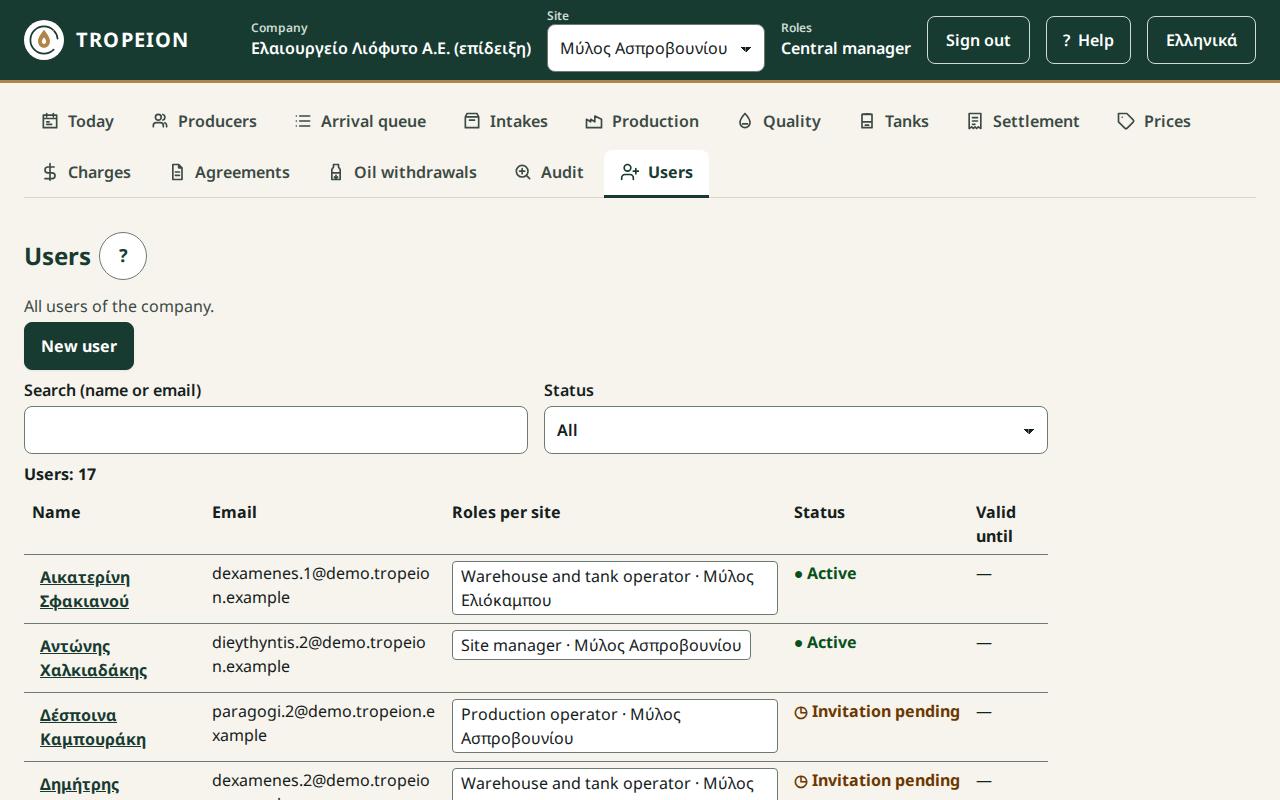
Press Users. Each row has Name, Email, Roles per site (e.g. "Cashier and settlement officer · Mill A1", or "Whole company" for a company role), Status ("Active", "Invitation pending", "Inactive") and Valid until. Search (name or email) and Status filter. 50 users show; More brings the next ones.
Inviting a new user
Steps
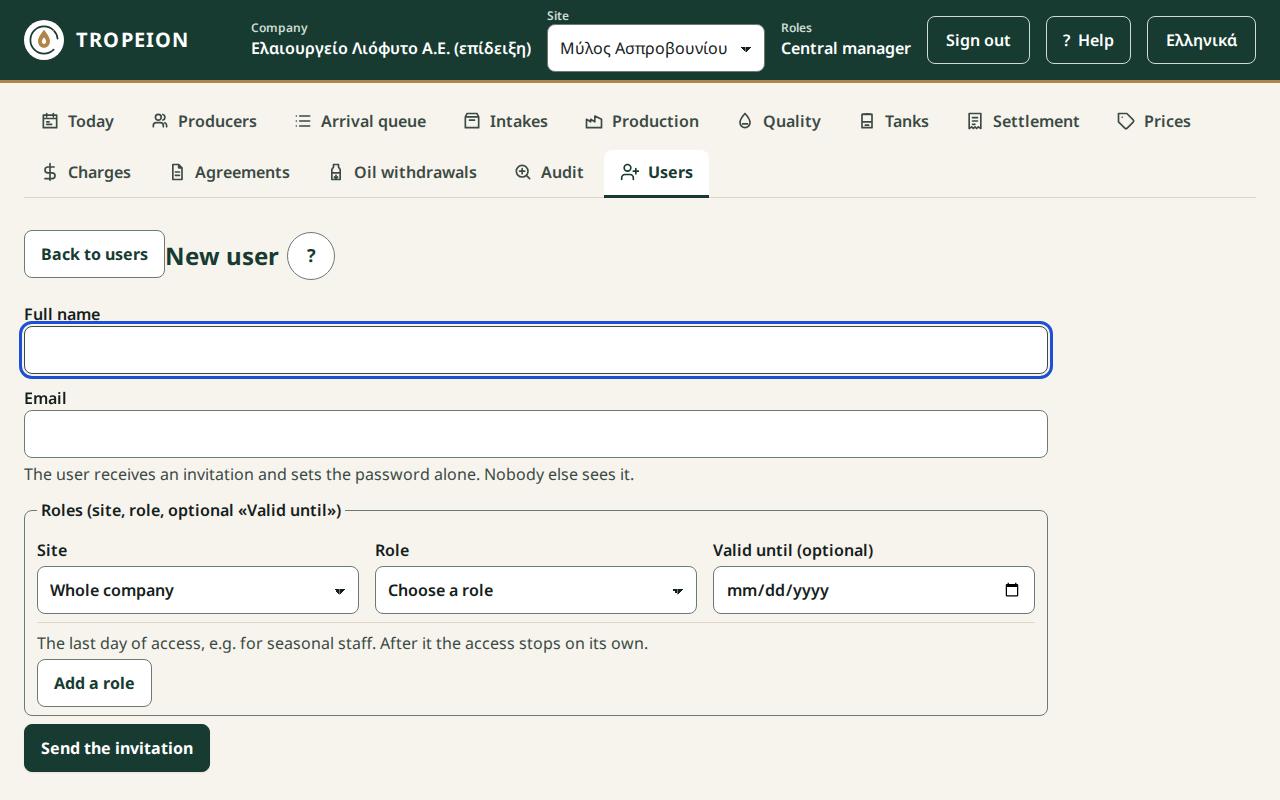
- Press Users and then New user.
- Write the Full name (up to 200 characters) and the Email.
- In the role row choose Site and Role. For seasonal staff also enter Valid until (optional).
- For a second role, or a role at another site, press Add a role.
- Press Send the invitation to …. For a privileged role, sign in again.
- You see "An invitation was sent by email.". The user is "Invitation pending" until they set a password from the email.
Checks and refusals
- "This email already belongs to a user or an open invitation of the company. Look for it in the list."
- "The address cannot be used; contact support.": the email is not accepted, for example when it already has an account at another company. Contact TROPEION support.
- "The same role at the same site is already in another row."
- "The date cannot be in the past."
Correction
- The user cannot find the email: open them and press Send the invitation again to ….
- The invitation went to a wrong email: open the user and press Cancel the invitation: …. The link stops working. Then invite the right email.
Several roles for one user
One user can hold many roles, and different ones at each site. They see the screens of all of them together and can do anything any one of them allows.
Steps: adding a role
- Press Users and then the user's name.
- Press Add roles.
- Choose Site, Role and, if you want, Valid until.
- Press Add … roles to …. You see "The roles were added.".
Steps: removing a role
- On the role press Remove now: ….
- You see "The role was removed. Access stops from the next request.". The role moves to the Role history.
Refusals
- "The user already holds this role at this site for the same period."
- "Someone else changed the user meanwhile…": your rows were kept. Check and press again.
Example
Eleni works at the counter of site 1 and also does the till. The Site manager gives her Intake operator and Cashier and settlement officer at site 1. She sees the Arrival queue, Intakes, Settlement, Prices (read), Charges (read) and Oil withdrawals.
Caution: An owner who is the only Central manager cannot give themselves the Quality officer role. They take it from the start, with the onboarding Excel, or a second Central manager gives it to them. Without a Quality officer no settlement can be finalized.
End dates for seasonal staff
What it is
Every role can have Valid until: the last day of access. From the next day the role stops on its own, with no further action. Each role has its own end date.
Steps
- For a new user: enter Valid until on each role row before sending.
- For an existing user:
- Open the user.
- On the role press End date: ….
- Enter Valid until and press Valid until …: ….
- You see "The end date was saved.".
- No end date: clear the date and press No end date: ….
Refusals and correction
- "The date cannot be in the past.": to stop access now, press Remove now: ….
- The end date has passed: the role is in the Role history. For the next season, add it again with a new end date.
Example
Giorgos works the season as Intake operator at site 1, with Valid until 31 January. On 31 January he works normally. On 1 February he has no access any more. In October the Site manager gives him the role again, until 31 January of the following year.
Deactivate and reactivate
What it is
Deactivation stops all of the user's access. It deletes nothing: the history and what they did stay. It always asks for a new sign-in.
Steps
- Open the user.
- Under Account press Deactivate: ….
- Read: "The user loses access from the next request and all their sessions are ended…".
- Confirm with Deactivate: … and sign in again.
- You see "The user was deactivated and their sessions are ended.".
To let them work again: Reactivate: …, again with a new sign-in. You see "The user was reactivated.".
If the user has not signed in yet, the button reads Cancel the invitation: ….
Example with the last Central manager rule
The company has two Central managers: Maria, without an end date, and Petros, with an end date of 31 December. Petros tries to deactivate Maria. The action is refused: the company would be left with no active Central manager without an end date. If Petros had no end date, the deactivation would go through, with a new sign-in.
Invitation again and password reset
- Send the invitation again to …: for a user in "Invitation pending". You see "The invitation was sent again by email.".
- Password reset: email to …: the user gets an email and sets a new password alone. You see "A password reset email was sent.". You neither see nor set the password.
- At most 3 emails per hour go to one user. Beyond that you see "Too many requests…".
- Neither action asks for a new sign-in.
Common mistakes with users
- The owner without the quality role. See the caution above.
- One shared account for several people. Each person needs their own account, so the Audit shows who did what.
- The Queue display on a personal account. The Queue display (view only) needs a separate account with only that role. Otherwise the ordinary Arrival queue opens, with names.
- An end date instead of a removal. The end date does not accept yesterday. To stop access at once press Remove now.
Links
- Users
- How to invite a new user
- How to change a user's roles
- How to set an end date for a seasonal user
- How to deactivate a user
Audit
What it is and why
The Audit screen shows who did what and when: every action that was recorded, for example a settlement finalized, a price corrected, a user's roles changed. It is read only. Nothing is deleted or changed from there. It records only completed actions.
It helps you explain a difference, find who made a correction, and review sensitive actions regularly.
Who sees it
- Central manager, Accountant and back office, Auditor (read-only): the whole company, with a Site filter.
- Site manager: only the selected site. They do not see other sites or company-level actions.
- Others do not have the button. If they open the screen, they see "You have no access to the audit."
What it shows
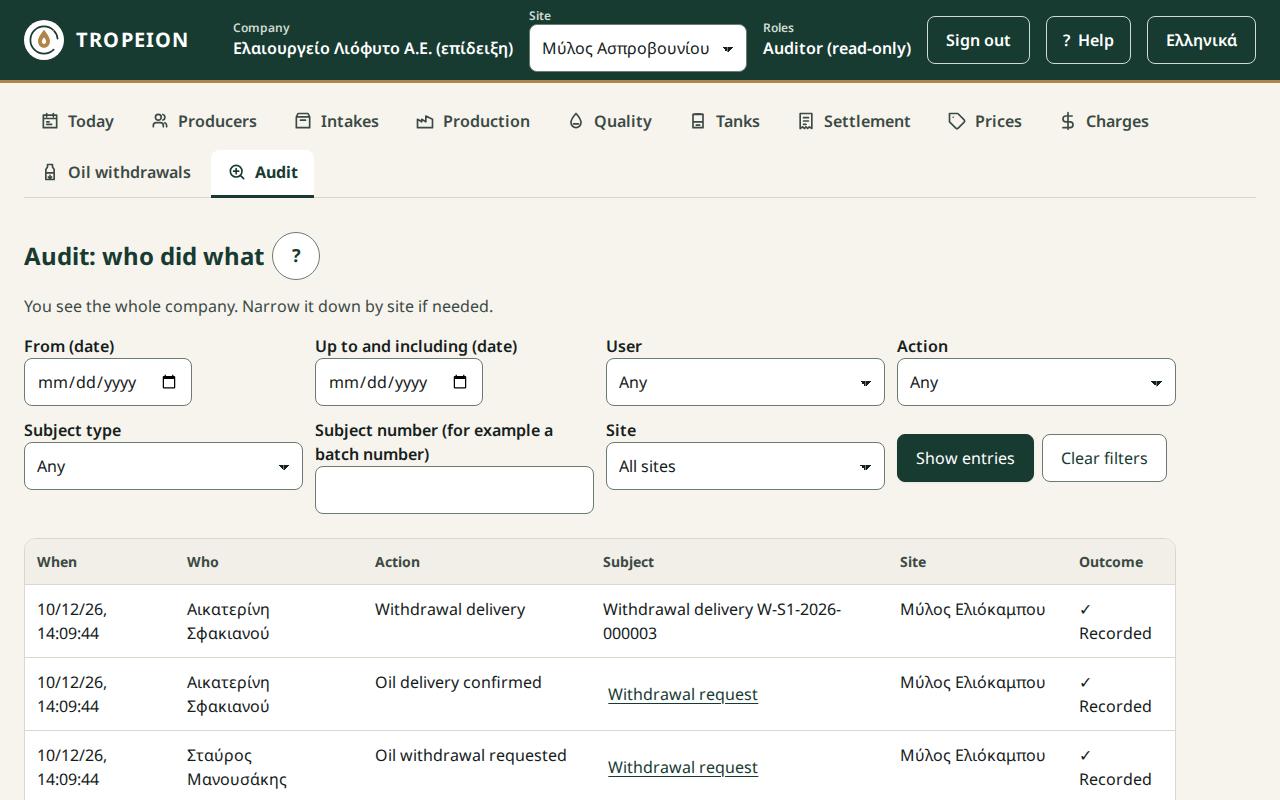
Newest first. Each row: When, Who (or "System" for an automatic action), Action, Subject (e.g. "Settlement ΕΚ-2026-0007"), Site (or "Whole company"), Outcome ("Recorded"). When the subject has a screen you can open, the number is a link. More brings older entries.
Steps: finding who did what
- Press Audit.
- Fill in the filters you know:
- From (date) and Up to and including (date), in site time;
- User;
- Action;
- Subject type and Subject number. To search by number, also choose the type;
- Site, only for those who see the whole company.
- Press Show entries. Clear filters shows everything again.
Messages:
- "No entries for these filters.": change or clear the filters.
- "The "up to" date cannot be before the "from" date."
- "The entries could not be loaded. Check the filters and try again.": press Reload.
Example
Nikos says his statement shows 157.751 kg, but he now has 157.986 kg. The owner opens the Audit, sets From 12/11 and presses Show entries. Among the entries they find three, with name and time: the price correction, the reversal of the old settlement and the finalization of the replacement.
Common mistakes
- A Site manager looks for an action of another site or a company-level action. They cannot see it. Ask the Central manager.
- Searching by number without a type. Also choose the Subject type.
Links
Today
What it is and why
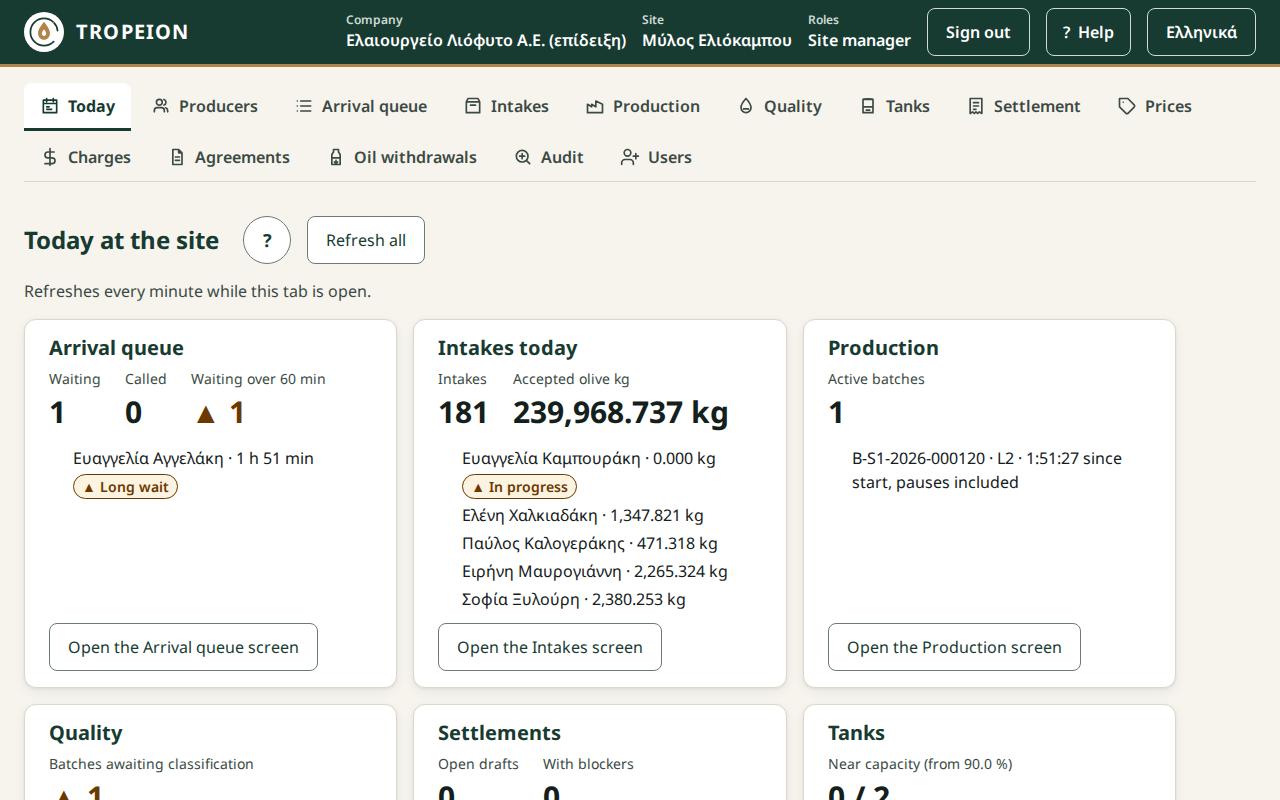
The Today screen shows at a glance what is happening now at the selected site. Each tile has a figure, a short list and a button that opens the related screen. Today only shows. The work is done on the screen the tile opens.
It is the first screen after sign-in for the Site manager, the Central manager, the Accountant and back office and the Auditor (read-only).
Who sees it
Every role except the Queue display (view only) and the Platform operator (tenant onboarding). Each role sees only the tiles of the screens it can open.
The tiles
- Arrival queue: how many are waiting, how many were called, how many have waited longer than the site's limit (usually 60 minutes), with the names and waits of the first ones.
- Intakes today: how many intakes took place today and the accepted olive kg. Cancelled intakes do not count.
- Production: the active batches and the paused ones, with the line and the time since start, pauses included.
- Quality: the batches awaiting classification.
- Settlements: the open drafts and how many have blockers.
- Tanks: the tanks near capacity, with their fill percentage.
- Latest actions: the last 5 actions of the Audit.
A ▲ mark shows something that needs attention.
Refreshing and messages
- The figures refresh every minute while the tab is open. While the tab is hidden the refresh stops, and it runs at once when you return. Refresh all loads them now.
- Each tile loads on its own. If one fails, it says "The figures could not be loaded. Try again." and the others stay. Press Reload on the tile.
- "Showing the figures from …": the last refresh failed and you see the figures of that time.
- "Partial view: only the first results are counted.": open the screen for the full list.
Example
At 17:00 the Site manager sees 3 open drafts, 1 with blockers, on the Settlements tile, and 1 batch awaiting classification on the Quality tile. The blocker is probably the classification. They open Settlement with the With blockers filter to confirm it and tell the Quality officer.
Common mistakes
- "A tile is missing." Your role does not see that screen. For example, the Cashier has no Queue tile.
- "The figures are from another site." Today shows only the selected site. Change it in the "Work context" bar.
Links
Onboarding a new olive mill
What it is
Onboarding creates your company in TROPEION from an Excel file, the onboarding template. TROPEION staff do it with the Platform operator (tenant onboarding) role. That role sees no olive mill's data. You, as the owner, fill in or check the data in the file.
What the file contains
One sheet per section:
- the company and the sites (olive mills);
- the users, with role, scope (
siteortenant) and mill code; - the production lines and the tanks, with their capacity in kg;
- the quality and certification classes, the varieties;
- the lab, production measurement and byproduct types;
- the oil prices;
- the producers and their agreements.
The file has no sheet for the site default terms or for additional charges. You set those afterwards, on the Agreements and Charges screens, before the first intake.
What the owner needs to know
- Several roles for one person: write several rows with the same email on the Users sheet. They become one user, with all those roles, and one invitation.
- The quality role for the owner: if you classify the oil yourself, add two rows: Central manager with scope
tenant, and Quality officer with scopesiteand the mill's code. Later you cannot give it to yourself. - Nothing is created before confirmation. The server checks the file and shows a preview with every error and warning. Errors must be fixed. Warnings, e.g. a tax id (AFM) with a wrong check digit, do not block, but check them.
- The confirmation asks the Platform operator for a new sign-in. A checked batch that is not confirmed is discarded on its own after 72 hours.
- Invitations: each user gets an email and sets their own password. Nobody sets a password for someone else.
- For a new tenant only. The template does not update an existing company. After onboarding, changes are made on your own screens, e.g. users on Users.
Example: a small mill with 3 people
On the Users sheet:
| Role | Scope | Mill code | |
|---|---|---|---|
| owner | Central manager | tenant | (empty) |
| owner | Quality officer | site | the site's code |
| counter | Intake operator | site | the site's code |
| counter | Cashier and settlement officer | site | the site's code |
| machine | Production operator | site | the site's code |
| machine | Warehouse and tank operator | site | the site's code |
Six rows, three users, three invitations. In the Role column you write the role's code given in the help page Tenant onboarding.
Common mistakes
- An old template. A file from an older template is rejected whole. Always download the current one.
- A user without an email. They cannot be invited.
- Scope and mill code. With
tenantthe mill code stays empty. Withsiteit is required. - Forgotten default terms. Without them, the first intake of a new producer does not start.
Links
Self-check quiz
- The agreement is "Percentage in oil 10%". Is a daily price needed to finalize the settlement?
- You set new default terms. Did the agreements of your existing producers change?
- Who enters the units of a "per unit" charge?
- Does finalizing a settlement ask for a new sign-in? Does a reversal?
- Gross 180 kg, price €6.00/kg, a once € charge of €20.00. How many kg of oil are deducted for the charge?
- Can a Site manager grant the Accountant and back office role?
- Is the settlement statement an invoice?
Answers:
- Yes. A price is needed on every line, whatever the fee type.
- No. It needs Apply to the producers who follow the default terms. Producers on own terms never change from there.
- The Cashier and settlement officer (or a manager), inside the settlement draft.
- Finalizing does not. A reversal does.
- 3.333 kg (20.00 ÷ 6.00 = 3.3333…, truncated).
- No. Only the Central manager grants company roles.
- No. It is "Not a fiscal document". For tax matters, ask your accountant.