First day of setup
What this chapter is for
This chapter covers what you do once, before the first intake: the onboarding Excel, the users and invitations, the site default terms, the additional charges, the first daily prices, a check of the tanks and lines, and a test run on the demo.
Each step is a checklist item with the reason it is needed. If you skip a step, we say what you will see on screen later.
The checklist at a glance
- Fill in the onboarding Excel and send it to TROPEION.
- In the Users sheet: every person with all their roles. The owner also takes Quality officer.
- Every user opens the invitation email and sets a password.
- In Agreements: the site default terms.
- In Charges: the additional charges.
- In Prices: no row left with "No price".
- In Tanks and Production: all tanks and lines are there.
- A test day on the demo.
Steps 4 to 6 are done by the Central manager or the Site manager. If the company has several sites, steps 4 to 7 are done for each site.
Step 1: The onboarding Excel
TROPEION creates your company from an Excel file, the onboarding template. You fill it in. TROPEION staff upload it, check it, look at a preview and confirm. Nothing is created before the confirmation.
Why this way: one file creates the company, the sites, the lines, the tanks, the classes, the users and, if you want, the producers and the prices together. You do not type them one by one in the application.
How it is built
- One sheet per section.
- Row 2 of each sheet holds the Greek column titles. Data starts on row 3.
- Do not rename, delete or add sheets. Do not change the order or the names of the columns.
- Always fill in the current template. A file made from an older template is rejected as a whole.
- Do not use formulas. Type the values.
The sheets
The column titles in the file are in Greek. The table gives them as they appear, with a translation.
| Sheet | What you enter | Columns (as in the file) |
|---|---|---|
| Company | the company, exactly one row | Κωδικός (code), Όνομα (name), Ζώνη ώρας (προεπιλογή) (default time zone), Τρέχουσα περίοδος (current season) |
| Sites | the sites (mills) | Κωδικός, Όνομα, Ζώνη ώρας |
| Users | the users and their roles | Email, Ονοματεπώνυμο (full name), Ρόλος (role), Εύρος (site/tenant) (scope), Κωδικός ελαιοτριβείου (mill code) |
| Lines | the production lines of each site | |
| Tanks | the tanks of each site | with Χωρητικότητα (kg) (capacity) |
| QualityClasses | the quality classes | with Σειρά ποιότητας (quality rank) |
| CertificationClasses | the certifications (e.g. organic, conventional) | with Σειρά πιστοποίησης (rank) and Ομάδα συμβατότητας (compatibility group) |
| Varieties | the olive varieties | |
| LabTypes | the lab measurements (e.g. acidity) | with Μονάδα (unit) and Υποχρεωτικό (required) |
| MeasurementTypes | the production measurements of each site (e.g. malaxing temperature) | with Προειδοποίηση κάτω από / πάνω από (warn below / above) |
| ByproductTypes | the byproducts of each site (e.g. pomace) | |
| Prices | the first oil prices | Κωδικός ελαιοτριβείου, Κωδικός ποιότητας, Κωδικός πιστοποίησης, Ημερομηνία ισχύος (effective date), Τιμή ανά kg (price per kg) |
| Producers | the producers you already know | ΑΦΜ (tax number), Όνομα, Κινητό (mobile), Email |
| Agreements | producer agreements, if you already have them | ΑΦΜ παραγωγού, Κωδικός ελαιοτριβείου, Ισχύει από, Ισχύει έως, Τύπος αμοιβής (fee type), Ποσοστό αμοιβής (rate), Χρηματική αμοιβή (monetary fee), Ομαδοποίηση εκκαθάρισης (settlement grouping) |
The values you type in some columns, such as Role, Fee type and Settlement grouping, are in the help page New tenant onboarding.
What to think about now:
- Tanks and lines. List them all, with the right capacity. After onboarding there is no screen to add a tank or a line.
- Certifications. If you mill organic olives, you need a class for organic and one for conventional. The batch certification and the price depend on them.
- Measurement limits. The warning limits of the production measurements decide when the Production screen shows a warning card.
- Producers. You do not have to list them all. The missing ones are registered when they arrive, with New producer.
- Agreements. You do not have to list an agreement for every producer. A producer with no agreement gets the site default terms automatically at the first intake (step 4).
Note: The template only creates a new company. It does not update an existing one. After onboarding, changes are made in the application screens.
See the help New tenant onboarding and How to onboard a new tenant.
Step 2: The users in the Users sheet
In the Users sheet each row gives one role to one user.
- For several roles, write several rows with the same email. Rows with the same email become one user with all those roles, and get one invitation.
- Company role (Central manager, Accountant and back office, Auditor (read-only)): scope
tenant, the mill code stays empty. - Site role (all the others): scope
site, and the site's mill code is required. - Every row needs an email. The invitation is sent there.
The owner also takes the Quality officer role
This is the most important point of the sheet.
- Only the Quality officer finalizes the quality classification. The Central manager and the Site manager cannot.
- Without a classification, no settlement can be finalized.
- Nobody can change their own roles. If the owner is the only Central manager, they cannot later give themselves the Quality officer role.
So, if the owner judges the quality, write two rows with the same email:
| Full name | Role | Scope (site/tenant) | Mill code | |
|---|---|---|---|---|
| eleni@… | Eleni P. | Central manager | tenant | (empty) |
| eleni@… | Eleni P. | Quality officer | site | the site's code |
In the Role column you type the value that matches each role, as given in the help page New tenant onboarding.
Suggestions by size
- 1 person: the owner: Central manager + Quality officer.
- 2–3 people: the owner as above; at the desk Intake operator + Cashier and settlement officer; at the machine Production operator + Warehouse and tank operator.
- 5+ people: one Site manager per site, one or two work roles per person, Accountant and back office for the accountant.
- Queue display: if you have a screen in the waiting room, give it a separate account with only the Queue display (view only) role, with its own email.
Details are in the chapter "Roles: who does what", section "Small mill".
Step 3: The invitations and the first sign-in
After onboarding is confirmed, every user gets an invitation email.
- The user opens the email and sets their own password. Nobody else sets or sees another person's password.
- They open TROPEION and press Sign in.
- They check the Work context bar: the Company, the Site and their Roles.
Why check the roles on day one: a missing role shows at once, because the matching screen button is missing. It is easier to fix before the first intake.
In the Users screen, the Central manager sees who has not signed in yet: the Status says "Invitation pending".
- If someone cannot find the email, open the user and press Send the invitation again.
- If the invitation went to a wrong email, press Cancel the invitation and invite them again with the right one.
- You add new users with New user. For seasonal staff, give a Valid until date.
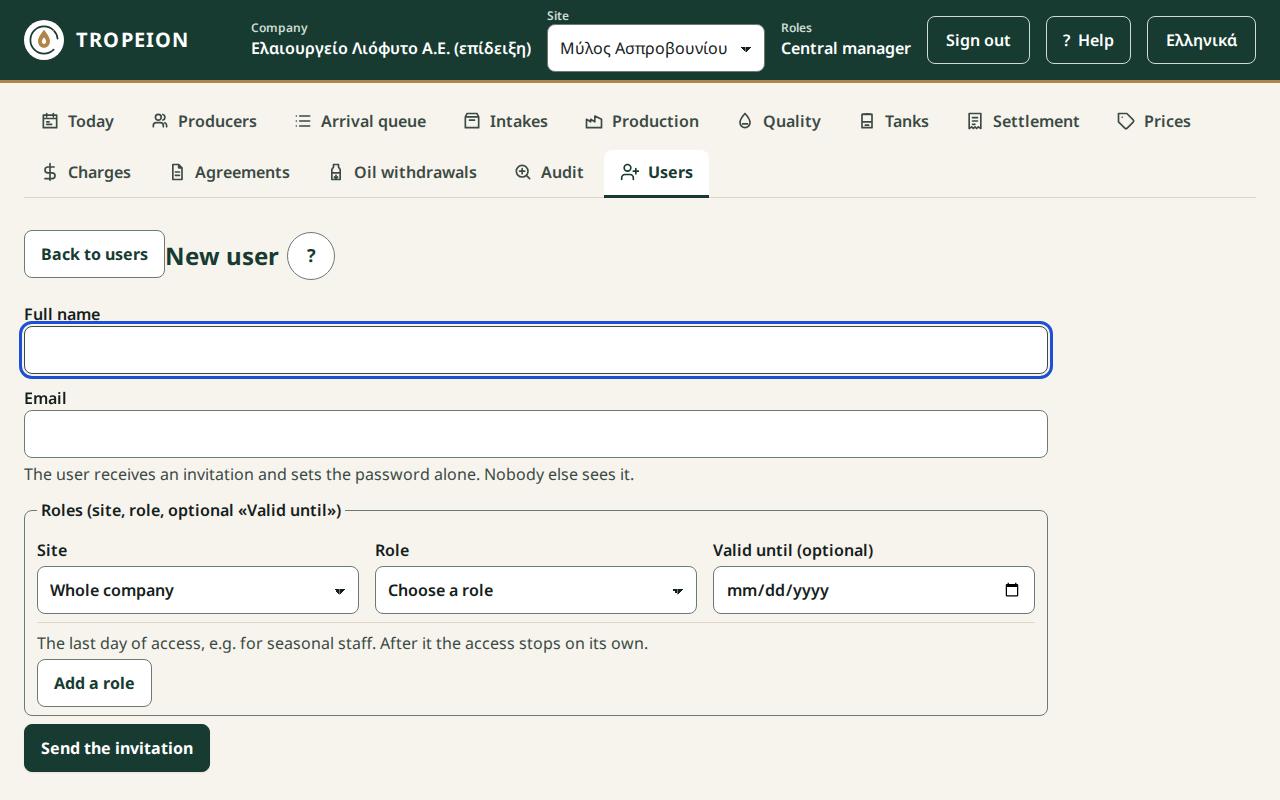
See How to invite a new user and How to follow the user invitations.
Step 4: The site default terms
Who: Central manager or Site manager. Screen: Agreements.
Why: when a producer with no agreement brings olives, the system creates their agreement automatically from the default terms. If the site has no default terms, that producer's intake does not start. The Agreements sheet of the Excel gives agreements only to specific producers. You set the default terms in the screen.
- Press Agreements.
- On the Site default terms card, press New default terms from….
- In Fee type choose "Percentage in oil" or "Monetary fee in oil".
- Enter the Rate %, e.g.
10, or the Fee €/kg of gross oil. - In Settlement choose "Settlement per batch" or "Consolidated settlement".
- Enter Valid from.
- Press Review the change and read the What will change box.
- Press Save the new default terms from …. You will be asked to sign in again.
If some producers have a different agreement, give them a New version (own terms) from the agreement list.
If the company has several sites, the Central manager can press Copy to all sites…, with a fresh sign-in.
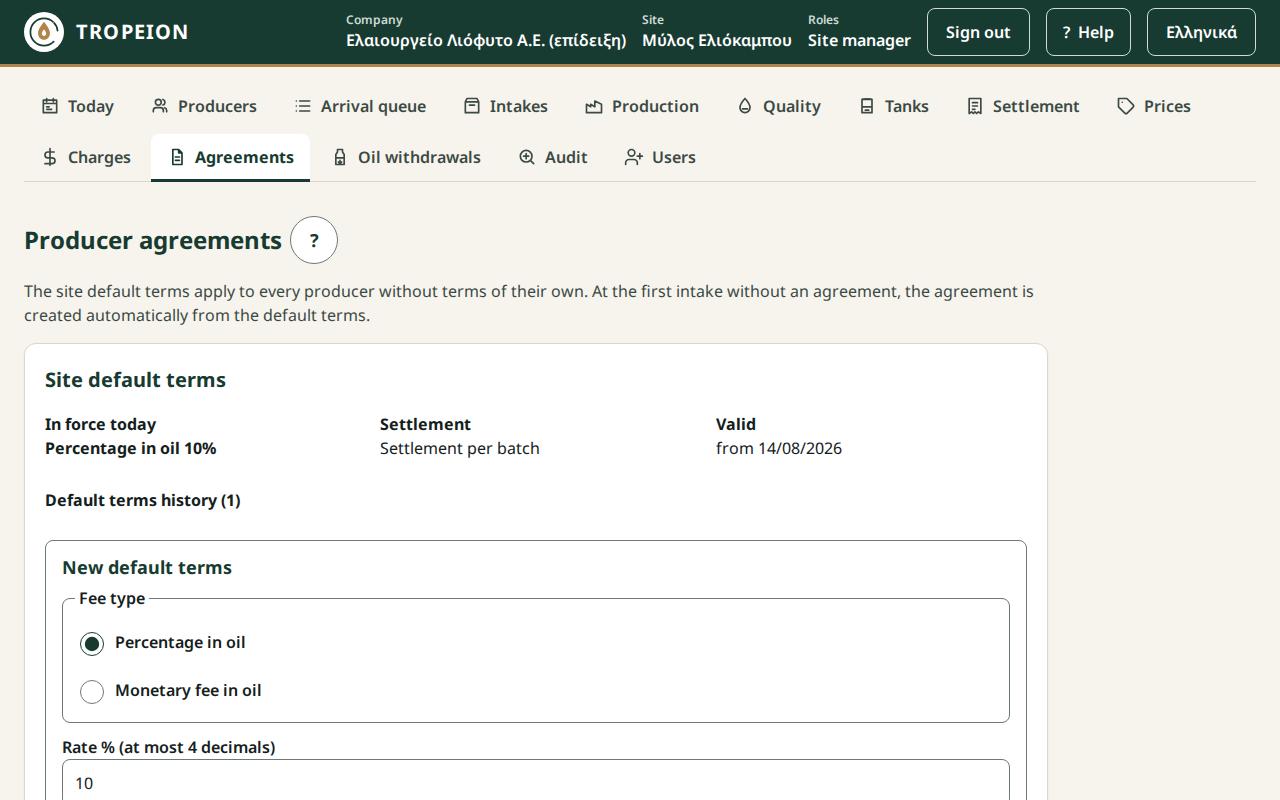
See How to set the default terms and How to give a producer their own terms.
Step 5: The additional charges
Who: Central manager or Site manager. Screen: Charges.
Why: charges do not come from the onboarding Excel. Mandatory charges enter every settlement by themselves from their effective date. A charge is never corrected backwards, so set them before the first settlement.
- Press Charges, then New charge.
- Type the Description, e.g.
Δακοκτονία(olive-fly spraying). - Choose the Charge type: once €, once %, € per kg of olives, € per kg of oil or per unit.
- Type the value, e.g.
2. - Tick Mandatory for all producers if it enters every settlement.
- Enter Effective from and press Save the charge «…» from ….
An example, as on the demo:
- «Δακοκτονία» (olive-fly spraying): once €, 2.00, mandatory.
- «Μεταφορά» (transport): once €, 20.00, optional.
- «Δοχεία» (containers): per unit, 0.50, optional. The cashier types the units in the settlement.
Caution: A mandatory per-unit charge blocks every settlement until the cashier types the units, even 0. If not everyone needs the units, make the charge optional.
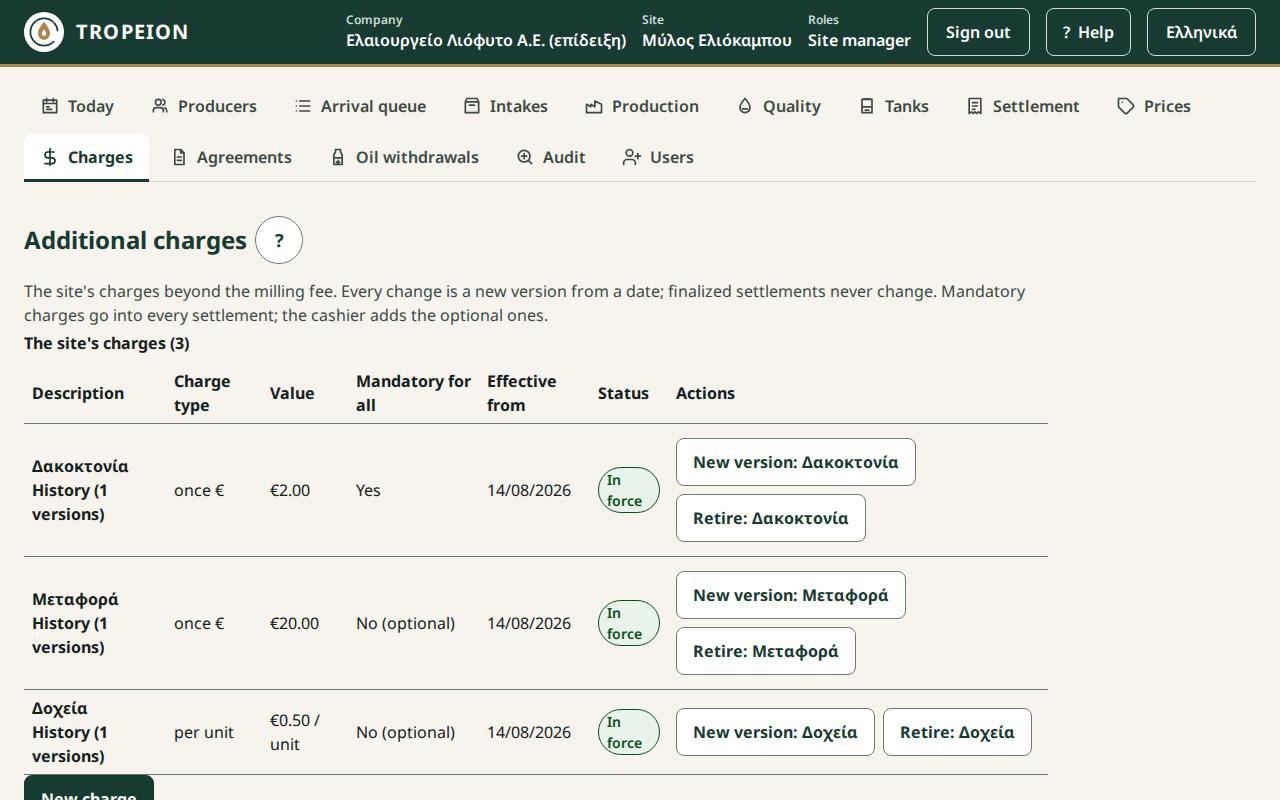
See How to add a charge.
Step 6: The first daily prices
Who: Central manager or Site manager. Screen: Prices.
Why: the settlement needs a price on every line, whatever the fee type. It uses it to show the € amounts and to turn the charges into oil. Without a price, the settlement is blocked.
- Press Prices.
- Look at the table Current price per quality and certification, on ….
- For every row that says "▲ No price", fill in the Daily price entry form: Quality, Certification, Effective date, Price €/kg (up to 6 decimals).
- Press the button. It spells out the price, the class and the date.
If you gave prices in the Prices sheet of the Excel, just check that no row says "No price".
A price applies from its date until the next price. If you do not enter a price on some day, the settlement takes the latest prior price and says so.
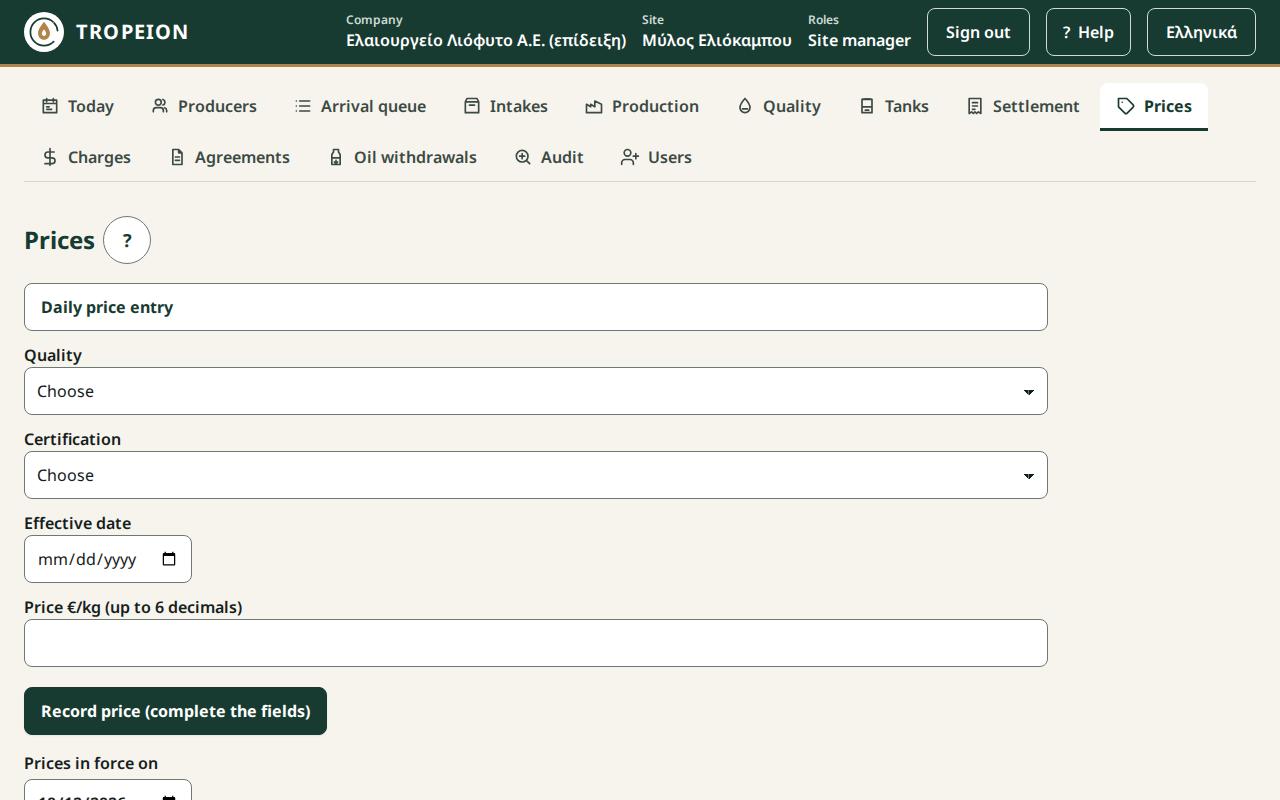
See How to enter a daily price.
Step 7: The tanks and the lines
Who: Central manager or Site manager. Screens: Tanks and Production.
Why: tanks and lines are set up only at onboarding. If one is missing or a capacity is wrong, you find out the first time a batch completion does not fit.
- In Tanks, count the cards. Each card shows the code and the kg against the capacity. Check the capacity.
- In Production, check that there is one card per line, in operation.
- If the tanks already hold oil from before, the Warehouse and tank operator can enter the kilograms with a Count.
If a tank or line is missing, or a capacity is wrong, contact TROPEION support. There is no screen for this change.
Note: Oil that was in the tanks before onboarding belongs to no producer in TROPEION. A count changes only the tank stock.
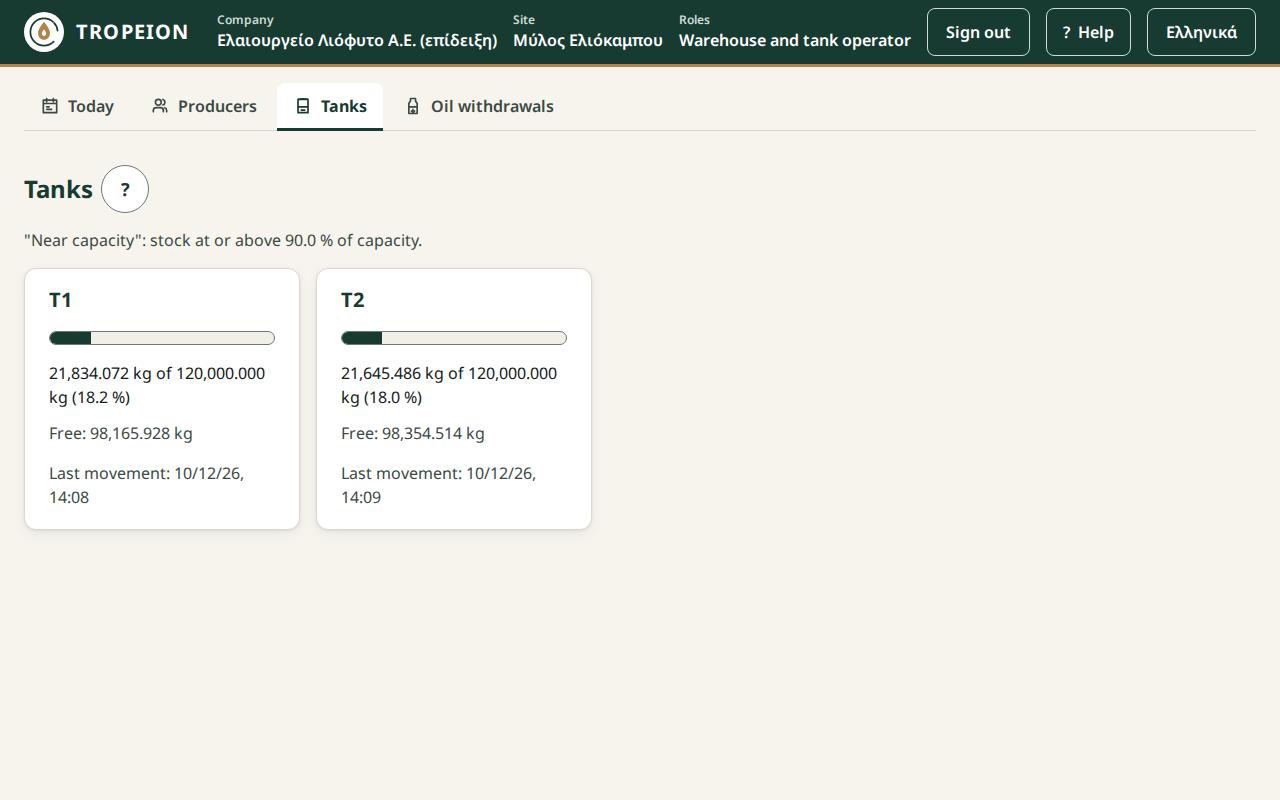
See the help Tanks and How to count a tank.
Step 8: A test day on the demo
Why: on the demo you can make mistakes without consequences. It resets every night.
The passwords are on the demo sign-in page. Each demo account has one role, so you switch account at each step:
dieythyntis.1(Site manager): in Prices, enter a price on every "No price" row. In Agreements, new default terms from tomorrow. In Charges, one new charge.ypodochi.1(Intake operator): New walk-in, Call, Start intake, one lot of 1000 kg, Accept lot, Complete intake.paragogi.1(Production operator): + New batch with that olive lot, Start batch, one measurement, completion into one tank.poiotita.1(Quality officer): finalize the classification.tameio.1(Cashier and settlement officer): New producer settlement, finalize, Print statement, New withdrawal request and a delivery.dieythyntis.1: in Audit, find all the actions of the exercise.
Note next to each step who will do it at your mill. If a step has nobody, a role is missing from the Users sheet.
What you do not need to set up
- Scale, label printer, sensors: not connected yet. Kilograms and measurements are typed by hand.
- myDATA and fiscal documents: TROPEION does not issue them. Keep using the program you already have.
- Messages to producers: TROPEION does not send SMS or email to producers.
Exercise
With dieythyntis.1 on the demo:
- New default terms from tomorrow, "Percentage in oil" 9%.
- A new charge «Μεταφορά» (transport), € per kg of olives, 0.02, optional.
- A price for every combination that shows "No price".
- In Audit, find the three actions.