What TROPEION does
This chapter explains what TROPEION is, how it follows an olive mill season from a producer's arrival to the withdrawal of their oil, and which key ideas you need so that the screens make sense. Every section can be read on its own.
What TROPEION is and who it is for
TROPEION is olive mill management software. It runs in the web browser, on a computer or a tablet, and records the whole season's work:
- appointments and the queue of arriving producers;
- intake and weighing of olives, in olive lots;
- production, in production batches, with the measurements, the oil produced and the tanks it went to;
- quality classification and certification of the oil;
- the stock of every tank;
- each producer's settlement: how much oil they are due, the mill fee, the additional charges deducted and the net oil left to the producer;
- the producer's oil withdrawal, with a note for signature;
- the Audit: who did what and when.
It is made for:
- mill owners, small and large, with one or more sites;
- the staff: the intake clerk at the desk and the scale, the production line operator, the quality officer, the warehouse keeper, the cashier;
- the accountant and the auditor, who see the data without changing it.
You do not need to be good with computers. The screens say in words what is happening, what is missing and what to do next. The system always does the calculations, not you.
Note: The application is available in Greek and in English. The Ελληνικά / English button at the top switches language at once, without losing anything you typed.
The season step by step: the picture at a glance
The path of an olive delivery through TROPEION, with the role that usually does each step:
- Appointment or walk-in: Intake operator. Arrival queue screen.
- Queue and call to the scale: Intake operator. Arrival queue screen.
- Intake and weighing, one or more olive lots: Intake operator. Fast intake screen.
- Splitting an olive lot, when needed: Intake operator. Lot detail screen.
- Production batch: inputs, start, measurements, completion into tanks with the oil, the pomace and the allocation to producers: Production operator. Production screen.
- Quality classification: the Quality officer only. Quality screen.
- Tanks: counts and transfers: Warehouse and tank operator. Tanks screen.
- Daily prices: Site manager or Central manager. Prices screen.
- Agreements and default terms: Site manager or Central manager. Agreements screen.
- Additional charges: Site manager or Central manager. Charges screen.
- Settlement and settlement statement: Cashier and settlement officer. Settlement screen.
- Oil withdrawal and withdrawal note: Cashier and settlement officer for the request; the Cashier or the Warehouse and tank operator for the delivery. Oil withdrawals screen.
- Audit: Site manager, Central manager, Accountant and back office, Auditor. Audit screen.
Steps 8 to 10 are settings. They are usually done before the season starts and changed when needed. The sections that follow explain each step with one example: the producer Nikos brings 1,000 kg of olives, which give 180 kg of oil, and the mill fee is 10%, that is 18 kg of oil.
Note: In a small mill, one person usually does many of these steps. The system allows it: one user can hold several roles. See the section "Small mills: one person, many roles".
Step 1: Appointment or walk-in
A producer can book an appointment in advance, for example by phone, or arrive without an appointment (a walk-in). Both are recorded on the Arrival queue screen.
- With an appointment. The Intake operator presses New appointment, chooses the producer, the day and the time window and, if known, the expected kilograms of olives. When the producer confirms they will come, the operator records it with Record confirmation. On the day the producer arrives, the operator presses Check in in the table of today's appointments that have not arrived.
- Walk-in. The Intake operator presses New walk-in (or the N key), finds the producer by name, number, phone or tax number (ΑΦΜ) and presses Add to queue.
If the producer is not in the system yet, they are first registered on the Producers screen with New producer. A producer is registered once for the whole company, not per site.
Example: Nikos arrives without an appointment at 9:40. The operator presses N, types "Nikos", picks him and presses Add to queue. Nikos appears in the queue marked as a walk-in.
Note: TROPEION does not send messages to producers. The staff record the appointment confirmation after talking to the producer.
See the help pages New appointment and Walk-in producer.
Step 2: The arrival queue and the call
The Arrival queue shows who is waiting, in which order and for how long. It refreshes by itself every few seconds.
- The Call button exists only on the first row of the queue (position 1). The operator presses it when the scale is free.
- Nobody is called out of turn. If someone must go first, the Site manager or the Central manager moves them with Change position, with a required reason. The reason shows in the queue and the action is recorded in the Audit.
- When the producer reaches the scale, the operator presses Start intake and the Fast intake opens.
A site can also have a Queue display in the waiting room, where producers see who is being called. It is a separate, view-only account.
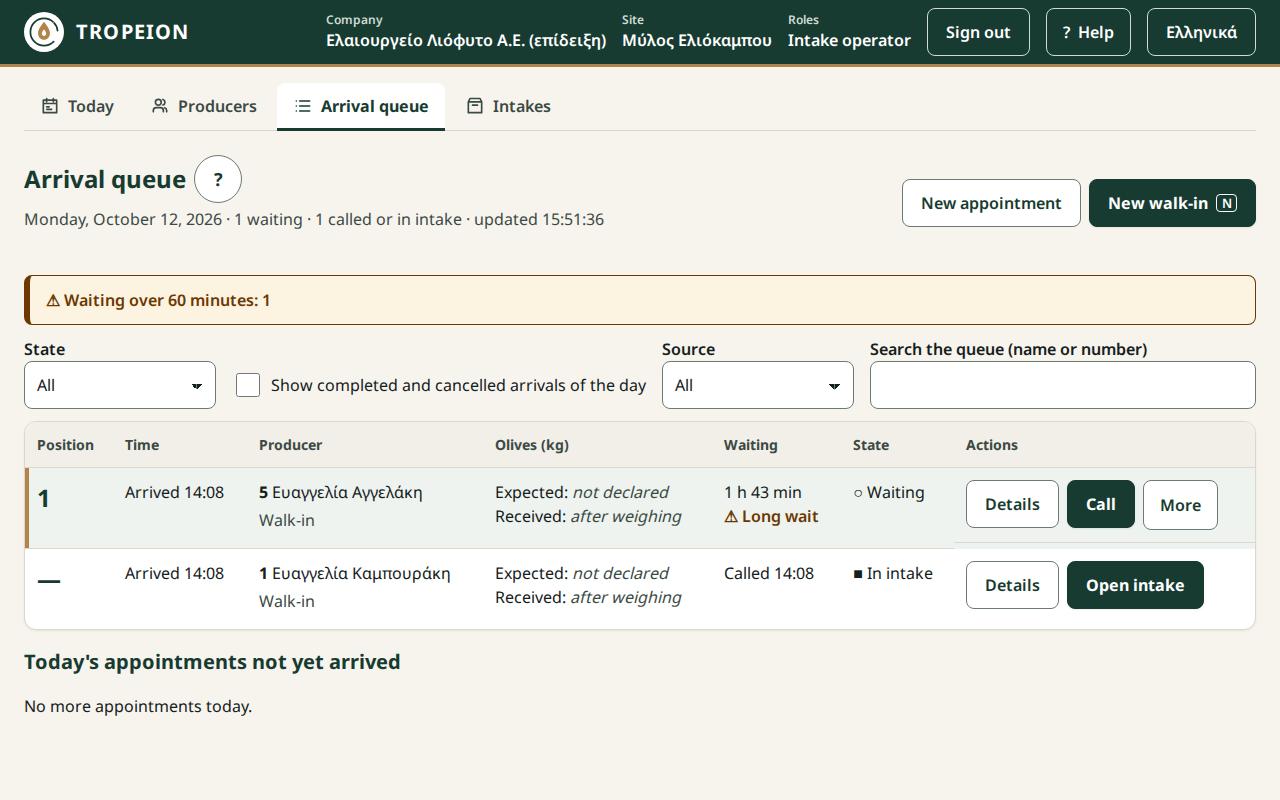
See the help page Arrival queue.
Step 3: Intake and weighing
In the Fast intake, the operator records the producer's olives in one or more olive lots. A new lot is made when the olives differ: another field, another variety, another certification (for example organic and conventional), another condition.
For each lot:
- Fill in the attributes you know: Field / origin, Variety, Certification, Condition / quality note. None is required. Nobody types the Harvest: it is set automatically from the current season.
- Enter the Net weight (kg) as the scale shows it, for example
1000. If you have gross and tare, you can enter those instead, and the net is computed. - Press Accept lot. The lot gets a code and becomes Accepted.
When all lots are done, press Review and complete intake, check the list and press Complete intake. The Intake receipt appears; print it with Print receipt (not fiscal) and give it to the producer.
Example: Nikos brings conventional olives from one field. The operator types 1000 in Net weight (kg) and presses Accept lot. They complete the intake and print the receipt: "1 lot · 1,000.000 kg".
Good to know:
- Kilograms are never rounded. They are recorded with up to 3 decimals, exactly as you type them. Type
1250.375, with no thousands separator. (In Greek the decimal mark is a comma:1250,375.) - Warning limit. If a lot's kilograms are above the site's limit, the system asks for a second press to confirm. This catches the "one zero too many" mistake.
- The agreement is created automatically. If the producer has no agreement at the site yet, the system makes one when the intake starts, from the site's default terms. The Intake operator never sees the fee terms. See the section "Step 9: Agreements, default terms and own terms".
- Labels. The code and barcode of every lot are shown on screen. No label printer is connected yet, so the message says the label was not printed. Write the code by hand on the crate or sack. Completing the intake is not blocked.
- Wrong weight. An accepted lot is not cancelled and its weight is not erased. While it has not entered production, it is corrected with Create weight correction, with a reason and a fresh sign-in. The old weight stays in the history.
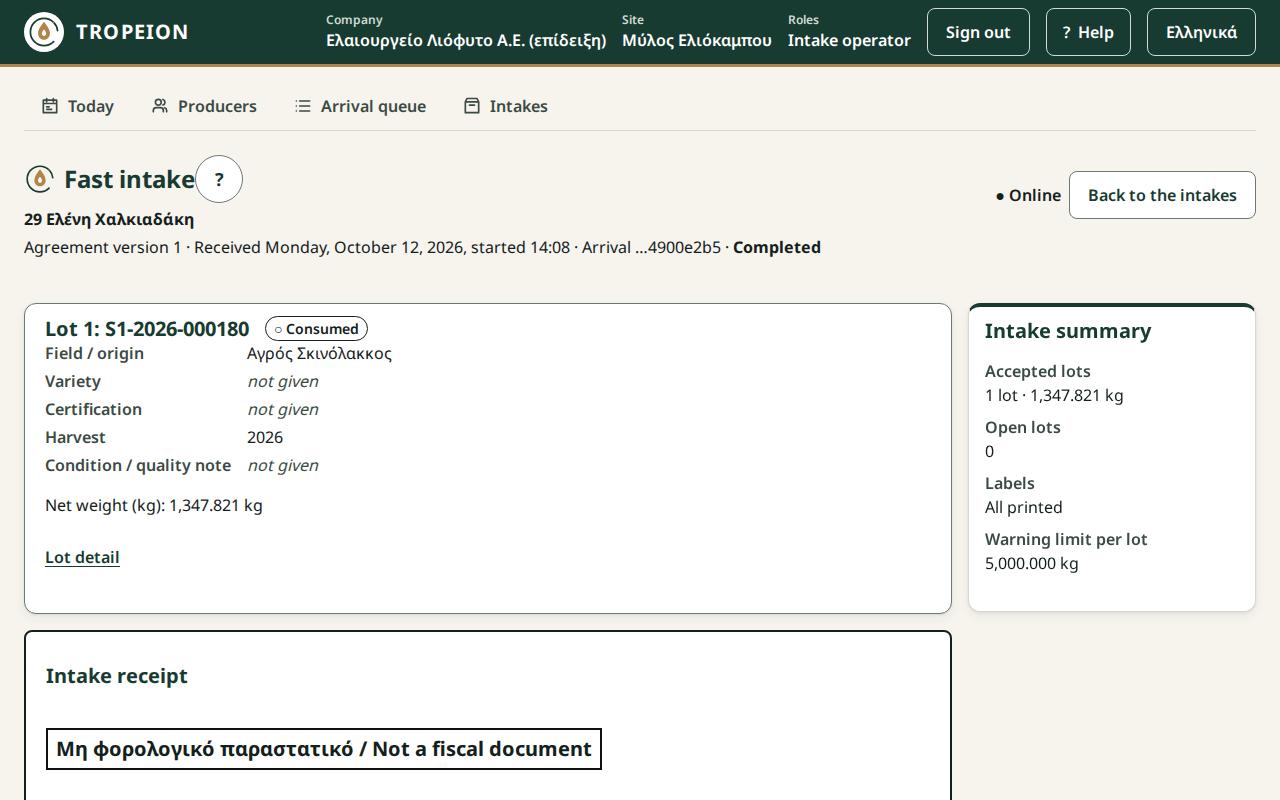
See the help pages Fast intake and Weighing and intake.
Step 4: Splitting an olive lot
An olive lot goes whole into one production batch. If part of it must be milled elsewhere, it is first split on the Lot detail screen, opened from the Lot detail link of the accepted lot.
Example: Maria brings a 1,200 kg lot. The production line has room for only 700 kg now. The operator splits the lot into two new lots: 700 kg and 500 kg. Each new lot has its own code and remembers which original lot it came from. The first goes into production now, the second into the next production batch.
- Only an original lot is split, not a lot that came from a split.
- Whatever you do not share out stays in the original lot.
- Splitting asks for a fresh sign-in.
- Only the Site manager or the Central manager reverses a split, and only while none of the new lots has been used.
See the help pages Lot detail and split and Split a lot.
Step 5: The production batch
A production batch is one milling run on a production line. It can hold the olives of one or many producers. The Production operator runs it on the Production screen (title Production console).
Inputs
The operator presses + New batch on the line card, picks the lots that go in from Available olive lots and presses Create batch. The batch is Ready to start. Until it starts, olive lots can still be added or removed.
Start, pause, resume
Start batch starts the active-time clock. Pause batch and Resume batch record the stops. Each line has one running batch at a time.
If the olives have different certifications, for example organic together with conventional, starting asks for a comment and an acknowledgement. See the section "Certification and harvest: what does not mix".
Measurements
With + Add measurement the operator records measurements, for example the malaxation temperature. If a value is out of range, a warning card appears. The operator writes a comment and presses Acknowledge and continue. An unacknowledged warning blocks completion.
Note: The system never stops a machine. Whatever the screen shows, production on the floor goes on as you run it.
Completion: oil, tanks, pomace
At the end the operator fills in the Output section:
- Oil produced (kg): the kilograms of oil that came out.
- Destination tanks: which tanks the oil went into and how many kilograms each. The total must equal the oil exactly, to the gram.
- Byproducts: for example the pomace. Byproducts become mill property. If the site requires it, the pomace with kilograms is mandatory.
Then they press Review output and allocation, look at the Allocation preview and press Complete batch.
The allocation to producers
On completion, the system shares the oil among the batch's producers in proportion to the kilograms of olives each put in. This share is the producer's gross oil.
Example with one producer: Nikos is alone in the batch with 1,000 kg of olives. 180 kg of oil comes out, all into tank Δ-01. Nikos's gross is 180.000 kg.
Example with two producers: Nikos puts in 1,000 kg and Maria 500 kg. 250 kg of oil comes out.
- Nikos: 1,000 / 1,500 of the oil = 166.666 kg.
- Maria: 500 / 1,500 of the oil = 83.333 kg.
- Rounding residual (mill): 0.001 kg.
Kilograms are cut at the third decimal (truncated), never rounded. The grams left over by the truncation go to the mill, so the total equals the oil produced exactly: 166.666 + 83.333 + 0.001 = 250.000.
The allocation is not yet a credit to the producer. The producer can take oil only after the settlement (step 11).
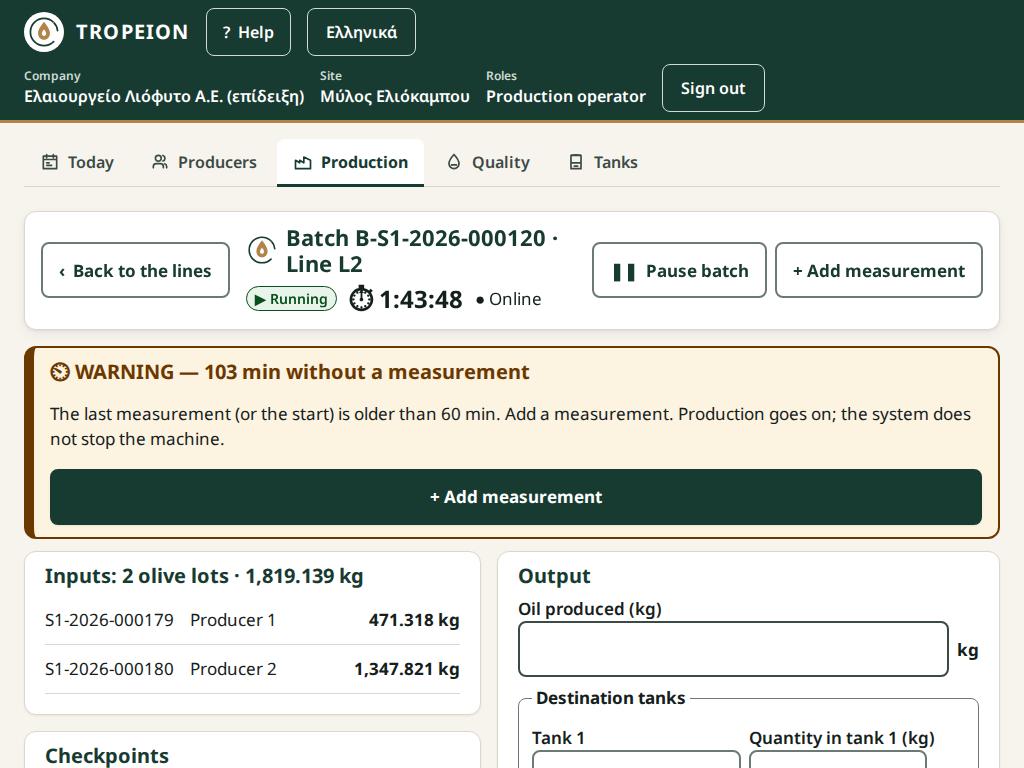
See the help pages Production console, How to create a new batch and How to complete a batch.
Step 6: Quality classification
Every completed production batch that produced oil must be classified. The Quality officer opens the Quality screen, where the list Quality: batches awaiting classification shows the waiting batches, oldest first. For each batch:
- Enter the Lab measurements, for example acidity.
- Choose the Quality class (manual choice). The system does not suggest a class.
- Choose the Batch certification. It can only be the certification the system computed from the olives, or conventional. Never higher.
- Press Finalize classification.
Example: Nikos's batch has acidity 0.4. The Quality officer chooses the class that matches the site's extra virgin and the certification "conventional", and finalizes.
Why it matters:
- No classification, no settlement. The settlement shows a blocker and cannot be finalized.
- The class sets the price. The settlement takes the daily price of the batch's quality class and certification.
- Only the Quality officer classifies. The Site manager and the Central manager see the screen read-only. This is deliberate: quality is judged by someone other than the person who sets prices and settles.
- Correction by a new decision. A decision does not change. If it was wrong, the Quality officer finalizes a new decision that replaces it. In the history the new one is Current and the old one Superseded. Once a settlement with this batch is finalized, the decision is locked.
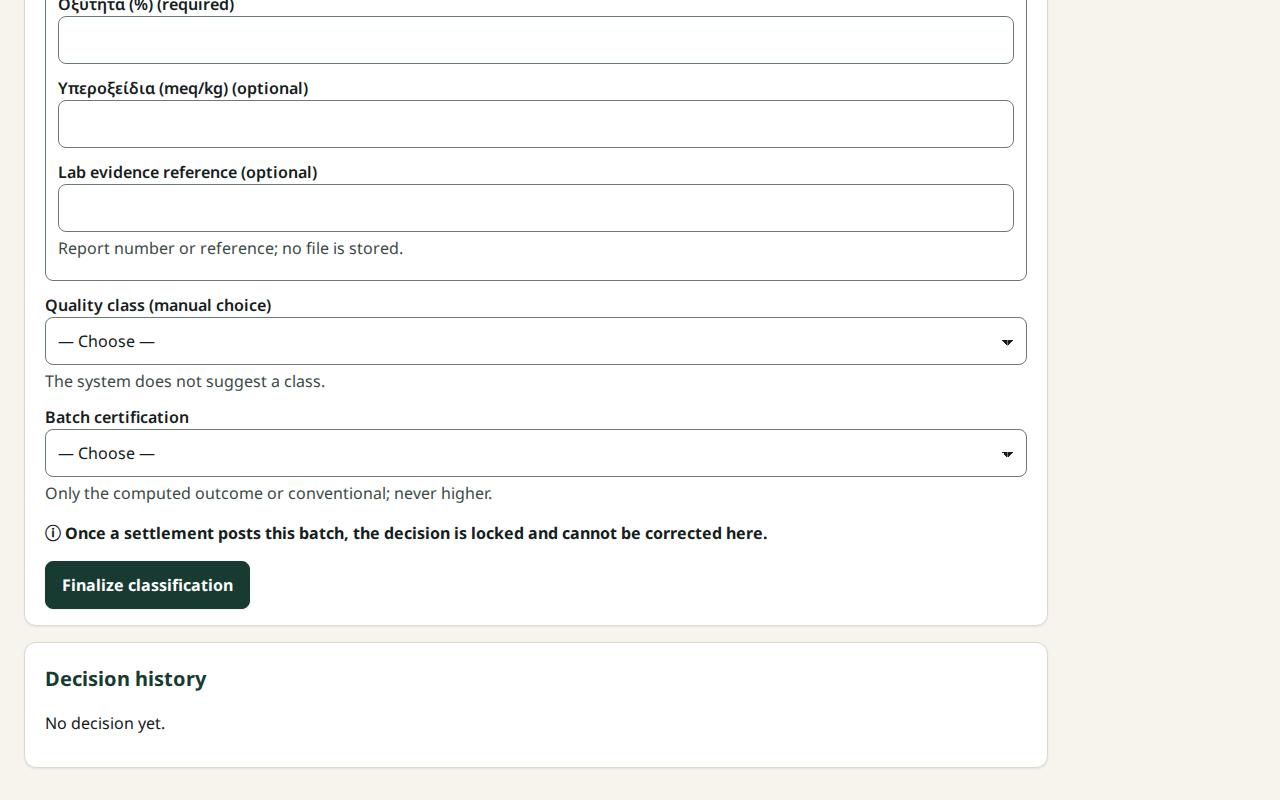
See the help pages Quality and How to finalize or correct a quality decision.
Step 7: Tanks
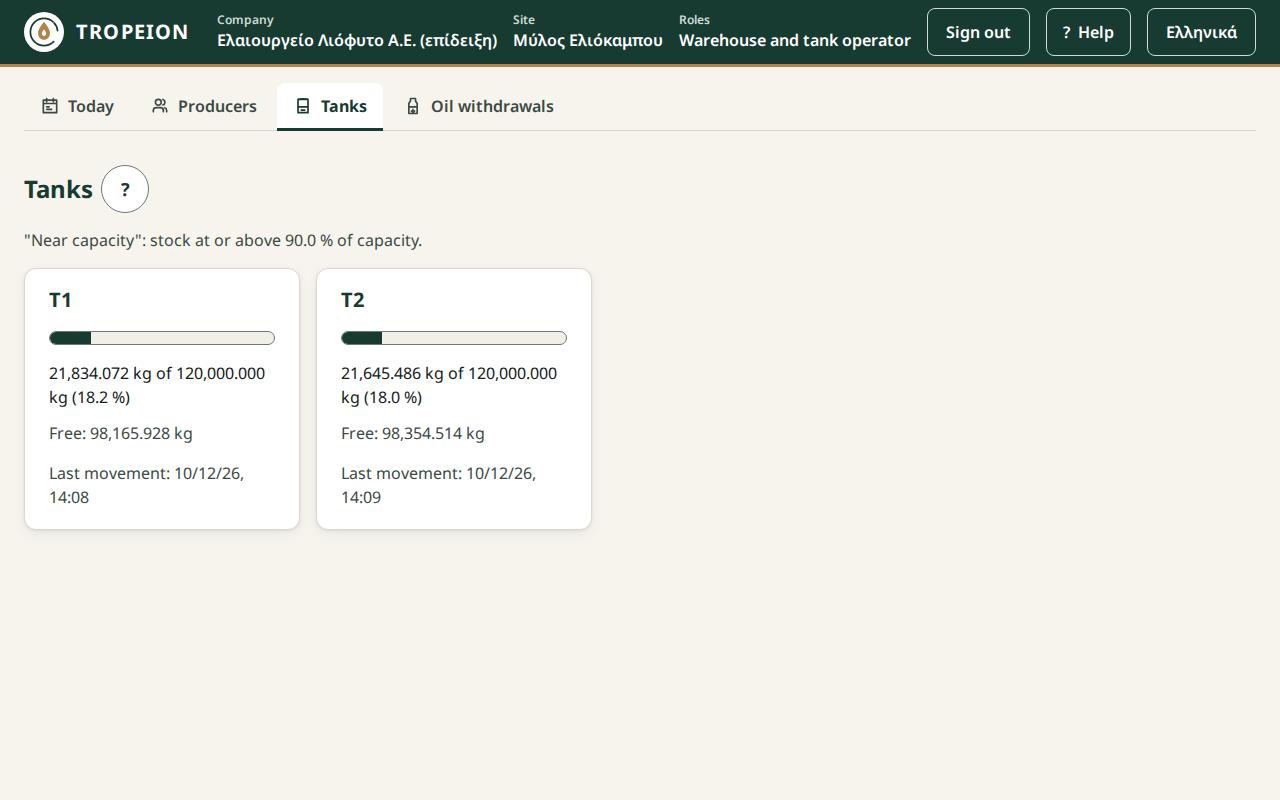
The Tanks screen shows every tank of the site as a card: how many kilograms it holds, how much more it takes, how full it is. The stock is the sum of all movements: oil from production, transfers, count corrections, deliveries to producers. Everything in kilograms.
The Warehouse and tank operator does two things:
- Count. Enter the kilograms measured. If they differ from the book stock, the difference is recorded.
- Transfer. Move oil from one tank to another.
Example: Δ-01 holds 1,200 kg of a 5,000 kg capacity. After Nikos's batch it holds 1,380 kg.
Note: A count difference changes only the tank stock. It does not change the oil any producer owns. See the section "Two ledgers: the producer's oil and the oil in the tanks".
See the help page Tanks.
Step 8: Daily prices
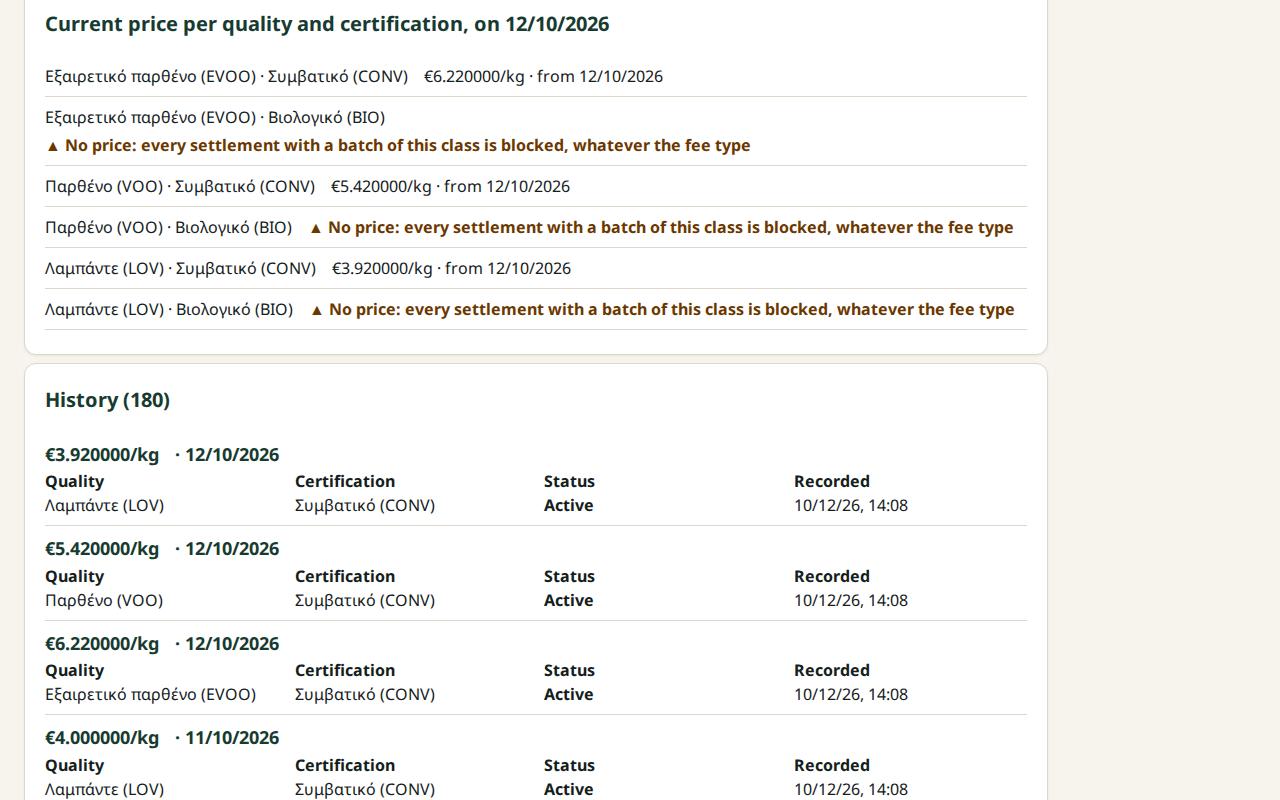
The daily price is the oil price in €/kg for one site, one quality class and one certification, from an effective date. The Site manager or the Central manager enters it on the Prices screen.
How the settlement uses it:
- It looks for a price for exactly the batch's site, quality and certification, for the day the production batch was completed (site time). Never the price of another site, quality or certification.
- If that day has no price, it takes the latest prior price with the same key and says so plainly.
- If there is no price at all, the settlement has a blocker.
Example: Nikos's batch was completed on 12 November. The latest price for that quality and conventional certification was entered on 10 November: €6.00/kg. The settlement says "Latest prior price" and uses €6.00/kg.
Caution: The settlement needs a price on every line, whatever the fee type. With a percentage fee the price does not change the fee kilograms, but it is needed for the € figures and for the additional charges. Enter a price for every combination the Prices screen marks with "No price".
A price is never deleted. A correction enters a new price with a reason, and the old one stays in the history as "Superseded". Open settlement drafts are recalculated. Finalized settlements do not change.
See the help page Daily prices.
Step 9: Agreements, default terms and own terms
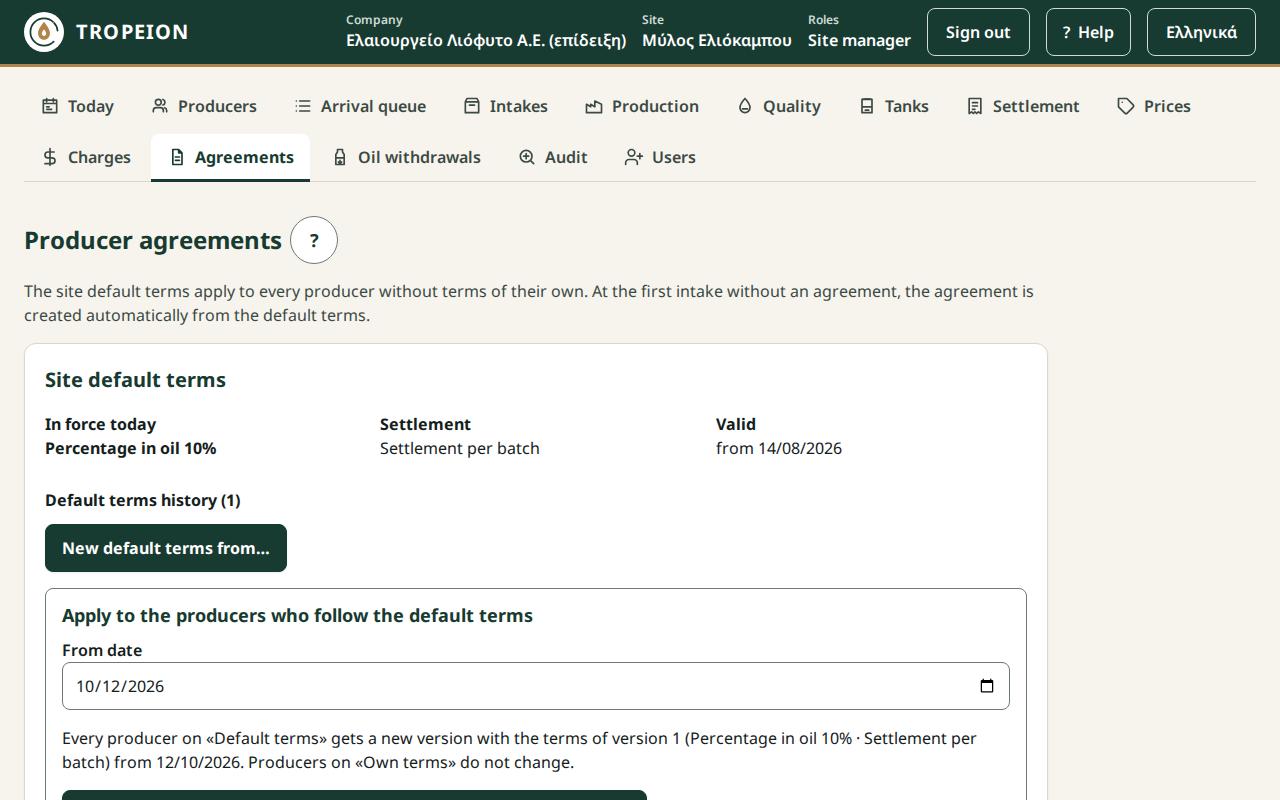
The agreement sets the mill fee for one producer at one site. Only the Site manager and the Central manager see and change it, on the Agreements screen. An agreement has:
- a fee type:
- Percentage in oil: for example 10% of the gross oil.
- Monetary fee in oil: an amount in € per kg of gross oil, turned into oil with the daily price.
- a settlement grouping: Settlement per batch (one production batch per settlement) or Consolidated settlement (several batches together).
The default terms are the site's terms for everyone. When a producer delivers olives without an agreement, their agreement is created automatically from the default terms in force that day. If the site has no default terms, the intake of such a producer does not start.
Own terms are an exception for one producer, for example 8% instead of 10%. The manager presses New version (own terms) and then activates the version, with a fresh sign-in.
Rules:
- Terms never change in place. Every change is a new version from a date. Old versions stay in the history.
- The intake keeps its version. Settlement uses the agreement version that was in force at the intake, not the one in force on the settlement day.
- New default terms do not change existing agreements by themselves. To move the producers on "Default terms", the manager presses Apply to the producers who follow the default terms. Producers on "Own terms" do not change.
Example: the site's default terms are "Percentage in oil 10%". Nikos had no agreement. At his intake, the system made him an agreement with these terms. His fee will be 10% of his gross.
See the help pages Producer agreements, How to set the default terms and How to give a producer their own terms.
Step 10: Additional charges
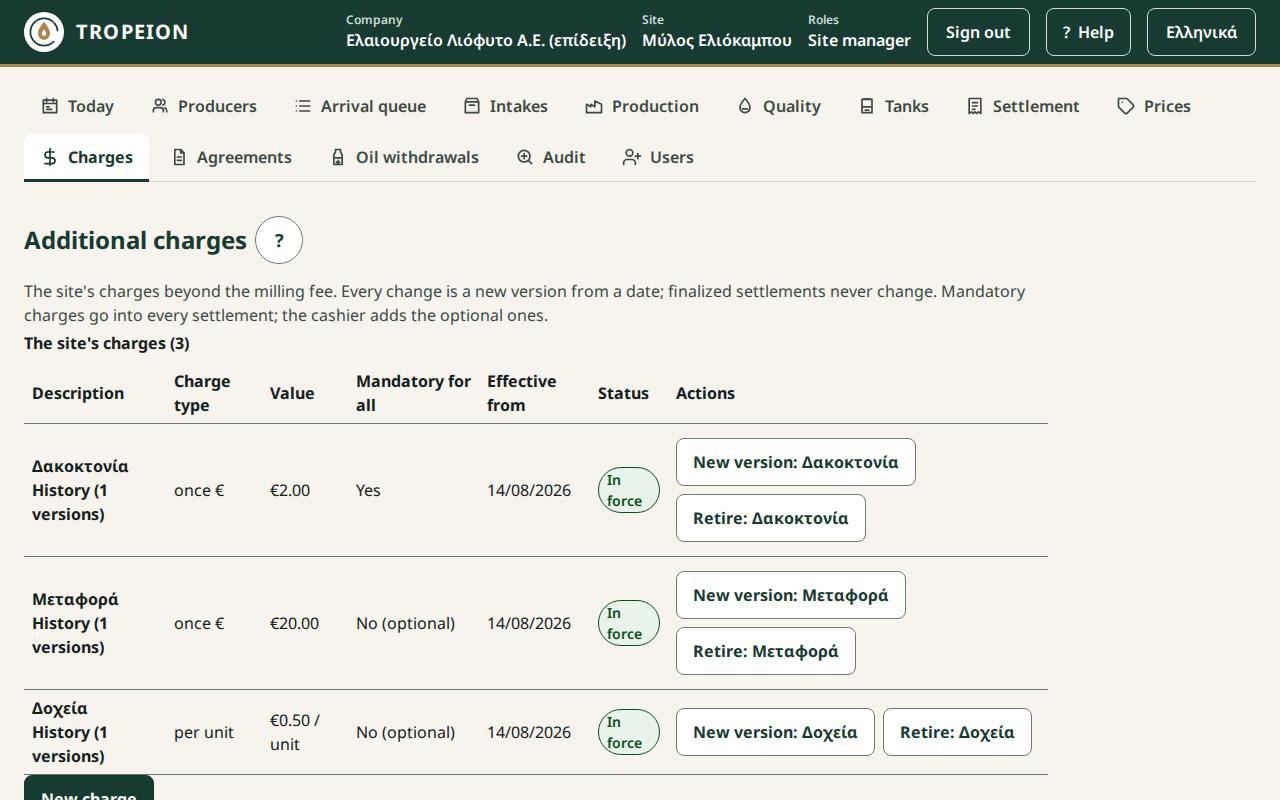
Additional charges are the site's charges beyond the milling fee, for example "Pest control", "Transport" or "Containers". The Site manager or the Central manager sets them on the Charges screen.
Each charge has one of five charge types:
- once €: a fixed amount, once per settlement.
- once %: a percentage of the producer's gross oil.
- € per kg of olives: the amount × the producer's kilograms of olives.
- € per kg of oil: the amount × the producer's gross kilograms of oil.
- per unit: the amount × the units the cashier enters, for example containers.
Each charge is mandatory (it enters every settlement by itself) or optional (the cashier adds it when needed). A charge is deducted in oil: the € amount becomes kilograms of oil at the batch's daily price, truncated to the gram.
Example: the mandatory charge "Transport" is €0.02 per kg of olives. Nikos brought 1,000 kg, so he is charged €20.00. At €6.00/kg, the €20.00 becomes 3.333 kg of oil.
A charge is never corrected backwards. Every change is a new version from a date, and finalized settlements keep the charge they had.
Note: Charges include no VAT or other taxes. They are not fiscal documents.
See the help pages Additional charges and How charges enter the settlement.
Step 11: Settlement and the settlement statement
The settlement shows how a producer's gross oil becomes the mill fee, the charges and the net to the producer. The Cashier and settlement officer makes it on the Settlement screen. The system does every calculation: kilograms with 3 decimals, € with 2, always truncated.
The steps
- The cashier presses New producer settlement and chooses the producer.
- The Gross allocation lines appear: one per completed batch where the producer has oil not yet settled. They tick the ones they want and create a Draft. The draft saves itself.
- Under Additional charges they add the optional ones, enter the Units where needed, and press Save the charges and recalculate the draft.
- They check the Blockers. While there is even one, the settlement cannot be finalized. Common blockers: a batch without a final quality classification, a missing price, a mandatory per-unit charge without units.
- They check the Totals in kg of oil and in € table and press Finalize and credit X to producer.
An example with figures
Nikos: gross 180 kg, fee 10%, the mandatory charge "Transport" at €0.02 per kg of olives for 1,000 kg of olives, price €6.00/kg.
- Producer's oil (gross): 180.000 kg · €1,080.00 (180 × €6.00).
- Mill fee: 18.000 kg · €108.00 (10% of 180).
- Transport: 3.333 kg · €20.00 (€20.00 ÷ €6.00, truncated).
- Net to the producer: 158.667 kg · €952.00 (180.000 − 18.000 − 3.333).
On finalization, the 158.667 kg are credited to Nikos. The 18.000 kg of the fee and the 3.333 kg of the charge become mill-owned oil. The settlement does not move oil from tank to tank.
If the agreement had a Monetary fee in oil of €0.60 per kg of gross oil, the fee would be 180 × €0.60 = €108.00, which at €6.00/kg is again 18.000 kg.
The settlement statement
On a finalized settlement, the Print statement button opens the Settlement statement for the producer. It has the producer with their tax number (ΑΦΜ), the lines per batch, the totals in kilograms and in €, and signature lines for the producer and for the mill. It says it is not a fiscal document. It prints from the browser, to a printer or as a PDF.
Correction
A finalized settlement never changes. If it was wrong, the Site manager or the Central manager uses Reverse and replace, with a reason and a fresh sign-in. See the section "Correction by reversal, never by deleting".
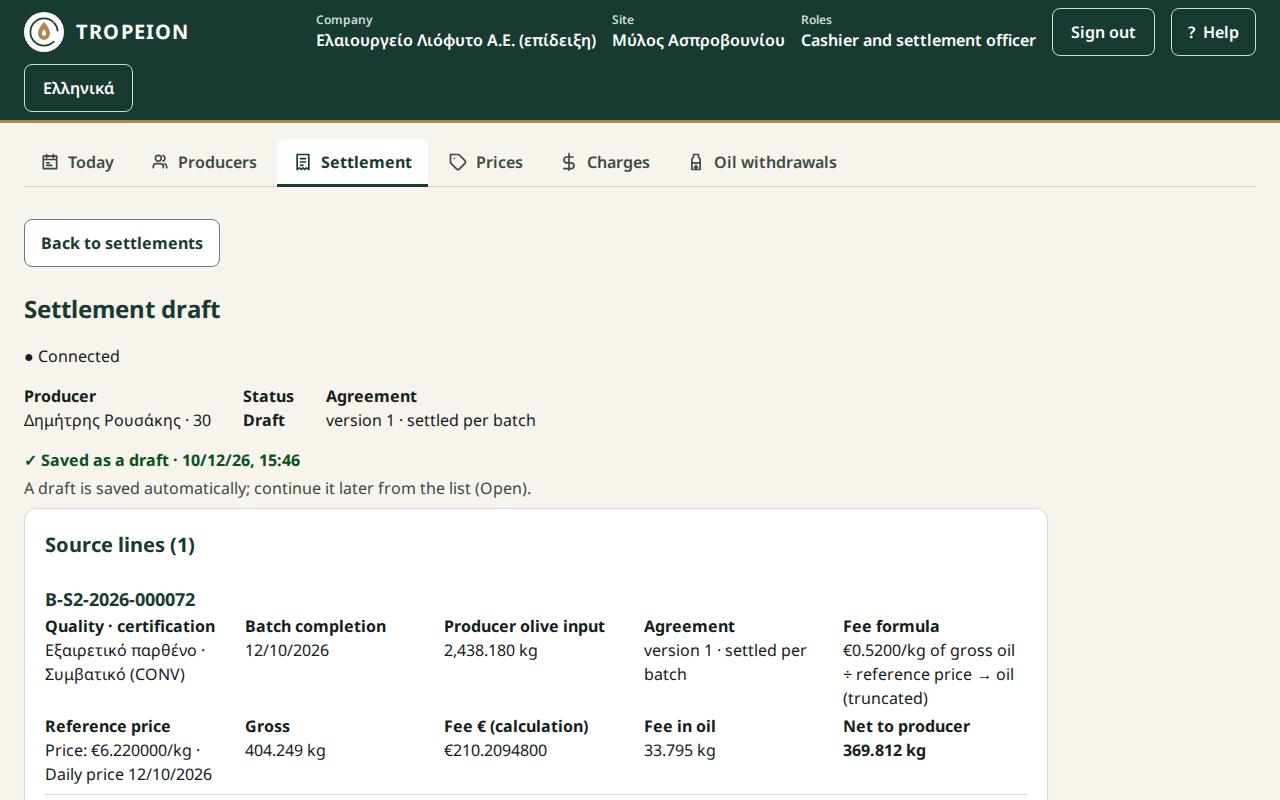
See the help pages Settlement, How to finalize a settlement and How to print a settlement statement.
Step 12: Oil withdrawal and the withdrawal note
The producer takes their oil on the Oil withdrawals screen. Only a producer with settled oil at this site can take oil.
- Request. The Cashier and settlement officer presses New withdrawal request, finds the producer and sees The producer's settled oil per class (quality, certification, harvest). They choose a class and enter the kg the producer asks for. One request covers one class.
- Delivery. The Cashier or the Warehouse and tank operator enters how many kilograms come out of each tank. The screen shows only tanks holding oil of the same class. They press Confirm delivery.
- Note. Every delivery has its own Olive oil withdrawal note, with signature lines for the person who handed over and the person who received. It says it is not a fiscal document.
Good to know:
- A request reserves nothing. The kilograms are checked at the moment of delivery.
- Partial delivery. If less is delivered, the rest stays open on the same request.
- A delivery reduces both together: the producer's balance and the tank stock, by the same kilograms.
- A wrong delivery is not edited. The Site manager or the Central manager reverses it, with a reason and a fresh sign-in, and a new correct delivery is made.
Example: Nikos has 158.667 kg of settled oil. He asks for 100 kg. The warehouse keeper gives 60 kg from Δ-01 and 40 kg from Δ-02. Nikos's balance becomes 58.667 kg, and the two tanks go down by 60 and 40 kg.
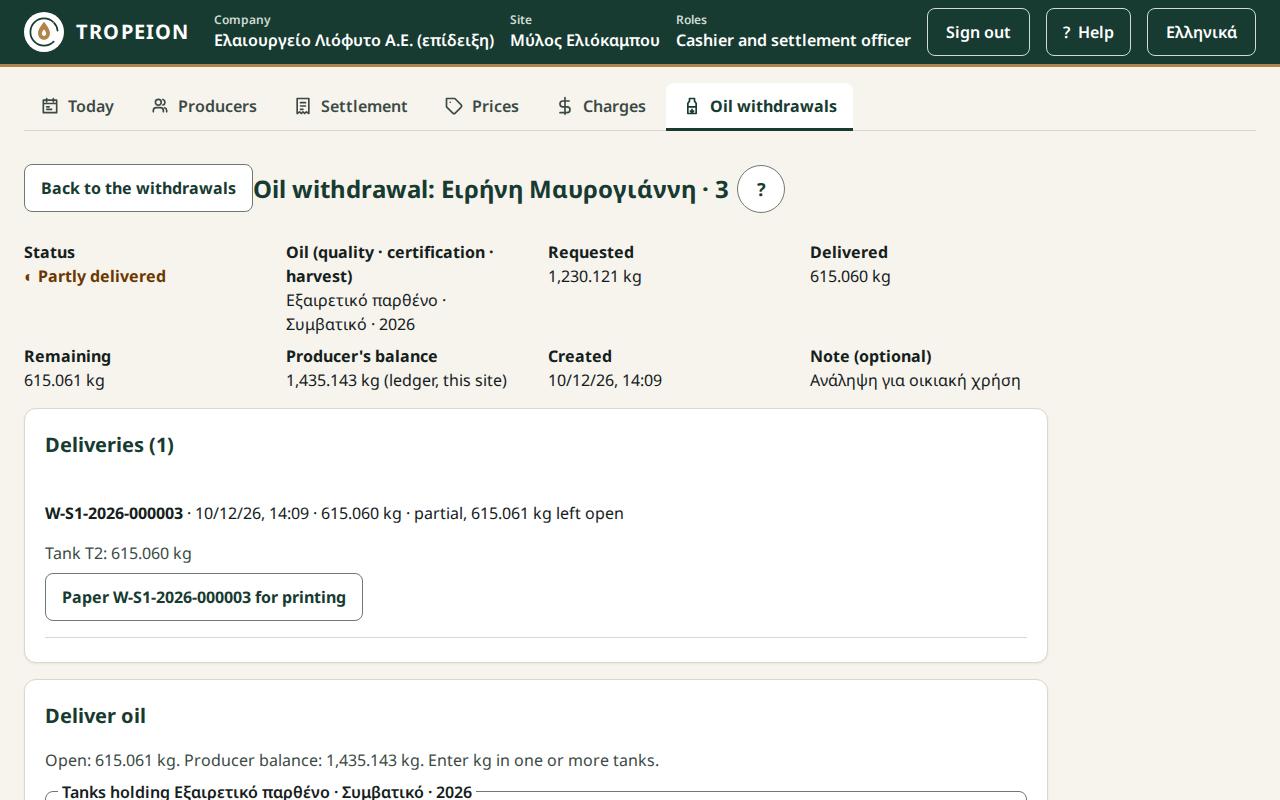
See the help pages Oil withdrawals, How to print the delivery note and How to reverse a delivery.
Step 13: Audit
The Audit screen shows every recorded action: When, Who, which Action, on which Subject and at which Site. It is read-only. Nothing is ever deleted from it.
- The Auditor, the Accountant and back office and the Central manager see the whole company.
- The Site manager sees only the selected site.
- The filters (dates, user, action, subject) find a specific action quickly.
Example: the owner wants to see who corrected Tuesday's price. They choose the action in the Action filter, set the date and see who did it and at what time.
See the help pages Audit and How to find who did what.
Key concepts
The concepts below appear on many screens. Each one is explained with a short example.
Olive lot and production batch
TROPEION uses two different kinds of "batch". Do not mix them up:
- An olive lot is olives of one producer, with the same attributes, weighed together at intake. It has a code, kilograms of olives, a variety, a certification and a harvest. You see it in the Fast intake and in Lot detail.
- A production batch is one milling run on a production line. It holds one or more olive lots, from one or many producers. It produces oil, which goes into tanks and is shared among the producers. You see it in Production.
Rule: an olive lot goes whole into one production batch. To put in only part of it, it is first split into new olive lots.
Example: Nikos brings 2 olive lots (one from each field) and Maria 1 lot. All three go into the same production batch on Line 1. The batch produces oil, which is shared between Nikos and Maria in proportion to their kilograms of olives.
The selected record follows you
When you open a record on one screen and then go to another screen from the screen buttons, the new screen opens on the same record wherever that makes sense:
- a production batch opens in Quality (if it waits for classification) and marks in Tanks the tanks that received its oil;
- an intake or an olive lot is already ticked in Production, in the lot picker of a new batch, if it is still available;
- a producer is already chosen in Settlement and Oil withdrawals, and opens in Agreements;
- a tank is marked in a delivery of Oil withdrawals.
The selection never shows more than your role sees: each screen looks for the record only among what it shows anyway. If the record is not there, the screen opens as usual. Switching site or signing out forgets the selection.
Correction by reversal, never by deleting
Whatever has been finalized in TROPEION is not deleted and does not change. When something is wrong, a new entry cancels it (a reversal) and, if needed, a new correct entry follows (a replacement). The old entry stays visible, together with who corrected it, when and why.
Why: the producer may already hold a note with the old figures. If the system erased the old entry, nobody could explain the difference later. With reversal, the history is always complete.
Where you see it:
- Settlement: Reverse and replace. The old settlement becomes Reversed and the new one says which settlement it Replaces.
- Oil delivery: delivery reversal. The kilograms return to the producer's balance and to the same tanks. The note then prints marked as cancelled.
- Price: a correction makes a new price. The old one shows as "Superseded".
- Quality decision: a new decision. The old one shows as Superseded.
- Olive lot weight: a weight correction with a reason. The old weight stays in the history.
- Agreements and charges: a new version from a date.
Example: Nikos's settlement was finalized with the wrong batch. The Site manager opens the settlement, presses Reverse and replace, writes the reason "wrong batch included" and chooses "to be replaced by a new settlement". The 158.667 kg are removed from Nikos. Then they open the replacement draft, fix the lines and finalize it. Both actions appear in the Audit.
Two ledgers: the producer's oil and the oil in the tanks
TROPEION keeps two separate accounts for oil:
- The oil in the tanks (physical stock): how many kilograms are really in each tank. You see it on Tanks.
- The oil that belongs to the producer (the producer's ledger): how many kilograms each producer is entitled to, per quality class, certification and harvest. You see it when you create a request on Oil withdrawals, as The producer's settled oil.
A producer does not "own" a particular tank. They own a quantity of oil of a class, and can take it from any tank of the site holding oil of the same class.
How they move:
- Completing a production batch puts oil into the tanks.
- Settlement credits the net oil to the producer. It does not move oil in the tanks.
- An oil delivery reduces both together, by the same kilograms.
- A transfer and a count change only the tanks. They do not change any producer's oil.
Example: Δ-01 holds 1,380 kg. The count measures 1,378 kg. The 2 kg difference is recorded on the tank. Nikos's balance stays 158.667 kg: the difference does not fall on the producers.
Kilograms with 3 decimals, never rounded
- Kilograms are recorded with up to 3 decimals, that is to the gram.
- The system never rounds kilograms. When a calculation gives more decimals, the extra ones are cut off (truncated).
- € amounts have 2 decimals, also truncated.
- In production, the grams left over by truncation are recorded as the Rounding residual (mill), so the total is exact.
- For the fee, truncation is in the producer's favour: the fee is cut downwards.
Example: 10% of 166.666 kg is 16.6666 kg. The fee is recorded as 16.666 kg.
How to type kilograms: 1250.375 in English (1250,375 in Greek), with no thousands separator. 1,250.375 is not accepted.
Certification and harvest: what does not mix
Oil has a certification (for example organic or conventional) and a harvest (the season the olives were picked). TROPEION protects both:
- Mixed certification in production. If a production batch has olives with different certifications, starting it opens the Start with mixed certification window. The operator writes a required comment. The batch oil does not count as organic: the batch becomes conventional. The mix is a fact and cannot be overridden.
- Line cleaning. For a batch to keep the organic (or another higher) certification, a recorded line cleaning must be valid at the start. If it is missing, Quality shows Warning: line cleaning missing. The Quality officer either chooses conventional, or keeps the certification by writing an Override reason, which stays in the history for good.
- Different harvests. If a production batch has olives from different harvests, Quality does not classify it: "The inputs have different harvests; the batch cannot be classified." Talk to the Site manager.
- Tanks. Oil of another certification or another harvest does not go into a tank that already holds oil. Completing a batch has a blocker and a transfer is refused. Choose another, or an empty, tank.
- A different quality in a tank. The transfer is allowed, but the screen warns that the tank now holds oil of a different quality class.
Example: Maria brings organic olives and Nikos conventional ones. If they go into the same production batch, all the oil becomes conventional, Maria's too. To keep her oil organic, mill her olives in a separate batch, after a line cleaning, and put the oil in a tank with no conventional oil.
A fresh sign-in for critical actions
For some critical actions the system asks you to sign in again, even though you are already signed in. This confirms that you are really the one doing the action, not someone who found your computer unlocked.
What happens:
- You press the action's button as usual.
- If your last sign-in is not recent, the sign-in page opens. Enter your user name and password again.
- You come back to the same screen, and the action is sent once, exactly as you confirmed it.
The action waits up to 10 minutes and is sent only if the same user signs in again, at the same company and site.
Actions that ask for a fresh sign-in include:
- changing a queue position;
- correcting the weight of an olive lot;
- splitting a lot and reversing a split;
- cancelling a production batch and correcting an input weight;
- new default terms, applying them, and activating an agreement version;
- reversing a settlement;
- reversing an oil delivery;
- copying charges or terms to all sites;
- deactivating a user and assigning manager, accountant or auditor roles.
The everyday actions do not ask for it: completing a production batch, finalizing a settlement, prices, a site's charges, the oil request and delivery.
The full list is in the chapter "What each role can do".
Every action is recorded once
If the connection is slow or drops at the moment you press a button, you can press it again safely. The system recognises it as the same action and does not record it twice.
Example: the cashier presses Confirm delivery for 60 kg and the connection drops. The screen says the request was sent but not confirmed and offers to send the same request again. When the connection is back, the cashier presses it. 60 kg are delivered, not 120.
If someone else changed the same data from another computer in the meantime, the screen says so, loads the current state and keeps what you typed, so that you can check and press again.
Companies and sites
- The company is the olive mill as a business, the TROPEION customer. Each company's data is completely separate from the others.
- A site is a physical mill or collection point of the company, with its own production lines, tanks, queue, prices, default terms and charges. A company has one or more sites.
In the Work context bar at the top of the screen you see the Company and the Site you work in, and your Roles there. Almost every screen shows and changes only the selected site. Anyone with access to several sites switches site from this bar.
Exceptions that cover the whole company:
- Producers: a producer is registered once for the whole company.
- Audit: the Central manager, the Accountant and back office and the Auditor see all sites.
- Copy to all sites: charges, default terms and a producer's terms are copied to every other site with one button.
Agreements, settlements and withdrawals always belong to one site. A producer takes oil from the site where it was settled.
Example: the company "Elaiourgiki" has two sites, in village A and village B. Nikos is registered once. If he brings olives to both, he has an agreement at each site and is settled separately at each.
Caution: Before you start work, always check the Site in the Work context bar. The most common mistake is working at the wrong site.
See the help page Change site.
Roles
A role says what a user can do. It decides which screen buttons they see and which actions are allowed. The system also checks every action on the server: if something is not allowed, you see a message that you have no permission for this action at this site and that nothing changed.
Site roles:
- Intake operator: queue, appointments, intake, weighing, lot splitting.
- Production operator: production batches, measurements, completion, recording line cleaning.
- Quality officer: quality classification and recording line cleaning.
- Warehouse and tank operator: counts, transfers, oil delivery on open requests.
- Cashier and settlement officer: settlements, statements, oil requests and deliveries.
- Site manager: almost everything at their site, including prices, agreements, charges, reversals and the site's users. Not quality classification.
- Queue display (view only): a special account for the waiting-room screen.
Company roles, valid at every site:
- Central manager: everything the Site manager does, at every site, plus all users and roles. Not quality classification.
- Accountant and back office: sees almost everything read-only and registers new producers.
- Auditor (read-only): sees, changes nothing.
Nobody changes their own roles. A role can have an end date, which is useful for seasonal staff.
Example: Giannis works at the scale. He gets the Intake operator role at the village A site, ending at the end of the season. He sees the Arrival queue, Intakes and Producers, but not Settlement.
The full matrix is in the chapter "What each role can do".
Small mills: one person, many roles
Most mills have fewer people than roles. That is normal. One user can hold several roles, and sees every screen and does every action that any of them grants.
Suggestions:
- 1 person: the owner takes Central manager and Quality officer.
- 2–3 people: the owner Central manager and Quality officer; at the desk Intake operator and Cashier and settlement officer; at the machine Production operator and Warehouse and tank operator.
Caution: The Central manager and the Site manager do not finalize quality classifications. Without a classification, no settlement can be finalized. At every site someone must hold the Quality officer role. Because nobody can change their own roles, an owner who is the only Central manager cannot give themselves this role. They must get it from the start, in the onboarding Excel: one row per role, with the same email. Otherwise a second Central manager gives it.
Example: Eleni runs a small mill on her own. In the onboarding Excel she writes two rows with her email: one with the Central manager role and one with the Quality officer role. From day one she sets prices, takes intakes, mills, classifies and settles with the same account.
Details and conflicts of interest are in the chapter "What each role can do", section "Small mills".
Non-fiscal papers
TROPEION prints three papers for the producer. None is a fiscal document, and each says so:
- Intake receipt: the olive lots and kilograms of the intake.
- Settlement statement: gross, fee, charges, net, in kilograms and in €.
- Olive oil withdrawal note: the kilograms delivered, from which tanks, with signatures.
If the producer asks for an invoice, a receipt or a delivery note, those are issued outside TROPEION. For tax questions, ask your accountant.
What TROPEION does not do (yet)
It is good to know from the start what the application does not cover today, so you can organise it another way.
Fiscal documents and myDATA
TROPEION does not issue fiscal documents: invoices, receipts, delivery notes. It does not send data to myDATA and has no electronic signature. The intake receipt, the settlement statement and the withdrawal note are non-fiscal. Charges and € amounts include no VAT or other taxes.
The fiscal side is pending and will come only after it is checked with an accountant. Until then, issue fiscal documents with the program you already use.
Scales, label printers and sensors
TROPEION does not connect to devices yet:
- Scale: the operator types the kilograms by hand, as the scale shows them.
- Label printer: not connected. Each lot's code and barcode are shown on screen, and the message says the label was not printed. Write the code by hand on the crate. The intake completes as normal.
- Line sensors: production measurements (temperature and so on) are typed by hand.
- Tanks: counts are typed in kilograms by hand.
The receipt and the notes print normally from the browser, to any printer of the computer or as a PDF.
Other things not available yet
- Messages to producers (SMS, email, Viber): TROPEION sends no messages to producers. Staff record appointments and their confirmation.
- Producer portal: producers have no account of their own. They get the printed papers.
- Buying oil from a producer and selling oil: not recorded.
- Quality reclassification after settlement: once a settlement is finalized, the quality decision is locked and cannot be corrected from the Quality screen.
- Returning a producer to the default terms from the screen: there is no button yet. You can give a new version with the same terms, but it shows as "Own terms".
- Working offline: TROPEION needs a connection to save anything. Offline, the screens keep what you typed but save nothing until the connection is back.
Glossary
- Agreement: the fee terms for one producer at one site.
- Allocation: sharing a production batch's oil among its producers, in proportion to their kilograms of olives.
- Arrival: the record that a producer came to the site, with or without an appointment. It enters the queue.
- Audit: the screen with every action, who did it and when.
- Blocker: something that must be resolved before a finalization, for example a missing price.
- Byproduct: whatever milling produces besides oil, for example pomace.
- Certification: for example organic or conventional.
- Charge (additional charge): a charge beyond the fee, for example "Transport". Deducted in oil.
- Company: the olive mill as a business. It has one or more sites.
- Count: the kilograms measured in a tank. The difference from the book stock is recorded on the tank.
- Daily price: the oil price in €/kg for a site, quality and certification, from a date.
- Default terms: the site's fee terms for every producer without own terms.
- Delivery: the physical release of oil from tanks to the producer, within a withdrawal request.
- Draft: a settlement not finalized yet. It can change or be discarded.
- Fee type: "Percentage in oil" or "Monetary fee in oil".
- Finalize: the point after which a record no longer changes.
- Fresh sign-in (step-up): entering your password again for critical actions.
- Gross: the oil due to a producer from a production batch, before fee and charges.
- Harvest: the season the olives were picked. Set automatically at intake.
- Intake: recording a producer's olives at one arrival, in one or more olive lots.
- Intake receipt: the non-fiscal paper the producer gets at the end of the intake.
- Line cleaning: the record that the line was cleaned. Needed for a batch to keep the organic certification.
- Net to the producer: gross minus fee minus charges. Credited to the producer.
- Olive lot: olives of one producer with the same attributes, weighed together.
- Olive oil withdrawal note: the non-fiscal paper of each delivery, for signature.
- Own terms: a producer's agreement that differs from the default terms.
- Physical stock: the oil really in the tanks.
- Pomace: a milling byproduct. It becomes mill property.
- Producer's ledger: how much oil belongs to each producer, per class. Separate from the tank stock.
- Production batch: one milling run on a line, with one or more olive lots.
- Production line: a milling line of the site. It has one running batch at a time.
- Quality class: the oil quality the Quality officer chooses.
- Replacement: the new correct settlement after a reversal.
- Reversal: a new entry that cancels a finalized entry without deleting it. It needs a reason.
- Role: what a user can do. A user has one or more roles.
- Rounding residual: the grams left with the mill by truncation in the allocation.
- Settled oil: the net oil credited to the producer by a finalized settlement. Only this can be withdrawn.
- Settlement: the calculation of gross, fee, charges and net for a producer. It starts as a draft and is finalized.
- Settlement statement: the non-fiscal paper of a finalized settlement, for the producer.
- Site: a physical mill or collection point of the company.
- Split: dividing an olive lot into new, smaller olive lots.
- Tank: oil storage, with a code (for example Δ-01) and a capacity in kilograms.
- Truncation: decimals beyond the third (kilograms) or the second (€) are cut off, never rounded.
- Version: every change to an agreement, default terms or a charge. It applies from a date; old ones stay in the history.
- Withdrawal: the producer takes settled oil. It consists of a request and one or more deliveries.