Fast intake
Which role does what here
| Role | What it can do here |
|---|---|
| Intake operator | sees intakes and olive lots, records intakes, corrections and splits |
| Site manager | sees intakes and olive lots, records intakes, corrections and splits, reverses a split |
| Central manager | sees intakes and olive lots, records intakes, corrections and splits, reverses a split |
| Accountant and back office | sees intakes and olive lots |
| Auditor (read-only) | sees intakes and olive lots |
What it is for
In Fast intake you record the olives a producer delivers. The olives are recorded in one or more lots. For each lot you enter its attributes and its net weight in kilograms, accept it and print its label. At the end you complete the intake and print the receipt.
Kilograms are recorded exactly as you type them, with up to 3 decimals. The system never rounds them.
The intake uses the producer's agreement at this site. If the producer has no agreement yet, the system creates it on its own when the intake starts, from the site default terms in force that day. You do nothing and the intake does not stop. The screen shows only the agreement version number; the Intake operator never sees the fee terms (rate or amount). The Site manager and the Central manager see and change them in Agreements.
The screen opens from the Arrival queue, with Start intake on a called arrival or with Open intake. An existing intake also opens from the Intakes list, with Open intake: … on its row; Back then says Back to the intakes.
The intake you open (its lots and its producer) follows you: in Production its available lots are already ticked in New batch, and the producer is preselected in Settlement, Oil withdrawals and Agreements.
Who sees it
- Intake operator, Site manager, Central manager: every action.
- Accountant and back office and Auditor (read-only): they open an intake from the Intakes list. The screen shows "Read only: your role can view intakes but not change them." and has no buttons that change anything.
Desktop and tablet
On a computer with a mouse, the desktop layout opens. On a touch device (tablet), the tablet layout opens automatically. Both do the same things. If you attach a keyboard to a tablet and the layout changes, nothing you typed is lost.
Screen tour (desktop)
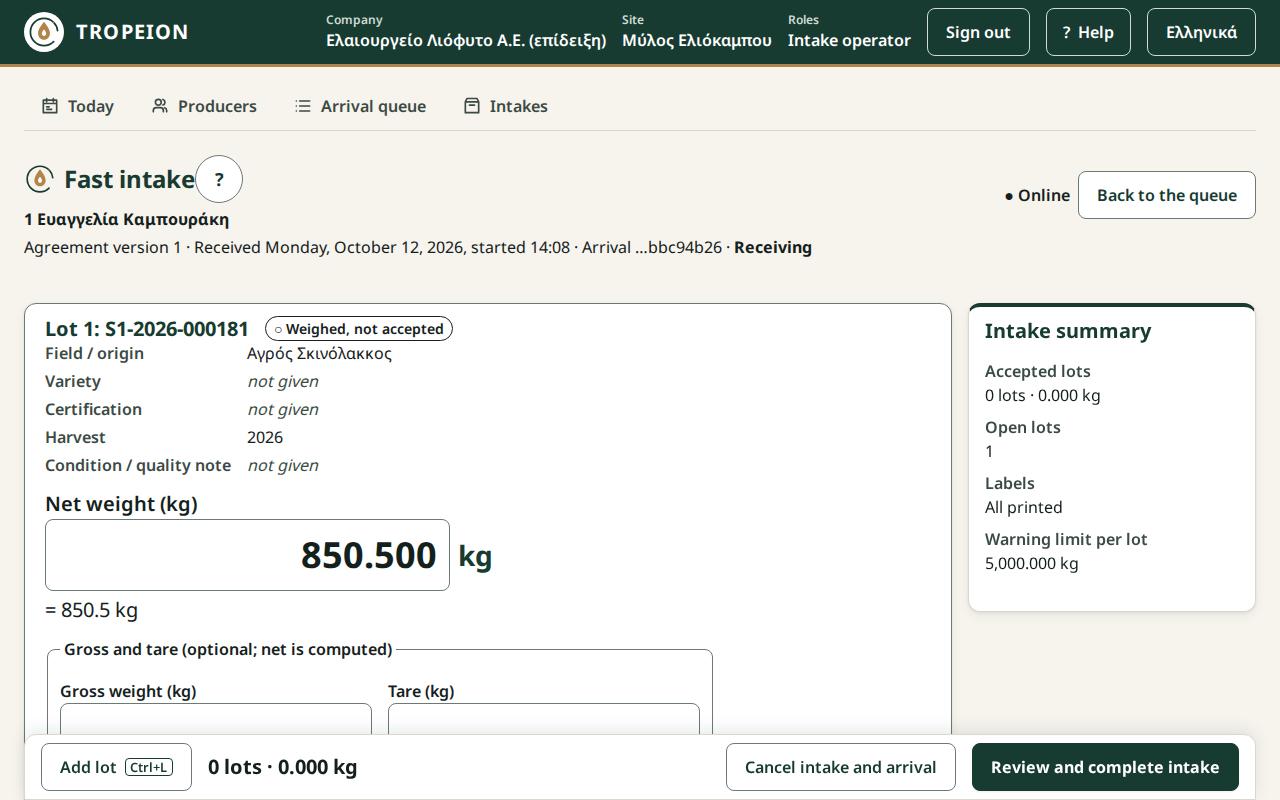
Top
- The title Fast intake.
- The producer's number and name.
- "Agreement version …", "Received …, started …", "Arrival …" with the last characters of the arrival, and the intake state: "Draft", "Receiving", "Completed" or "Cancelled".
- On the right, Online or Offline and the Back to the queue button.
Lot cards
Each lot is a card. The first card opens by itself so you can start at once. Its title is "New lot 1 (not saved)" and, once saved, "Lot 1: " with its code. Next to it is the state: "Not saved", "Draft", "Weighed, not accepted", "Accepted", "Partly consumed", "Consumed", "Corrected" or "Cancelled".
The card fields, in order:
- Origin: if the producer has active parcels, you choose Parcel (from the list The producer's parcel, "ΚΑΕΚ – name – area") or Free text (Field / origin, up to 200 characters). Never both. Without parcels only the text shows, with the hint "The producer has no active parcels…". See Lot origin from a parcel.
- Variety: chosen from a list, or "— Not given —".
- Certification: chosen from a list, or "— Not given —".
- Harvest: you do not type it. "Set automatically from the current season when the lot is saved."
- Condition / quality note: free text, up to 500 characters.
- Net weight (kg): the main field.
- Gross and tare (optional; net is computed): the Gross weight (kg) and Tare (kg) fields.
None of fields 1 to 5 is mandatory.
Intake summary
On the right you see:
- Accepted lots: count and total kg, for example "2 lots · 1,840.5 kg".
- Open lots: lots not yet accepted or cancelled.
- Labels: "All printed" or "… not printed".
- Warning limit per lot: the kg above which the system asks for confirmation.
- Warnings such as "…: above the warning limit" or "Some actions are not yet confirmed by the server."
Bottom bar
- Add lot (or Ctrl+L).
- The total of accepted lots.
- Cancel intake and arrival: shown only while no lot is accepted.
- Review and complete intake.
Screen tour (tablet)
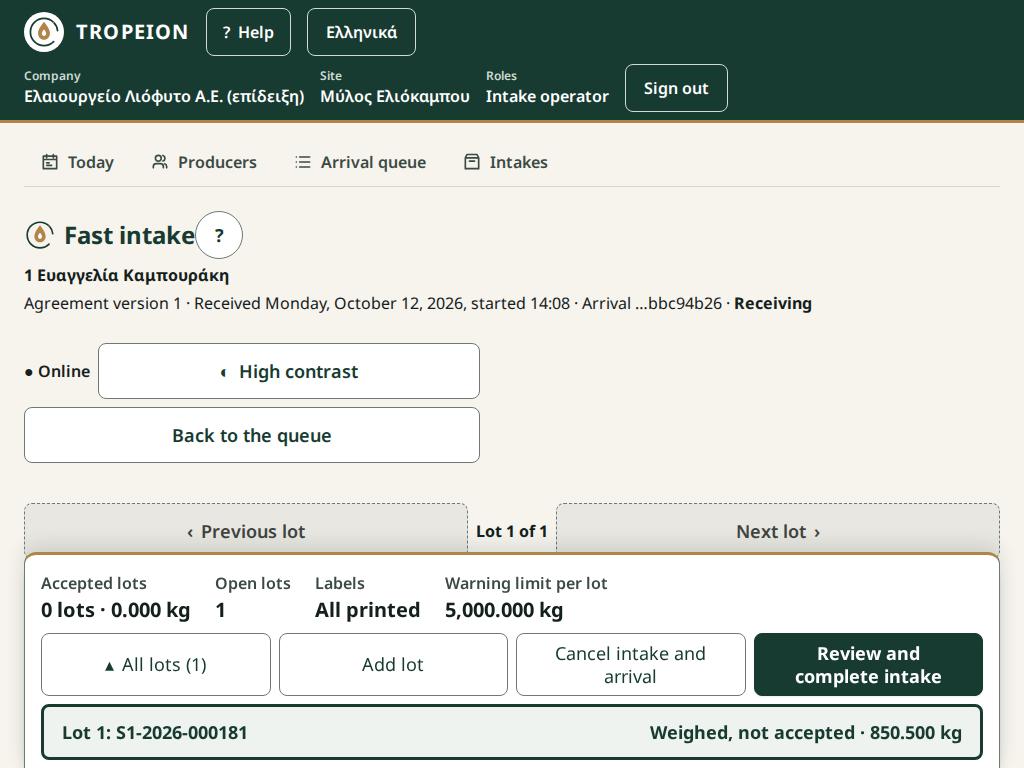
- One card is shown at a time. Previous lot and Next lot change the card. "Lot … of …" shows where you are. What you typed on one card is kept when you move to another.
- The bottom sheet holds the totals (as in the Summary), the All lots (…) button with the list of every lot, and Add lot, Cancel intake and arrival and Review and complete intake.
- When the number keypad opens, the sheet shrinks to the totals and the name of the lot you are weighing.
- The High contrast button at the top makes the screen easier to read in sunlight. The choice is remembered on this device.
Buttons and actions, step by step
Record and accept a lot
- Fill in the attributes you know. Enter moves to the next field.
- In Net weight (kg) type the kilograms, for example
1250.375. Use a decimal point or comma, without thousands separators. Below the field the system shows how it read the value, for example "= 1,250.375 kg". - If you have gross and tare, type them in their own fields instead of the net. The net is computed for you ("computed: gross − tare"). Give both or neither. Tare may be 0.
- Press Enter in the weight field, or the Accept lot · … button.
- The system saves the lot, gives it a code and accepts it. You see "Lot … accepted · …. Print the label with Ctrl+P."
- The card now shows its details read-only, the "Accepted net weight", the barcode and "Short code … · site … · season …".
Warning: above the limit
If the kg exceed the site's limit, you see "Warning: … is above this site's warning limit (…). Check the weighing; if it is correct, press again to confirm." The button becomes Confirm … and accept lot.
- If the weight is wrong, correct it before pressing.
- If it is right, press again. The card keeps the note "Recorded above the warning limit (…), confirmed."
Warning: same attributes
If a new lot has the same origin, variety, certification and condition as another lot of this intake, you see "Warning: same origin, variety, certification and condition as another lot of this intake…". If it really is a separate lot, press Accept lot with the same attributes · ….
Save as draft
Save as draft (not accepted) saves the lot without accepting it, for example while you wait for a second weighing. You see "Lot … saved as a draft (not accepted)." Once saved, its attributes can no longer change. The weight can change until you accept or cancel the lot.
Add lot
Press Add lot or Ctrl+L. The new card takes the origin, variety and certification of the previous lot, marked "Copied from previous lot". Check them and change them if needed.
Remove unsaved lot
On a card not saved yet, Remove unsaved lot deletes it. Nothing is recorded.
Cancel lot
On a draft lot, or a lot weighed but not accepted:
- Press Cancel lot.
- Write a Reason (required).
- Press Cancel lot ….
The card says "Lot …: … was cancelled; the code is kept and it does not count in the total." The code is never reused.
An accepted lot cannot be cancelled. If its weight is wrong, see Correct an intake mistake.
Print label
On an accepted lot, press Print label … or Ctrl+P. Ctrl+P prints the lot of the card you are on, otherwise the most recently accepted one. After the first attempt the button reads Retry print …. See Print a label and a receipt.
The barcode is shown on the card so you can check it on screen.
Create weight correction
An accepted lot that has not gone into production yet has Create weight correction. The previous weight is not deleted: it is kept in the history together with the reason. See Correct an intake mistake.
Lot detail
The Lot detail link on an accepted lot opens the Lot detail screen, where splitting is done.
Review and complete
- Press Review and complete intake.
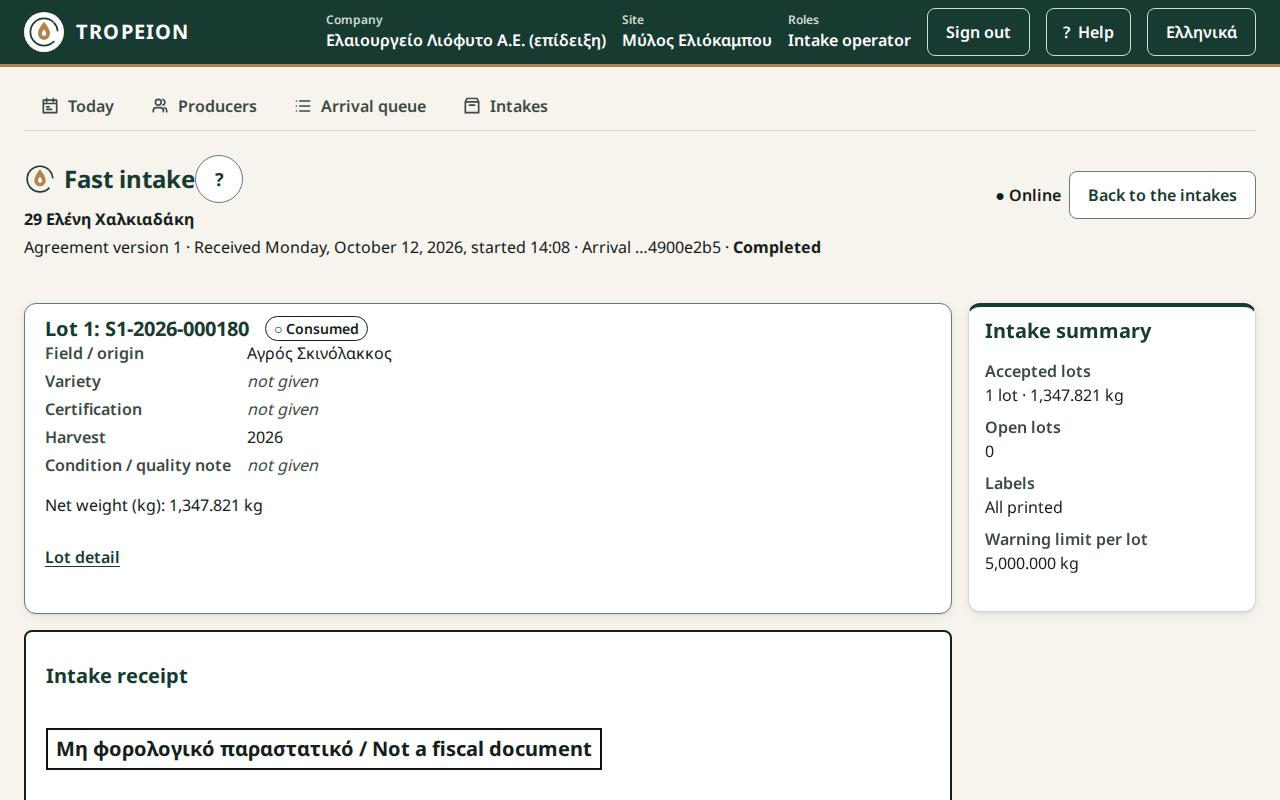
- Review the intake before completion opens, with every lot, its attributes, net weight, state and the total.
- If something blocks completion, you see "The intake cannot be completed yet:" and the list, for example "Lot … is not accepted: accept or cancel it." Press Back to the lots and sort them out.
- Unprinted labels do not block: "… labels were not printed or failed. Completion is allowed; retry the print when a printer is available."
- Press Complete intake · … lots · ….
- You see "The intake is complete · …. The receipt is ready to print." and the Intake receipt appears.
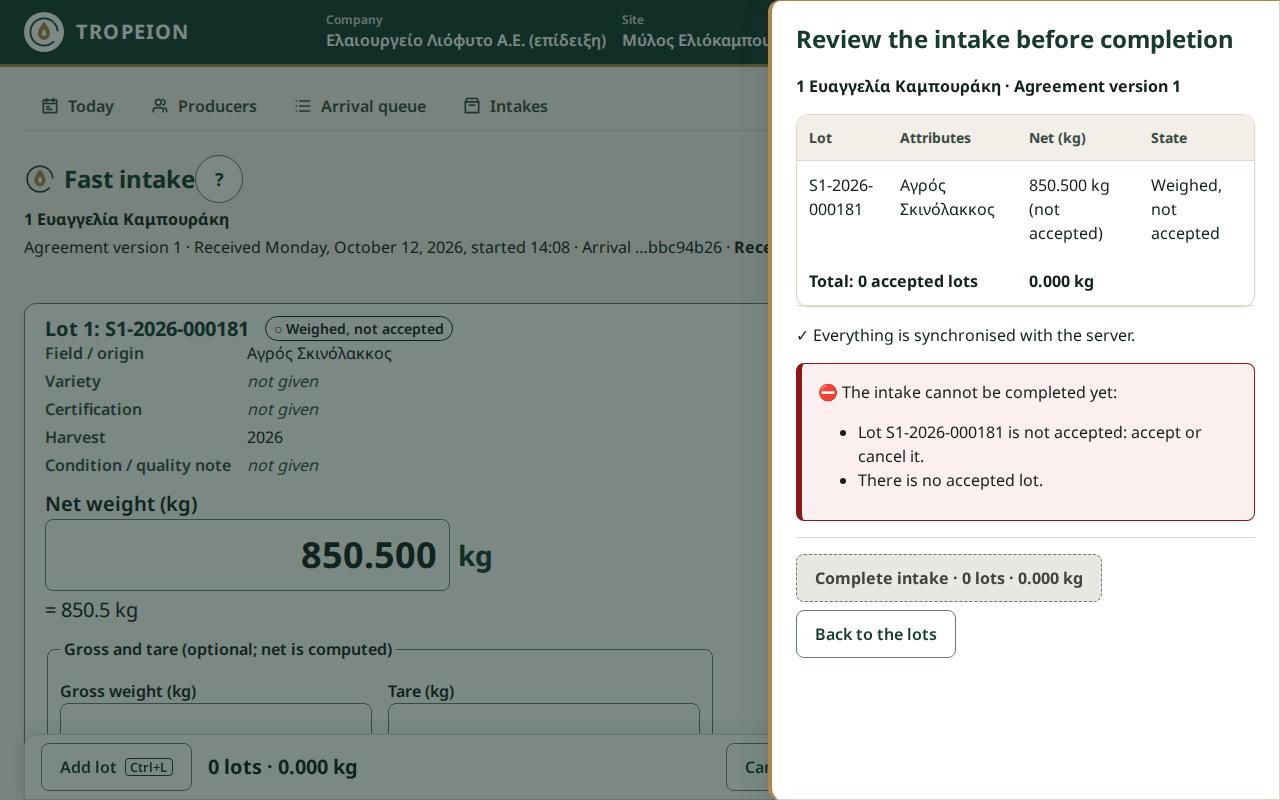
Intake receipt
The receipt says "Μη φορολογικό παραστατικό / Not a fiscal document". It lists the producer, the agreement, the receiving date, the completion time, the accepted lots with their kg and the total. Each lot's origin is the parcel's ΚΑΕΚ and name, or the free text. Print it with Print receipt (not fiscal).
Cancel intake and arrival
When the producer leaves before you accept any lot:
- Press Cancel intake and arrival.
- Write a Reason (required).
- Press Cancel intake and arrival in the window.
You see "The intake and the arrival were cancelled." If at least one lot is accepted, cancelling is not allowed.
Offline and recovery
- Without a connection, the screen becomes a "controlled draft". You keep typing and what you type is kept, but nothing is saved, accepted or printed.
- If an action was sent but no answer came, the card shows "Pending sync: press the action again; it will not be recorded twice". Press the same button again when the connection returns.
- If the page is closed or reloaded with unsent input, the same browser tab remembers it. When you open the intake again with a connection, the pending actions are sent automatically, without being recorded twice.
- If you try to leave (Back to the queue, another screen, another site) with unsaved input, you see "Some input is not saved or some actions are not confirmed by the server yet. If you leave now, they are lost from this screen. Leave anyway?". Choose to stay unless you really want to discard it.
Messages and what to do
- "Loading the intake…": wait.
- "No intake has been started for this arrival…": go back to the queue and press Start intake on a called arrival.
- "Offline: the intake was not loaded…" or "The intake is temporarily unavailable…": press Reload the intake.
- "The intake was not refreshed after the last action…": press Reload the intake.
- "The list is not available; the lot can be saved without this field.": the variety or certification list did not load. You can continue.
- "Enter the net weight in kg.", "Enter a number without thousands separators, for example 1250.375.", "At most 3 decimals and 15 integer digits; the value is never rounded.", "The weight must be above 0 kg.": correct the weight.
- "Give both gross and tare, or neither.", "The tare cannot be negative.": correct gross and tare.
- "Correct … fields before you continue:": click each line of the list to go to the field.
- "The intake was changed on another station…" or "The state of the intake or lot has already changed…": the screen refreshes and "What you typed is kept. Check the refreshed figures and try again."
- "No current season is set; the lot was not created…" or "The lot codes of this season are used up…": contact the Central manager.
- "The producer has no active agreement at this site.": tell the Site manager.
- "The site has no default terms in force.": the agreement cannot be created automatically. The Site manager sets default terms.
- "Your session has ended. Sign in again; what you typed is kept on this screen.": sign in again.
- "The label was not printed: no label printer is configured at this site…", "The printer reported a failure…", "The print request was not sent…": the lot stays accepted. See Print a label and a receipt.
- "This intake was cancelled together with its arrival.": the intake is closed.
Common mistakes
- Typing
1,250.5with a thousands separator. Type1250.5. - Accepting a lot with wrong attributes copied from the previous one. Always check fields marked "Copied from previous lot".
- Confirming above the limit without checking the weighing.
- Closing the page while "Pending sync" is shown.
Note: The attributes of an accepted lot (origin, variety, certification, condition) cannot be changed on this screen. If they are wrong, tell the Site manager.
Related How-To
- Find an intake
- Weigh and receive olives
- Print a label and a receipt
- Correct an intake mistake
- Split a lot
How-To guides for this screen
- Correct an intake mistake
- Lot origin from a parcel
- Print a label and a receipt
- Weigh and receive olives