Screen: Fast intake
Print a label and a receipt
Before you start
- For a label: the lot is Accepted. Draft lots get no label.
- For a receipt: the intake is Completed.
- You have a connection.
- The site's label printer is on and has paper. For the receipt you need a printer connected to the computer.
Steps: lot label
- On the accepted lot's card, press Print label … or Ctrl+P. Ctrl+P prints the lot of the card you are on, otherwise the one you accepted last.
- Read the result under the barcode:
- "The label was sent to the printer (attempt …).": take the label from the printer.
- "The printer reported a failure (attempt …)…": check the paper and cable and press Retry print ….
- "The label was not printed: no label printer is configured at this site…": write the lot code on the crate by hand and tell the Site manager.
- Check that the code on the label matches the code on the card, and stick the label on the right crate or sack.
For the new lots of a split, the same button is next to each label in Lot detail.
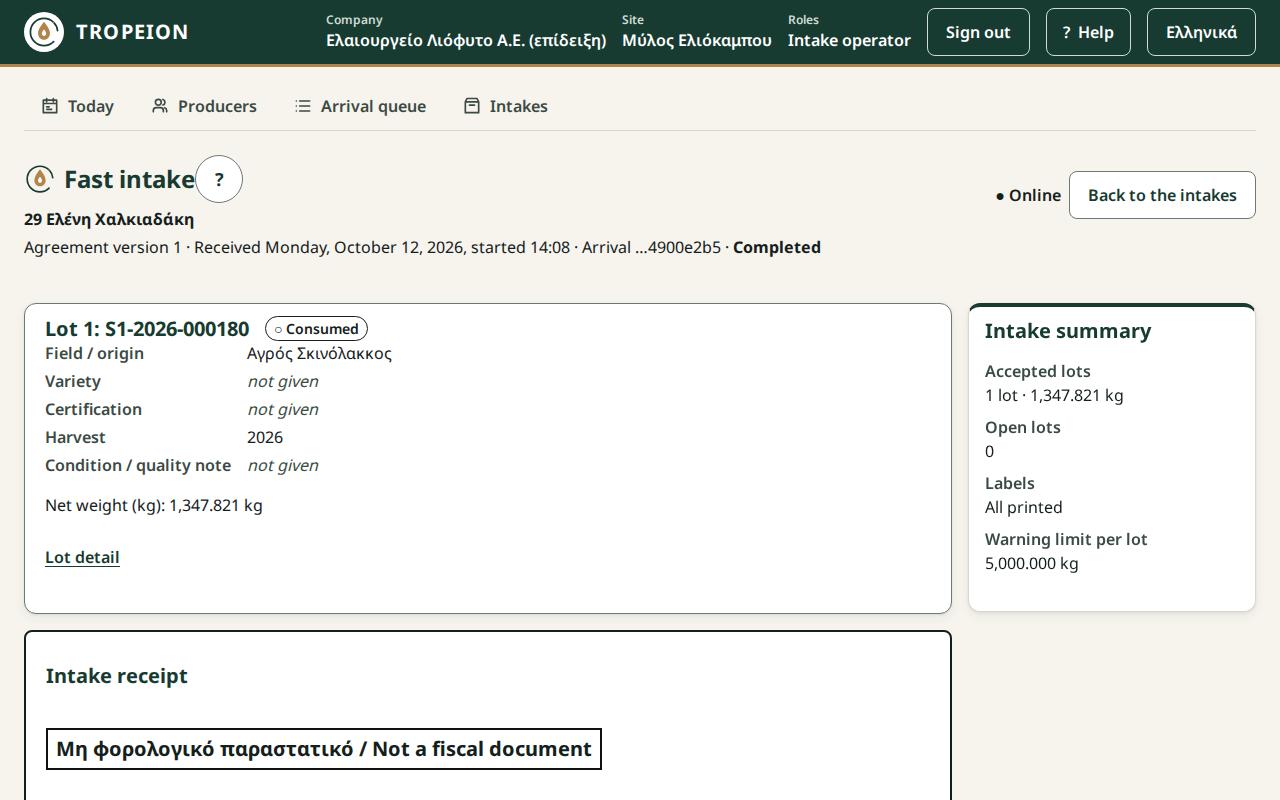
Steps: intake receipt
- Complete the intake with Review and complete intake and Complete intake · ….
- Below the lots the Intake receipt appears, marked "Μη φορολογικό παραστατικό / Not a fiscal document".
- Check the producer, the lots and the total.
- Press Print receipt (not fiscal).
- The browser's print window opens. Choose a printer and press "Print". Only the receipt is printed.
- Give the receipt to the producer.
To print the receipt again later, open the intake from the queue: tick "Show completed and cancelled arrivals of the day" and press Open intake.
Note: The intake receipt is not a fiscal document.
What if…
- …you see "The print request was not sent; the lot stays accepted.". The problem was the connection, not the printer. Press again when the connection returns.
- …you complete without all labels printed. It is allowed. The review shows "Label not printed" or "Label print failed" on the missing lots. Print them as soon as the printer works.
- …you press Ctrl+P and see "There is no accepted lot to print yet.". Accept the lot first.
- …there is no connection. Label printing is disabled until it returns.
- …a split was reversed. The new lots' labels are no longer valid. Remove them from the crates.