Users
Which role does what here
| Role | What it can do here |
|---|---|
| Site manager | manages users and roles |
| Central manager | manages users and roles |
What it is for
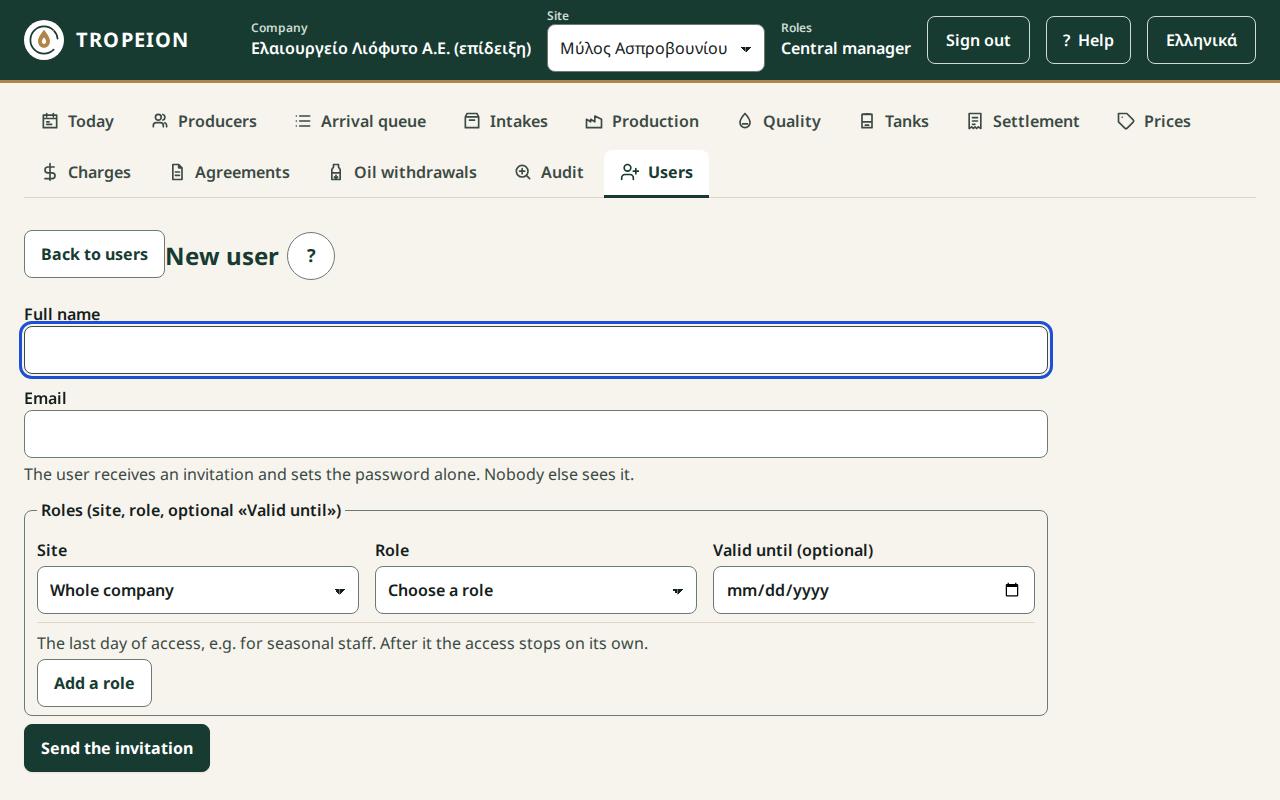
Here you manage the company's users: invite new ones by email, change roles and sites, set an end date for seasonal staff, deactivate and reactivate, send the invitation again and send a password reset email. Nobody sets or sees another person's password. Nothing is deleted; every change shows in the Audit.
Who sees it
- Central manager: every user of the company and every role.
- Site manager: only the users of their own sites, and grants only site roles: Intake operator, Production operator, Quality officer, Warehouse and tank operator, Cashier and settlement officer, Queue display. They never grant Site manager, Central manager, Accountant or Auditor.
- Nobody changes their own roles or status.
The list
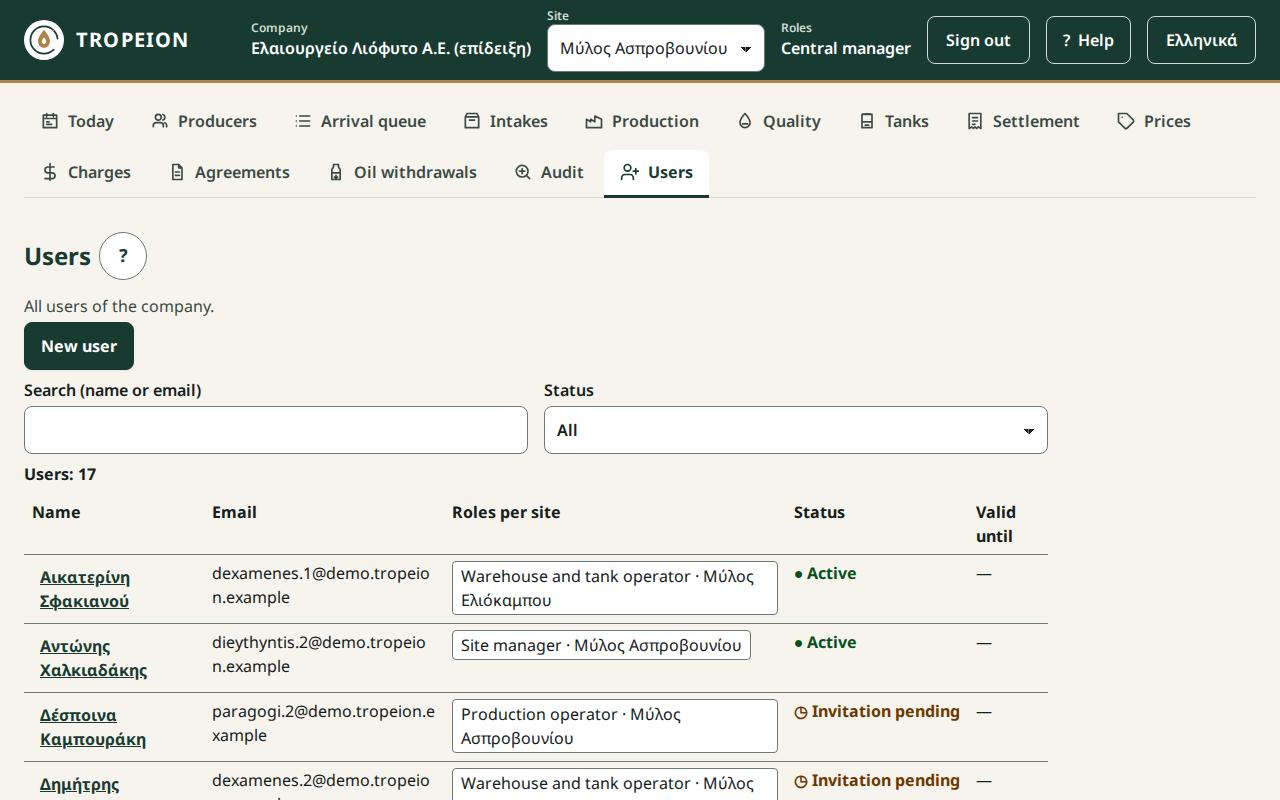
Press Users in the screen bar. Each row has:
- Name (press it to open the user) and Email.
- Roles per site: one role at each site, e.g. "Cashier and settlement officer · Mill A1". "Whole company" for company roles. A user can hold a different role at each site.
- Status: "Active", "Invitation pending" (not signed in yet) or "Inactive".
- Valid until: the last day of access, when all their roles end.
Type part of the name or email in Search and choose a Status. 50 users show; press More for the next ones.
The user
- Current and future roles: for each role, Remove now and End date (set, move or remove the end date).
- Add roles: one or more rows of site, role and an optional "Valid until".
- Account: Send the invitation again, Password reset (an email to the user), Deactivate or Reactivate.
- Role history: the roles that ended, with their dates.
A new sign-in to confirm
A new sign-in is asked when you grant, remove or change a Site manager, Central manager, Accountant or Auditor role, and always to deactivate or reactivate. After the sign-in the action is sent on its own and you return to the same user.
Buttons that cannot be pressed
The reason is written next to them:
- "This is your own account…": ask another manager for the change.
- "Public demo account…": the demo accounts do not change roles or status.
- "…the Central manager manages them": a Site manager does not change managers, accountants, auditors or users who also work at another site.
Messages and what to do
- "An invitation was sent by email.": the user sets a password from the email. Until then they are "Invitation pending".
- "The address cannot be used; contact support.": the email is not accepted. Contact support.
- "This email already belongs to a user or an open invitation of the company.": look for it in the list.
- "Not possible: the company would be left with no active Central manager…": appoint another Central manager without an end date first.
- "Someone else changed the user meanwhile…": the user was reloaded and your input was kept. Check and press again.
- "Too many requests…": at most 3 emails per hour go to one user.
Related How-To
- How to invite a new user
- How to change a user's roles
- How to deactivate a user
- How to set an end date for a seasonal user
How-To guides for this screen
- How to change a user's roles
- How to deactivate a user
- How to invite a new user
- How to set an end date for a seasonal user