Capabilities in detail: producers, queue and intake
What this part is for
This part describes every capability of the intake desk and the scale: producers, appointments and the arrival queue, Fast intake, Lot detail and the Intakes list.
Each section stands on its own. It says what the capability is and why it exists, who has it, the steps with the on-screen labels, what the system checks or refuses, how to correct a mistake, an example, common mistakes and related capabilities.
Roles are written as they appear in the application. Where an action asks you to sign in again, we write "(new sign-in)". Chapter 2 explains what that means.
The examples use Nikos, the producer from Chapter 1.
Rules that apply on all these screens
- One site at a time. The queue, intakes and lots belong to the site chosen in the "Work context" bar. Producers are the exception: they belong to the whole company.
- Kilograms are never rounded. Type up to 3 decimals, with a decimal point or comma, without thousands separators. Below the field the system shows how it read the number, for example "= 1,250.375 kg".
- Nothing is deleted after acceptance. An accepted lot is corrected with a new correction record. A split is reversed with a new reversal record. The previous value is kept in the history with the reason, and shows in the Audit.
- Each action is recorded once. If the connection drops or the service does not answer, press the same button again when it returns. The action is not recorded twice.
- Two stations at once. If a colleague changed the same record just before you, your action is not applied and you see a message that something changed at another station. What you typed is kept. Refresh, check and press again.
- Reasons are seen by others. Do not write health data or other sensitive personal data in a reason or note.
Producers
A producer belongs to the company, not to one site. If Nikos delivers to two mills of the same company, he is registered once and both find him.
Search for a producer
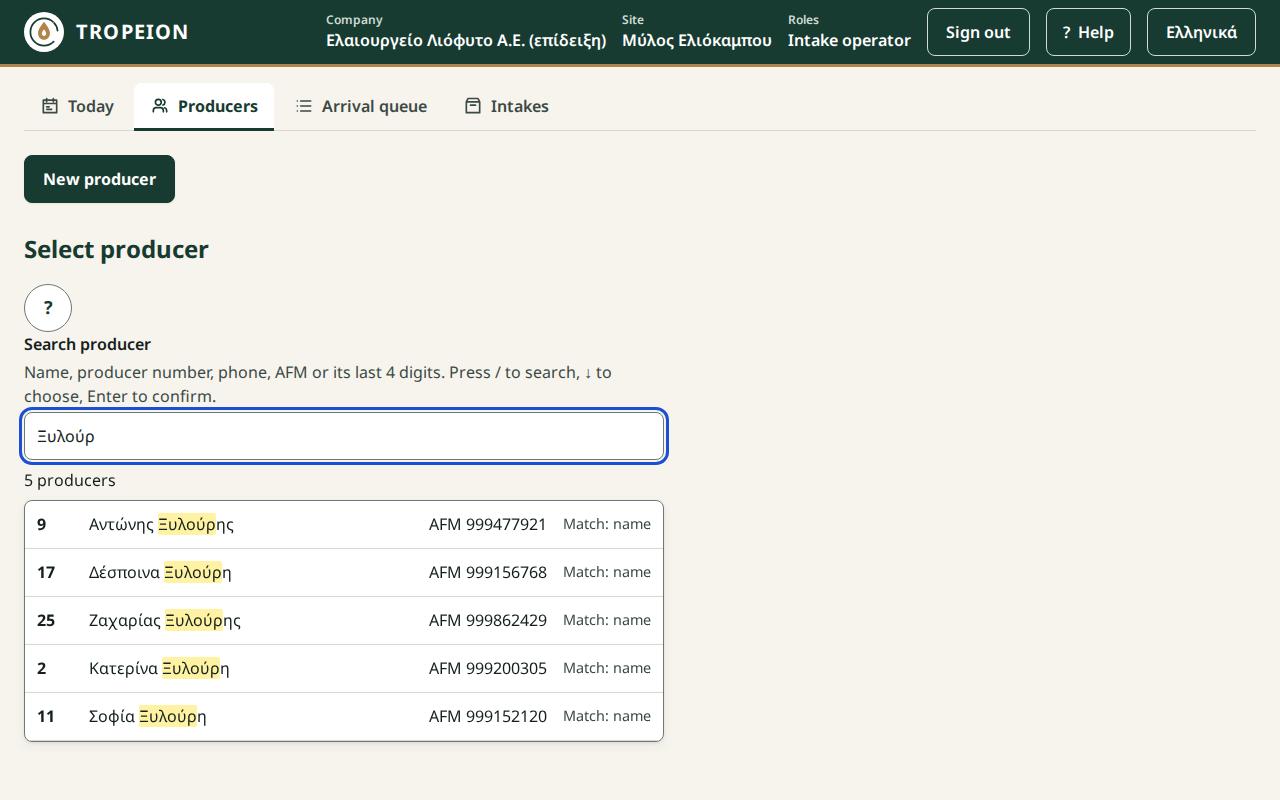
What it is and why it exists. You find a producer quickly and see their basic details: Producer number, Name, AFM and Status, and below them the Producer details. The same search is inside the New walk-in and New appointment windows of the queue. On the Producers screen, selecting a producer only shows their details. It does not put them in the queue and changes nothing.
Who. Every olive-mill role: Intake operator, Production operator, Quality officer, Warehouse and tank operator, Cashier and settlement officer, Site manager, Central manager, Accountant and back office, Auditor (read-only). Not the Queue display (view only). The AFM is shown only to users allowed to see it.
Steps.
- Press Producers. The screen title is Select producer.
- Click in Search producer, or press
/if you are not typing in another field. - Type part of the name, the producer number, the phone, the full AFM (9 digits) or the last 4 digits of the AFM. Accents and capitals do not matter.
- Pause: the search starts when you stop typing.
- Select the producer with a click, or with ↓/↑ and Enter. Home goes to the first result and End to the last.
- Check the Selected producer section. For someone else, press Change producer.
What the system checks.
- At least 2 characters are needed. A single digit looks up exactly that producer number.
- At most 20 results are shown. If there are more, you see "Showing the first 20; type more to narrow the results."
- "Match" says why the producer was found: "exact AFM", "producer number", "AFM ending", "phone" or "name". It is an aid, not a confirmation.
- The search finds the producers of the whole company, whatever site is chosen.
- To protect personal data, the system does not keep what you type. When you leave the page or change site, the text and the selection are cleared.
- A producer who is not active shows "Inactive" or "Temporary".
If you make a mistake. Searching changes nothing. Press Change producer or Esc. A second Esc clears the text.
Example. Nikos says his AFM ends in 4821. You type 4821. Two producers come up with "AFM ending". You choose the one with the right name and check the producer number.
Common mistakes.
- Typing one letter and waiting for results.
- Typing dots or spaces inside the AFM. Type the digits only.
- Choosing a producer with the same name without checking the producer number.
- Pressing Enter before the list updates. You see "Waiting for the updated results…". Wait and press again.
Related. New producer · Walk-in arrival · help Producers.
Producer details
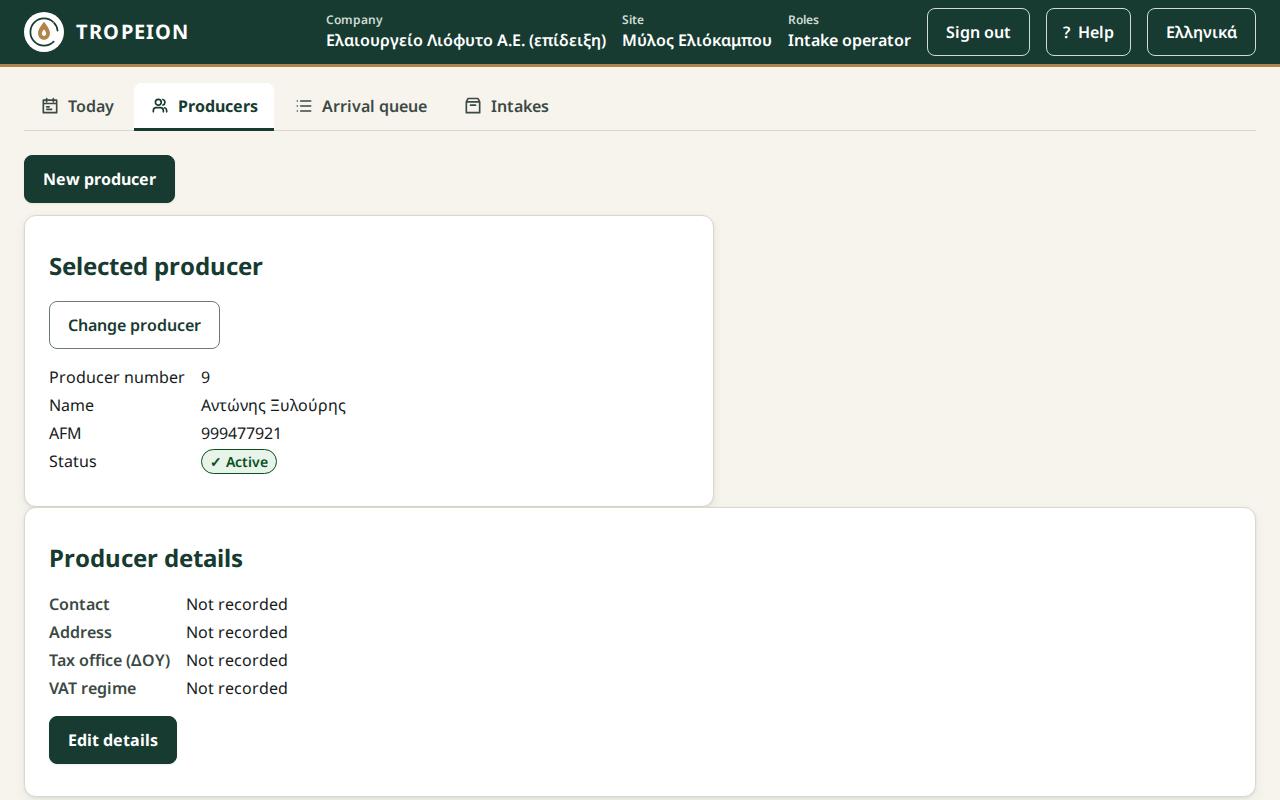
What it is and why it exists. After you select a producer, the Producer details section shows their phones and emails, the Address, the Tax office (ΔΟΥ) and the VAT regime ("Special farmers' regime" or "Normal regime"). Edit details corrects them when the producer changes mobile or address. The VAT regime is recorded only: it changes no prices, settlements or documents.
Who. Every role that sees the AFM sees the details, the Auditor (read-only) included. The same roles that register a new producer change them: everyone except the Auditor, who only sees them. The service refuses a change from a role without the right, whatever the screen shows.
Steps.
- On the Producers screen, select the producer. Below the Selected producer the Producer details appear.
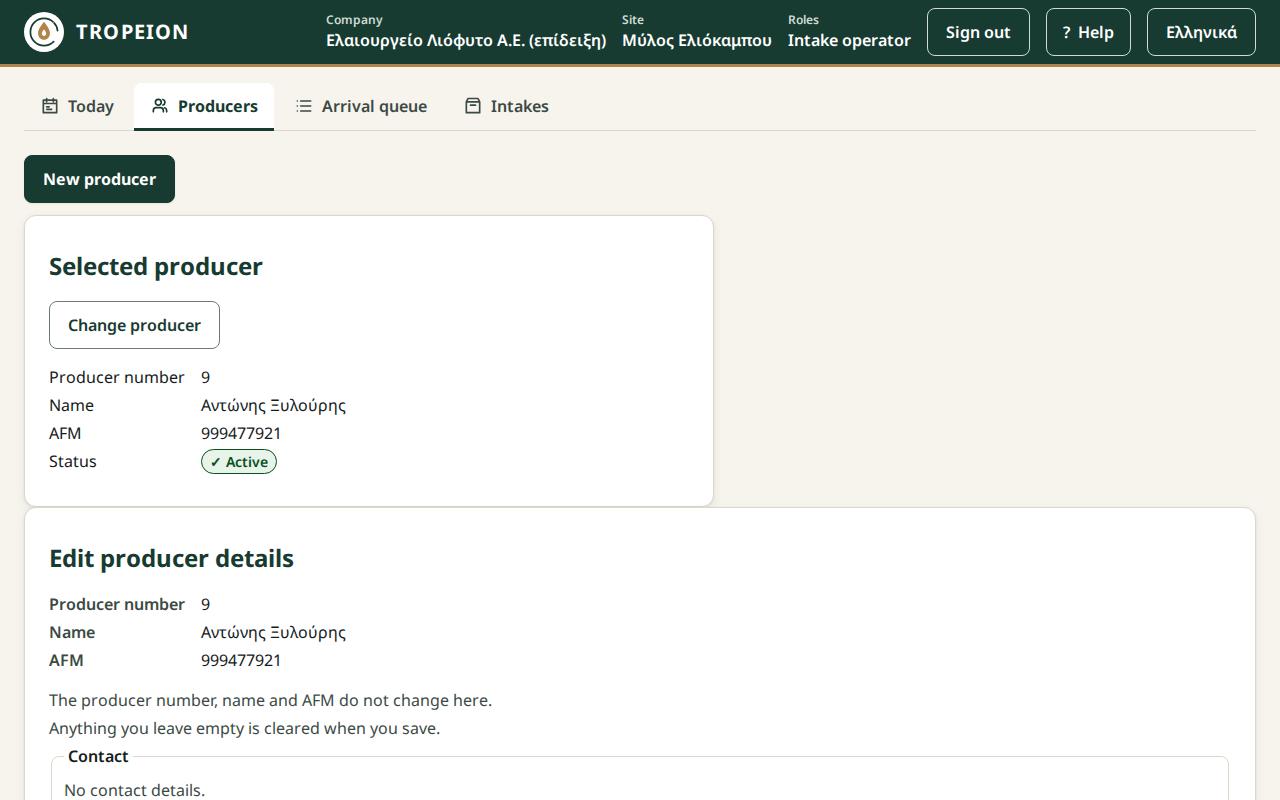
- Press Edit details.
- The producer number, name and AFM are shown read-only. They do not change here.
- Under Contact, choose Mobile or Email in each row and type the value. Add phone or email adds a row (up to 10), Remove contact takes it out.
- Type Street and number, Postal code and Town or village, the Tax office (ΔΟΥ), and choose the VAT regime.
- Press Save producer details. You see "The producer's details were saved.".
What the system checks or refuses.
- All together: saving replaces all the details. Anything you leave empty is cleared. A row you removed simply goes away.
- Address: the postal code has exactly 5 digits. The town or village is needed if you type a street or postal code.
- A field error: a message under the field and the cursor on the first error. Nothing is saved until you correct it.
- WhatsApp: if the producer has an old WhatsApp contact, you see "Saving will remove the WhatsApp contact (no longer supported).". Saving removes it and it cannot be added again.
- A change from another station: "Someone else changed this producer's details meanwhile…". Your changes were not saved. Press Load the current details and make the change again.
- No connection: what you typed is kept. Press Save producer details again. They are never saved twice.
If you make a mistake. Open Edit details again and correct it. Every change is recorded in the Audit.
Example. Nikos changed his mobile. You select him, press Edit details, type the new mobile over the old one and press Save producer details.
Common mistakes.
- Clearing the address when you only meant to change the mobile. The other fields stay as they are as long as you do not empty them.
- Looking here to correct the AFM or the name. They do not change here: tell the Site manager.
Related. Search for a producer · help Change a producer's details, Producers.
Parcels
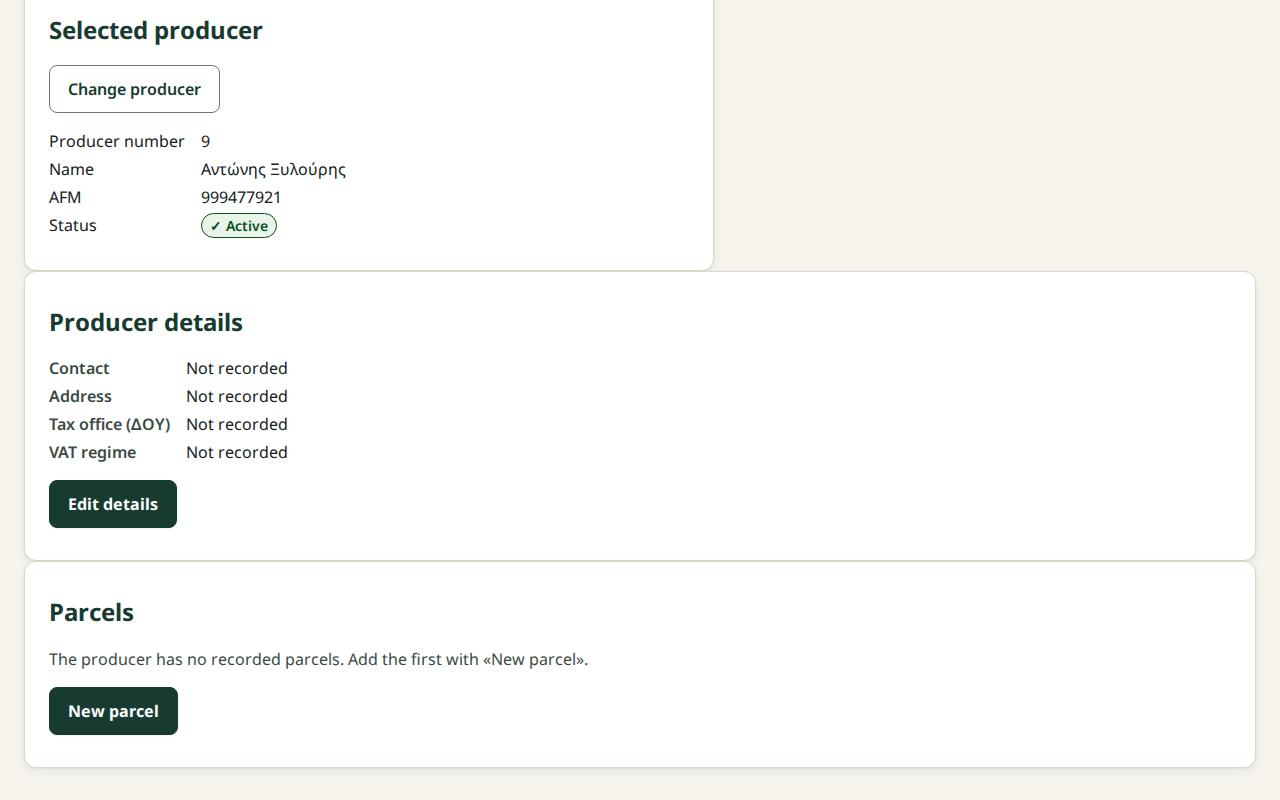
What it is and why it exists. Parcels are the producer's fields (olive groves): the Land Registry ΚΑΕΚ and/or a name, the Area in stremma and m², the Variety, the Trees and, when it comes from a file, the shape on the map. At intake a lot can record which parcel it came from, for traceability from the field to the oil. The map is our own (OpenStreetMap, "© OpenStreetMap contributors"): no third party learns where the fields are or who looks at them.
Who. Everyone who sees the producer sees the parcels and the map, the Accountant and the Auditor (read-only) included. The roles that change producer details record, change and deactivate them: everyone except the Auditor. The service refuses a change from a role without the right, whatever the screen shows.
Steps.
- On Producers, select the producer. Below the Producer details you see the Parcels and the Map of the active parcels.
- Press New parcel.
- Enter the ΚΑΕΚ (Land Registry code) or a Name (at least one), the Area in stremma (e.g.
12.5), the Variety and the Number of trees. - Press Record the parcel. You see "The parcel … was recorded.".
What the system checks or refuses.
- ΚΑΕΚ or name: without either, nothing is saved.
- ΚΑΕΚ format: digits and "/" only. If it is not the usual 12-digit form, it is saved with a warning.
- Same ΚΑΕΚ: not allowed for the same producer ("The producer already has a parcel with this ΚΑΕΚ."); if the existing one is inactive, the message offers Reactivate …. Another producer may have it, with a warning (co-owned, leased).
- Area: above 0, converted to m² exactly, never rounded.
- All together: saving replaces all of the parcel's details; anything left empty is cleared. The shape stays as it is: it is not drawn by hand, it only comes from a file.
- Map: on a device without support you see "The map is not available on this device.". Every value is in the table.
If you make a mistake. Press Edit … and correct it. A parcel is never deleted: Deactivate … stops intake offering it, but it stays on the lots that name it. Every change is recorded in the Audit.
Example. Nikos has the "Kalamaki" grove, ΚΑΕΚ 123456789012, 12.5 stremma with 120 Koroneiki trees. You record it once; at every intake you just choose "Kalamaki".
Common mistakes.
- Entering the area in m² in the stremma field. Check "Will be saved: …".
- Creating a new parcel instead of reactivating the old one.
Related. Weigh and accept a lot · help Record a parcel, Producers.
New producer
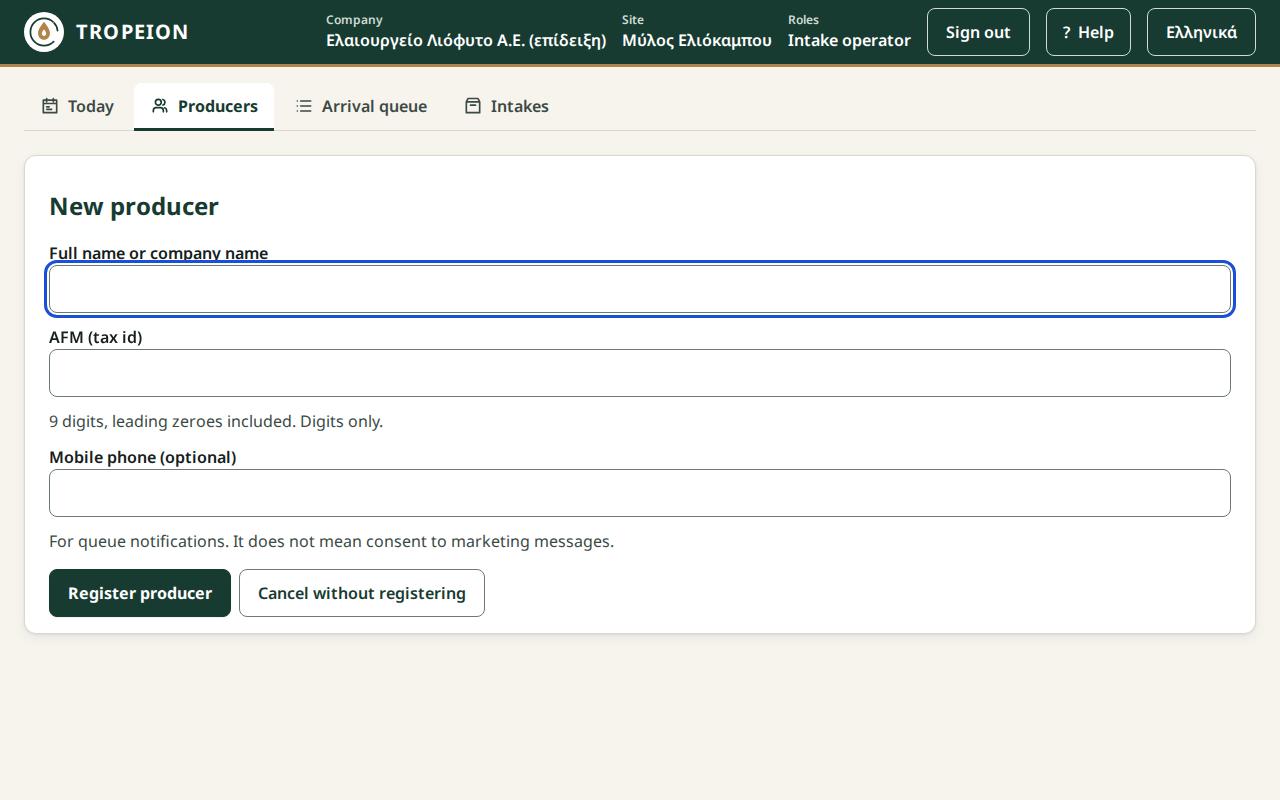
What it is and why it exists. You register a producer who does not exist yet, so they can join the queue and deliver. The system gives them a producer number.
Who. Every role that sees Producers, except the Auditor (read-only). The Accountant and back office registers too. The service refuses a registration from a role without the right, whatever the screen shows: "Your role cannot register producers. Nothing was registered."
Steps.
- On the Producers screen, search by AFM first, so you do not register someone who already exists.
- Press New producer.
- Type Full name or company name, 2 to 200 characters.
- Type the AFM (tax id): exactly 9 digits, leading zeroes included. Anything other than digits is dropped as you type.
- If you have it, type the Mobile phone. It is used for queue notifications and is not consent to marketing messages.
- Press Register producer or Enter.
- You see "Producer registered" and "Registered with producer number …", with the details as the service read them back.
- Press Back to producer search.
Cancel without registering closes the form and registers nothing.
What the system checks or refuses.
- Same AFM in the company: "A producer with this AFM already exists in the company. Nothing was registered." Two producers with the same AFM cannot exist in one company. Search for them by AFM and use the existing one.
- AFM check digit: see the next section.
- Same name or same phone: "N other producers have the same name." or "...the same phone." Here the producer has already been registered. The warning exists because namesakes exist, but it may also be the same person.
- A field error: a message under the field, for example "The phone number is not valid." Nothing is registered until you correct it.
- No connection: "No connection: the producer is not registered yet…". What you typed is kept. Press Register producer again when the connection returns. The producer is never registered twice.
- "The producer was registered, but their details did not load.": the registration is done. Press Reload producer details.
If you make a mistake. A wrong mobile or email is corrected with Edit details (see Producer details). The name and AFM do not change, and there is no merging of producers. If you registered someone twice or with a wrong name or AFM, tell the Site manager. Do not register a third record.
Example. Maria comes for the first time. You search her AFM and nothing is found. You press New producer, type name, AFM and mobile, and press Register producer. You see "Registered with producer number …". Then you add her to the queue.
Common mistakes.
- Registering again a producer who came first to another site. The search covers the whole company. Search by AFM first.
- Ignoring the "same name" warning without checking that it is a different person.
- Leaving out the leading zeroes of the AFM.
Related. The AFM warning · help Register a new producer.
The AFM warning
What it is and why it exists. The last digit of a Greek AFM is a check digit: it is computed from the other 8. If it does not match, there is usually a typing error. The warning catches the error before the producer is registered. It is not a ban, because the producer's document may really carry that AFM.
Who. Anyone who registers a new producer.
Steps.
- After Register producer you see "The AFM check digit does not match…". Nothing is registered yet.
- Check the digits against the producer's document.
- If you typed it wrong, correct it and press Register producer again. As soon as you change the AFM, the warning goes and the check runs again.
- If the AFM is right as written, press Register anyway.
- After saving you see "Registered with an AFM that fails the check-digit test."
What the system checks. Only the check digit. It does not check the AFM against any outside service. The check for the same AFM in the company always runs, and there the registration is refused.
If you make a mistake. If you pressed Register anyway with a wrong AFM, the producer is registered. Tell the Site manager.
Example. You type Maria's AFM and see the warning. You look at her ID card: you typed 7 instead of 1 in the fifth digit. You correct it, the warning goes and the registration goes through normally.
Common mistakes. Pressing Register anyway without looking at the document.
Related. New producer · help Producers.
Appointments and the arrival queue
The Arrival queue is the intake desk's working screen. It shows who is waiting and in what order, and today's appointments not yet arrived. It updates itself about every one and a half seconds while it is open and visible.
Only the Intake operator, the Site manager and the Central manager see and work the queue. Other roles do not see the Arrival queue button.
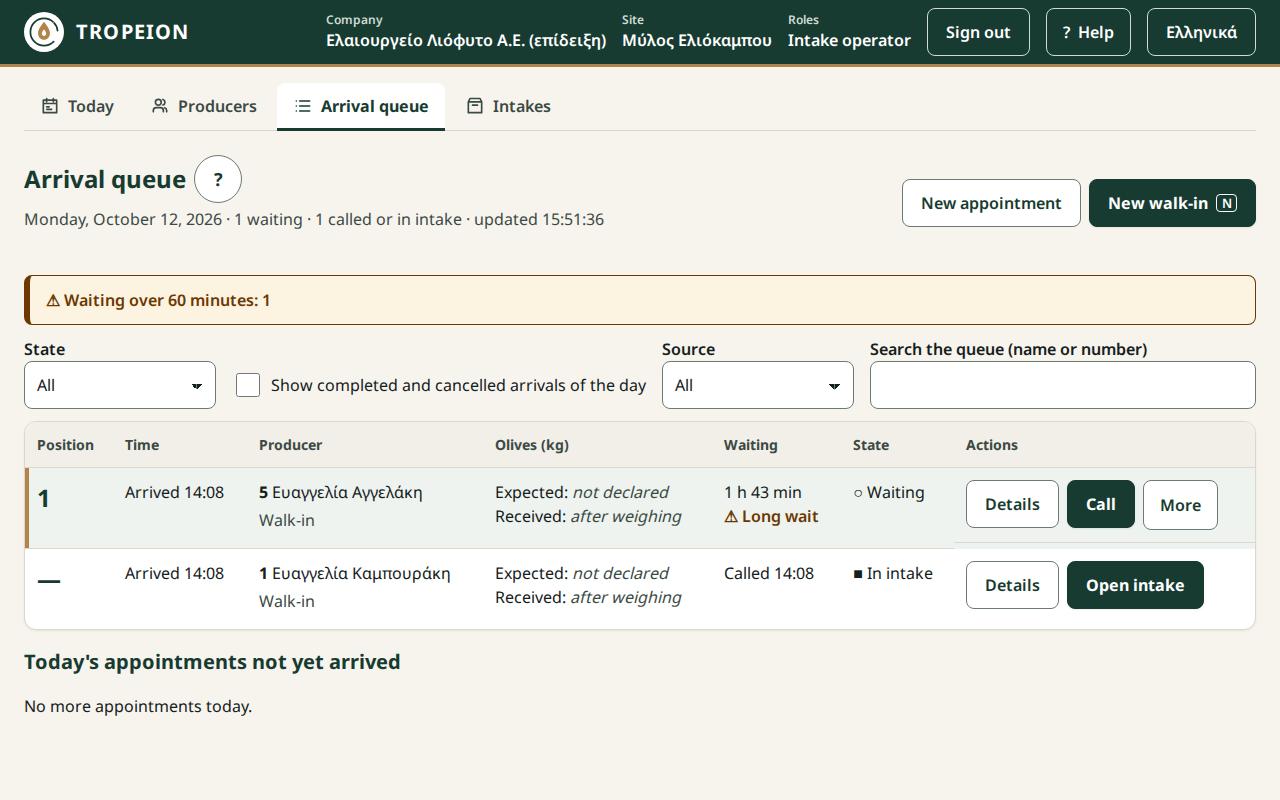
The life of an arrival: "○ Waiting" → "▶ Called" → "■ In intake" → "✓ Completed". An arrival can also become "✕ Cancelled". Completed and cancelled arrivals show only with the Show completed and cancelled arrivals of the day box ticked.
New appointment
What it is and why it exists. You book a day and time window for a producer in advance, for example when they phone. The mill then knows what is coming and roughly how many kilograms. An appointment does not put the producer in the queue. They join the queue when they arrive and are checked in.
Who. Intake operator, Site manager, Central manager.
Steps.
- In the Arrival queue of the site where the producer will come, press New appointment.
- In Search producer, find and select the producer.
- Read the hint "Times are in the site time zone (…)."
- Choose a Date. The default is today's business date.
- Give From (time) and To (time).
- Optionally type Expected olives (kg, optional) and a Note (optional), up to 500 characters.
- Press Book appointment: ….
- You see "Appointment booked: … (awaiting confirmation)." If it is for today, it appears in Today's appointments not yet arrived.
Actions on today's appointment, from the row's More:
- Record confirmation: only for "Awaiting confirmation" appointments, when the producer has confirmed they will come.
- Mark as no-show: only after the window ends. Before that it says "No-show can be marked after …."
- Cancel appointment: with a required reason.
What the system checks or refuses.
- Earlier dates are not allowed.
- "To" must be after "From": "The end time must be after the start time."
- A window already passed: "The window has already ended."
- The window must be within one business day: "The window must fall within one site business day."
- Kilograms have up to 3 decimals.
- All times are in the site's time zone.
If you make a mistake. An appointment is not deleted. If you booked it wrong, press More, Cancel appointment, with a reason, and book a new one. The cancellation stays on record.
Example. Nikos phones on Monday and wants to come on Wednesday 09:00–10:00 with about 1,000 kg. You book an appointment with Expected olives 1000. On Tuesday he calls again to say he is definitely coming. On Wednesday, on the appointment row, you press More, Record confirmation.
Common mistakes.
- Booking while another site is chosen. The appointment belongs to the site where you booked it.
- Cancelling the arrival instead of the appointment, or the other way round.
Related. Check in an appointment · help Book a new appointment.
Check in an appointment
What it is and why it exists. When a producer with an appointment arrives, you record the arrival from the appointment. The arrival joins the queue as "Appointment" and is linked to it.
Who. Intake operator, Site manager, Central manager.
Steps.
- In Today's appointments not yet arrived, find their row. Check Window, number and name.
- Press Check in. If the row is selected with J/K, Enter is enough.
- You see "Checked in: …." The producer joins the queue as "Appointment" and "○ Waiting".
What the system checks or refuses.
- Check-in works after the window too, when the row says "Window passed, not arrived".
- It works even if the appointment was never confirmed.
- An appointment at another site: "The appointment is at another site and cannot be checked in here…". Change site if you work there too, or send the producer to the right site.
- A producer has at most one active arrival per site: "The producer already has an active arrival at this site; no second one was created." Press Open existing arrival to see their row.
If you make a mistake. If you checked in the wrong appointment, cancel the arrival (Cancel an arrival) with a reason and check in the right one.
Example. On Wednesday at 09:20 Nikos arrives. You find his row in the appointments and press Check in. He appears in the queue at position 3, "Appointment".
Common mistakes. Recording a producer with an appointment as a New walk-in. Their appointment then stays open and later shows "Window passed, not arrived".
Related. New appointment · Call · help A producer with an appointment arrives.
Walk-in arrival
What it is and why it exists. Most producers come without an appointment. You put them in the queue in the order they arrive.
Who. Intake operator, Site manager, Central manager.
Steps.
- Check that the producer has no appointment today. If they do, check in the appointment.
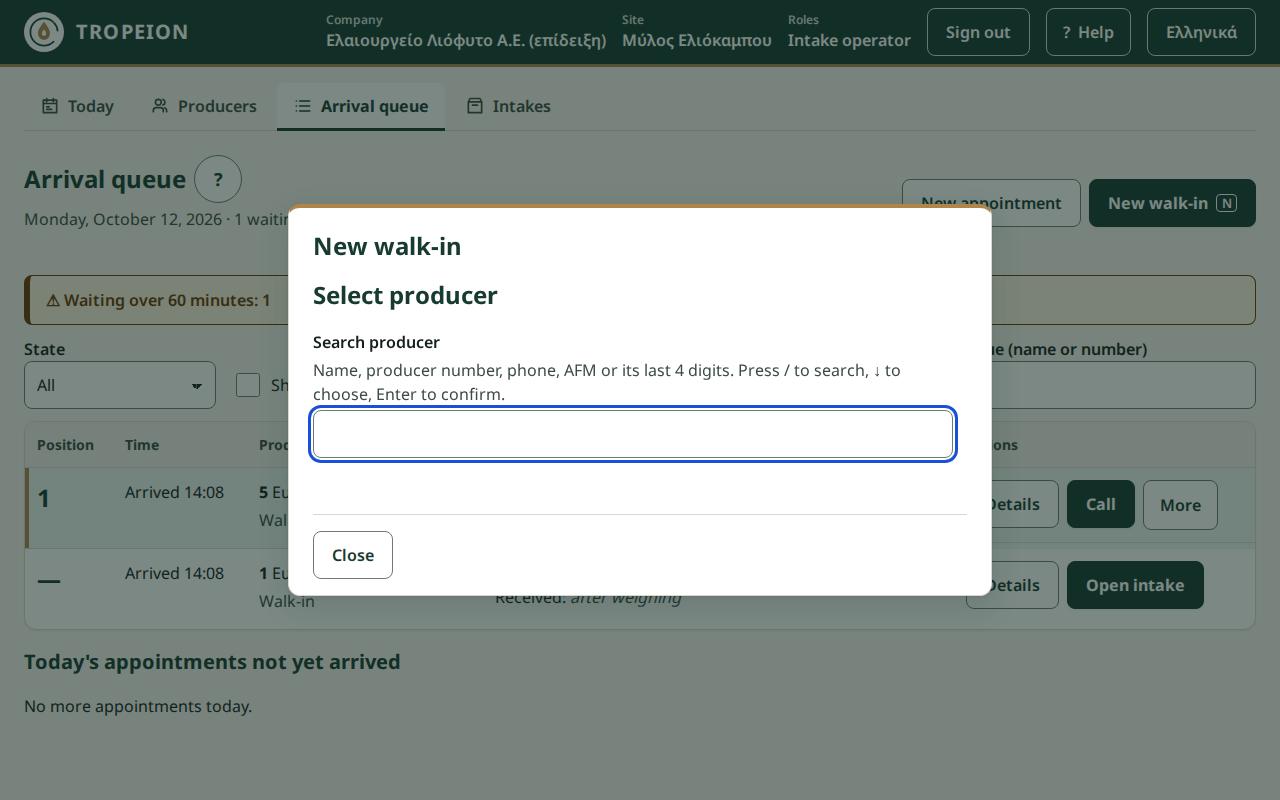
- Press New walk-in or the N key.
- In Search producer, find and select the producer. Check the Selected producer section.
- Press Add to queue: ….
- You see "… was added to the queue." The row says "Walk-in".
What the system checks or refuses.
- One active arrival per producer and site, as above.
- If the producer does not exist, you cannot find them. Register them first on the Producers screen.
- If the producer shows "Inactive" or "Temporary", check with the Site manager before accepting them.
If you make a mistake. Before Add to queue: press Change producer. After adding: More, Cancel arrival, with a reason, and add the right one.
Example. Maria arrives without an appointment. You press N, type Mar, select her and press Add to queue: …. She joins the end of the queue.
Common mistakes. Not looking at today's appointments first.
Related. Search for a producer · New producer · help A producer without an appointment.
Call
What it is and why it exists. You call the next producer to the scale. Calling happens only in order, so nobody overtakes another without a recorded reason.
Who. Intake operator, Site manager, Central manager.
Steps.
- When the scale is free, press Call on the row at Position 1. If the row is selected with the keyboard, Enter is enough.
- You see "… was called." The state becomes "▶ Called" and the producer appears under "Now called" on the public display.
- Press Start intake on their row. See Start the intake.
What the system checks or refuses.
- The Call button is only on position 1. You cannot call someone out of turn.
- If someone must be served first, the Site manager or the Central manager changes their position with a reason (Change a queue position).
- If a colleague already called the same producer: "The state has already changed, perhaps at another desk. Nothing was changed. Refresh the queue."
If you make a mistake. The queue has no button that undoes a call. If the producer you called has left, cancel their arrival with a reason (Cancel an arrival).
Example. The scale frees up. Nikos is at position 1. You press Call. On the waiting-room TV his initials and the last 4 digits of his AFM appear under "Now called".
Common mistakes. Looking for Call on another row. It is only on position 1.
Related. The public queue display · help Arrival queue.
Change a queue position
What it is and why it exists. Sometimes someone must be served earlier, for example because their load will spoil. Changing the position is allowed, but only for a manager, with a reason everyone sees, so the order never changes silently.
Who. Site manager and Central manager only (new sign-in). The Intake operator sees instead "Only a site manager or central manager can change the order, with a reason."
Steps.
- On the arrival's row, press More, then Change position.
- The Change queue position window shows "Current position: … of …".
- Type New position (1 to …).
- The window shows who else shifts, for example "2 other arrivals will shift:".
- Write a Reason (required), up to 500 characters.
- Press Move to position …. You may be asked to sign in again.
- You see "…: moved from position … to …." The row shows "Priority adjusted:" with the reason.
What the system checks or refuses.
- The action exists only on "Waiting" arrivals, and only when at least two are waiting.
- The reason is required.
- If the queue changed at another desk meanwhile: "The queue changed since you opened this dialog, so the order was not changed…". Press Refresh and review, check and confirm again. The position and reason are kept.
- If the producer was called or cancelled meanwhile: "The arrival is no longer waiting; its position cannot be changed."
- On the other desks, the rows that moved briefly show "▲ Priority adjusted" or "▼ Priority adjusted".
If you make a mistake. Make another position change, with a reason that explains the correction. Both changes stay on record.
Example. Giannis at position 4 has olives heating up in his truck. The Site manager moves him to position 1 with the reason "Load at risk from heat". Positions 1–3 each move down one.
Common mistakes. Writing health data in the reason. The reason is shown in the queue.
Related. Call · Roles · help Arrival queue.
Cancel an arrival
What it is and why it exists. You take out of the queue a producer who left without delivering, or an arrival recorded by mistake. The arrival is not deleted: it stays as "✕ Cancelled" with the reason.
Who. Intake operator, Site manager, Central manager.
Steps.
- On the row, press More, then Cancel arrival.
- Check number and name.
- Write a Reason (required).
- Press Cancel arrival and remove from queue.
- You see "Arrival cancelled: …."
Close (text is kept) or Esc closes the window without cancelling.
What the system checks or refuses.
- From the queue you cancel "Waiting" or "Called" arrivals.
- An "In intake" arrival is cancelled together with its intake, from Fast intake, and only while no lot is accepted (Cancel intake and arrival).
If you make a mistake. The queue has no button that restores a cancelled arrival. Record the producer again as a New walk-in. They join the end of the queue. If they must get their old place back, the Site manager or the Central manager makes a position change.
Example. Maria waited an hour and left. You cancel her arrival with the reason "Left before being called".
Common mistakes. Cancelling the arrival when you meant the appointment, or the other way round.
Related. Walk-in arrival · help Arrival queue.
The public queue display
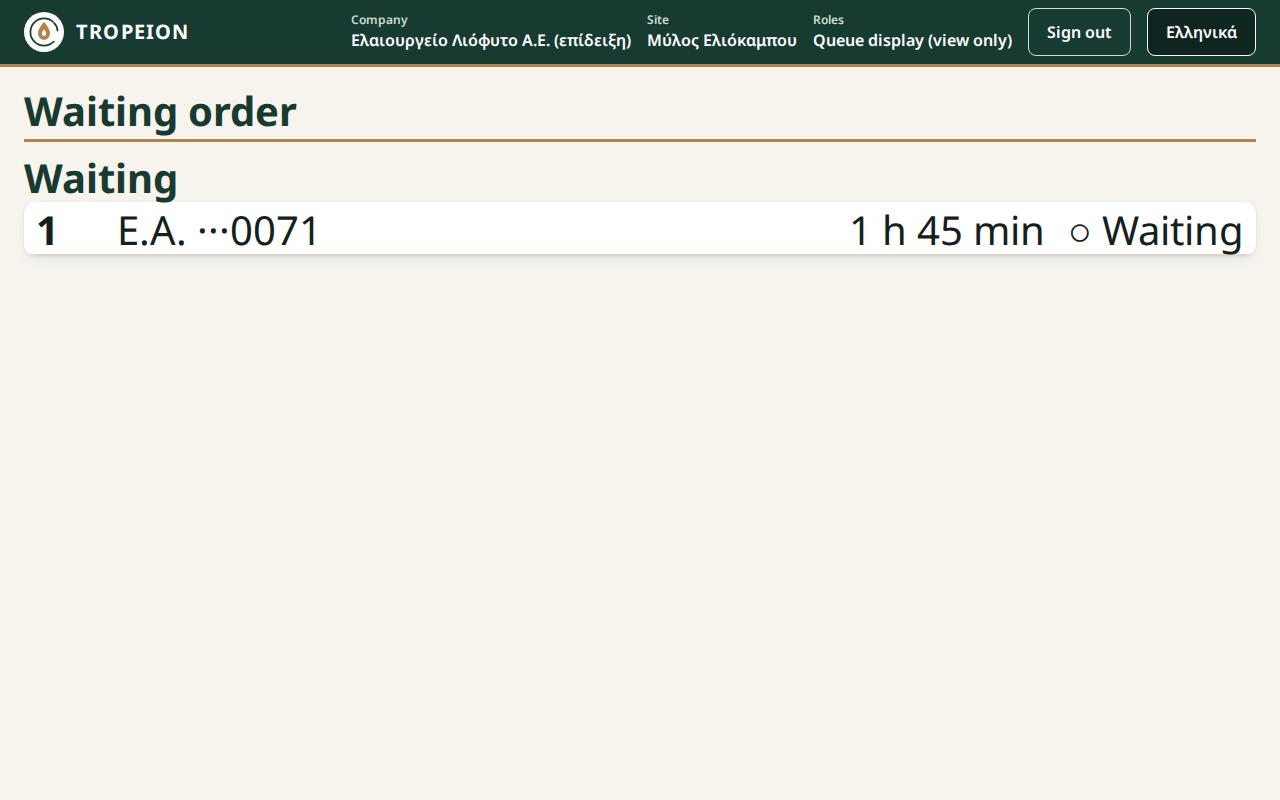
What it is and why it exists. Waiting order is the screen for the waiting room, on a computer or TV. Producers see who is called and their own place, without any personal data showing.
Who. A separate account with only the Queue display (view only) role. The Site manager or the Central manager creates it in Users, or it is set up from the start with the onboarding Excel. The account has no screen buttons and does no actions.
Steps.
- On the waiting-room computer, sign in with the display account.
- If the account has several sites, choose the site in the "Work context" bar.
- Leave the screen open and visible. It updates itself about every one and a half seconds.
What it shows and what it does not.
- Now called: those called, with "▶ Called".
- Waiting: those waiting, in order, with "○ Waiting".
- Each row: position, initials, the last 4 digits of the AFM (for example "···4821"), waiting time, state.
- Up to 10 rows. If more are waiting, it says for example "+… more waiting".
- Never a full name, a full AFM, kilograms or reasons.
What the system checks.
- If the account also has a role that works the queue (Intake operator, Site manager, Central manager), the normal Arrival queue opens, with names, not the public display.
- If the account has no role at the site: "This account cannot show this site's queue display." The screen does not retry by itself. Fix the site or the role and reload the page.
- When the tab is hidden or minimised, updating stops.
If you make a mistake. If names show in the waiting room, the screen is open with a personal account. Sign out at once and sign in with the display account.
Example. Nikos sits in the waiting room and sees at position 3 his initials, "···4821", "12 min" and "○ Waiting". As soon as the clerk presses Call, his row moves up to "Now called".
Common mistakes.
- Opening the waiting-room screen with your personal account.
- Leaving the screen on the wrong site.
- Opening another tab on top of it, so it stops updating.
Related. Call · The Queue display role · help Public queue display.
Fast intake
In Fast intake you record the olives a producer delivers, in one or more olive lots. Each lot has its own attributes, weight, code and label. Separate lots are needed when the olives differ, for example in variety, certification or field, because the oil's quality and price depend on them.
The screen has no button of its own. It opens from the Arrival queue or from the Intakes list. On a computer the desktop layout opens and on a touch device the tablet layout. Both do the same things.
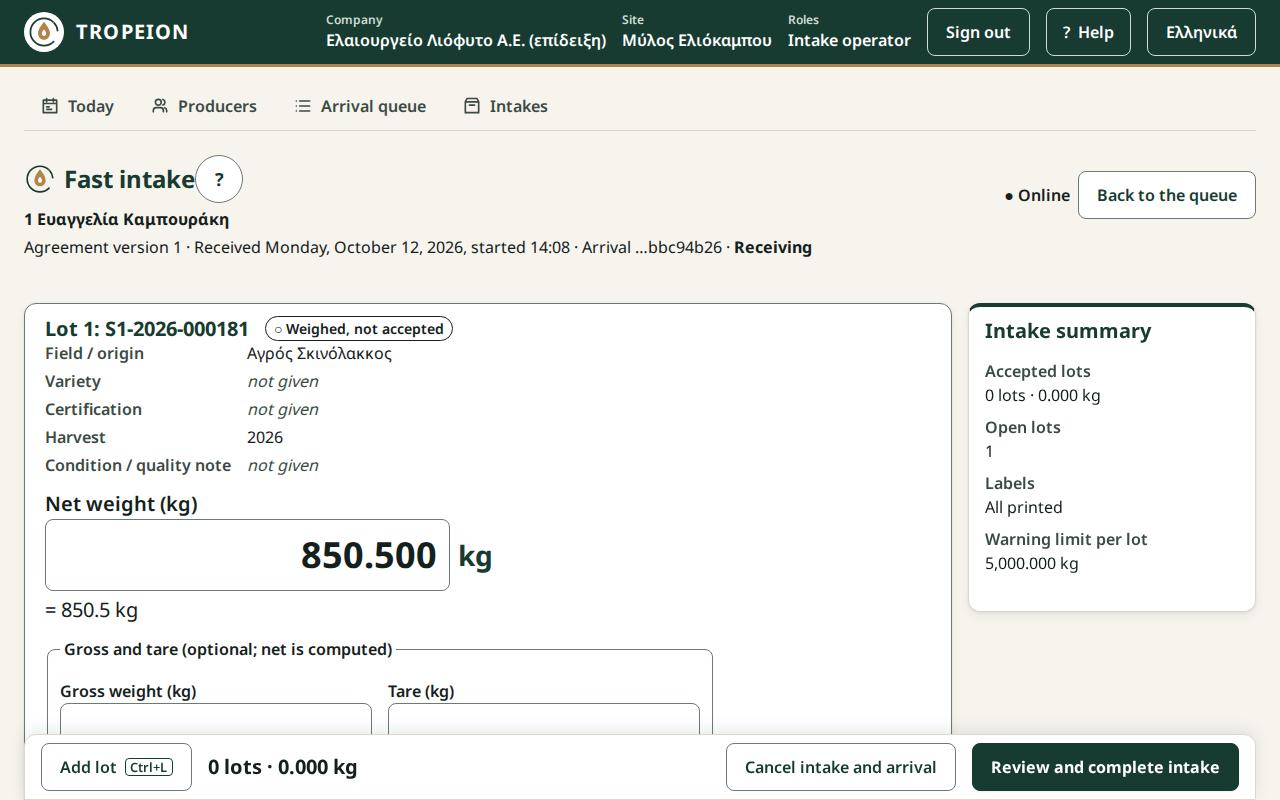
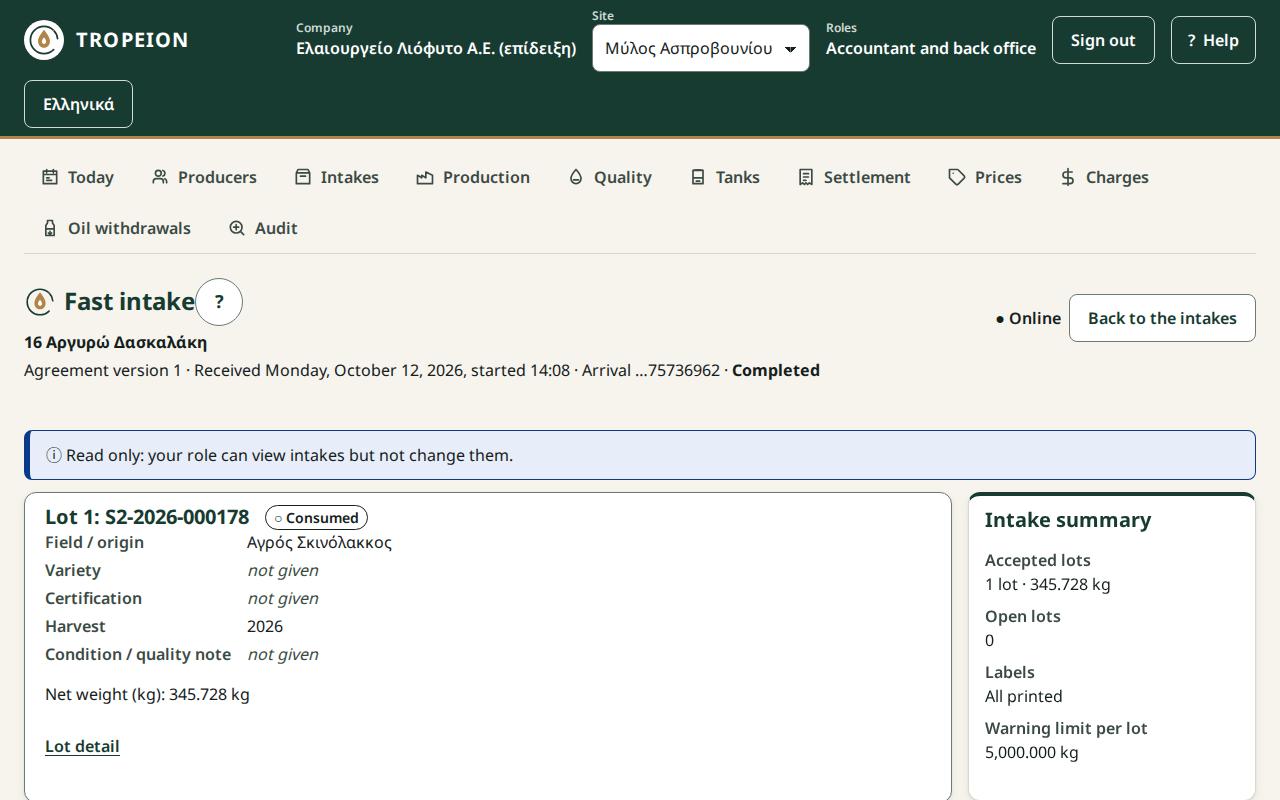
Who: the Intake operator, the Site manager and the Central manager do every action. The Accountant and back office and the Auditor (read-only) open an intake from the Intakes list and see "Read only: your role can view intakes but not change them."
Start the intake
What it is and why it exists. It opens the intake for the producer who was called. The intake is linked to the arrival and to the producer's agreement at this site, because the agreement later sets the mill's fee in the settlement.
Who. Intake operator, Site manager, Central manager.
Steps.
- In the Arrival queue, on a "▶ Called" row, press Start intake.
- Fast intake opens. The arrival becomes "■ In intake".
- Check the producer's number and name at the top.
For an intake already started, press Open intake on the queue row. Back to the queue brings you back.
The agreement. If the producer has no agreement at the site yet, the system creates one by itself when the intake starts, from the site default terms in force that day. You do nothing and the intake does not stop. The screen shows only "Agreement version …". The Intake operator never sees the fee terms (rate or amount). The Site manager and the Central manager set them in Agreements.
What the system checks or refuses. The intake does not start when:
- "The producer has no active agreement at this site for today, so the intake did not start…": the Site manager must activate an agreement version.
- "The producer has no agreement and the site has no default terms in force today…": the Site manager sets default terms. Then start the intake again.
- "No current season is set, so the intake did not start…": contact the Central manager.
If you make a mistake. If you started an intake for the wrong producer and no lot is accepted, use Cancel intake and arrival.
Example. Nikos was called. You press Start intake. It is his first time at this site, so the screen says "Agreement version 1". The system made the agreement from the default terms.
Related. Call · Agreements and default terms · help Fast intake, Agreements.
Weigh and accept a lot
What it is and why it exists. You record a lot with its attributes and net weight and accept it. Only accepted lots count in the total, go into production and reach the settlement. After acceptance the weight no longer changes in the field. It changes only with a weight correction.
Who. Intake operator, Site manager, Central manager.
Steps.
- The first card, "New lot 1 (not saved)", opens by itself.
- Fill in what you know: the Origin, as a Parcel from the producer's list ("ΚΑΕΚ – name – area") or as Free text in Field / origin (up to 200 characters), never both; without active parcels only the text shows. The origin shows on the card, the receipt and the Lot detail (Parcels). Then: Variety, Certification, Condition / quality note (up to 500 characters). None is mandatory. Enter moves to the next field. You do not type Harvest: "Set automatically from the current season when the lot is saved."
- In Net weight (kg) type the kilograms, for example
620.5. Check the line "= 620.5 kg". - If you have gross and tare, type Gross weight (kg) and Tare (kg) instead of the net. The net is computed for you ("computed: gross − tare").
- Press Enter in the weight field, or Accept lot · ….
- You see "Lot … accepted · …. Print the label with Ctrl+P." The card shows "Accepted net weight", the barcode and "Short code … · site … · season …".
- For the next lot press Add lot or Ctrl+L. The new card takes the origin, variety and certification of the previous lot, marked "Copied from previous lot". Check them.
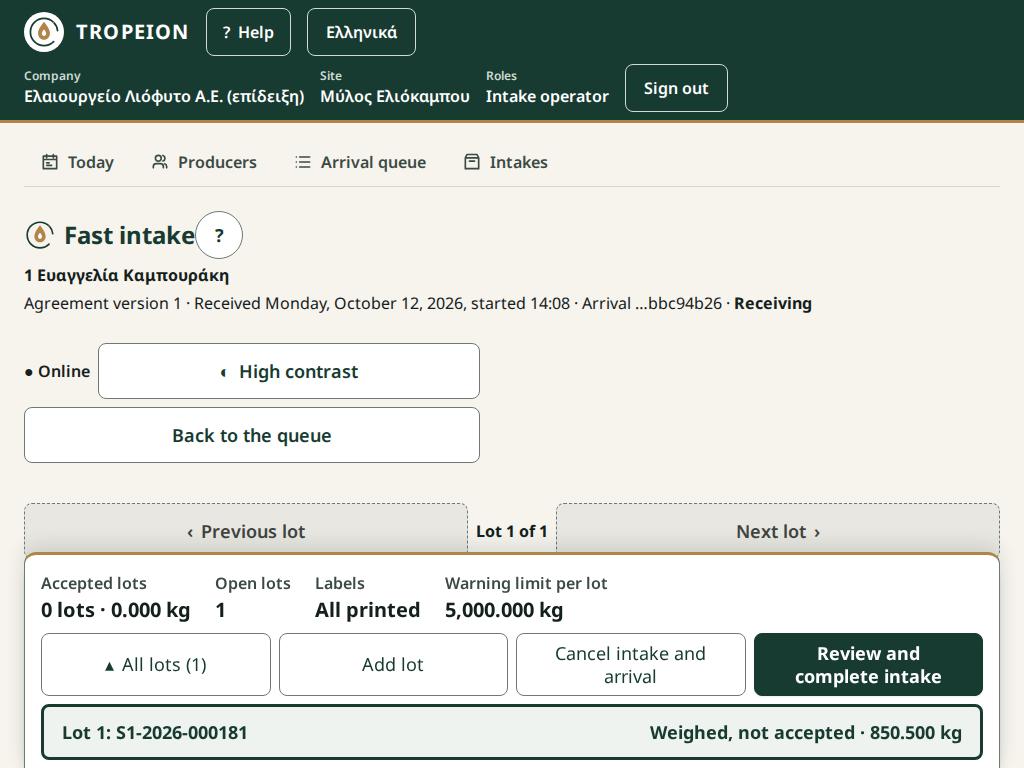
On a tablet one card shows at a time. Switch with Previous lot / Next lot. Add lot and Review and complete intake are in the bottom sheet. High contrast helps in sunlight.
What the system checks or refuses.
- Weight format: up to 3 decimals and 15 integer digits, above 0, no thousands separators. Messages: "Enter the net weight in kg.", "Enter a number without thousands separators, for example 1250.375.", "At most 3 decimals and 15 integer digits; the value is never rounded.", "The weight must be above 0 kg."
- Gross and tare: both or neither. Tare cannot be negative, and may be 0.
- Warning limit per lot: each site has a kg limit, shown in the Intake summary. Above it you see "Warning: … is above this site's warning limit (…). Check the weighing; if it is correct, press again to confirm." The button becomes Confirm … and accept lot. The card keeps the note "Recorded above the warning limit (…), confirmed." The limit is there to catch typing errors, for example an extra zero.
- Same attributes: if the lot has the same origin, variety, certification and condition as another lot of this intake, you see a warning. If it really is separate, press Accept lot with the same attributes · …. The warning catches the same weighing recorded twice.
- Lists: if the variety or certification list does not load, you see "The list is not available; the lot can be saved without this field."
- Season and codes: "No current season is set; the lot was not created…" or "The lot codes of this season are used up…": contact the Central manager.
If you make a mistake.
- Before acceptance: change the field.
- After acceptance, wrong weight: weight correction.
- After acceptance, wrong origin, variety, certification or condition: the screen does not change them. Tell the Site manager.
- An accepted lot cannot be cancelled.
Example. Nikos brings two loads: conventional Koroneiki from the "Upper field" and organic Koroneiki from the "Plain". First card: 620.5 kg, Accept lot. Ctrl+L: the second card has copied "Upper field" and "conventional". You change them to "Plain" and "organic", type 379.5 and accept. The Summary shows "2 lots · 1,000 kg".
Common mistakes.
- Typing
1,250.5with a thousands separator. Type1250.5. - Leaving wrong attributes copied from the previous lot.
- Pressing again to confirm above the limit without weighing again.
Related. Draft lot and cancel lot · Lot label · help Weigh and receive olives.
Draft lot and cancel lot
What it is and why it exists. Sometimes a lot should not be accepted yet, for example while you wait for a second weighing. You save it as a draft. If you do not want it after all, you cancel it. Its code is kept as cancelled, so no code ever disappears without explanation.
Who. Intake operator, Site manager, Central manager.
Steps.
- Draft: press Save as draft (not accepted). You see "Lot … saved as a draft (not accepted)." Later you type the weight and press Accept lot · ….
- Remove a card never saved: Remove unsaved lot. Nothing is recorded.
- Cancel lot (draft, or "Weighed, not accepted"):
- Press Cancel lot.
- Write a Reason (required).
- Press Cancel lot ….
- The card says "Lot …: … was cancelled; the code is kept and it does not count in the total."
What the system checks or refuses.
- Once saved as a draft, the attributes can no longer change. The weight can change until acceptance or cancellation.
- An accepted lot cannot be cancelled.
- A cancelled lot's code is never reused.
If you make a mistake. A cancellation cannot be undone. Press Add lot and record the lot again. It gets a new code.
Example. The scale shows an odd number for Nikos's third load. You press Save as draft, weigh again, type the right weight and press Accept lot.
Common mistakes. Saving a draft with the wrong variety. It cannot change afterwards: cancel it and record a new lot.
Related. Weigh and accept a lot · help Fast intake.
Lot label
What it is and why it exists. Every accepted lot gets a label with a barcode and a short code. You stick it on the crate or sack, so the mill floor knows which lot is which.
Who. Intake operator, Site manager, Central manager.
Steps.
- On the accepted lot's card, press Print label … or Ctrl+P. Ctrl+P prints the lot of the card you are on, otherwise the most recently accepted one.
- Read the result: "The label was sent to the printer (attempt …)."
- Check that the label's code matches the card and stick it on the right crate.
- For another attempt, the button reads Retry print ….
What the system checks or refuses.
- A label prints only for an accepted lot. Ctrl+P without an accepted lot: "There is no accepted lot to print yet."
- Without a connection, printing is disabled.
- If the site has no label printer: "The label was not printed: no label printer is configured at this site…". If the printer failed: "The printer reported a failure…". In both cases the lot stays accepted.
- Missing labels do not block completing the intake.
If you make a mistake. If you stuck a label on the wrong crate, remove it and press Retry print … for the right one. If the printer does not print, write the code by hand on the crate and tell the Site manager.
Example. After accepting Nikos's first lot you press Ctrl+P and stick the label. For the second, the printer is out of paper. You load paper and press Retry print ….
Common mistakes. Completing without labels and forgetting to print them later. The Summary says "… not printed".
Related. Labels of new lots after a split · help Print a label and a receipt.
Complete the intake and the receipt
What it is and why it exists. You close the intake when the lots are done and give the producer the Intake receipt. The receipt states what was received. It is not a fiscal document.
Who. Intake operator, Site manager, Central manager.
Steps.
- Press Review and complete intake.
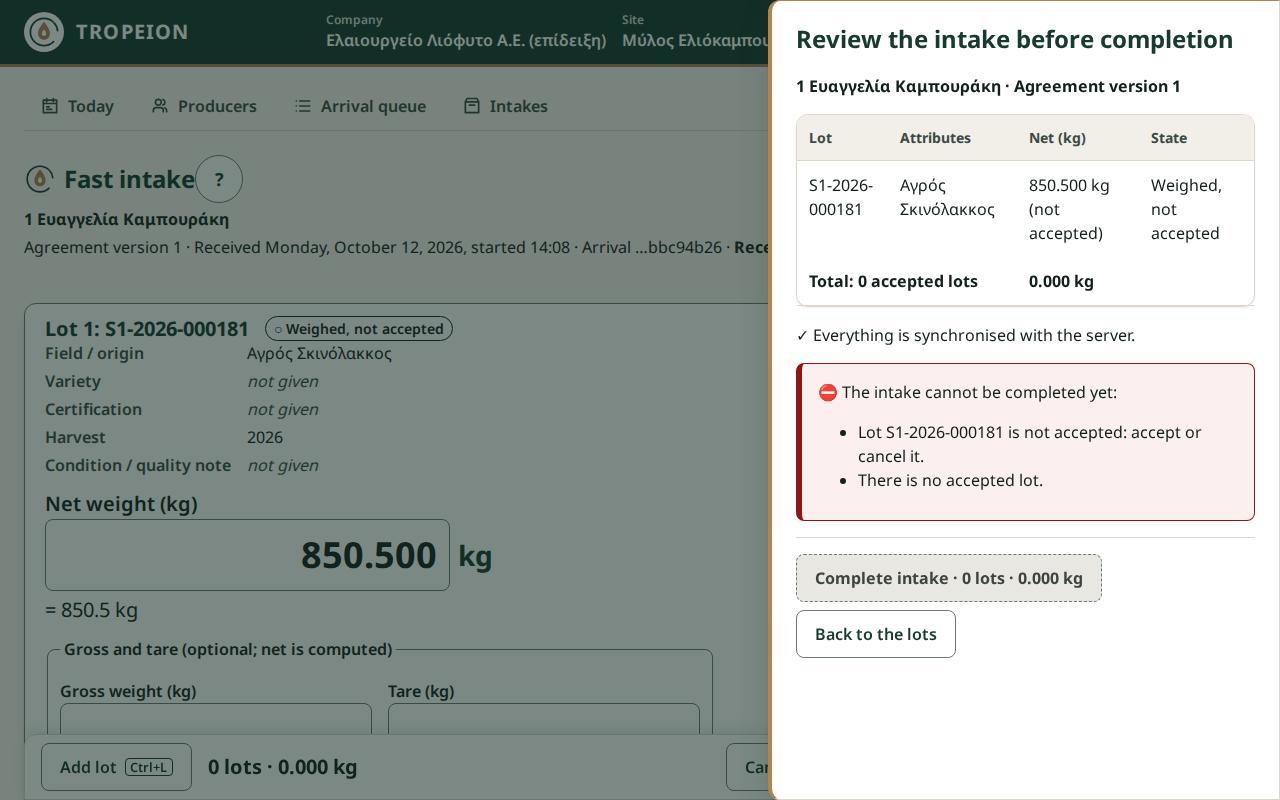
- Review the intake before completion opens, with every lot and the total.
- Press Complete intake · … lots · ….
- You see "The intake is complete · …. The receipt is ready to print."
- Press Print receipt (not fiscal), choose a printer in the browser's print window and give the receipt to the producer.
- Press Back to the queue.
The receipt says "Μη φορολογικό παραστατικό / Not a fiscal document". It lists the producer, the agreement, the receiving date, the completion time, the accepted lots with their kg and the total.
What the system checks or refuses. Completion is not possible while something is open. You see "The intake cannot be completed yet:" and the list, for example "Lot … is not accepted: accept or cancel it." Press Back to the lots and:
- accept or cancel every draft or weighed lot;
- remove cards that were never saved;
- wait for pending actions.
Unprinted labels do not block: "… labels were not printed or failed. Completion is allowed…".
If you make a mistake. Completion cannot be undone. If you find a wrong weight after completion, open the intake and make a weight correction, as long as the lot has not gone into production.
Reprinting the receipt. In the Arrival queue tick Show completed and cancelled arrivals of the day and press Open intake. For an earlier day, find the intake in the Intakes list.
Example. Both of Nikos's lots are accepted. You press Review and complete intake, then Complete intake · 2 lots · …. You print the receipt with a total of 1,000 kg.
Common mistakes. Handing the receipt over as an invoice. It is not a fiscal document.
Related. Lot label · help Print a label and a receipt.
Cancel intake and arrival
What it is and why it exists. When the producer leaves before you accept any lot, or you started an intake for the wrong producer, you close the intake and the arrival together. Nothing is deleted: both stay as cancelled, with the reason.
Who. Intake operator, Site manager, Central manager.
Steps.
- Press Cancel intake and arrival.
- Write a Reason (required).
- Press Cancel intake and arrival in the window.
- You see "The intake and the arrival were cancelled."
What the system checks or refuses. The button shows only while no lot is accepted. With even one accepted lot, cancelling is not allowed, because the olives have already been received.
If you make a mistake. If a lot is accepted and the whole intake is for the wrong producer, the screen cannot fix it. Tell the Site manager.
Example. You call Maria and start the intake. Before weighing, she says the olives belong to someone else. You cancel with the reason "Wrong producer; the owner will come".
Common mistakes. Accepting the first lot before you are sure of the producer.
Related. Cancel an arrival · help Correct an intake mistake.
Weight correction
What it is and why it exists. If an accepted lot has a wrong weight, you do not "edit" it. You create a new correction record that replaces the weight. The previous weight is kept in the history with the reason, so it is always visible what changed, when, by whom and why.
Who. Intake operator, Site manager, Central manager (new sign-in).
Steps.
- On the accepted lot's card, press Create weight correction.
- The window shows the code, the "Accepted net weight" and "The previous weight is kept in the history; the reason is recorded in the audit."
- Type New net weight (kg), or Gross weight (kg) and Tare (kg).
- Write a Reason (required).
- Press Create weight correction · …. Above the warning limit you confirm with Confirm … and create weight correction.
- You may be asked to sign in again. After signing in, the correction is sent automatically.
- You see "A weight correction was created for …: new weight …." The card and the totals show the new weight.
Close (the text is kept) closes without correcting.
What the system checks or refuses.
- Same weight: "The new weight equals the accepted weight; no correction is needed."
- The reason is required.
- A lot that was split: the button does not appear. The order is: (1) if a new lot is in a production batch that has not started, it is removed from there; (2) the Site manager or the Central manager reverses the split; (3) you correct the original lot's weight here.
- A lot created by a split: its weight is never corrected. The split is reversed and the original is corrected.
- A lot that went into production: "The lot is already in production; only a manager can correct it." The Site manager or the Central manager then corrects the input weight on the Production screen (new sign-in).
If you make a mistake. A wrong correction is fixed with another correction, as long as the lot has not been split or gone into production. Every correction stays in the history and in the Audit.
Example. You typed 260.5 instead of 620.5 for Nikos's first lot and accepted it. You press Create weight correction, type 620.5 and the reason "Digits swapped, the scale showed 620.5". The Summary shows 1,000 kg again. The history shows both 260.5 and 620.5.
Common mistakes.
- Splitting the lot before checking the weight. Then a manager has to reverse the split.
- Writing a vague reason such as "mistake". Write what the scale showed.
Related. Reverse a split · Lot detail · help Correct an intake mistake, Production.
Without a connection
What it is and why it exists. The scale does not stop when the network drops. The screen becomes a "controlled draft": you keep typing and what you type is kept, but nothing is saved, accepted or printed until the connection returns.
What to do.
- If an action was sent with no answer, the card shows "Pending sync: press the action again; it will not be recorded twice". Press the same button again when the connection returns.
- If the page is closed or reloaded, the same browser tab remembers what was not sent. When you open the intake again with a connection, it is sent automatically, without a double record.
- If you try to leave with unsaved input, the screen asks "…If you leave now, they are lost from this screen. Leave anyway?". Stay, unless you want to discard it.
Common mistakes. Closing the page or switching computers while "Pending sync" is shown. Only the same tab remembers the input.
Related. help Fast intake.
Lot detail
What the screen shows
What it is and why it exists. The Lot detail screen shows the whole history of one olive lot: how many kilograms were accepted, used and remain, whether it was split and which production batch it went into. So every kilogram of oil can be traced back to the intake.
Who.
- Intake operator: views, splits lots and prints labels for new lots.
- Site manager and Central manager: also reverse splits.
- Accountant and back office and Auditor (read-only): read only, "Read only: your role does not split lots."
How it opens. The screen has no button of its own.
- From Fast intake: the Lot detail link on an accepted lot. Back to the intake takes you back.
- From the Audit: on a row whose subject is "Intake lot", press the subject. This is how the Accountant and back office and the Auditor open it. A lot opens only at its own site. If you see "The lot was not found at this site.", choose in the "Work context" bar the site shown in the row's "Site" column.
What you see.
- At the top: Lot with the code, the state and the short code with site and season.
- Parent lot: a link to the original, if this lot was created by a split.
- Lot quantity: Accepted, Consumed (splits and production batches) and Remaining "(calculated: accepted − consumed)", with a bar.
- Child lots: one table per split, for example "Split 1 · … · 2 lots · … kg", with Code, Quantity, Status, Production batch.
- Traceability: every movement with date and time, such as "Accepted · …", "Split into … lots · … · … retained", "Split reversed · …", "Added to production batch … · …".
- Correction rule: on a lot that was split or used, the screen explains how its weight is corrected. The screen never has a weight-correction button.
Related. Split a lot · help Lot detail, Audit.
Split a lot
What it is and why it exists. An olive lot goes whole into one production batch. If part of it must be milled in another batch, you first split it into two or more new (child) lots, each with its own code and label. Whatever you do not assign stays on the original (parent) lot.
Who. Intake operator, Site manager, Central manager (new sign-in).
Steps.
- Open Lot detail for the original lot and check Remaining.
- In Split the lot, type kg in the rows "New lot 1 (…), kg" and "New lot 2 (…), kg". Each new lot's code is already shown in the field label.
- Add a lot row for more, Remove row … for fewer.
- Check the line "New lots … + retained … = remaining …".
- Press Split into … lots · ….
- In the Split lot … window read "What you are doing", "What will change", "Who or what is affected", "What cannot be undone automatically". Optionally write a Reason (optional).
- Press Split into … lots · … again. You may be asked to sign in again.
- You see "… lots created · …" and each new lot's label.
- Press Print label … for each new lot and stick the labels on the right crates.
What the system checks or refuses. Blockers show under the heading "Blocker:". Clicking a blocker takes you to the row that causes it.
- Only an original lot, accepted, with more than 0 remaining can be split. "A child lot cannot be split again.", "Only an accepted lot with remaining kg can be split.", "Nothing remains to split."
- "At least 2 rows are needed. Add a row."
- "Every row needs kg above 0. Fix the marked rows."
- "The new lots exceed the remaining kg. Reduce a row."
- At most 99 child lots in total per lot, cancelled ones included: "A lot has at most 99 child lots in total; it already has …, so up to … more."
- If the lot changed at another station: "The lot was changed on another station before the action finished, and nothing was saved." Your rows are kept. Press Review and apply again.
- If the connection drops while confirming, the request is kept and the kg are locked. Press Resend the same request when it returns, or Discard and start over to change the values. A split is never applied twice.
If you make a mistake. A split is not deleted. The Site manager or the Central manager reverses it, before any new lot is used. After a split, the original lot's weight cannot be corrected, and a child lot's weight is never corrected.
Example. Nikos's first lot has 620.5 kg. 400 kg will be milled today and 200 kg tomorrow. You type 400 and 200. The check line shows "New lots 600 + retained 20.5 = remaining 620.5". You confirm, print two labels and stick them on the crates. The 20.5 kg stay on the original lot.
Common mistakes.
- Trying to split a child lot. Only the original can be split.
- Forgetting to print and stick the new lots' labels.
- Typing
1,000to mean one thousand. Type1000. - Splitting before checking the original's weight.
Related. Reverse a split · Weight correction · help Split a lot.
Reverse a split
What it is and why it exists. A wrong split is not deleted. It is reversed with a new record: the new lots are cancelled and their kilograms return to the original. The cancelled lots' codes are kept and never reused. Only a manager may do it, because it changes lots that may already have labels on crates.
Who. Site manager and Central manager only (new sign-in).
Steps.
- Open Lot detail for the original lot.
- Under Child lots, find the split's table.
- Press Reverse split … (… lots) under the table.
- In the Reverse a split of lot … window read "Cancelled: …" and "… return to …".
- Write a Reason (required).
- Press Reverse split · cancel … lots · return …. You may be asked to sign in again.
- You see "The split was reversed; … lots cancelled: …" and "Remaining on the parent lot now: …".
- Remove the cancelled lots' labels from the crates.
- If needed, correct the original's weight now from Fast intake.
Back without a change closes without reversing.
What the system checks or refuses.
- No new lot may be in use: "The split cannot be reversed while one of its new lots is used…". First remove the new lot from the production batch that has not started.
- The original lot may not be in a production batch: "The parent lot is in production batch …. Remove it from there first, then reverse."
- The reason is required: "Write a reason."
- "The split is already reversed.": someone else already reversed it.
- If the connection drops, the request is kept, as with the split.
If you make a mistake. A reversal cannot be undone. If you reversed by mistake, make a new split. The new lots get new codes and need new labels.
Example. The clerk split Nikos's lot into 400 + 200, but the original had a wrong weight. The Site manager reverses the split with the reason "Wrong original weight, correct before splitting". The two new lots are cancelled and the 600 kg return. The clerk corrects the weight and splits again.
Common mistakes. Leaving the old labels on the crates. They are no longer valid.
Related. Split a lot · Weight correction · help Reverse a split.
The Intakes list
What it is and why it exists. The Intakes screen lists the site's intakes, newest first. From here you find an older intake, open it, reprint a receipt or a label, or make a weight correction.
Who.
- Intake operator, Site manager, Central manager: the list and opening an intake with all its actions.
- Accountant and back office and Auditor (read-only): the list and opening read-only. It is their way to intakes, since they do not see the Arrival queue.
Steps.
- Press Intakes.
- Change From and To if needed. Both default to today.
- Optionally type in Search: producer number or name, lot code (the short one too) or intake id.
- Press Show intakes or Enter.
- Press Open intake: …. To return, Back to the intakes: the filters are kept.
- For the next 50, press More.
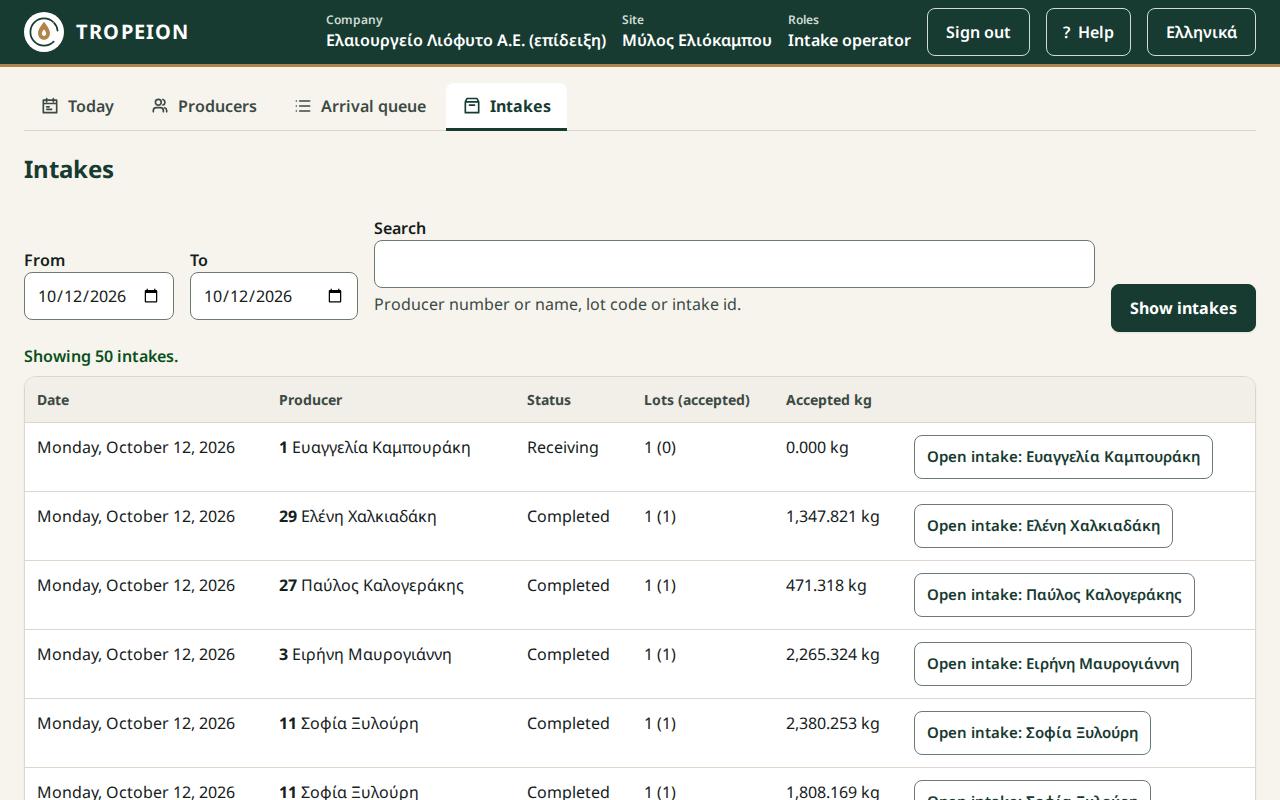
The table has Date, Producer, Status, Lots (accepted) and Accepted kg, exactly as recorded.
What the system checks.
- You see only the intakes of the site in the "Work context" bar.
- "The “From” date is after the “To” date.": the button stays disabled until you fix it.
- "No intakes found for these dates and search.": widen the dates or change the search.
If you make a mistake. The list changes nothing. Corrections are made inside the intake.
Example. The Accountant and back office wants Nikos's intake from yesterday. They set From and To to yesterday, type Nik in Search and press Show intakes. They open the intake and see "Read only: your role can view intakes but not change them."
Common mistakes.
- Looking for yesterday's intake without changing the dates.
- Looking at the wrong site.
Related. Complete the intake and the receipt · help Intakes, Find an intake.
Who does what: summary
| Capability | Intake operator | Site manager, Central manager | Accountant and back office, Auditor (read-only) | Other roles |
|---|---|---|---|---|
| Search for a producer | ✓ | ✓ | ✓ | ✓ |
| New producer | ✓ | ✓ | Accountant ✓, Auditor – | ✓ |
| Appointments, arrival, call, cancel arrival | ✓ | ✓ | – | – |
| Change a queue position (new sign-in) | – | ✓ | – | – |
| Fast intake, label, receipt | ✓ | ✓ | read only | – |
| Weight correction (new sign-in) | ✓ | ✓ | – | – |
| Split a lot (new sign-in) | ✓ | ✓ | read only | – |
| Reverse a split (new sign-in) | – | ✓ | – | – |
| Intakes list | ✓ | ✓ | read only | – |
"Other roles": Production operator, Quality officer, Warehouse and tank operator, Cashier and settlement officer. The Queue display (view only) does none of these.
Exercise on the demo
The passwords are on the demo sign-in page. The demo is reset every night.
ypodochi.1(Intake operator), Producers screen: register a new producer with an AFM that fails the check digit, for example123456780, and see the warning. Correct it or press Register anyway.ypodochi.1, Arrival queue: New walk-in for that producer. Open the display next to it withothoni.1and press Call when they reach position 1.ypodochi.1: Start intake, two lots, one above the warning limit. Labels, completion, receipt.ypodochi.1: a weight correction on the second lot. Then split the first into 2 lots.dieythyntis.1(Site manager): reverse that split, with a reason.logistirio(Accountant and back office), Intakes: find the intake and open it read-only.
Self-check
- The Intake operator wants to serve someone at position 4 first. What do they do?
- Can an accepted lot be cancelled?
- A lot was split and the original's weight was wrong. What is the order?
- The AFM fails the check digit. Has the producer been registered?
- Does an unprinted label block completion?
Answers:
Show the answers
- Nothing themselves. They ask the Site manager or the Central manager to change the position, with a reason.
- No. A wrong weight is fixed with a weight correction. Only a draft or weighed lot that was not accepted can be cancelled.
- Remove the new lot from a production batch that has not started (if needed), a manager reverses the split, then correct the original's weight in the intake.
- Not yet. It is registered only if you correct the AFM or press Register anyway.
- No. Completion is allowed and the label is printed later.