Screen: Arrival queue
Book a new appointment
Before you start
- The producer asked you for an appointment, for example by phone.
- You know the day and the time window. If they know it, you also know how many kg of olives they expect to bring.
- The Arrival queue screen is open at the site the producer will come to.
Steps
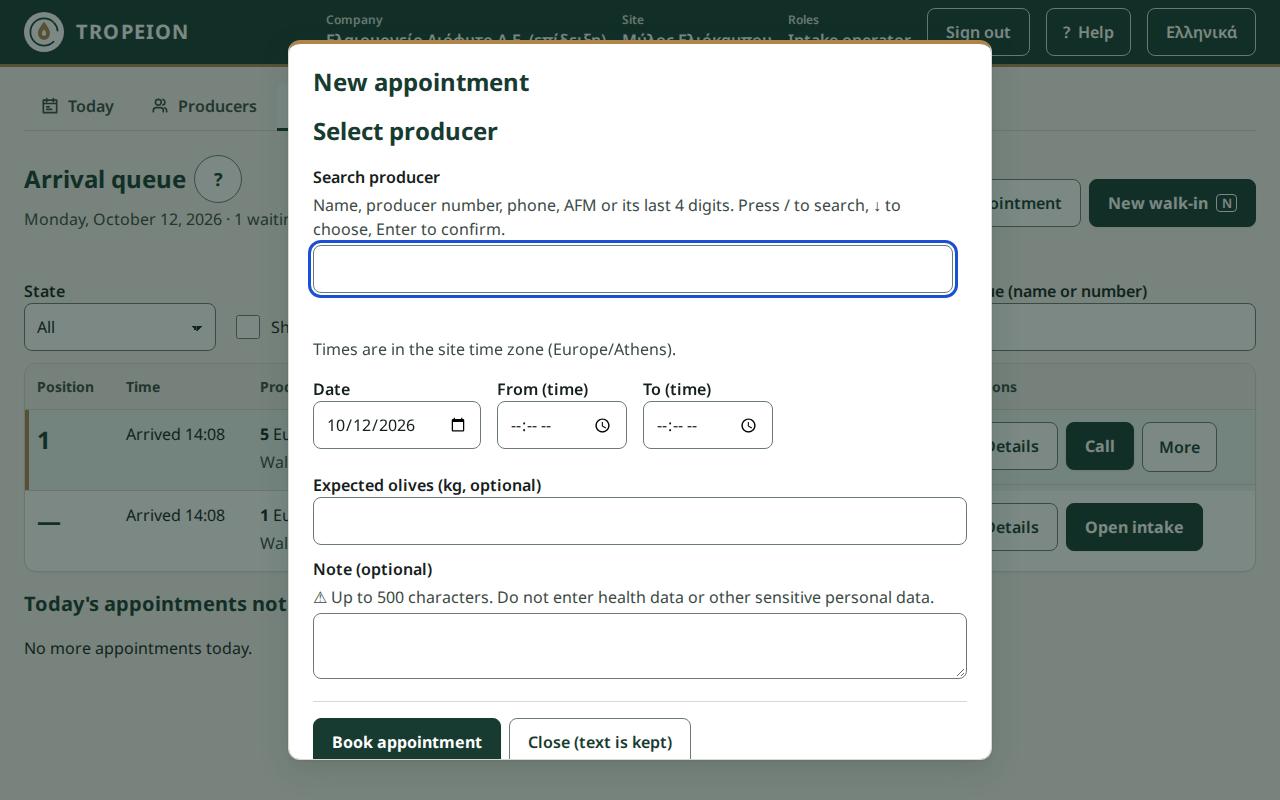
- Press New appointment.
- In Search producer, find and select the producer. Check the number and name.
- Read the time zone hint, for example "Times are in the site time zone (…)."
- In Date choose the day. The default is today's business date, and earlier dates are not allowed.
- In From (time) and To (time) give the window. "To" must be after "From".
- Optionally type Expected olives (kg, optional), for example
1250.5(up to 3 decimals). - Optionally write a Note (optional), up to 500 characters. Do not enter health data or other sensitive personal data.
- Press Book appointment: … with the producer's name.
- You see "Appointment booked: … (awaiting confirmation)." If the appointment is for today, it appears in Today's appointments not yet arrived.
- When the producer confirms they will come, press More, then Record confirmation on the appointment row.
What if…
- …you see "Fix … fields before continuing:". Click each line of the list to go to the field. Common messages: "Choose a producer.", "Fill in this field.", "The end time must be after the start time.", "Enter kilograms as a number with up to 3 decimals, e.g. 1250.5."
- …you see "The window has already ended.". The window you gave has passed. Choose a later time.
- …you see "The window must fall within one site business day.". "From" and "To" must be on the same business day.
- …you must close the window halfway. Press Close (text is kept) or Esc. What you typed stays if you open it again.
- …the appointment is cancelled. On its row, press More, then Cancel appointment, with a reason.
- …the connection drops. The button is disabled. When it returns, press again. The appointment will not be booked twice.