Arrival queue
Which role does what here
| Role | What it can do here |
|---|---|
| Intake operator | sees the queue, records arrivals and calls, manages appointments |
| Site manager | sees the queue, records arrivals and calls, manages appointments, changes a queue position |
| Central manager | sees the queue, records arrivals and calls, manages appointments, changes a queue position |
What it is for
The Arrival queue is the intake desk's working screen. Here you:
- see who is waiting and in what order,
- record producers as they arrive, with or without an appointment,
- call the next one to the scale,
- start or open the intake,
- manage today's appointments.
The screen updates itself about every one and a half seconds while it is open and visible. When the tab is hidden, updating pauses and resumes as soon as you return.
Who sees it
- Intake operator: every action except changing positions.
- Site manager and Central manager: every action, including Change position.
- Other roles do not see the Arrival queue button.
Screen tour
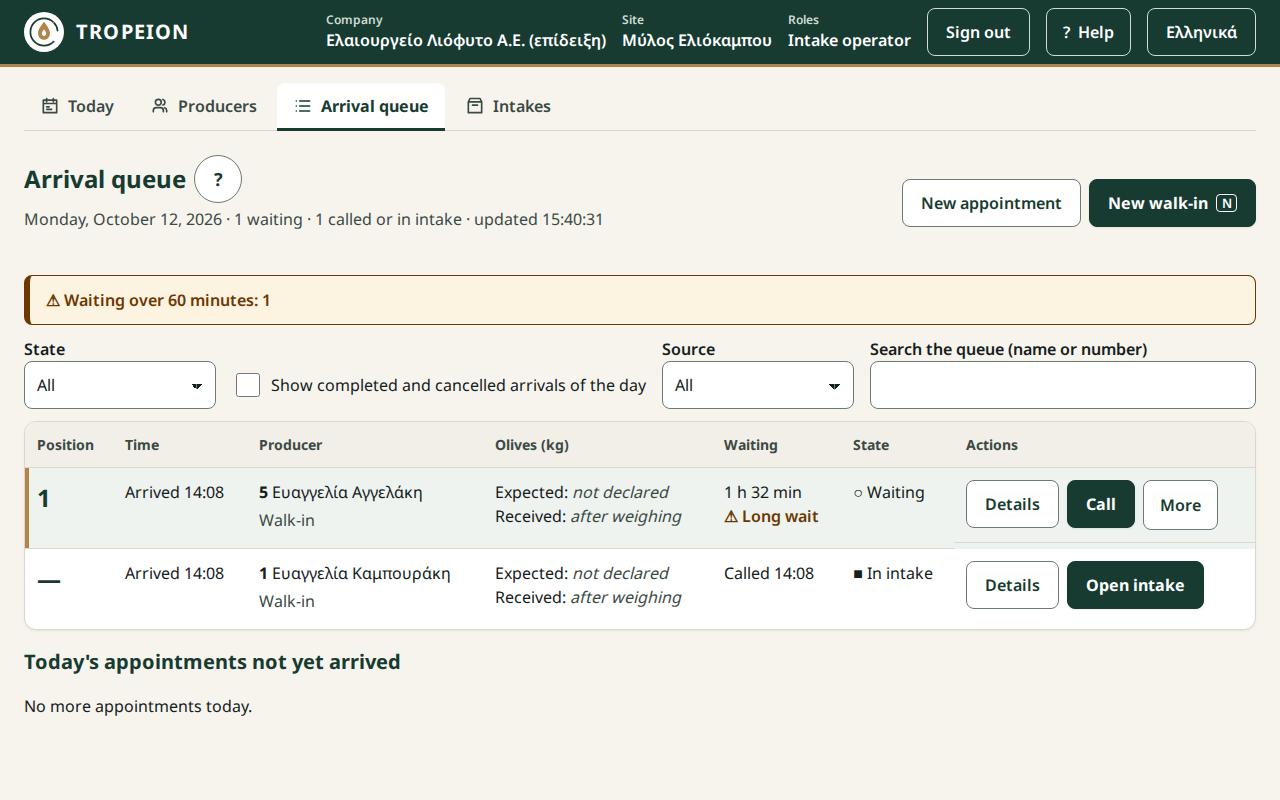
Top
- The title Arrival queue, the business date and the counters "… waiting · … called or in intake".
- The time of the last update, for example "updated 09:41:12".
- The New appointment and New walk-in buttons. The second also opens with the N key.
Queue alerts
When something needs attention, yellow alerts appear:
- "Appointments past their window without arrival: …": appointments whose time window has passed with no arrival.
- "Waiting over … minutes: …": producers waiting longer than the site's limit. Their rows show "Long wait".
Filters
- State: "All", "Waiting", "Called", "In intake". When the next box is ticked, also "Completed" and "Cancelled".
- Show completed and cancelled arrivals of the day: without this box the queue shows only arrivals still in progress.
- Source: "All", "Appointment", "Walk-in".
- Search the queue (name or number): filters only what the queue already shows. Opens with the
/key. Esc clears it.
If the filters hide every row, you see "No arrival matches the filters." and the Clear filters button.
The queue table
Rows are in priority order. Columns:
- Position: the place in the queue. Arrivals already called have no position ("—").
- Time: "Slot" with the time window if there is an appointment, and "Arrived" with the arrival time. All times are in the site's time zone.
- Producer: number and name, and below it "Appointment" or "Walk-in".
- Olives (kg): "Expected" with the kg and their source ("declared at booking" or "declared"), or "not declared". "Received: after weighing", because the real kg are recorded in the intake.
- Waiting: how long the producer has waited, for example "12 min" or "1 h 05 min". For called arrivals it shows "Called" with the time.
- State: "○ Waiting", "▶ Called", "■ In intake", "✓ Completed", "✕ Cancelled". If the Site manager or Central manager changed the arrival's position, "Priority adjusted:" appears with the reason.
- Actions: the row's buttons.
Today's appointments not yet arrived
Below the queue is the table of today's appointments with no recorded arrival. Columns: Window (the time window), Producer, Olives (kg), Appointment state and Actions. Appointment states are "Awaiting confirmation", "Confirmed", "Change requested", "Checked in", "Cancelled" and "No-show". When the window has passed, it shows "Window passed, not arrived".
If there are none, it says "No more appointments today."
Buttons and actions, step by step
Details
On every row, in both the queue and the appointments. Opens a read-only window with all the facts: state, position, source, slot, arrival time, call time, waiting time, expected kg, business date and the reason for the last priority change. Close it with Close or Esc.
Call
The Call button is only on the first row of the queue (position 1).
- When the scale is free, press Call on the row at position 1. If the row is selected with the keyboard, Enter is enough.
- You see "… was called." The state becomes "▶ Called" and the producer appears under "Now called" on the public display.
Note: You cannot call someone out of turn. If someone must be served first, the Site manager or Central manager changes their position, with a reason.
Start intake
Appears on rows in the "Called" state.
- Press Start intake on the producer's row.
- Fast intake opens for this arrival and the state becomes "In intake".
If the intake does not start, see the messages below.
Open intake
Appears on "In intake" rows and, when finished arrivals are shown, on "Completed" rows. It opens the arrival's intake. In Fast intake, Back to the queue brings you back here.
More: Change position (Site manager and Central manager only)
Appears on "Waiting" arrivals when at least two are waiting. The Intake operator sees the hint "Only a site manager or central manager can change the order, with a reason." instead.
- Press More, then Change position.
- The Change queue position window shows the producer and "Current position: … of …".
- In New position (1 to …), type the new position number.
- The window shows at once who else will shift, for example "2 other arrivals will shift:" with the list "name: from … to …".
- Write a Reason (required), up to 500 characters. Do not enter health data or other sensitive personal data. The reason is shown in the queue.
- Press Move to position …. The system may ask you to sign in again (see Getting started).
- You see "…: moved from position … to …."
To close without a change, press Close without change. The position and reason you typed are kept if you reopen the window.
If the queue changed at another desk in the meantime, you see "The queue changed since you opened this dialog, so the order was not changed. Review the new order and confirm again; the position and reason are kept." Press Refresh and review, check the list and confirm again.
On the other desks, the rows that moved show "▲ Priority adjusted" or "▼ Priority adjusted" for a few seconds. The message "A manager changed the queue order; the arrivals that moved are marked." also appears.
More: Cancel arrival
For "Waiting" or "Called" arrivals, when the producer leaves without delivering or the arrival was recorded by mistake.
- Press More, then Cancel arrival.
- Check the number and name in the window.
- Write a Reason (required).
- Press Cancel arrival and remove from queue.
- You see "Arrival cancelled: …."
Close (text is kept) or Esc closes the window without cancelling, and the reason stays typed.
New walk-in
See A producer without an appointment.
New appointment
Actions on today's appointments
- Check in: the producer with the appointment has arrived. The arrival joins the queue as "Appointment" and you see "Checked in: …." If the row is selected with the keyboard, Enter is enough. See A producer with an appointment arrives.
- More, Record confirmation: only for "Awaiting confirmation" appointments. Use it when the producer has confirmed they will come. You see "Confirmation recorded: …."
- More, Mark as no-show: available only after the window ends. Before that it says "No-show can be marked after …." You see "Marked as no-show: …."
- More, Cancel appointment: asks for a required reason. Confirm with Cancel appointment and you see "Appointment cancelled: …."
Keyboard shortcuts
The keys do not work while you type in a field or while a window is open.
/: go to the queue search.- N: new walk-in.
- J and K: next and previous row.
- Enter on a row: call (position 1 only) or check in (on an appointment row).
- Esc: closes a window. What you typed is kept.
Messages and what to do
- "Loading the queue…": wait.
- "No one is waiting. Add a walk-in or view today's appointments.": the queue is empty.
- "No connection: the queue may be out of date, and actions are disabled until the connection returns.": check the network. "Last update" shows how old the data is.
- "The queue is not updating right now. It retries automatically." or "The queue is temporarily unavailable. It retries automatically.": wait, or press Reload queue.
- "Your session has expired. Sign in again.": sign in again. The queue does not update until you do.
- "You are not allowed to do this at this site. Nothing was changed.": your role does not allow the action.
- "The record was not found at this site; it may have changed at another desk. Refresh the queue.": press Refresh queue.
- "The queue changed at another desk before the action finished, so nothing was changed. Refresh, check and try again.": press Refresh queue, check and press again.
- "The state has already changed, perhaps at another desk. Nothing was changed. Refresh the queue.": a colleague already did it.
- "The producer already has an active arrival at this site; no second one was created.": press Open existing arrival to see their row.
- "The appointment is at another site and cannot be checked in here…": change site in the "Work context" bar, or ask that site's staff.
- "The producer has no active agreement at this site for today, so the intake did not start…": the Site manager must activate an agreement version.
- "The producer has no agreement and the site has no default terms in force today…": the Site manager sets default terms; then start the intake again.
- "No current season is set, so the intake did not start…": contact the Central manager.
- "No connection: the action was not sent…" or "The service did not answer…": press again when the connection returns. It will not be recorded twice.
- "Too many requests. Try again in … seconds.": wait and try again.
- "The arrival is no longer waiting; its position cannot be changed.": the producer was called or cancelled in the meantime.
Common mistakes
- Recording a producer with an appointment as a "New walk-in". If there is an appointment, press Check in in the appointments table.
- Looking for a completed arrival without ticking "Show completed and cancelled arrivals of the day".
- Cancelling the arrival instead of the appointment, or the other way round.
- Writing health data in a reason.
Related How-To
- A producer with an appointment arrives
- A producer without an appointment
- Book a new appointment
- Weigh and receive olives