Getting started with TROPEION
What this page is for
This page covers what you need to start working in TROPEION: signing in, the top of the screen, switching the language, choosing your company and site, what each role sees, why the system sometimes asks you to sign in again, and what happens when the connection drops.
Who needs it
Every user, from the first day.
Signing in
When you open TROPEION, it first checks whether you are already signed in on this computer. If you are, you go straight in. For a moment you see "Taking you to sign-in…".
If you are not signed in, you see the sign-in screen with the logo, the heading Sign in and the message "Sign in to continue."
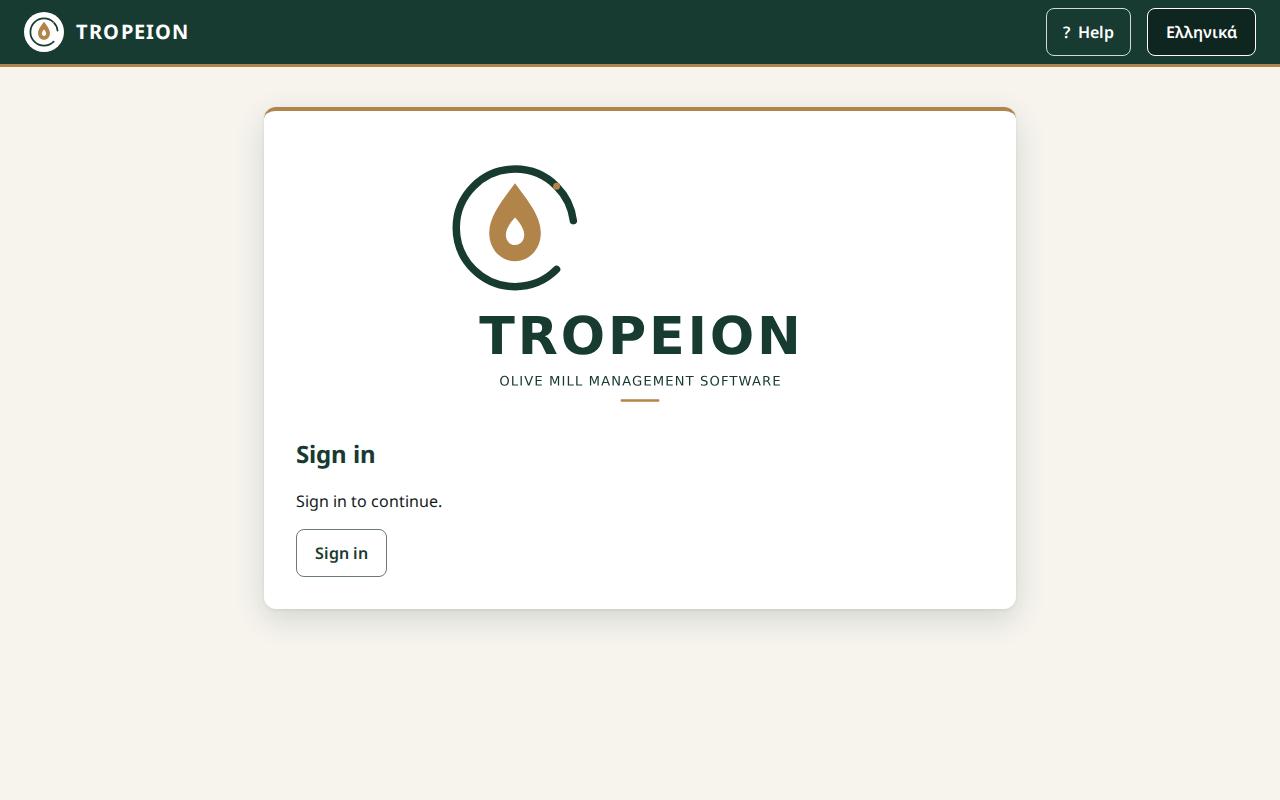
- Press Sign in.
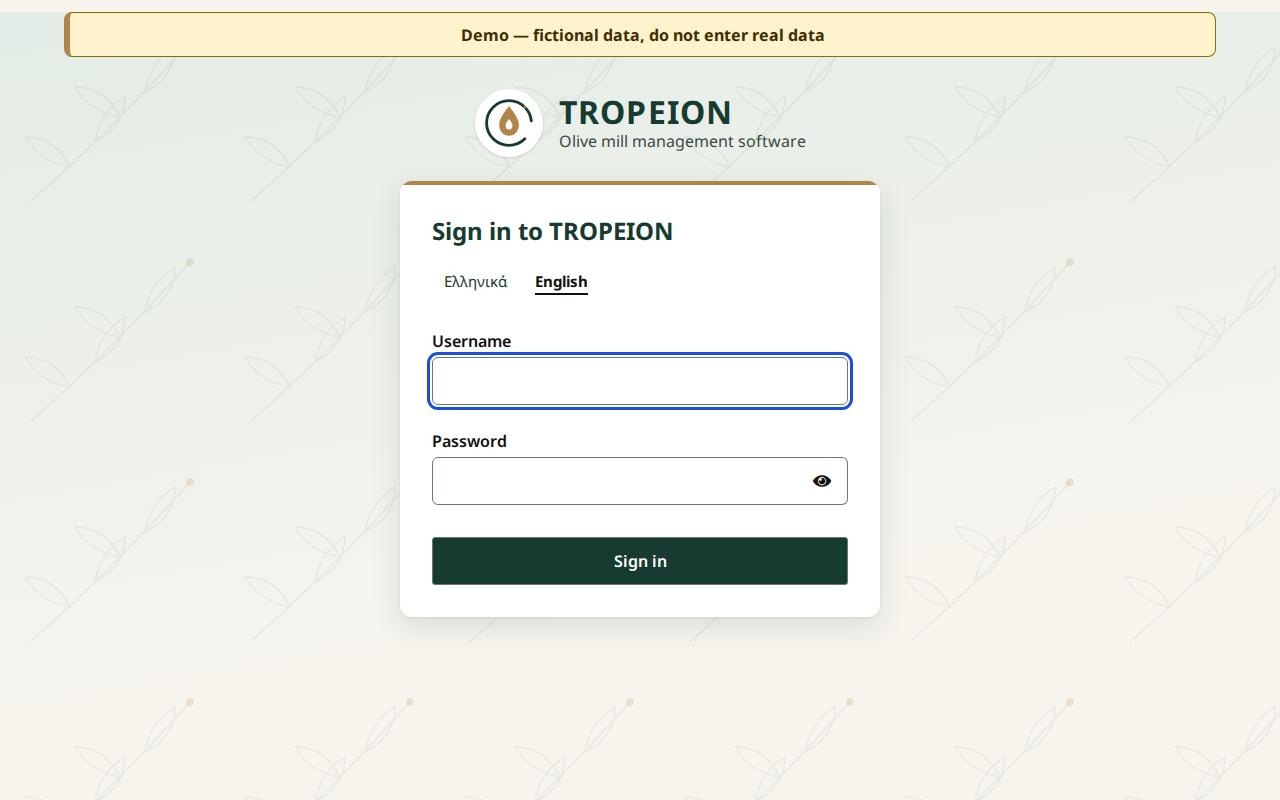
- The sign-in page opens. Type the user name and password your mill administrator gave you.
- After signing in you return to TROPEION automatically.
Messages on the sign-in screen:
- "Sign-in did not complete. Try again.": something interrupted the sign-in. Press Sign in again.
- "Your session has expired. Sign in again.": too much time passed without renewal. Press Sign in again.
- "The sign-in service is unavailable.": the sign-in service is not answering. Try again shortly. If it continues, tell your administrator.
The Sign in button takes you to the TROPEION sign-in page. Choose Ελληνικά or English at the top, type your username and password and press Sign in; you return to the application signed in.
Signing out
The Sign out button is in the "Work context" bar. Pressing it removes everything the system kept for you in this browser tab, including actions still waiting to be sent. You briefly see "Signing out…".
Caution: On a shared computer, always press Sign out before leaving your desk.
The top of the screen
The TROPEION header
At the top left you see the symbol, the name TROPEION and the phrase "Olive mill management software". Clicking it opens the application again from its start page.
Note: If you have typed something in Fast intake that is not saved yet, the browser asks you before leaving the page.
Switching the language
Next to the header is a button that names the language you will switch to: Ελληνικά in English, English in Greek. The switch is immediate and nothing you typed is lost.
Note: The language choice lasts while the page is open. If you reload the page, the application opens in its default language again.
When the service does not answer
While the service works, nothing is shown. If the service does not answer, an alert appears under the header:
- "The service is unavailable", with the Check service again button. Press it to check again.
- "Checking connection to the service…": the new check is running. If the service answers, the alert goes away.
If the alert stays, tell your administrator.
Choosing your company and site (the "Work context" bar)
After signing in, the Work context bar appears. Everything you see and do applies only to the company and site chosen here.
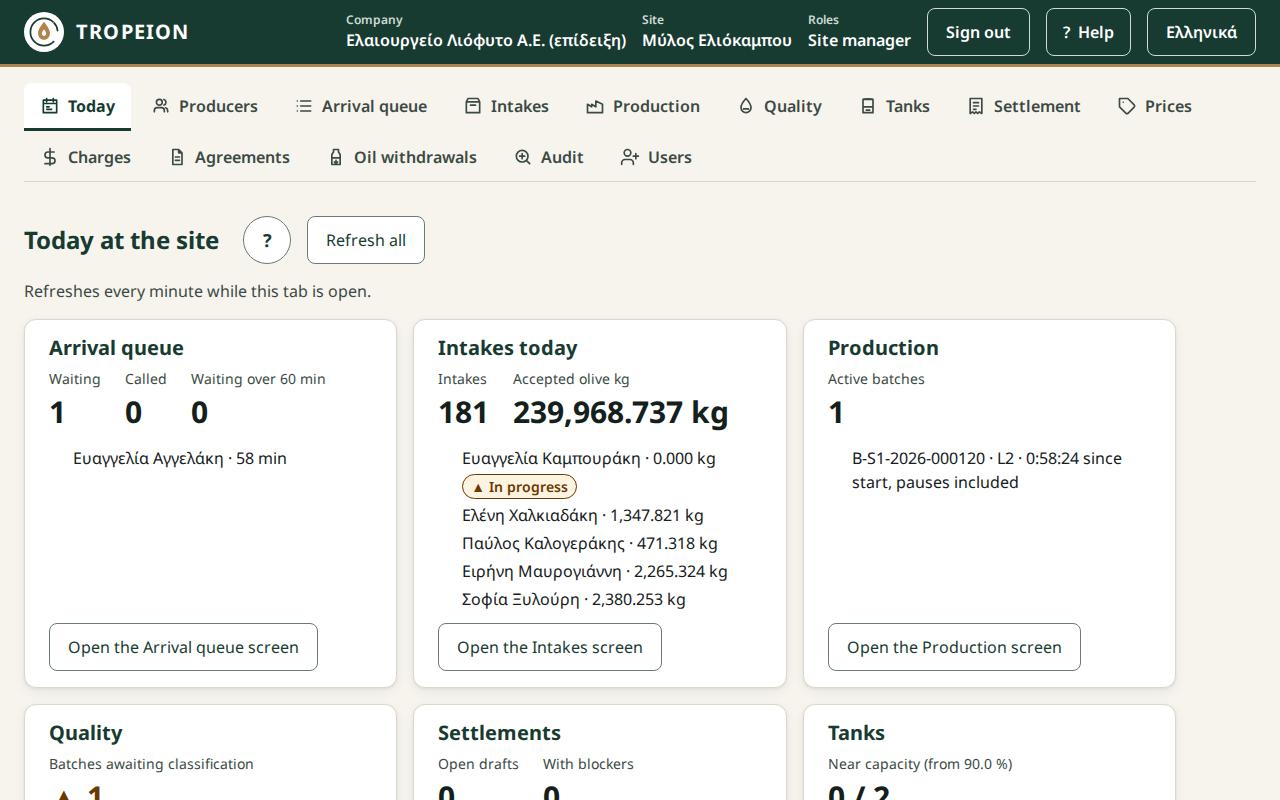
The bar has:
- Company: if you have access to one company only, its name is simply shown. With more, you choose from the list ("Choose a company").
- Site: the same for the site (the mill or receiving point). With more, you choose from the list ("Choose a site").
- Roles: your roles at this site.
- Sign out.
When there is only one option, the system selects it for you. When there are several, it selects nothing, and you see "Choose a company and a site to continue."
To change site, see Change site.
Messages in the bar:
- "Loading your companies and sites…": wait a moment.
- "No access has been assigned to you. Contact your mill administrator.": your account has no role at any site yet.
- "You have no site access at this company.": choose another company or ask for access.
- "Your sites could not be loaded.": press Reload my sites. If a "Reference" code appears, note it and give it to your administrator.
- "No connection: your sites could not be loaded.": check the network and press Reload my sites.
- "Too many requests. Try again in … seconds.": wait the stated seconds and try again.
Screens and moving around
Below the context bar are the screen buttons: Today, Producers, Arrival queue, Intakes, Production, Quality, Tanks, Settlement, Prices, Charges, Agreements, Oil withdrawals, Audit and Users. You see only the buttons of the screens your role can open (see below). The button of the screen you are on is shown as selected.
The first screen depends on your role. The "Site manager", the "Central manager", the "Accountant and back office" and the "Auditor (read-only)" start on Today. Someone with only the "Production operator" role starts on Production. The "Quality officer" starts on Quality, the "Cashier and settlement officer" on Settlement, the "Warehouse and tank operator" on Tanks, and everyone else on Producers.
Fast intake has no button of its own. It opens from a row of the arrival queue, or from a row of Intakes. Lot detail opens from a lot card in the intake, or from a row of the Audit.
The record you select follows you. When you open a batch, an intake, a lot, a producer or a tank and then press another screen button, that screen opens on the same record where it makes sense: a batch in Quality and Tanks, an intake or lot in Production, a producer in Settlement, Oil withdrawals and Agreements, a tank in Oil withdrawals. If the record is not on that screen, or your role or site does not show it, the screen opens as usual. Switching site or signing out forgets the selection.
Help
Help explains every screen and the basic tasks step by step, in Greek and English.
- The Help button at the top of the screen opens the help page of the screen you have open.
- The small ? next to each screen title does the same.
- Help opens in a new tab. Whatever you typed on your screen stays as it was.
On the help page:
- On the left you see the Screens and the How-To guides for your roles. Show all also shows the other topics.
- Type a word in Search help. The search looks in the titles and headings.
- At the end of each page, the Related topics lead to the next steps.
- Print this page prints the page text only.
Help is in the language of the application.
Note: The waiting-order display (the display account) has no help link.
Roles and what each one sees
Roles decide which buttons you see. The service still checks every action separately. If an action is not allowed, you see "You are not allowed to do this at this site. Nothing was changed."
The roles are written here as they appear in the "Roles" line. Every role except the last two also sees the Producers screen, and every one of them except the Auditor (read-only) can register a New producer there. Every role except the last two also sees Today, with one tile for each screen it can open.
- Intake operator: the Arrival queue (appointments, walk-ins, calling), the Intakes list, fast intake, label and receipt printing, weight corrections and lot splits. Cannot change the queue order or reverse splits.
- Site manager and Central manager: everything the Intake operator does. In addition they:
- change queue positions with a reason and reverse lot splits;
- work in Production, including cancelling a started batch and correcting an input weight;
- see Quality read-only: they do not finalize a classification and do not record line cleaning;
- work in Settlement, including reversal and replacement;
- set and correct the daily Prices and manage the Charges;
- work in Tanks (counts and transfers) and in Oil withdrawals, where only they reverse a delivery;
- are the only ones who see Agreements: they set the site default terms, give a producer their own terms and apply new default terms;
- see the Audit: the Site manager for the selected site, the Central manager for the whole company;
- manage the Users: the Central manager every user and every role, the Site manager only the users of their sites and only site roles (not the Site manager role). Nobody changes their own roles.
- Production operator: the Production screen and the Quality screen, where they record line cleaning, and Tanks read-only. Does not work in the queue or in intake.
- Quality officer: the Quality screen, where they finalize the classification and record line cleaning, and Prices read-only. Only this role finalizes a classification.
- Cashier and settlement officer: the Settlement screen, Prices and Charges read-only, and Oil withdrawals: creates requests, records deliveries, closes requests. They choose the optional charges inside Settlement.
- Warehouse and tank operator: the Tanks screen: tank counts and oil transfers. In Oil withdrawals they record deliveries on open requests only.
- Accountant and back office and Auditor (read-only): see Intakes, Production, Quality, Tanks, Settlement, Prices, Charges and Oil withdrawals read-only, and the Audit for the whole company. They open an intake from the Intakes list and a lot from a row of the Audit, read-only. They do not see Agreements. They change nothing, except that the Accountant may register a new producer.
- Queue display (view only): a special account for the waiting-room screen. It sees only the public queue display, without screen buttons and without actions.
- Platform operator (tenant onboarding): sees only the onboarding screen, without screen buttons and without any olive mill's data.
One person with several roles
One person can hold several roles, and different ones at each site. They see and do whatever any of their roles allows at the selected site. These roles are shown in the "Roles" line.
For example, someone with Intake operator and Cashier and settlement officer sees Arrival queue, Intakes, Settlement, Prices, Charges and Oil withdrawals, and starts on Settlement.
Caution: In a small mill, the owner takes the Quality officer role from the start, in addition to the manager role. Without it they cannot finalize a classification, and the settlement cannot be finalized. Since nobody changes their own roles, the owner gets this role at company onboarding (in the onboarding Excel, one row per role with the same email) or from a second Central manager.
Note: The queue display account stays a separate account with no other roles. If it also gets a role that sees the queue, the normal application opens instead of the public display.
Identity check for critical actions
For some critical actions the system may ask you to sign in again, even though you are signed in. This confirms that you are the person doing the action. You will be asked to sign in again for:
- changing a queue position,
- creating a weight correction for a lot,
- splitting a lot and reversing a split,
- cancelling a production batch, draft or started, and correcting an input weight,
- activating an agreement version, new default terms and applying them,
- reversing a settlement and reversing an oil delivery,
- copying charges or terms to all sites (Additional charges),
- deactivating and reactivating a user, and inviting or changing roles when it involves Site manager, Central manager, Accountant or Auditor,
- confirming a new customer's onboarding.
Completing a production batch, finalizing a settlement, prices, a site's charges, and oil requests and deliveries do not ask for a new sign-in.
What happens:
- You press the action button as usual.
- If a check is needed, the browser goes to the sign-in page. Type your user name and password again.
- When you come back, the system selects the same company and site and sends the action once, exactly as you confirmed it. You see "Sending the action after the identity check…".
- The screen you started from opens again, with a message such as "Split of lot …: completed after the identity check."
The action is kept for 10 minutes. It is sent only if the same user signs in again, at the same company and site. Otherwise it is discarded unsent.
Messages:
- "…: completed after the identity check.": done.
- "…: not completed after the identity check. Check the state on the reopened screen.": the service refused the action, for example because someone else changed the data in the meantime. Check the screen and repeat if needed.
- "…: the identity check was not accepted and the action was not carried out. Contact your administrator.": the new sign-in was not enough. The system does not try again.
- "An action waiting for an identity check was discarded unsent.": the 10 minutes passed, another user signed in, or you changed site. Nothing happened. Repeat the action if you still want it.
- "This action needs a fresh identity check, which could not be started. Nothing changed. Sign in again and retry.": the move to the sign-in page did not happen. Sign out, sign in again and repeat.
When the connection drops
TROPEION needs a connection to save anything. When the connection drops, every screen says so in words and keeps what you typed:
- Producers: "No connection: producer search is unavailable. It runs again when the connection returns."
- Arrival queue: the queue stays as it was at the last update, shown with its time. Action buttons are disabled. Updating resumes by itself when the connection returns.
- Fast intake: the top right says Offline. You can keep typing and what you type is kept, but nothing is saved, accepted or printed until the connection returns.
- Lot detail: splitting, split reversal and label printing are disabled. What you typed is kept.
If the connection broke at the moment you pressed a button, you see a message such as "No connection: the action was not sent. Press it again when the connection returns; it will not be recorded twice." You can safely press again: the system recognises it as the same action and does not record it twice.
If you see "Your session has expired. Sign in again.", press Sign in again.
Common mistakes
- Working at the wrong site. Before you start, always look at the "Work context" bar.
- Pressing a button many times because the connection is slow. It does no harm, since the same action is not recorded twice, but wait for the message first.
- Leaving your account signed in on a shared computer.
Related How-To
- Change site
- A producer with an appointment arrives
- A producer without an appointment
- Weigh and receive olives
- Register a new producer
- Find an intake