The capabilities in detail: production, quality, tanks, withdrawals
What this part is for
This part describes every capability from the moment the olives go into the machine to the moment the producer collects their oil: production, quality, tanks and oil withdrawals. Each section can be read on its own. For each capability you will find:
- what it is and why it exists;
- who can do it;
- the steps, with the button names as they appear on screen;
- what the system checks and what it refuses;
- how a mistake is corrected;
- an example with numbers;
- common mistakes;
- where to read more.
The examples continue the numbers of chapter 1: Nikos brings 1,000 kg of olives and Maria 500 kg. Tank Δ-01 holds 5,000 kg and already has 1,200 kg. To keep the numbers simple, here Nikos's 1,000 kg are one conventional olive lot.
Two rules apply throughout this part:
- Kilograms have up to 3 decimals and are never rounded. You type
1250.375or1250,375: a period or a comma is the decimal mark in either language. Never type a thousands separator:1,250means 1.25 kg. When a calculation gives more decimals, the extra ones are cut off. - Nothing recorded is ever deleted. A mistake is corrected by a new record: a reversal, a new decision or a new movement. The old record stays visible, with who corrected it, when and why.
Actions that ask you to sign in again are marked "(new sign-in)". If you signed in within the last 5 minutes, the action goes through at once. Otherwise the sign-in page opens, and afterwards you return to the same screen.
Production
The Production screen (title Production console) has one card for each production line of the site. The list refreshes by itself about every 5 seconds.
Who sees it:
- Production operator, Site manager, Central manager: operate the batches.
- Only the Site manager and the Central manager cancel a started batch and correct an input weight.
- Accountant and back office, Auditor (read-only): read only. They see "Read only: you cannot operate production at this site."
- Other roles do not see the screen.
Note: The system never stops a machine. Whatever the screen shows (a warning, a pause, a lost connection), production on the floor goes on as you run it.
The states of a production batch are: Draft, Ready to start, Running, Paused, Completed, Cancelled.
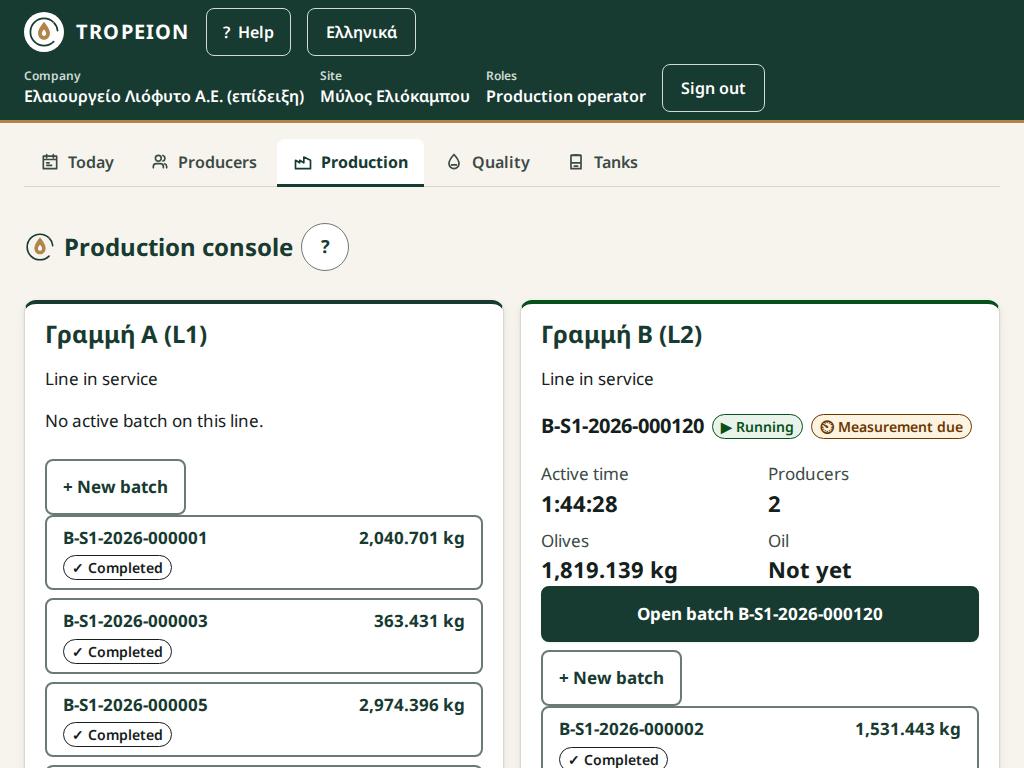
New production batch from olive lots
What it is and why. A production batch is one milling run on a line. It gathers one or more olive lots, from one or many producers. The lots that go in, and their kilograms, later decide how much oil belongs to each producer.
Who. Production operator, Site manager, Central manager.
Steps:
- On the card of a line in service, press + New batch.
- In the Available olive lots list each row shows the code, the producer (number · name), the kilograms and the time received. Type a code, a name or a producer number in Search.
- Tap every olive lot that goes in. Below you see "Selected N · kg".
- Press Create batch with N olive lots · kg. The batch opens as Ready to start.
While the batch is Draft or Ready to start:
- + Add olive lots adds more.
- Remove, next to an olive lot, with a Reason (required): the olive lot becomes available again.
- More → Cancel draft batch, with a reason (new sign-in): all olive lots become available again. The batch shows "The batch was cancelled" and "The inputs returned to their olive lots."
What is checked:
- An olive lot goes in whole. To use only part of it, split it first in Lot detail.
- One olive lot, one production batch. If someone put it in another batch meanwhile, it drops off the list and your other choices stay.
- Only on a line in service. On an inactive line or a line under maintenance you see "The line is not in service."
Correction. Before the start, you remove or add olive lots, or cancel the draft batch. After the start the inputs do not change. Only the weight of an input can be corrected, by a manager (see "Correct an input weight").
Example. On Line 1, the operator selects Nikos's olive lot (1,000 kg) and Maria's (500 kg). They see "Selected 2 · 1,500 kg" and press Create batch with 2 olive lots · 1,500 kg.
Common mistakes:
- Organic and conventional olives in the same batch. The oil of the whole batch becomes conventional (see "Start a batch"). Mill the organic olives separately.
- Looking for an olive lot that intake has not accepted yet. Only available lots are listed.
See How to create a new batch and Lot details and splitting.
Start a batch
What it is and why. Starting records when milling began. From then on the Active time counts and the olive lots are treated as consumed. The start time also matters for quality: the line cleaning must be valid at that moment.
Who. Production operator, Site manager, Central manager.
Steps:
- Open a batch that is Ready to start.
- Press Start batch.
- If the olives have different certifications, the Start with mixed certification window opens. Write a Comment (required) and press Acknowledge and start.
- You see "Batch … started."
What is checked:
- One running batch per line. If another one is running, you see "Another batch is already running on the line; complete it first."
- Mixed certification. It is not forbidden, but it is a fact that cannot be overridden: the batch oil does not count as organic, it becomes conventional. The mix is recorded and later appears under Production warnings on the Quality screen.
Correction. A start cannot be undone. If a batch was started by mistake, only the Site manager or the Central manager can cancel it, and the olives stay consumed (see "Cancel a started batch"). So check the inputs before you press.
Example. The batch of Nikos and Maria has conventional olives only. The operator presses Start batch at 08:00 and the batch becomes Running.
Common mistakes:
- Acknowledging the mix without reading the window. If the producer expects organic oil, stop, remove the organic olive lot and mill it separately.
- Starting on the wrong line. The line is shown in the title "Batch … · Line …".
See How to start a batch.
Pause and resume
What it is and why. A pause records a stop, for example for a fault or a break. While the batch is paused, the Active time does not count.
Who. Production operator, Site manager, Central manager.
Steps:
- Press Pause batch.
- If you want, write a Pause reason (optional).
- Press Record the pause.
- To go on, press Resume batch. You see "The batch is running again."
Every start, pause and resume is listed with its time under Checkpoints.
What is checked. A paused batch cannot be completed. The blockers say "The batch is not running." Measurements can be recorded while paused too.
Correction. Pauses and resumes are not deleted. If you paused by mistake, press Resume batch.
Example. At 09:10 the leaf remover jams. The operator presses Pause batch and writes "cleaning the leaf remover". At 09:25 they press Resume batch. The 15 minutes do not count as active time.
Common mistakes. Trying to complete while paused. Press Resume batch first.
Measurements and warnings
What it is and why. The operator records measurements during milling, for example the malaxing temperature. If a value is out of range, the system records a warning, so that it is visible later on the Quality screen too.
Who. Production operator, Site manager, Central manager.
Steps to record a measurement:
- Press + Add measurement (running or paused).
- In Measurement type choose what you measured. If the type has a limit, it is shown below, for example "Limit: ≤ 27 °C".
- In Value enter the number, for example
27.5. If it is out of range, the screen says so before you save: "Above the limit: a warning will be recorded. Production goes on." - Press Record the measurement.
Steps to acknowledge a warning:
- On the "WARNING — …" card at the top, write an Operator comment: what you did or why you go on.
- Press Acknowledge and continue. The warning moves to Acknowledged warnings.
What is checked:
- An unacknowledged measurement warning blocks completion. The blockers say "A measurement warning is not acknowledged."
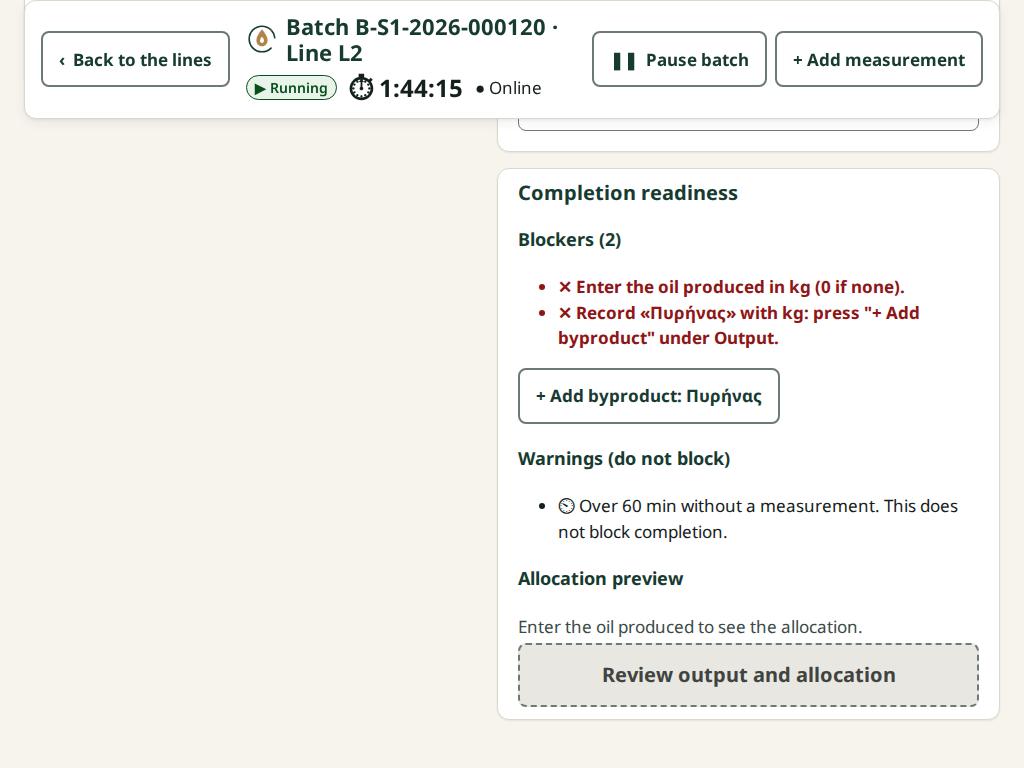
- Measurement gap. If the batch is running and no measurement has been written for longer than the site interval (usually 60 minutes), a card such as "WARNING — 75 min without a measurement" appears and the line card shows "Measurement due". This warning needs no acknowledgement and does not block completion. It goes away once you record a measurement. At completion it shows as "Over 60 min without a measurement. This does not block completion."
Correction. A measurement is not deleted. If you entered a wrong value, record a new measurement with the right one, and explain in the warning comment if a warning came up.
Example. At 09:40 the operator enters a malaxing temperature of 28.5 with a limit of ≤ 27 °C. "WARNING — Temperature above the limit" appears. They write "lowered the water to 26" and press Acknowledge and continue. At 09:55 they enter 26.5, which is within range.
Common mistakes:
- The decimal mark: in English type
27.5; in Greek27,5. - Completing with an open warning card. Acknowledge it first.
See How to record a measurement and acknowledge a warning.
Complete a batch into tanks
What it is and why. Completion records how much oil came out, which tanks it went to, which byproducts were produced and how the oil is shared among the producers. On completion the oil enters the tank stock and the batch goes to Quality for classification.
Who. Production operator, Site manager, Central manager. Completion does not ask you to sign in again.
Steps:
- The batch must be Running. If it is paused, press Resume batch.
- Under Output, enter the Oil produced (kg). If no oil came out, enter
0. - Under Destination tanks, choose Tank 1 and enter Quantity in tank 1 (kg). For more tanks, press + Add tank.
- Check the line below: it must confirm that the tanks total equals the oil produced.
- Under Byproducts (become mill property), press + Add byproduct, choose a type and enter the kilograms.
- If "Unusual yield" appears, write a Comment on the yield.
- Check that Blockers says "No blockers."
- Press Review output and allocation and look at the Allocation preview.
- The button changes to "Complete batch · … into … tanks". Press it. If the oil is
0, it reads "Complete batch with no oil · …". - You see the completed batch and the Final allocation per producer and agreement version.
If you change any value after the first press, the button goes back to Review output and allocation and a new review is needed.
What is checked. Blockers, which stop completion:
- The oil must be entered. "Enter the oil produced in kg (0 if none)."
- The tanks must equal the oil exactly, to the gram. "The tanks (…) do not equal the oil (…)." The line below says how many kilograms are left or too much.
- Capacity. No tank may go over its capacity. "A destination tank would exceed its capacity; put fewer kg in it or add another tank."
- Certification and harvest are not mixed. Oil cannot go into a tank that already holds oil of another certification (for example organic with conventional) or another harvest. "A destination tank holds oil of another certification or harvest; choose another tank." An empty tank always accepts.
- Required byproduct. The site requires the pomace with kilograms by default. If it is missing, the blocker reads "Record «Πυρήνας» with kg…". Press + Add byproduct: Πυρήνας below the blockers and enter the kilograms.
- An unacknowledged measurement warning.
- Unusual yield without a comment. If the yield is outside the site range, it says "Unusual yield … % (range …–… %): needs a comment before completion."
- A command waiting to be resent. While an action is not yet confirmed by the server, completion is not allowed.
Warnings, which do not stop completion and need no comment:
- "A destination tank will be at 90 % of its capacity or more. This does not block completion."
- "Over 60 min without a measurement. This does not block completion."
The allocation. The oil is shared among the producers in proportion to each one's kilograms of olives, truncated to the gram. The grams left over from the truncation go to the mill, on the Rounding residual (mill) row, so that the total equals the oil exactly. The row is always shown, even when it is 0.000 kg. The server does the calculation. The allocation is not yet a credit to the producer: credit happens only at settlement.
Correction. A completed batch does not reopen. If an input weight was wrong, the Site manager or the Central manager uses Correct weight and the allocation is reversed and replaced. If the oil went to a different tank than the one entered, the Warehouse and tank operator makes a transfer on Tanks.
Example. 1,500 kg of olives give 250 kg of oil. Δ-01 holds 1,200 of 5,000 kg.
- The operator enters
250in Oil produced (kg), Δ-01 with250, and 900 kg of pomace. - The tanks line confirms 250.000 kg equals the oil produced.
- The Allocation preview shows: Nikos 166.666 kg, Maria 83.333 kg, Rounding residual (mill) 0.001 kg. Total 250.000 kg.
- After completion Δ-01 holds 1,450 kg.
Had the operator picked Δ-03, which holds last year's oil, they would have seen the harvest blocker and picked another tank.
Common mistakes:
- The tanks do not equal the oil. The total must be exactly equal, to the gram.
- A thousands separator: type
1250.375, not1,250.375. - Forgetting the pomace, which the site requires by default.
- Zero output without
0. If no oil came out, enter0. The tanks disappear, the allocation is 0 kg and the yield needs an acknowledgement. A batch with 0 kg of oil does not go to Quality.
See How to complete a batch and Production console.
Cancel a started batch
What it is and why. Sometimes a started batch cannot be completed normally, for example because the product was lost. Cancelling closes the batch with no oil and no allocation. Because the olives have already been milled, they stay consumed and do not go back to the producers.
Who. Only the Site manager and the Central manager (new sign-in). The Production operator does not see the button.
Steps:
- Open the batch (Running or Paused).
- Press More → Cancel batch (manager).
- Read what will happen: how many olive lots stay consumed, that no oil or allocation is recorded, that the cancellation cannot be undone.
- Write a Reason (required), up to 500 characters.
- Press Cancel batch … and, if asked, sign in again.
- The batch shows "The batch was cancelled" and "The olives stay consumed; no oil or allocation was recorded."
What is checked. The reason is required. Without a recent sign-in the action does not go through and nothing changes. If the batch was changed on another device meanwhile, nothing is saved and the screen shows what changed.
Correction. The cancellation cannot be undone. It appears in Audit with the name, the time and the reason.
Example. At 10:30 the decanter breaks and the malaxed paste is thrown away. The Site manager cancels the batch with the reason "decanter fault, product discarded". The 1,500 kg of olives of Nikos and Maria stay consumed. Nobody receives oil from this batch.
Common mistakes:
- Cancelling instead of completing with 0 kg. If milling finished but no oil came out, complete with
0. - Cancelling a batch that has not started. That one is cancelled with Cancel draft batch and the olives return.
See How to cancel a started batch.
Correct an input weight
What it is and why. If the net weight of an olive lot was wrong and the lot is already in production, the correction is made from Production. The weight matters because it decides each producer's share.
Who. Only the Site manager and the Central manager (new sign-in).
Steps:
- Open the production batch. The correction works while the batch runs or after it is completed.
- Under Inputs, press Correct weight next to the olive lot.
- Enter the New net weight (kg). The window shows "Weight: old → new".
- Write a Reason (required).
- Press Correct the weight of … and, if asked, sign in again.
What is checked:
- The correction is allowed only on an original olive lot that was never split.
- If the production batch is completed, the allocation is not deleted: it is reversed and replaced by a new one, with the same oil quantity. Only the shares change. The batch shows the badge "Corrected · allocation set …".
Correction. The old weight and the old allocation stay in the history. If the correction itself was wrong, make a new correction with the right weight.
Example. Nikos's olive lot was entered as 1,000 kg but was 1,100. The production batch is completed with 250 kg of oil. The Site manager enters 1100 with the reason "scale misread". The new allocation, again for 250 kg:
- Nikos: 1,100 / 1,600 = 171.875 kg.
- Maria: 500 / 1,600 = 78.125 kg.
- Rounding residual (mill): 0.000 kg.
Common mistakes:
- Correcting from Intake once the lot is already in production. The Intake weight correction only applies before production. After that, the correction is made here.
- An olive lot that was split. It cannot be corrected. The olive lot screen explains the path: remove it from a production batch that has not started, have a manager reverse the split, then correct it in intake.
See Production console.
Quality
The Quality screen opens on the list Quality: batches awaiting classification: the completed batches that produced oil and have no quality decision yet, oldest first. A batch with 0 kg of oil does not appear. Once a batch has a decision, it leaves the list.
Who sees it:
- Quality officer: lab measurements, finalizing and correcting the classification, recording line cleanings.
- Production operator: sees the screen and records line cleanings. Does not classify.
- Site manager, Central manager, Accountant and back office, Auditor (read-only): read only. They see "Read only: only the quality officer finalizes the classification."
- Other roles do not see the screen.
Caution: Neither the Site manager nor the Central manager classifies or records line cleanings. At every site someone must have the Quality officer role, otherwise settlements stay blocked. In a small mill the owner usually takes this role in addition to the manager role.
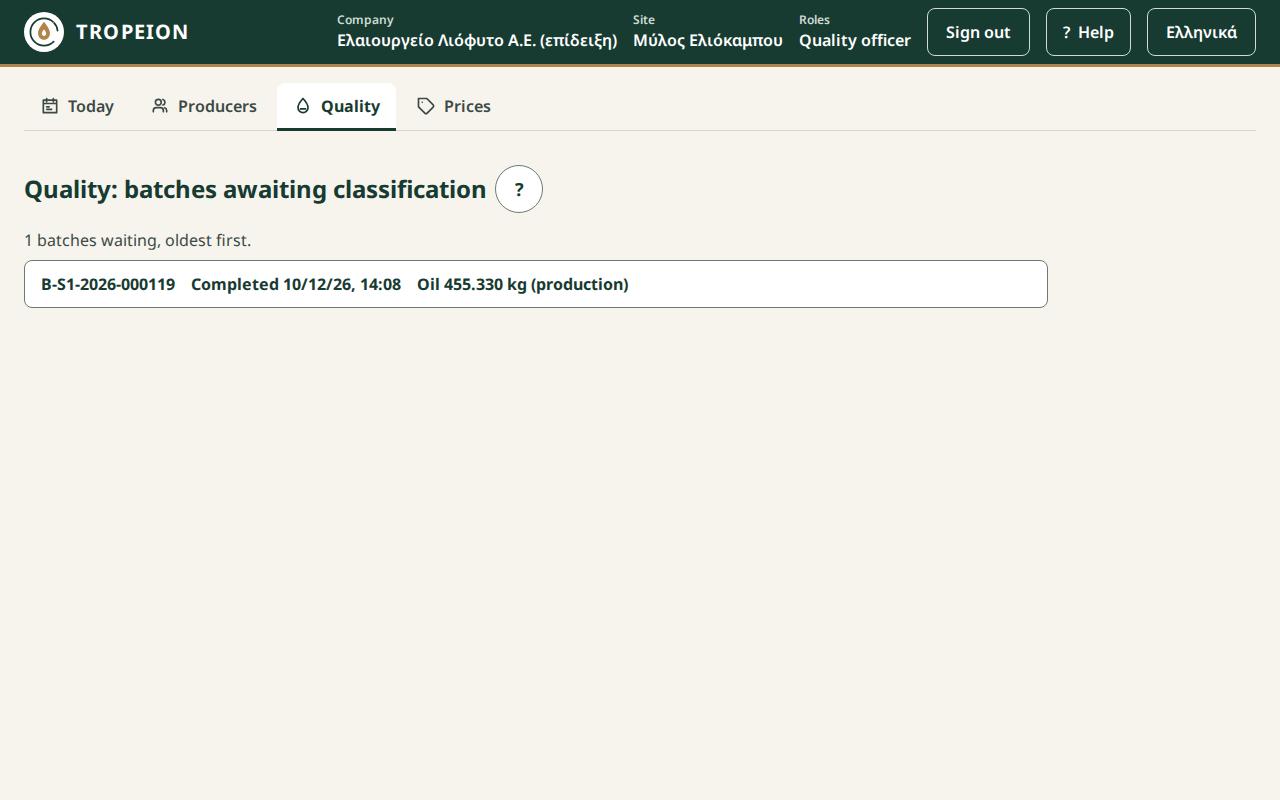
Quality classification
What it is and why. The classification sets the quality class and the certification of a production batch's oil. It is needed for two reasons:
- Without a final classification no settlement can be finalized. The settlement shows a blocker saying the batch has no final quality classification.
- The class and certification decide the price the settlement uses, and the class of oil the producer later collects.
Who. Only the Quality officer. This is on purpose: whoever sets prices and pays does not also decide quality.
What the batch screen shows:
- Inputs (N): certification and harvest: each olive lot, with its certification and harvest.
- Production warnings: measurements out of range, a yield outside the range, a certification mix, and whether the operator acknowledged them.
- Computed outcome: the certification the system derives from the inputs. If all have the same certification, it is that one. If they differ or one is unknown, it is conventional.
- Line cleaning (must cover the start): each cleaning marked Valid at the start or Does not cover the start.
Steps:
- Open the batch from the list.
- Read the inputs, the warnings and the computed outcome.
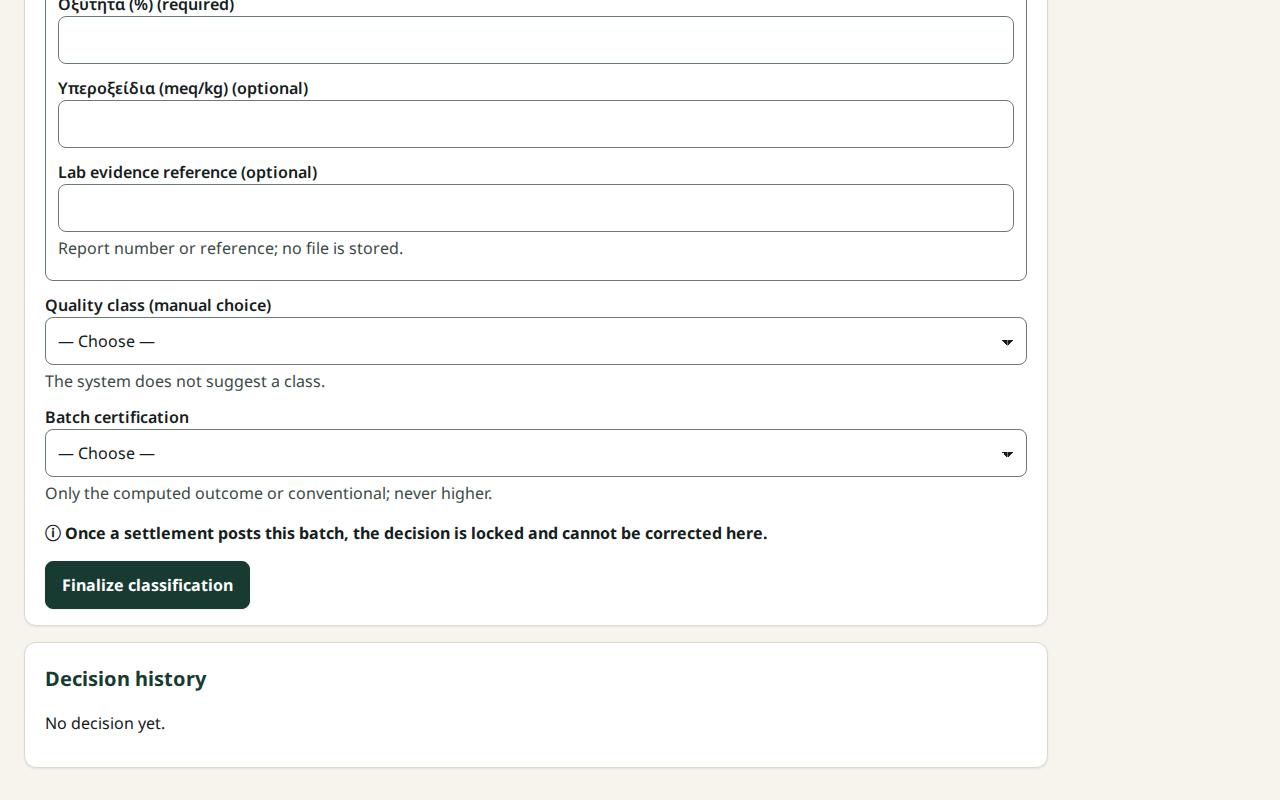
- Fill in the Lab measurements. Each field is marked "(required)" or "(optional)". Decimals with a comma or a period.
- If you want, enter the Lab evidence reference (optional): a report number or reference. No file is uploaded.
- Choose the Quality class (manual choice). The system does not suggest a class.
- Choose the Batch certification: the computed outcome, or a downgrade to conventional.
- If Override reason (required) appears, write why you keep the higher certification without a valid cleaning, or choose conventional.
- Read the line "Outcome: the batch will be classified …" and press Finalize classification: ….
- You see "Classification finalized · decision #1".
What is checked:
- Never a certification higher than the computed outcome. Only that one or conventional.
- A certification mix cannot be overridden. It is a fact.
- Line cleaning. If no cleaning covered the start, Warning: line cleaning missing appears. To keep the higher certification you need an Override reason, which stays in the history for good.
- Different harvests. "The inputs have different harvests; the batch cannot be classified." Talk to the Site manager.
- Required measurements. For example "A required measurement (acidity) is missing." If you press with something missing, the list "Cannot finalize yet:" appears.
- Concurrent change. "Another user finalized a classification for this batch in the meantime." What you typed is kept. If someone recorded a cleaning meanwhile, you see "The override no longer matches the cleaning state…".
Correction. With a new decision, as long as no settlement with the batch has been finalized. See "Correct a quality decision".
Example. The batch of Nikos and Maria (250 kg of oil) has only conventional inputs of the same harvest. The Quality officer enters an acidity of 0.4, the evidence "LAB-1182", picks the site's extra virgin class and the computed conventional certification. They press Finalize classification and see "decision #1". The blocker leaves Nikos's settlement when it is opened again.
Common mistakes:
- Waiting for a suggested class. The system does not suggest one. You choose.
- Organic certification with an override, when the cleaning was done but not recorded. Record the cleaning first: the warning goes away and no override is needed.
- A manager trying to classify. They also need the Quality officer role.
See Quality, How to enter lab measurements and How to finalize or correct a quality decision.
Line cleaning
What it is and why. For a batch to keep the organic (or another higher) certification, the line must have been cleaned before the start, so that no conventional oil is left in the machine. The cleaning belongs to the production line, not only to one batch.
Who. The Quality officer and the Production operator. Not the Site manager, not the Central manager.
Steps:
- On Quality, open a batch of the line from the list.
- In the section Certification: outcome and line cleaning, press + Record a line cleaning.
- Cleaning completed (site time): date and time.
- Valid until (site time): expiry date and time.
- Evidence (form number or reference): the form number.
- Press Record the line cleaning.
- You see "The cleaning is recorded; the certification outcome was recalculated."
What is checked:
- The completion cannot be in the future.
- The expiry must be after the completion.
- A cleaning covers the start of a batch if it was completed before the start and is still valid at the moment of the start.
- On a batch that is Locked by settlement the form does not appear. Open another batch of the same line.
Correction. A cleaning is not deleted. If you entered wrong times, record a new cleaning with the right ones. Coverage is checked against all the line's cleanings.
Example. Maria brings a second load, of organic olives, for a separate batch on Line 2. Line 2 was cleaned on 11 November at 18:00 and the cleaning is valid until 13 November at 18:00, form "CL-045". Maria's batch started on 12 November at 08:00. The Production operator records the cleaning. It is marked Valid at the start and the Quality officer keeps the organic certification without an override.
Common mistakes:
- A time in the wrong time zone. Times are site time.
- A cleaning completed after the start. It is marked Does not cover the start. For that batch, the options are an override with a reason or conventional.
See How to record a line cleaning.
Correct a quality decision
What it is and why. A quality decision is never changed or deleted. If it was wrong, the Quality officer finalizes a new decision that replaces it. That way the original judgement and who corrected it are always visible.
Who. Only the Quality officer.
Steps:
- Stay on the same screen after finalizing. The form reads "Correct the quality decision (new decision #2)".
- Fill in the measurements, class and certification again with the right values.
- Press Finalize correction: ….
- In the Decision history the new decision is Current and the old one Superseded.
What is checked:
- The decision locks with the settlement. As soon as a settlement with this batch is finalized, the screen shows Locked by settlement and the decision can no longer be corrected. Reclassification after settlement is not available yet.
- If a settlement locked the batch while you were sending the correction, you see "A settlement locked the batch before your decision arrived…" and the decision is not recorded.
- Once you leave the screen, the batch no longer appears in the pending list. There is no screen to correct it later. Contact TROPEION support.
Example. The Quality officer finalized the batch with an acidity of 0.4. Then they see the lab report said 0.9. On the same screen they enter 0.9, pick the right class and press Finalize correction. Decision #2 is Current, #1 Superseded. The correction is allowed because no settlement with this batch has been finalized.
Common mistakes:
- Waiting to correct after settlement. Check the decision before the settlement is finalized.
- Leaving the screen before correcting. The batch leaves the list.
See How to finalize or correct a quality decision.
Tanks
Who sees the Tanks screen:
- Warehouse and tank operator, Site manager, Central manager: counts and transfers.
- Production operator, Accountant and back office, Auditor (read-only): read-only. They see "Read-only: counts and transfers are done by the warehouse and tank operator and the managers."
- Other roles do not see the screen.
Tanks are set up when the company is onboarded. If the site has none, the screen says "This site has no tanks."
The tank board and movements
What it is and why. The board shows at a glance how much oil each tank holds and how much room is left. The stock is the book stock: the sum of all movements. Movements are oil from production, transfers, count adjustments and deliveries to producers, with their reversals. Everything is in kilograms.
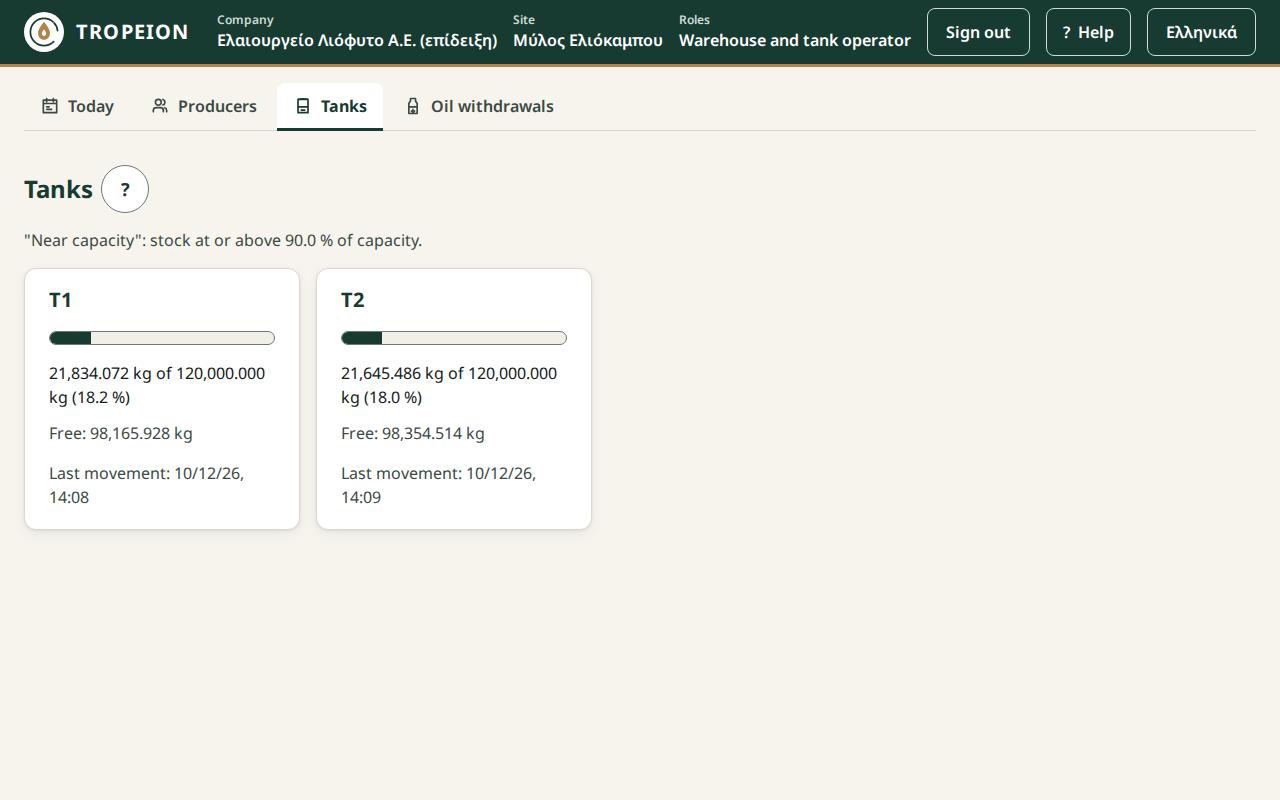
What each card shows:
- the code, for example Δ-01;
- a fill bar and "1,200 kg of 5,000 kg (24.0 %)";
- "Free: 3,800 kg";
- Near capacity, when the stock reaches the limit stated above the cards;
- the status, when the tank is not active, for example "Cleaning";
- the time of the last movement, or "No movement yet".
Steps:
- Press Tanks.
- Press a card (or Tab and Enter).
- At the top you see the stock "(book, sum of movements)", the capacity, the free room, the fill and the last count with its difference.
- The Movement history lists the movements, newest first: when, what (for example "Transfer to Δ-02"), the signed change (+ in, − out) and the reason. More loads older ones.
- Back to tanks returns to the cards.
Correction. No movement is deleted. Every mistake is corrected by a new movement: a new count, a reverse transfer or a delivery reversal.
Example. Δ-01 holds 1,200 kg. After the batch of Nikos and Maria, the history shows +250 kg and the card reads "1,450 kg of 5,000 kg (29.0 %)", "Free: 3,550 kg".
Common mistakes. Confusing tank stock with the producer's oil. The tank shows physical oil. What each producer is owed is a separate account (see "The two ledgers").
See Tanks.
Tank count
What it is and why. With a count you enter the kilograms you measured in the tank. If they differ from the book stock, the difference is booked as a count adjustment and the stock becomes equal to the measurement. The difference affects only the mill's physical stock. No producer's oil changes.
Who. Warehouse and tank operator, Site manager, Central manager.
Steps:
- Open the tank and press Count Δ-01.
- In Counted kilograms (kg) enter the kilograms. Up to 3 decimals. 0 is allowed for an empty tank.
- Below the field you see at once "Difference (counted minus book): …" or "No difference from the book stock."
- If there is a difference, write a Reason (required when there is a difference).
- Press Record count of Δ-01: ….
What is checked:
- A reason when there is a difference.
- The kilograms do not exceed the capacity.
- The tank is active: "The tank is not active: no count or transfer."
- If another movement happened meanwhile, the screen says the tank changed. What you typed is kept and the difference is recalculated.
Correction. A count is not deleted. Make a new count with the right kilograms.
Example. Δ-01 has 1,450 kg on the books. The operator measures 1448. The screen shows "Difference (counted minus book): −2 kg". They write the reason "settling loss" and press Record count of Δ-01: 1,448 kg. Nikos's balance does not change.
Common mistakes:
- Measuring in litres. Counts are in kilograms.
- A count instead of a transfer. If oil went to another tank, make a transfer, not two counts.
See How to count a tank.
Transfer oil to another tank
What it is and why. A transfer moves oil from one tank to another at the same site. The source loses exactly the kilograms the target gains. No producer's oil changes.
Who. Warehouse and tank operator, Site manager, Central manager.
Steps:
- Open the tank the oil leaves from and press Transfer from Δ-01.
- In Target tank choose a tank. Each option shows its free kilograms, for example "Δ-02: free 400 kg". Inactive tanks cannot be chosen.
- In Kilograms to transfer (kg) enter the kilograms.
- If you want, a Reason (optional).
- Press Transfer … from Δ-01 to Δ-02.
What is checked:
- No more than the source holds.
- No more than the target has room for.
- Certification and harvest are not mixed. "Transfer refused: the target tank holds oil of another certification or harvest…". Nothing changes; choose another, or an empty, tank.
- A different quality class is allowed, with a warning. The transfer is made and the screen says "Note: the target tank now holds oil of different quality classes. The transfer was made." Tell the Site manager if this was not intended.
Correction. A transfer is not deleted. If you moved the wrong quantity, make a reverse transfer with a reason.
Example. Δ-01 holds 1,450 kg of conventional oil. The operator moves 300 kg to Δ-02, which is empty, and presses Transfer 300 kg from Δ-01 to Δ-02. Δ-01 now holds 1,150 kg and Δ-02 300 kg. Had they picked Δ-04 with organic oil, the transfer would have been refused.
Common mistakes:
- Transferring into a tank with organic or last year's oil. Choose an empty or a compatible tank.
- Ignoring the quality warning. The tank now holds oil of mixed quality.
See How to transfer oil to another tank.
Oil withdrawals
On the Oil withdrawals screen the producer collects their oil. First there is a withdrawal request, then one or more deliveries from the tanks.
Who sees the screen:
- Cashier and settlement officer: new request, delivery, closing a request, printing the paper.
- Warehouse and tank operator: only deliveries on open requests and printing the paper.
- Site manager, Central manager: all of the above, plus delivery reversal (new sign-in).
- Accountant and back office, Auditor (read-only): read only, and printing the paper.
- Other roles do not see the screen.
The request and the delivery do not ask you to sign in again. Hidden buttons are not the only protection: the service checks every action separately.
Note: A withdrawal and its paper are not a tax document. Delivery notes, myDATA and e-signature are not done in this application.
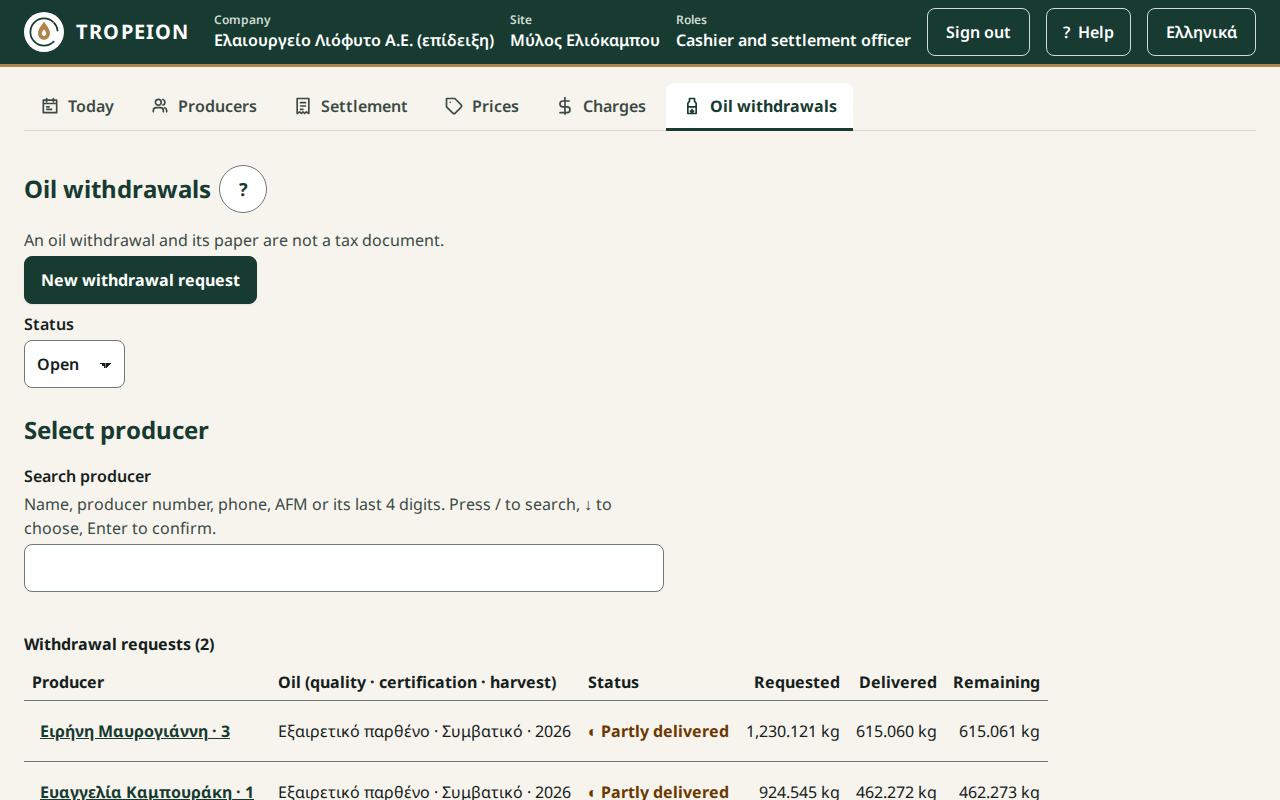
The list. For each request: Producer, Oil (quality · certification · harvest), Status, Requested, Delivered, Remaining. The statuses are ○ Open, ◐ Partly delivered, ✓ Fulfilled, ✕ Cancelled. The Status filter has Open (default), Fulfilled, Cancelled, All. The list loads 50 requests at a time; More requests loads the next ones.
The two ledgers: the producer's oil and the oil in the tanks
What it is and why. TROPEION keeps two separate accounts:
- The oil in the tanks (physical stock): what is really in each tank. Shown on Tanks.
- The producer's oil (the producer ledger): how much each producer is owed, per class (quality, certification, harvest), at this site. Shown as The producer's settled oil when you create a request.
A producer does not "own" a tank. They own an amount of oil of one class and collect it from any tank of the site holding oil of the same class.
How they move:
| Action | Tanks | Producer's oil |
|---|---|---|
| Completing a production batch | go up | no change (the allocation is not a credit) |
| Finalizing a settlement | no change | the net is credited |
| Delivering oil | go down | goes down, by the same kg |
| Reversing a delivery | go up | goes up, by the same kg |
| Transfer, count | change | no change |
Example. Nikos has 158.667 kg of settled oil. The count of Δ-01 finds 2 kg less. Nikos's balance stays 158.667 kg: the loss does not fall on the producers.
Common mistakes. A request for a producer who only has an allocation from production. Only a producer with a finalized settlement at this site can collect oil.
New withdrawal request
What it is and why. The request records what the producer asks for: which class of oil and how many kilograms. A request reserves nothing. The kilograms are checked at the moment of delivery.
Who. Cashier and settlement officer, Site manager, Central manager. Not the Warehouse and tank operator.
Steps:
- Press New withdrawal request and find the producer.
- The producer's settled oil appears: one row per class, with its balance.
- Choose the Oil class (one request per class).
- Enter the kg the producer asks for and, if you want, a note of up to 500 characters.
- Press Create request: … kg …. The request opens as ○ Open.
What is checked:
- No settled oil: "The producer has no settled oil at this site."
- One request, one class. For two classes, two requests.
- Kilograms above the balance: you see a warning. The request is made, but each delivery is limited to the balance at that moment.
Correction. A request does not change. If it was wrong, close it (see "Close a request") and create a new one.
Example. Nikos has 158.667 kg of conventional oil. The cashier chooses that class, enters 100 and presses Create request: 100 kg ….
Common mistakes:
- Choosing the wrong class, for example last year's harvest. Read the quality, certification and harvest.
- Expecting the request to "hold" oil. It does not.
See How to give oil to a producer (withdrawal).
Deliver oil, and partial delivery
What it is and why. A delivery records the oil that actually left the tanks for the producer. It lowers, together and by the same kilograms, the tank stock and the producer's balance.
Who. Cashier and settlement officer, Warehouse and tank operator, Site manager, Central manager.
Steps:
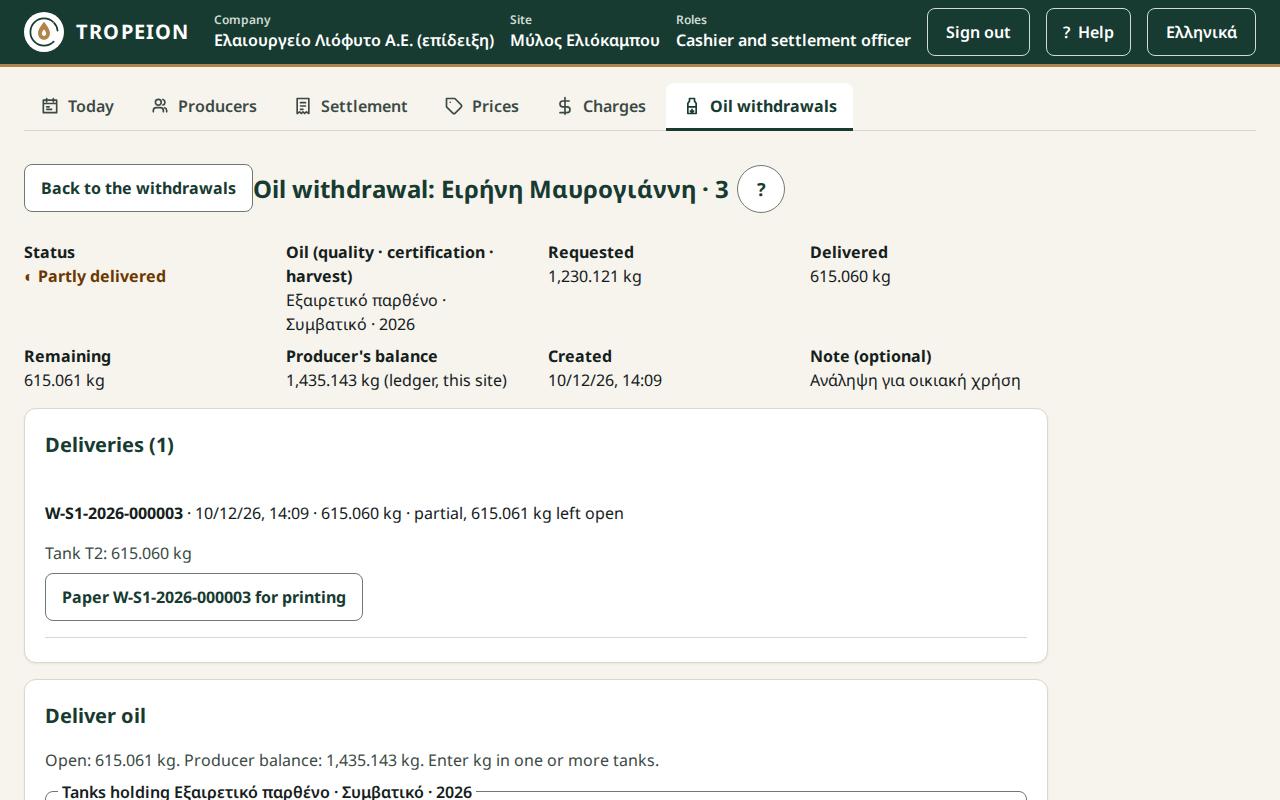
- Open the request from the list (press the producer's name).
- The Deliver oil section shows only the site's tanks holding stock of the same class, with their stock.
- Enter kilograms in one or more tanks. Leave unused ones empty.
- Check the Total against the open kilograms.
- If the total is below the open kilograms, tick Partial delivery: … stay open on the same request.
- Press Confirm delivery of … from … tank(s).
- The delivery appears under the deliveries with a number
W-…. Print the paper.
What is checked, both by the screen and by the service when the delivery is recorded:
- A tank's kilograms do not exceed its stock of that class: "The tank does not hold that much oil of this class."
- The total does not exceed the request's open kilograms or the producer's balance.
- Fewer than the open kilograms need confirmation: "The kg are below the open kg: confirm the partial delivery."
- A positive number, up to 3 decimals: otherwise "The kg are not valid."
- If someone changed the request meanwhile: "Someone else changed the withdrawal." What you typed is kept.
If no tank appears, no tank holds stock of that class. Check Tanks.
Correction. A confirmed delivery does not change. If it was wrong, the Site manager or the Central manager reverses it and a new correct delivery is made.
Example. Nikos's request is 100 kg. The operator enters 60 kg in Δ-01 and 40 kg in Δ-02. Total 100 kg, equal to the open kilograms. They press Confirm delivery of 100 kg from 2 tank(s). The request becomes ✓ Fulfilled, Nikos's balance 58.667 kg, and the two tanks go down by 60 and 40 kg.
Partial delivery. If Nikos had brought containers for only 70 kg, the operator enters 70 kg, ticks Partial delivery: 30 kg stay open on the same request and confirms. The request becomes ◐ Partly delivered. Next time the 30 kg are delivered on the same request.
Common mistakes:
- Looking for a tank that does not appear. It holds oil of another class.
- A new request for the remaining kilograms. Not needed: they stay open on the same request.
See Oil withdrawals.
Close a request
What it is and why. If the producer will not come for the remaining kilograms, the open request is closed so that nothing is left pending in the list.
Who. Cashier and settlement officer, Site manager, Central manager. Not the Warehouse and tank operator.
Steps:
- Open the request.
- Press Close the request….
- Write a reason.
- Press Close the request with … open. The request becomes ✕ Cancelled.
What changes. The open kilograms are not delivered. The producer's balance does not change, because nothing was reserved. Deliveries already made stay as they are.
Correction. A closed request does not reopen. A new delivery needs a new request.
Example. After the partial delivery of 70 kg, Nikos says he does not want the 30 kg this year. The cashier closes the request with the reason "producer does not need it". Nikos's balance stays 88.667 kg (158.667 − 70).
Common mistakes. Closing to "fix" a wrong delivery. Closing does not change deliveries. A wrong delivery needs a reversal.
Delivery reversal
What it is and why. A confirmed delivery is never edited or deleted, because a paper may already have been signed. If it was wrong, the exact opposite movement is recorded: the kilograms return to the producer's balance and to the same tanks.
Who. Only the Site manager and the Central manager, with a reason (new sign-in).
Steps:
- Open the request. If it is fulfilled, set the filter to All.
- On the delivery press Reverse delivery W-….
- Read What changes (the kilograms return to the producer's balance and to the listed tanks) and What cannot be undone (the reversal is final and the paper prints as "VOID").
- Write a Reason (required, up to 500 characters).
- Press Reverse W-…: return … kg.
- Sign in again. The same request is sent once and the same withdrawal request reopens on screen.
- The delivery is marked VOID.
What is checked:
- The tank must have room to take the kilograms back. Otherwise make a transfer on Tanks first.
- The kilograms only go back into an empty tank or a tank holding the same class. If the tank now holds oil of another class, transfer first.
What happens to the request:
- A ✓ Fulfilled request reopens, so that the correct delivery can be made.
- A ✕ Cancelled request stays closed. The kilograms go back to the balance and a new delivery needs a new request.
Correction. The reversal is final and cannot be undone. If it was made by mistake, a new delivery is made.
Example. Delivery W-… was entered as 100 kg, but Nikos took 90 kg. The Site manager reverses it with the reason "wrong kg, 90 given". 60 kg go back to Δ-01, 40 kg to Δ-02, and Nikos's balance is 158.667 kg again. The request reopens and the operator records a new delivery of 90 kg, with Partial delivery: 10 kg stay open on the same request. Nikos's balance becomes 68.667 kg.
Common mistakes:
- The cashier or the warehouse operator looks for the button. They do not have it. Ask the Site manager.
- Filling the tank before the reversal, leaving no room.
See How to reverse a delivery.
The withdrawal note
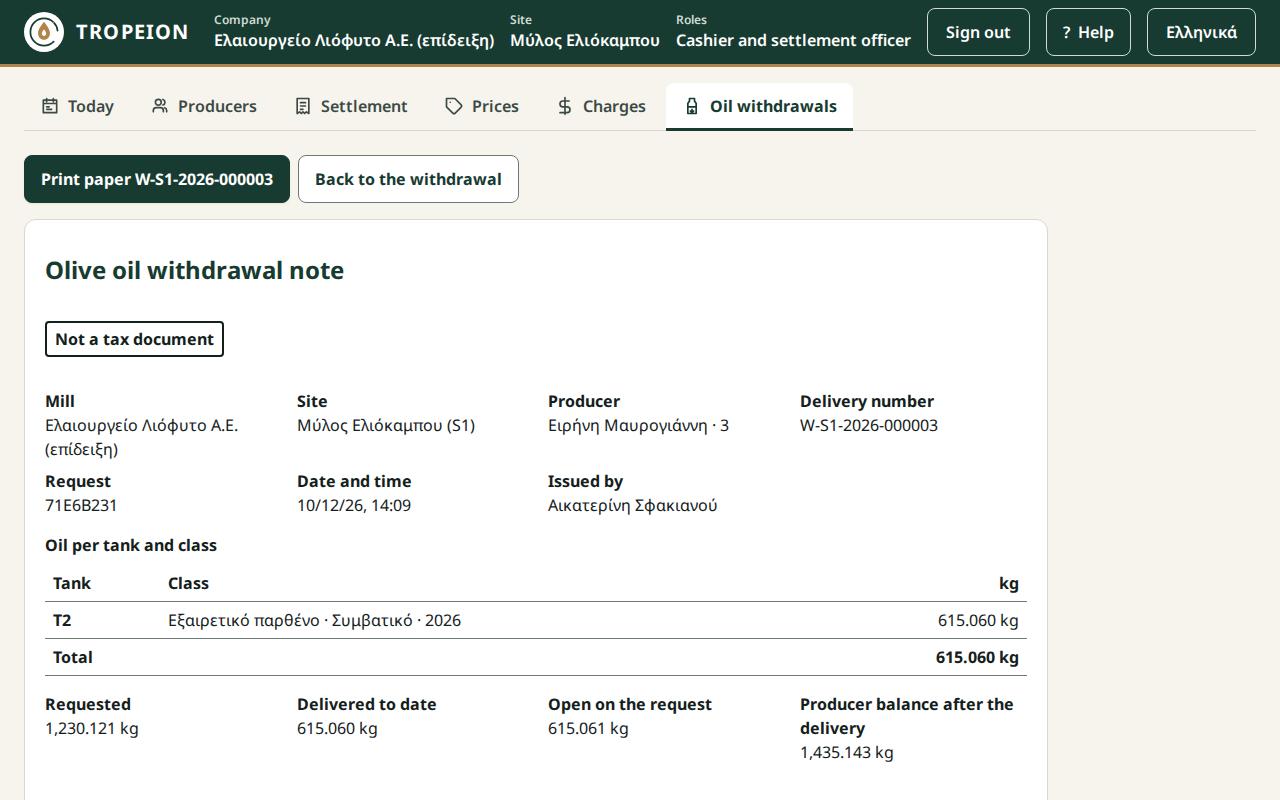
What it is and why. Each delivery has its own Olive oil withdrawal note, signed by whoever handed the oil over and whoever received it. It states, at the top and at the bottom, that it is not a tax document.
Who. Everyone who sees the screen: Cashier and settlement officer, Warehouse and tank operator, Site manager, Central manager, Accountant and back office, Auditor (read-only).
Steps:
- Open the request.
- On the delivery, press the button that opens the note for printing.
- Press Print paper W-…. Only the note comes out on paper.
- Go back to the request.
What it shows:
- the mill and the site;
- the producer, with the producer number, without the tax number;
- the delivery number, the request, the date and time;
- the oil per tank and class, with a total;
- requested, delivered so far, still open on the request, and the producer's balance after the delivery;
- two signature lines: one for whoever handed over (name, signature) and one for whoever received (name, ID number, signature). So someone collecting on the producer's behalf can sign too.
Reversed delivery. The note prints with VOID and the time of the reversal. The reason is not printed.
Example. After the 60 + 40 kg delivery, Nikos's note shows: Δ-01 60 kg, Δ-02 40 kg, total 100 kg, requested 100 kg, delivered so far 100 kg, open 0 kg, balance after the delivery 58.667 kg.
Common mistakes. The producer asks for a delivery note or an invoice. The note does not replace them. They are issued outside the application.
See How to print the delivery paper.
Self-check
- Who cancels a production batch that has started, and what happens to the olives?
- Does the warning "75 min without a measurement" block completion?
- Can the Site manager record a line cleaning?
- A transfer goes into a tank holding oil of another quality class. Is it allowed?
- Does the producer's balance change when a count finds fewer kilograms?
- Can the Warehouse and tank operator open a withdrawal request?
Answers:
- Only the Site manager or the Central manager, after signing in again. The olives stay consumed and no oil is recorded.
- No. It does not even need acknowledgement.
- No. Only the Quality officer and the Production operator.
- Yes, with a warning. Another certification or another harvest, however, is refused.
- No. A count changes only the tanks.
- No. They only make the delivery.