Producers: search, details and new producer
Which role does what here
| Role | What it can do here |
|---|---|
| Intake operator | searches producers, sees producer details, registers a new producer, changes a producer's contacts, address, tax office and VAT regime |
| Production operator | searches producers, sees producer details, registers a new producer, changes a producer's contacts, address, tax office and VAT regime |
| Quality officer | searches producers, sees producer details, registers a new producer, changes a producer's contacts, address, tax office and VAT regime |
| Warehouse and tank operator | searches producers, sees producer details, registers a new producer, changes a producer's contacts, address, tax office and VAT regime |
| Cashier and settlement officer | searches producers, sees producer details, registers a new producer, changes a producer's contacts, address, tax office and VAT regime |
| Site manager | searches producers, sees producer details, registers a new producer, changes a producer's contacts, address, tax office and VAT regime |
| Central manager | searches producers, sees producer details, registers a new producer, changes a producer's contacts, address, tax office and VAT regime |
| Accountant and back office | searches producers, sees producer details, registers a new producer, changes a producer's contacts, address, tax office and VAT regime |
| Auditor (read-only) | searches producers, sees producer details |
What it is for
The Producers screen lets you find a producer quickly and see their basic details: producer number, name, AFM (tax id) and status. The same search also appears inside the New walk-in and New appointment dialogs of the arrival queue. Everything here applies there too.
On the Producers screen, selecting a producer only shows their details: contacts, address, tax office (ΔΟΥ) and VAT regime. It does not add them to the queue and changes nothing. Edit details corrects those details (see Producer details and editing).
Above the search, New producer opens the registration form (see New producer below).
Who sees it
The screen opens for every signed-in user except the "Queue display (view only)" and "Platform operator (tenant onboarding)" roles. If your role cannot search producers at this site, you see a message saying so. The AFM is shown only to users allowed to see it.
New producer is shown to every role that sees the screen except the Auditor (read-only). The service also refuses a registration from a role without the right, whatever the screen shows.
The Producer details (contacts, address, tax office, VAT regime) are shown to everyone who may see the AFM, the Auditor (read-only) included. Edit details is shown to the same roles as New producer: every role except the Auditor. The service refuses a change from a role without the right, whatever the screen shows.
The Parcels and their map are shown to everyone who sees the producer details, the Auditor included. New parcel, editing and deactivating are shown to the same roles as Edit details.
Screen tour
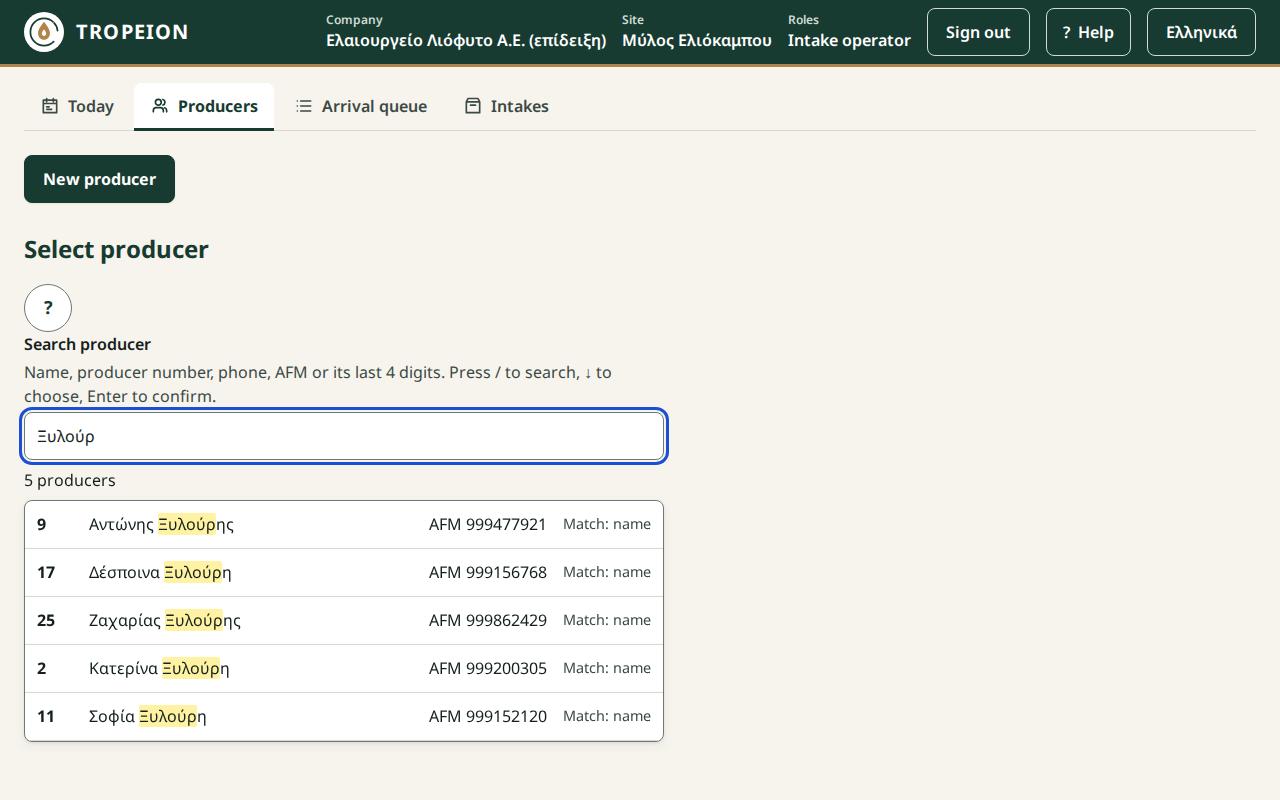
- Select producer: the screen title.
- Search producer: the field where you type. Below it is the hint "Name, producer number, phone, AFM or its last 4 digits. Press / to search, ↓ to choose, Enter to confirm."
- Under the field you see how many producers were found, for example "3 producers".
- Result list: each row shows the producer number, name, AFM, the status if not active ("Inactive" or "Temporary") and the "Match".
How to search
- Click in the Search producer field. If you are not typing in another field, the
/key also works. - Type one of:
- part of the name, for example
Papa(accents and capitals do not matter), - the producer number,
- the phone number,
- the full AFM (9 digits),
- the last 4 digits of the AFM.
- part of the name, for example
- The search starts when you pause typing. It needs at least 2 characters. The exception is a single digit, which looks up exactly that producer number.
- If the answer is slow, you see "Searching…".
The part of the name that matches your text is highlighted. "Match" shows the likely reason the producer was found: "exact AFM", "producer number", "AFM ending", "phone" or "name". It is only an aid. Always check the number and name before choosing.
At most 20 results are shown. If there are more, you see "Showing the first 20; type more to narrow the results."
How to select a producer
With the mouse or touch: tap the producer's row.
With the keyboard:
- Move through the list with ↓ or ↑. Home goes to the first result and End to the last.
- Press Enter to select the highlighted producer. If none is highlighted, Enter does nothing.
- Esc closes the list. A second Esc clears the text.
If you press Enter while the results still belong to older text, you see "Waiting for the updated results…". Wait for the list to update, then press again.
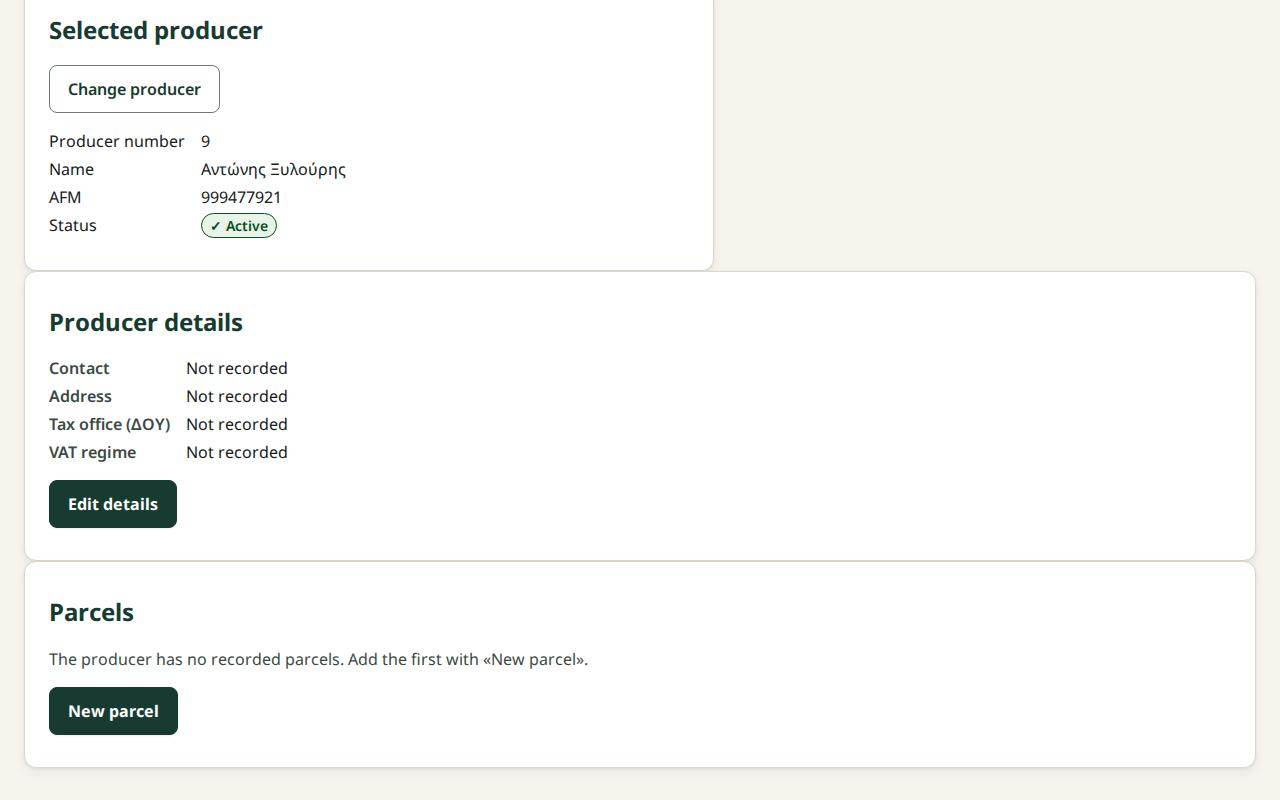
After selection, the Selected producer section shows Producer number, Name, AFM (if you may see it) and Status.
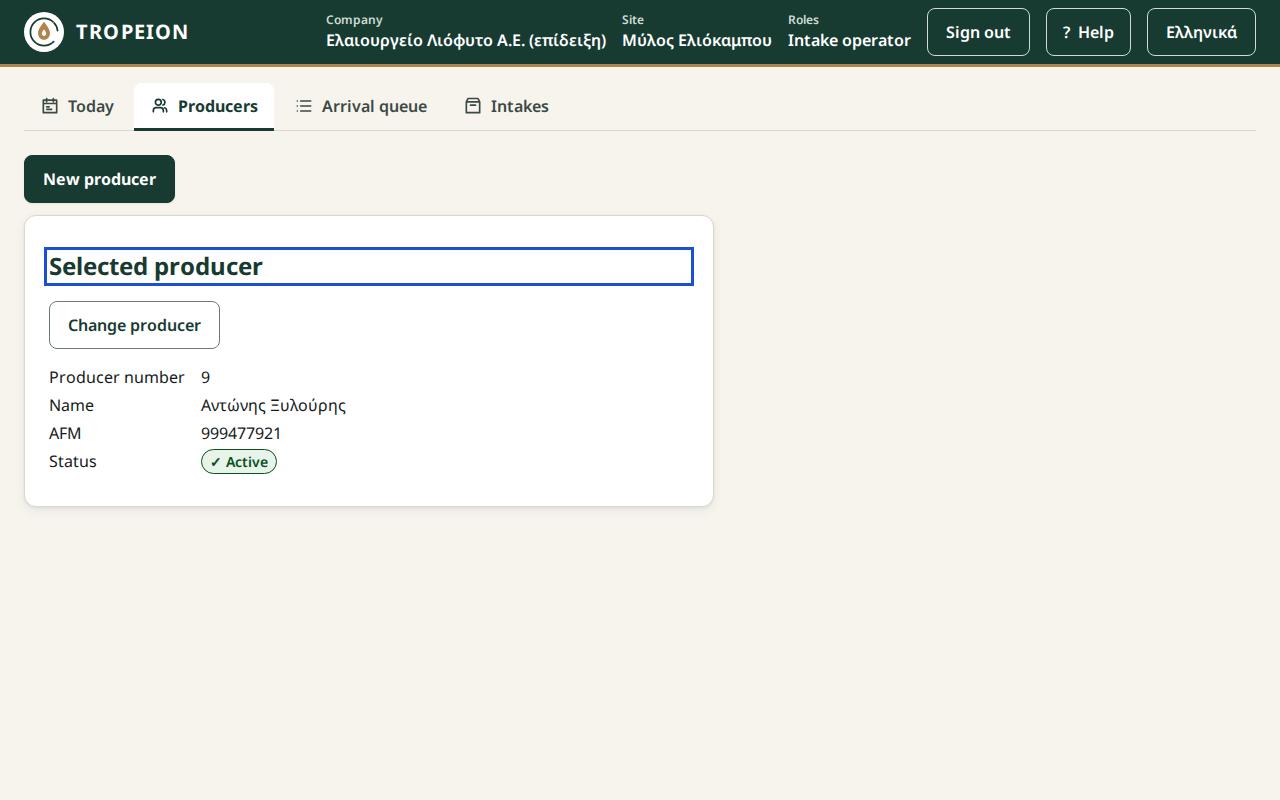
To choose someone else, press Change producer. The search opens again.
Producer details and editing
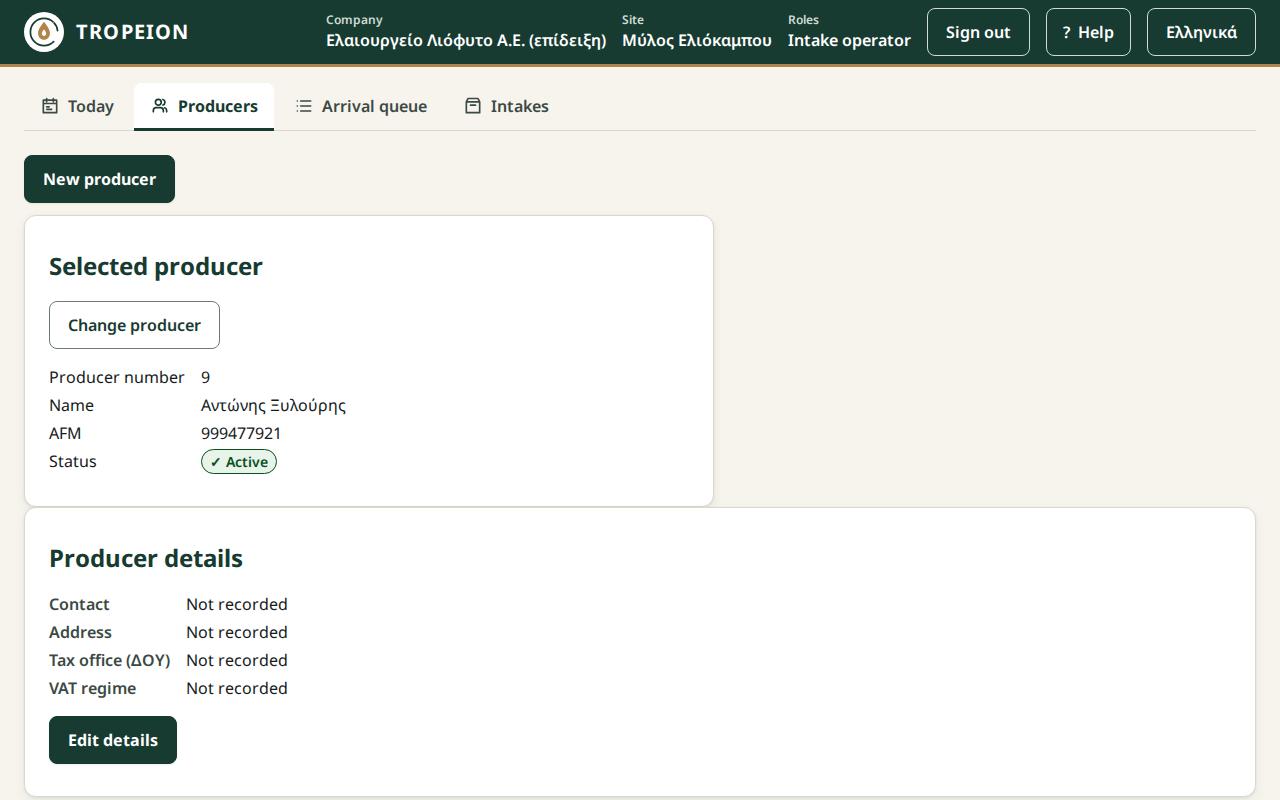
Below the Selected producer the Producer details section shows:
- the phones and emails, each with its type (Mobile, Email),
- the Address: street, postal code and town or village,
- the Tax office (ΔΟΥ),
- the VAT regime: "Special farmers' regime" or "Normal regime".
Anything not recorded reads "Not recorded". The VAT regime is recorded only: it changes no prices, settlements or documents.
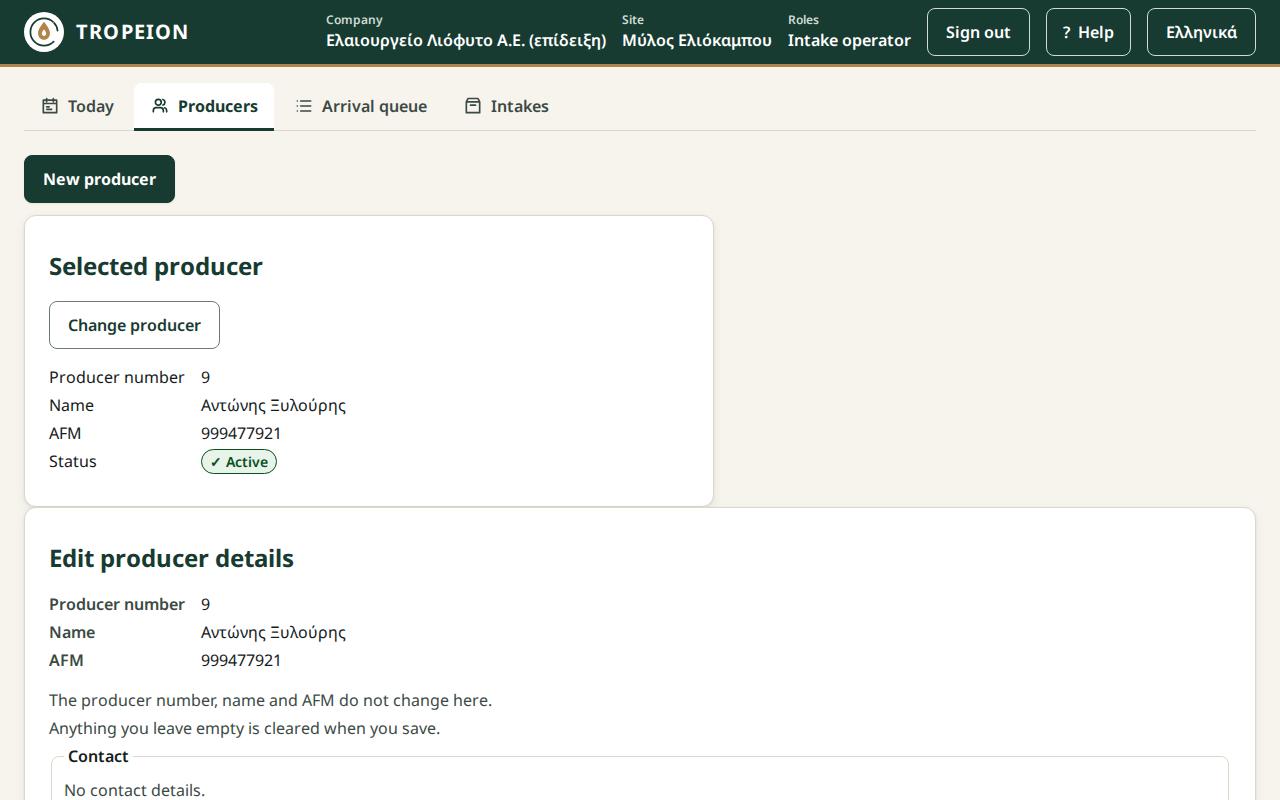
To change the details:
- Press Edit details. The Edit producer details form opens.
- At the top, the producer number, name and AFM are shown read-only. They do not change here.
- Under Contact, choose Mobile or Email for each row and type the value. Add phone or email adds a row (up to 10). Remove contact removes the row. The first row is the preferred one.
- Under Address, type Street and number, Postal code (exactly 5 digits) and Town or village. The town is needed if you type a street or postal code.
- Type the Tax office (ΔΟΥ) and choose the VAT regime, if you know them.
- Press Save producer details or Enter. You see "The producer's details were saved." and the details as the service read them back.
Caution: Saving replaces all the details. Anything you leave empty is cleared, and a contact row you removed or left empty is not kept.
Form messages and what to do:
- "Saving will remove the WhatsApp contact (no longer supported).": the producer has an old WhatsApp contact. It is not shown in the rows and goes away when you save. It cannot be added again. If the number is also a mobile, add it as Mobile.
- A message under a field, for example "The postal code has exactly 5 digits." or "The email is not valid.": the cursor goes to the first error. Correct it and press again. Nothing was saved.
- "Someone else changed this producer's details meanwhile…": your changes were not saved. What you typed stays in the form so you can see it. Press Load the current details, check what changed and make the change again.
- "Your role cannot change producer details.": your role does not allow it. Nothing was saved.
- "No connection: the changes are not saved yet…" or "Saving is temporarily unavailable…": what you typed is kept. Press Save producer details again. They are never saved twice.
Cancel without changes closes the form without saving anything.
Parcels
Below the Producer details the Parcels section shows the producer's fields (olive groves), active first. For each parcel the table shows:
- ΚΑΕΚ – name: the Land Registry code and/or the name the producer uses, and "with a shape on the map" when there is a shape,
- Area in stremma and square metres, for example "12.5 stremma (12,500 m²)",
- Variety, Trees and Status ("Active" or "Inactive").
The Map of the active parcels shows the shapes on a map of Greece. We host the map ourselves: no third party sees which area you look at. + and − zoom in and out, Fit to the parcels returns to the fields. The credit "© OpenStreetMap contributors" is at the bottom right. The map is an aid: every value is also in the table.
To add or change a parcel:
- Press New parcel, or Edit … on the parcel's row.
- Enter the ΚΑΕΚ (Land Registry code) or a Name: at least one of the two is needed. Spaces in the ΚΑΕΚ are removed.
- Enter the Area in stremma, for example
12.5. Below it you see "Will be saved: 12.5 stremma (12,500 m²)". 1 stremma = 1,000 m². - Choose the Variety and enter the Number of trees, if you know them.
- Press Record the parcel or Save the parcel changes.
The shape is not drawn here: it only comes from a file import (ΚΥΔ/ΟΣΔΕ). When you edit, the existing shape shows on the map and stays as it is.
Caution: Saving replaces all of the parcel's details. Anything left empty is cleared.
Deactivate … hides the parcel from intake. It is not deleted: it stays on the lots that name it, and Reactivate … makes it active again.
Messages and what to do:
- "Note: the ΚΑΕΚ does not have the usual format…": it was saved. Check the ΚΑΕΚ against the Land Registry document and correct it if needed.
- "Note: another producer has the same ΚΑΕΚ…": it was saved. This happens with co-owned or leased land. If it is a mistake, correct the ΚΑΕΚ.
- "The producer already has a parcel with this ΚΑΕΚ.": nothing was saved. If the existing one is inactive, press Reactivate … in the same message.
- "Someone else changed the parcel … meanwhile.": nothing was saved. Press Load the current parcels and make the change again.
- "The map is not available on this device." or "The map did not load.": the device cannot show the map, or the map did not load. Every value is in the table.
New producer
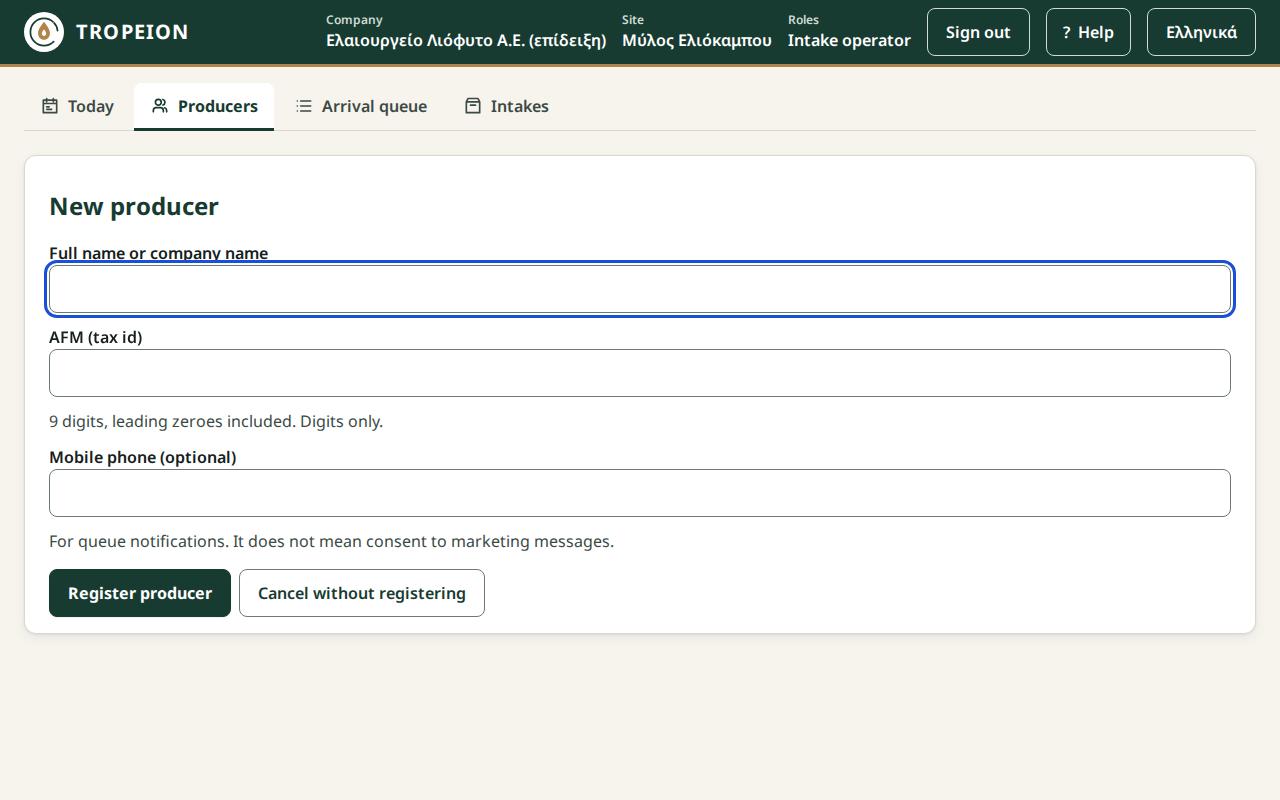
- Press New producer. The form opens with the cursor in Full name or company name.
- Type the name (2 to 200 characters).
- Type the AFM (tax id): exactly 9 digits, leading zeroes included. Anything other than digits is dropped as you type.
- If you have it, type the Mobile phone. It is used for queue notifications and is not consent to marketing messages.
- Press Register producer or Enter.
After saving you see "Producer registered" and "Registered with producer number …". Below it are the producer number, name, AFM, contact and status, read back from the service. Back to producer search returns to the search.
Warnings and what to do:
- "The AFM check digit does not match…": the last digit of the AFM does not agree with the others. Nothing is registered yet. Check the digits against the producer's document. If you typed it wrong, correct it and press Register producer again. If the AFM is right as written, press Register anyway. After saving you see "Registered with an AFM that fails the check-digit test." If you change the AFM after the warning, the warning goes and the check runs again.
- "N other producers have the same name." or "...the same phone.": the producer was registered. Check that this is not someone already in the system. If it is, tell your site manager.
- "A producer with this AFM already exists in the company. Nothing was registered.": search for the producer by AFM and use the existing one.
- "Your role cannot register producers. Nothing was registered.": your role does not allow it at this company.
- "No connection: the producer is not registered yet…" or "Registration is temporarily unavailable…": what you typed is kept. Press Register producer again. The producer is never registered twice.
- An error under a field (for example "The phone number is not valid."): correct that field and press again.
- "The producer was registered, but their details did not load.": the registration is saved. Press Reload producer details.
Cancel without registering closes the form and registers nothing.
Messages and what to do
- "No producer matches the search." with "Try the producer number or the last 4 digits of the AFM.": check the spelling or search by number.
- "The search could not be read. Change the text and try again.": remove unusual symbols and type again.
- "You have no producer search access at this site. Contact your mill administrator.": check that you are at the right site. If you are, ask for access.
- "Your session has expired. Sign in again.": sign in again.
- "Producer search is temporarily unavailable.": press Retry search. If a "Reference" appears, note it for your administrator.
- "No connection: producer search is unavailable. It runs again when the connection returns.": nothing to do. The search runs by itself when the connection returns.
Note: To protect personal data, the system does not keep what you type in the search. When you leave the page or change site, the text and the selection are cleared.
Common mistakes
- Typing a single letter and waiting for results. At least 2 characters are needed (except a single digit).
- Typing dots or spaces inside the AFM. Type the digits only.
- Choosing a producer with the same name without checking the producer number.
- Registering again a producer who came first to another site. A producer belongs to the company, not to a site: the search finds the producers of the whole company, whatever site the "Work context" bar shows. Search by AFM first.
Related How-To
- Register a new producer
- Change a producer's details
- Record a parcel
- A producer without an appointment
- Book a new appointment
- Arrival queue