Screen: Arrival queue
A producer without an appointment
Before you start
- You are signed in with the Intake operator, Site manager or Central manager role, at the right site.
- The Arrival queue screen is open.
- You checked that the producer has no appointment today in Today's appointments not yet arrived. If they have one, follow A producer with an appointment arrives.
Steps
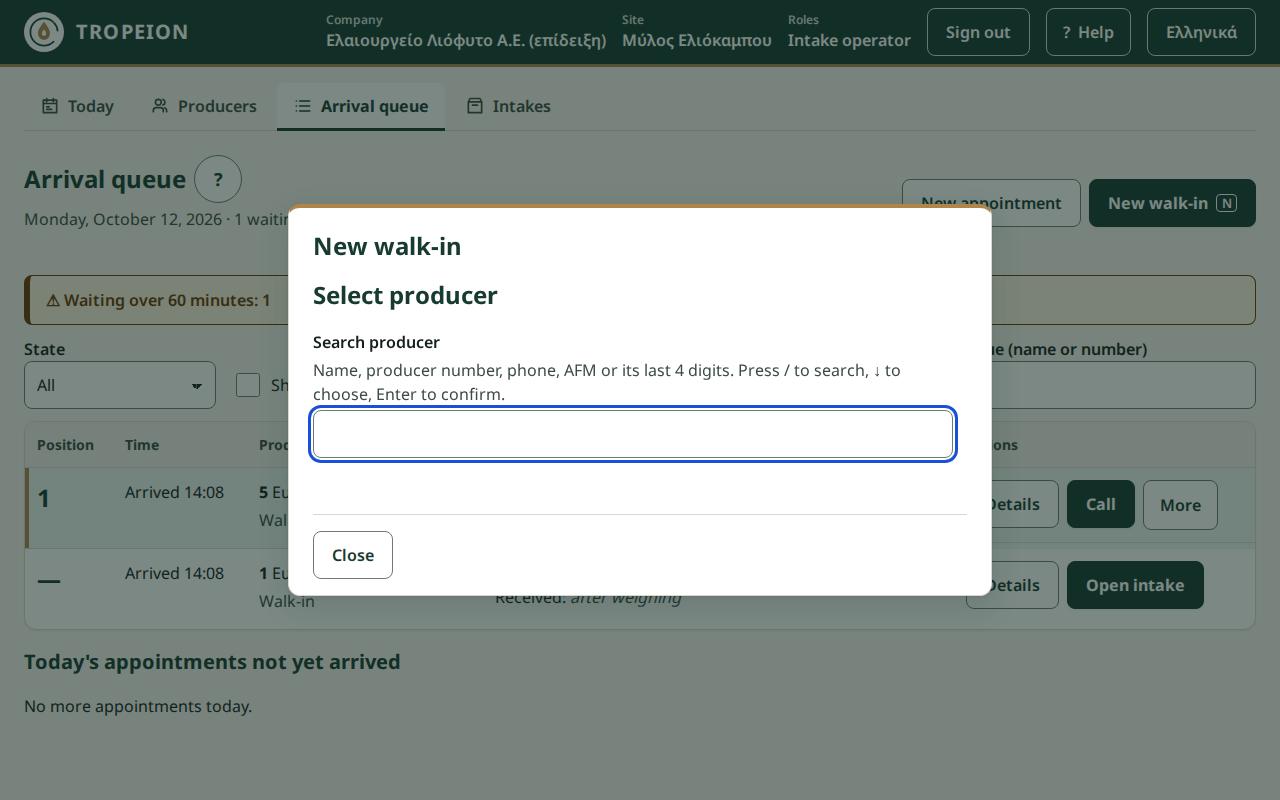
- Press New walk-in or the N key.
- The New walk-in window opens with the cursor in Search producer.
- Type the name, producer number, phone, AFM or the last 4 digits of the AFM.
- Select the producer from the list, by clicking or with ↓ and Enter. Check the number, name and status under Selected producer.
- Press Add to queue: … with their name.
- The window closes and you see "… was added to the queue." The producer appears in the queue marked "Walk-in".
- When they reach position 1, press Call and continue with Weigh and receive olives.
What if…
- …you cannot find the producer. Try the producer number or the last 4 digits of the AFM. If they are not in the system, register them first on the Producers screen (Register a new producer) and search again here.
- …you chose the wrong producer. Press Change producer before pressing Add to queue. If you already added them, cancel the arrival from More, Cancel arrival, with a reason, and add the right one.
- …the producer shows "Inactive" or "Temporary". Check with the Site manager before accepting them.
- …you see "The producer already has an active arrival at this site; no second one was created.". Press Open existing arrival. The window closes and the screen shows their row.
- …you must close the window halfway. Press Close or Esc. Your choice is kept if you open it again.
- …the connection drops. The button is disabled. When it returns, press again. The producer will not be added twice.