Lot detail and split
Which role does what here
| Role | What it can do here |
|---|---|
| Intake operator | sees intakes and olive lots, records intakes, corrections and splits |
| Site manager | sees intakes and olive lots, records intakes, corrections and splits, reverses a split |
| Central manager | sees intakes and olive lots, records intakes, corrections and splits, reverses a split |
| Accountant and back office | sees intakes and olive lots |
| Auditor (read-only) | sees intakes and olive lots |
What it is for
The Lot detail screen shows the whole history of one olive lot: how many kilograms were accepted, how many were used and how many remain, whether it was split into smaller lots and which production batch it went into. This is also where you split a lot into two or more new ones, for example when a producer's crates will be milled in different production batches.
It opens from the Lot detail link of an accepted lot in Fast intake. It also opens from the Audit: on a row whose subject is "Intake lot", press the subject.
The lot you open here is already ticked in the lot picker of New batch in Production, if it is still available.
Who sees it
- Intake operator: views, splits lots and prints labels for new lots.
- Site manager and Central manager: can also reverse splits.
- Accountant and back office and Auditor (read-only): read only ("Read only: your role does not split lots."). They open the screen from a row of the Audit, by pressing the "Intake lot".
Note: The Audit can show rows from every site, but a lot opens only at the site it belongs to. If you see "The lot was not found at this site.", choose in the "Work context" bar the site shown in the row's "Site" column and open it again.
Screen tour
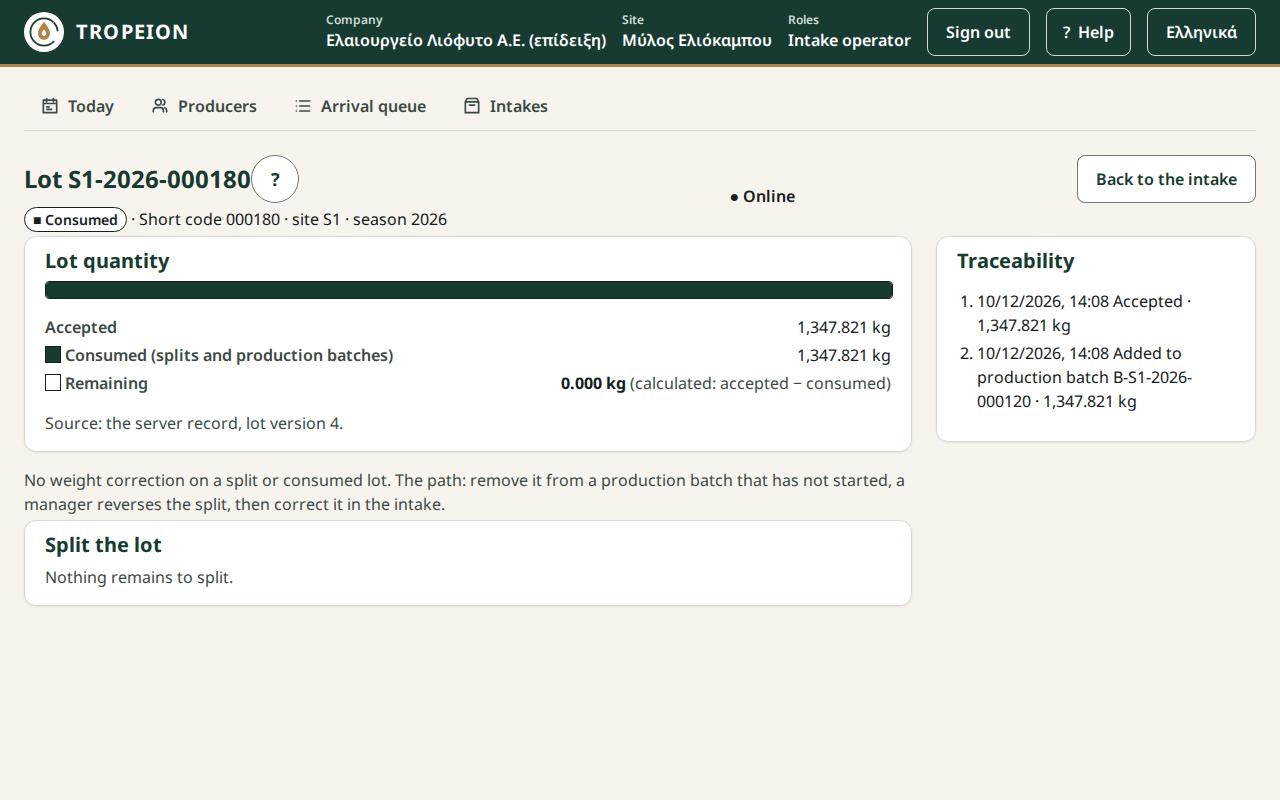
Top
- The title Lot with the code, the state (for example "✓ Accepted") and the short code with site and season.
- The Origin: the parcel's ΚΑΕΚ and name, or the intake's free text. A child lot keeps the original's origin. The origin does not change after intake.
- Online or Offline.
- The Back to the intake button, when you opened the screen from the intake. The browser's Back button does the same.
Parent lot
If the lot was created by a split, "Parent lot:" appears with a link to the original lot.
Lot quantity
- Accepted: the kilograms accepted.
- Consumed (splits and production batches): what went into new lots or into production.
- Remaining: what is left, "(calculated: accepted − consumed)".
The bar shows the same in colour. Below it: "Source: the server record, lot version …".
Correction rule
On a lot that was split or used, or on a lot created by a split, the screen explains how its weight is corrected. The screen itself never has a weight-correction button.
- "No weight correction on a split or consumed lot. The path: remove it from a production batch that has not started, a manager reverses the split, then correct it in the intake."
- "Child lot: its weight is not corrected. To correct it, a manager reverses the split and the parent lot is corrected."
Lot label
On a lot created by a split, the Lot label section shows the barcode, the short code, the kg, the print state and the Print label … button.
Child lots
Each split has its own table with a title such as "Split 1 · … · 2 lots · … kg". If the split was reversed, "reversed …" is added. Columns: Code (a link to the new lot), Quantity, Status, Production batch ("Not in a batch" or the production batch number).
Split the lot
The split form. See below.
Traceability
On the right, every movement with date and time: "Accepted · …", "Created by a split of … · …", "Split into … lots · … · … retained", "Split reversed · …", "Added to production batch … · …", "Removed from production batch … · …".
Buttons and actions, step by step
Split
Only an original lot (not one created by a split) can be split, and only when it is accepted and has more than 0 kg remaining. The steps are in Split a lot. In short:
- In the rows "New lot 1 (…), kg", "New lot 2 (…), kg", type the kg of each new lot. The new lot's code is already shown in the field label.
- Add a lot row adds rows and Remove row … removes them.
- The check line always shows "New lots … + retained … = remaining …". Whatever you do not assign stays on the parent lot.
- Press Split into … lots · ….
- In the confirmation window, read "What you are doing", "What will change", "Who or what is affected", "What cannot be undone automatically", optionally write a Reason (optional), and confirm.
- "… lots created · …" appears with each new lot's label and a print button.
Blockers shown by the form, each headed "Blocker:":
- "At least 2 rows are needed. Add a row."
- "Every row needs kg above 0. Fix the marked rows."
- "The new lots exceed the remaining kg. Reduce a row."
- "A lot has at most 99 child lots in total; it already has …, so up to … more."
- "Nothing remains to split."
Clicking a blocker takes you to the row that causes it.
Reverse a split (Site manager and Central manager only)
The Reverse split … (… lots) button appears under a split's table when none of its new lots has been used. See Reverse a split.
If a new lot is in use, you see "The split cannot be reversed while one of its new lots is used…". If the parent lot is in a production batch, you see "The parent lot is in production batch …. Remove it from there first, then reverse."
Print a new lot's label
Press Print label … or Retry print … next to the label. The messages are the same as in the intake. See Print a label and a receipt.
When sending goes wrong
If the connection drops or the service does not answer when you confirm a split or reversal, the request is kept. You see "The request is kept, and what you confirmed is locked…". The kg and the reason are locked ("Locked: a request with these values is kept…") so exactly the same request is sent again, never a double effect. You have two choices:
- Resend the same request: when the connection returns.
- Discard and start over: unlocks the values so you can change them.
If the lot changed at another station, you see "The lot was changed on another station before the action finished, and nothing was saved." and what changed, for example "Remaining: was …, now …". Your rows or reason are kept. Press Review and apply again, check the new figures and try again.
Messages and what to do
- "Loading the lot…": wait.
- "The lot was not found at this site.": check the site in the "Work context" bar.
- "You have no access to the lots of this site…": ask your site manager for access.
- "Offline: the lot was not loaded…", "The lot is temporarily unavailable…", "Too many requests…": press Load the lot again.
- "Offline: splitting, split reversal and label printing are disabled…": wait for the connection. What you typed is kept.
- "The lot was not refreshed after the last action…": press Refresh the lot.
- "The server refused some rows; see the errors at the rows.": correct the marked rows.
- "A child lot cannot be split again.", "Only an accepted lot with remaining kg can be split.": this lot cannot be split.
- "The split is already reversed.": someone else already reversed it.
Common mistakes
- Trying to split a lot that was created by a split. Only the original can be split.
- Forgetting to print the new lots' labels and put them on the crates.
- Leaving the old labels on the crates after a reversal. They are no longer valid and must be removed.
- Typing
1,000to mean one thousand. Type1000.
Related How-To
- Split a lot
- Reverse a split
- Correct an intake mistake
- Print a label and a receipt
- Lot origin from a parcel