Production console
Which role does what here
| Role | What it can do here |
|---|---|
| Production operator | sees production, creates, starts and completes batches |
| Site manager | sees production, creates, starts and completes batches, cancels a started batch, corrects an input weight |
| Central manager | sees production, creates, starts and completes batches, cancels a started batch, corrects an input weight |
| Accountant and back office | sees production |
| Auditor (read-only) | sees production |
What the screen is for
The production console shows what is happening on each production line of your site. From here you start a production batch, pause it and resume it, record measurements (for example temperature), acknowledge warnings and, at the end, enter how much oil came out, which tanks it went to and which byproducts were produced. Before completing, you see how the oil will be shared among the producers.
Open the screen with the Production button in the row of screens at the top.
Note: The system never stops a machine. Whatever the screen shows (a warning, a pause, a lost connection), production on the floor goes on as you run it.
When you open Production after an intake or a lot, the lots you had open are already ticked in the lot picker of New batch, if they are still available. The batch you open here opens again in Quality (if it waits for a classification) and in Tanks (the tanks that received its oil).
Who sees it
- Production operator: sees and operates the batches (start, pause, resume, measurements, warning acknowledgement, completion).
- Site manager and Central manager: everything the Production operator does, plus cancelling a started batch and correcting the weight of an input.
- Accountant and back office and Auditor (read-only): read only. They see "Read only: you cannot operate production at this site." and no action buttons.
- Other roles do not see the screen. If they open it, they see "You have no access to production at this site."
Tour: the home screen (lines)
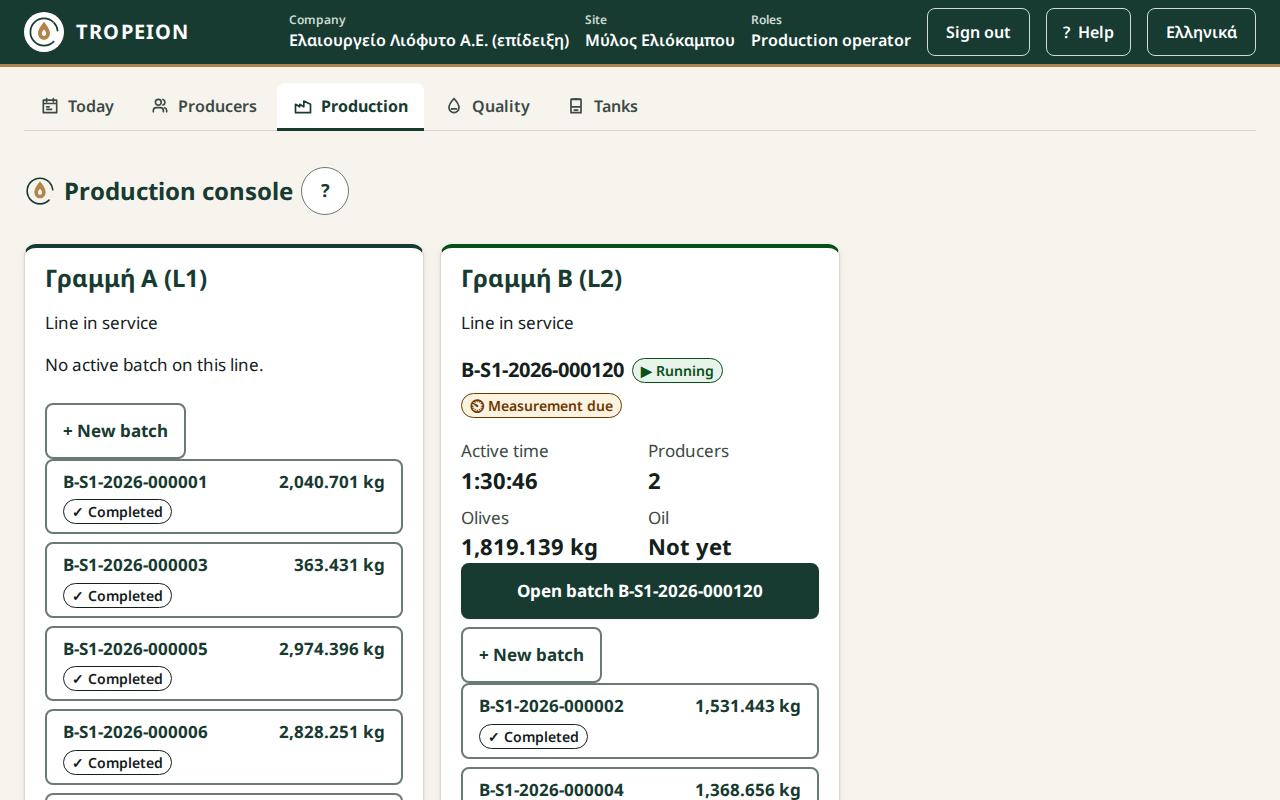
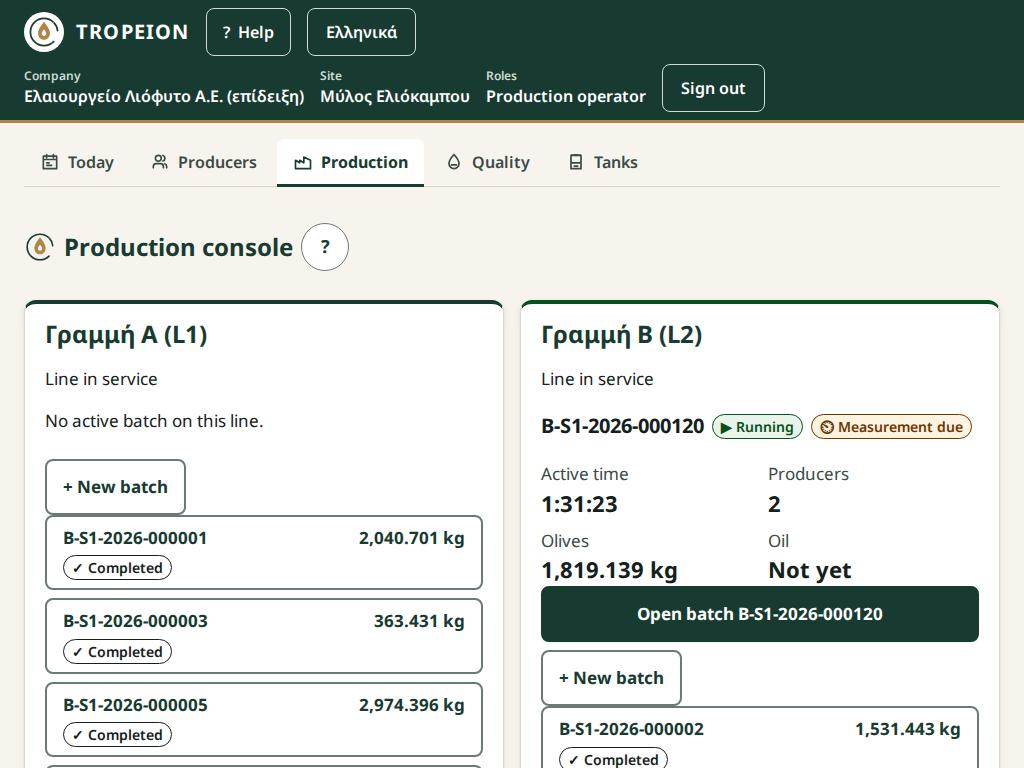
At the top is the title Production console. Below it there is one large card for each production line of the site. The list refreshes by itself about every 5 seconds while the tab is open in front of you.
Each line card shows:
- the line name and code, and its state: Line in service, Line inactive or Line under maintenance;
- the batch that is running (running or paused), with its number and state;
- an amber badge "N open warnings" if there are warnings nobody has acknowledged;
- Active time: how long the batch has worked, in hours:minutes:seconds. Pauses do not count;
- Producers: how many producers have olives in the batch;
- Olives: the kilograms of olives that went in;
- Oil: the oil recorded, or "Not yet";
- the Open batch … button for the running batch.
If the line has no running batch, it says "No active batch on this line."
Below the running batch there is a short list of the line's other batches: drafts, batches ready to start, and those completed or cancelled today. Press one to open it.
The states of a batch are:
- Draft: the batch is still being prepared.
- Ready to start: it can start.
- Running: it is working now.
- Paused: stopped for a while; the active time does not count.
- Completed: the oil and the allocation to the producers are recorded.
- Cancelled: the batch was cancelled.
On every line in service, the Production operator, the Site manager and the Central manager see the + New batch button. It opens the list of available olive lots to make a new production batch. See How to create a new batch.
If a running batch has gone a long time without a measurement, its line card shows the "Measurement due" chip.
The console is made for a tablet at the line: on a tablet held in landscape the line cards sit side by side and every button is large enough for a gloved finger.
Tour: the batch screen
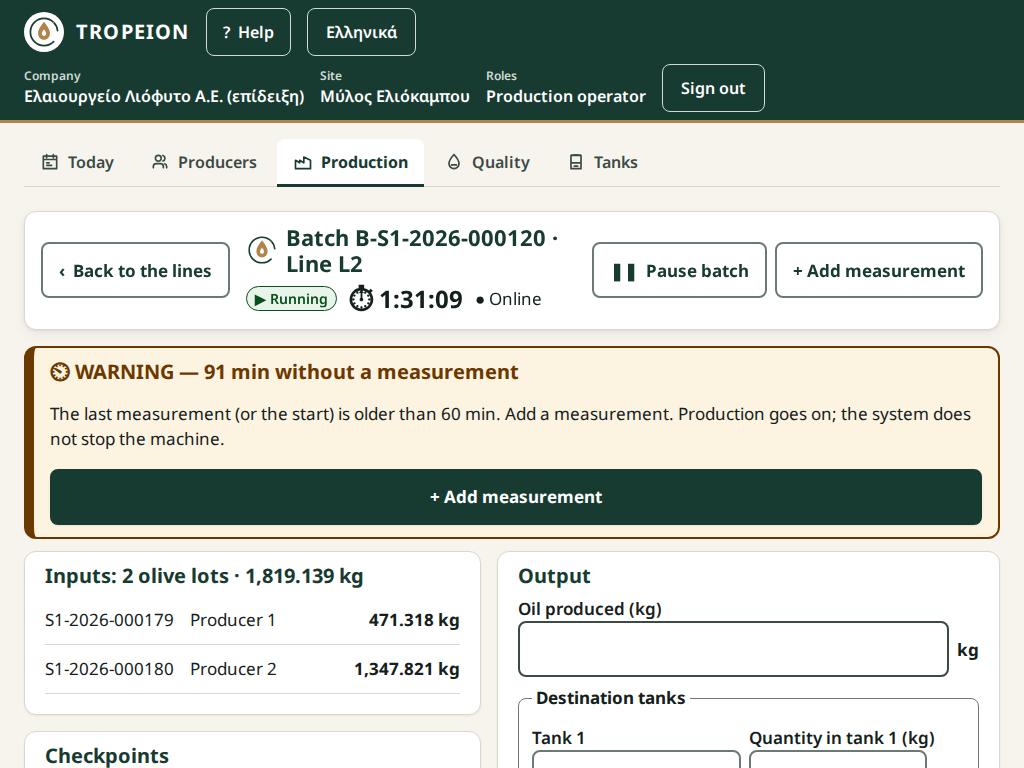
Top bar
- The Back to the lines button takes you back to the home screen.
- The title reads "Batch … · Line …".
- Next to it you see the state, the active time (updated every second) and the connection: Online or Offline. If a command is waiting to be resent, it also says "N waiting to send".
- The action buttons, depending on the state: Start batch (ready), Pause batch (running), Resume batch (paused), + Add measurement (running or paused).
- For the Site manager and the Central manager, while the batch runs, there is also More, which holds Cancel batch (manager).
Warning cards
If a measurement is out of range, a card appears at the top, for example "WARNING — Temperature above the limit", with the measured value, the limit and the time. The card says "Production and the timer go on; the system does not stop the machine." The card stays until you acknowledge it.
If the batch is running and no measurement has been written for longer than the site interval (usually 60 minutes), a card such as "WARNING — 75 min without a measurement" appears, with the + Add measurement button. It needs no acknowledgement, does not block completion and goes away once you record a measurement. Production goes on; the system does not stop the machine.
Inputs
The section "Inputs: N olive lots · kg" lists each olive lot in the production batch: its code, the producer as "Producer 1", "Producer 2" and so on (names are not shown here) and the kilograms. The Site manager and the Central manager see a Correct weight button next to each row.
Checkpoints
The Checkpoints section lists in order when each Start, Pause, Resume, Completion or Cancellation happened. If the batch has not started, it says "The batch has not started yet."
Measurements
The Measurements section lists every measurement in time order: time, type, value and unit. An out-of-range measurement has the badge "⚠ Out of range" or, once acknowledged, "✓ Out of range, acknowledged". Below it there is again the + Add measurement button.
Acknowledged warnings appear under Acknowledged warnings, with the time of acknowledgement.
Output (on the right)
While the batch runs, the Output section has:
- Oil produced (kg): the kilograms of oil that came out. Enter
0if no oil came out. - Destination tanks: one or more rows with Tank 1, Tank 2… (a choice among the active tanks) and Quantity in tank … (kg). + Add tank adds a row and ✕ removes it. Below, a line shows whether the tanks total equals the oil, or how many kilograms are left or too much.
- Byproducts (become mill property): + Add byproduct adds a row with a type and, if you want, kilograms.
Completion readiness
The Completion readiness section has:
- Blockers: what must be fixed before completion. While there is even one, completion is not possible.
- Warnings (do not block): for example an unusual yield, or warnings already acknowledged.
- Allocation preview: a table with one row per producer and agreement version, with the columns Olives, Share and Oil. The last row, Rounding residual (mill), shows the grams left with the mill by truncating to 3 decimals. It is always shown, even when it is 0.000 kg. The server computes it.
- The new blockers, in words: "Record «Πυρήνας» with kg…" (the site requires the pomace, or another byproduct, with kilograms: press + Add byproduct: Πυρήνας below the blockers, or + Add byproduct under Output, and enter the kilograms); "A destination tank would exceed its capacity…" (put fewer kilograms in that tank or split the oil); "A destination tank holds oil of another certification or harvest…" (the oil cannot be mixed with it; choose another, or an empty, tank).
- The new warnings, which need no comment and do not block: "A destination tank will be at 90 % of its capacity or more" and "Over 60 min without a measurement".
- The completion button.
After completion or cancellation
A completed batch shows "Batch completed · N oil", the tanks with their kilograms, the byproducts and the Final allocation per producer and agreement version. If the allocation was corrected, the badge "Corrected · allocation set N" appears.
A cancelled batch shows "The batch was cancelled". If it had started, it says "The olives stay consumed; no oil or allocation was recorded." If it had not started, it says "The inputs returned to their olive lots."
Buttons and actions, step by step
New batch
- On the line card press + New batch.
- In the Available olive lots list each row shows the code, the producer (number · name), the kilograms and the time received. Type a code, a name or a producer number in Search to find a lot.
- Tap every lot that goes in. Below you see "Selected N · kg".
- Press Create batch with N olive lots · kg. The batch opens Ready to start.
Each olive lot goes in whole; for part of a lot, split it first. On a Draft or Ready to start batch you can still:
- add olive lots with + Add olive lots;
- remove one with Remove next to it, writing a Reason (required); the kilograms return to the olive lot;
- cancel the batch with More → Cancel draft batch, with a reason. The olive lots become available again. You may be asked to sign in again.
See also How to create a new batch.
Start batch
- Open a batch in the state Ready to start.
- Press Start batch.
- If the olives have different certification classes (for example organic together with conventional), the Start with mixed certification window opens. Read it: the batch oil will not count as organic. Write a Comment (required) and press Acknowledge and start.
- You see "Batch … started." and the active time starts counting.
See also How to start a batch.
Pause and resume
- Press Pause batch.
- In the window, if you want, write a Pause reason (optional).
- Press Record the pause. The active time stops counting.
- To go on, press Resume batch. You see "The batch is running again."
Add measurement
- Press + Add measurement.
- In Measurement type choose what you measured. If the type has a limit, it is shown below, for example "Limit: ≤ 27 °C".
- In Value enter the number, for example
27.5. If the value is out of range, the screen says so before you save: "Above the limit: a warning will be recorded. Production goes on." - Press Record the measurement.
- If the value was out of range, a warning card appears. See the next section.
Acknowledge a warning
- On the warning card, write in Operator comment what you did or why you go on.
- Press Acknowledge and continue.
- The card goes away and the warning moves to Acknowledged warnings.
Caution: A measurement warning that is not acknowledged blocks the completion of the batch.
Complete the batch
Completion takes two presses, so that you review the allocation first.
- Enter the Oil produced (kg).
- Fill in the Destination tanks so that their total is exactly equal to the oil.
- Add byproducts, if any.
- If "Unusual yield" appears, write a Comment on the yield.
- Check that Blockers says "No blockers."
- Press Review output and allocation and look at the Allocation preview.
- The button changes to "Complete batch · N into N tanks". If you entered
0as the oil, the button reads "Complete batch with no oil · …". Press it.
If you change any value after the first press, a new review is needed. See also How to complete a batch.
Cancel a started batch (Site manager, Central manager)
- Press More, then Cancel batch (manager).
- Read what will happen: the olives stay consumed, no oil or allocation is recorded, and the cancellation cannot be undone.
- Write a Reason (required).
- Press Cancel batch …. You may be asked to sign in again.
See also How to cancel a started batch.
Correct an input weight (Site manager, Central manager)
Use it when the net weight of an olive lot was wrong. It works while the production batch runs or after it is completed.
- Under Inputs, press Correct weight next to the olive lot.
- Enter the New net weight (kg). The window shows "Weight: old → new".
- Write a Reason (required).
- Press Correct the weight of …. You may be asked to sign in again.
If the batch is completed, the allocation is not deleted: it is reversed and replaced by a new one, with the same oil quantity. The correction is allowed only on an original olive lot that was never split.
Messages and what to do
- "Offline: commands are disabled…": The device lost its connection. Production goes on as normal. Note the data and enter it when the connection is back.
- "A command was not confirmed by the server…": An action was sent but no answer came. Press Resend: …. It will not be recorded twice. If you no longer want it, press Discard: …. While it waits, completion is not allowed.
- "The request is kept with the same values; send it again.": In a window, the button becomes Resend (same request). Press it when you are online.
- "The batch changed on another device…" or "The batch state has already changed…": Someone else made a change meanwhile. Nothing was saved by your action. The screen shows what changed (state, new measurements, open warnings). What you typed is kept. Press Review and continue and try again if needed.
- "Another batch is already running on the line; complete it first.": Each line has one running batch at a time.
- "The line is not in service.": The line is inactive or under maintenance. Talk to the Site manager.
- "This action needs a fresh identity confirmation (sign in again).": For cancellation and weight correction, sign in again. After signing in you return to the same batch.
- "The server gave no preview…": Completion waits for the preview. Wait a little or press Reload the batch.
- "The batch did not refresh; the last data is shown.": Press Reload the batch.
- "Too many requests…": Wait the seconds it says and try again.
- "Your session has expired…": Sign in again. What you typed stays on the screen.
Messages about kilograms:
- "Enter a number without thousands separators, e.g. 1250.375.": Do not type a thousands separator.
- "Up to 3 decimals and 15 integer digits; the value is never rounded.": Kilograms have at most 3 decimals. The system never rounds, so enter the exact value.
- "Enter a quantity above 0 or remove the tank.", "The tank is already on another row.", "Choose a tank.": Fix that tank row.
Common mistakes
- Separators. Type
1250.375, not1,250.375. In Greek the decimal mark is a comma:1250,375. - The tanks do not equal the oil. The total must be exactly equal, to the gram. Look at the "left" or "too much" line.
- Completing while paused. Press Resume batch first.
- A warning without acknowledgement. Each warning card needs a comment and Acknowledge and continue before completion.
- Zero output. If no oil came out, enter
0. The tanks disappear, the allocation is 0 kg and the yield needs a comment.
Related How-To
- How to create a new batch
- How to start a batch
- How to complete a batch
- How to cancel a started batch
- How to record a measurement and acknowledge a warning
- Quality
How-To guides for this screen
- How to cancel a started batch
- How to complete a production batch
- How to create a new production batch
- How to record a measurement and acknowledge a warning
- How to start a production batch